


How to install Google Tag Manager in WordPress
Efficiently managing website analytics and marketing tags is crucial for tracking conversions, understanding visitors, and optimizing your WordPress site. Google Tag Manager (GTM) is a free, user-friendly tool that enables you to add, update, and organize all your tracking codes from a single, central dashboard, eliminating the need to edit your site's code each time. This guide will show you how to add Tag Manager on your WordPress site step by step, helping you streamline analytics management and gain actionable insights without complicated setup.
What Is Google Tag Manager and Why Use It in WordPress?
Google Tag Manager (GTM) is a free tool by Google that lets you manage all of your website's tracking codes, known as tags, from a single interface. Tags can include Google Analytics 4 tracking, Google Ads conversion codes, or custom snippets for remarketing and WordPress form tracking.
Instead of manually inserting separate pieces of code into your WordPress site each time you want to add tracking, GTM provides a container system. You only need to install the Google Tag Manager container code once on your WordPress website. From then on, you can add, update, or remove tags directly from the GTM dashboard without editing your theme files.
For WordPress website owners, this means more straightforward integration with tools like Google Analytics and Google Ads, fewer risks of coding errors, and more flexibility to handle complex tag configurations. By centralizing all tracking codes, Google Tag Manager enhances efficiency, streamlines website analytics, and facilitates cleaner site management.
Step 1: Set Up Your Google Tag Manager Account
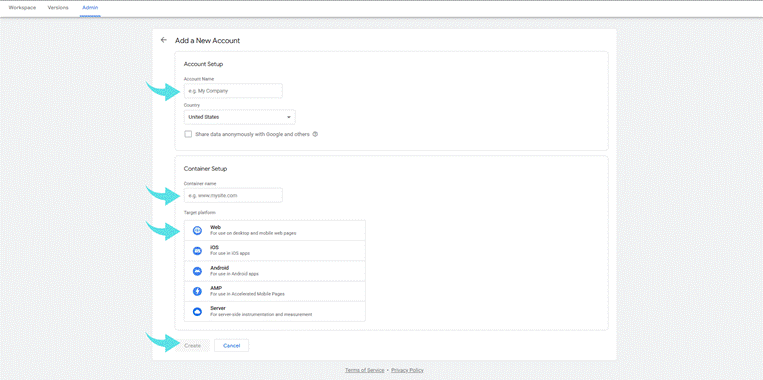
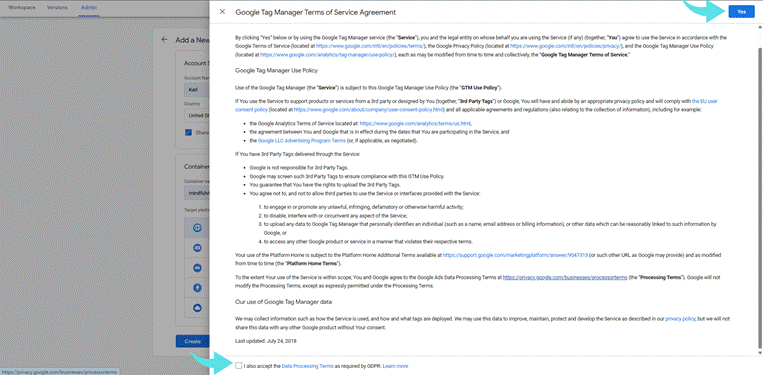
To begin, visit the Google Tag Manager website and sign in with your Google account. Create a new account setup by entering your website name and domain, then add a new container for your WordPress site. Accept the Google Tag Manager Terms of Service Agreement to proceed.
Once your account is ready, you'll see the container dashboard where you can manage all of your tags. At this stage, GTM will generate the GTM snippet you need to install.
|
|
|
|
Step 2: Get Your GTM Container Code
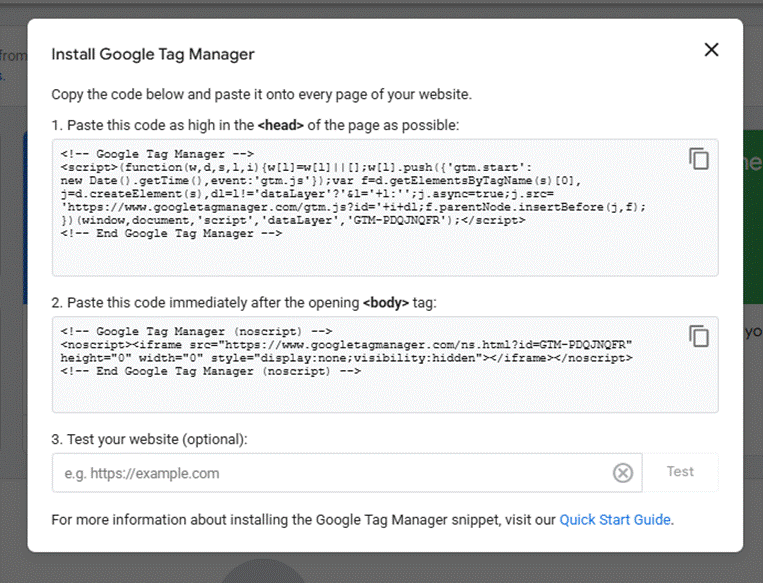
After account setup, GTM provides two pieces of code: one for the header of your site and one for the opening body tag. The Google Tag Manager code must be placed correctly on your WordPress website for tracking to function properly. The container tag ensures that every tag you add through GTM is automatically loaded on your site.
|
|
Step 3: Add GTM Code to Your WordPress Site
To implement Google Tag Manager on WordPress, you can choose between a plugin-based approach for simplicity or manually embedding the GTM container code into your theme. Before making changes, make sure your WordPress site is updated to the latest version to avoid compatibility or security issues during installation.
Option A: Install a Plugin
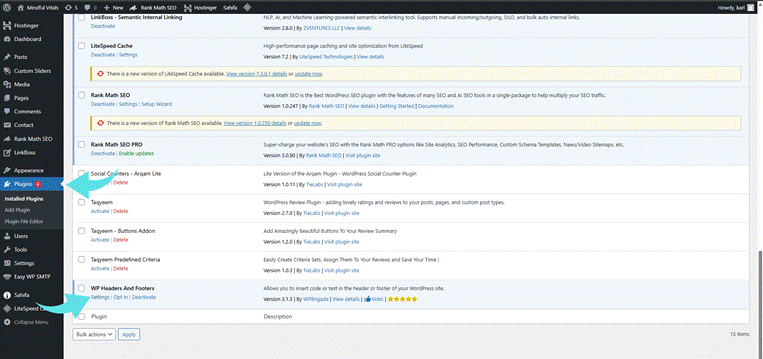
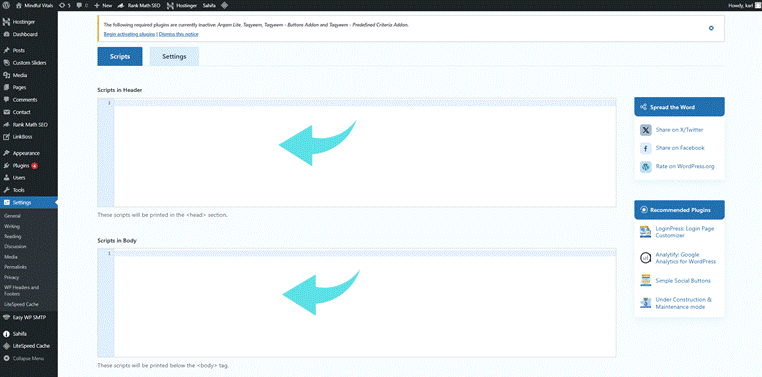
The simplest way to install Google Tag Manager to WordPress site is by using a plugin. A tag manager plugin provides fields where you can paste your Google Tag Manager container tag without touching your site’s files. Popular options include the Insert Headers and Footers plugin, the WPCode plugin, or a dedicated tool such as DuracellTomi’s Google Tag Manager for WordPress plugin. After you install and activate the plugin through your WordPress dashboard, navigate to its settings page and insert the GTM container code snippets. This ensures the code is placed correctly in both the header and the opening body tag, providing a reliable way to add tracking codes directly in your WordPress admin without editing theme files.
|
|
|
|
Option B: Manual Installation
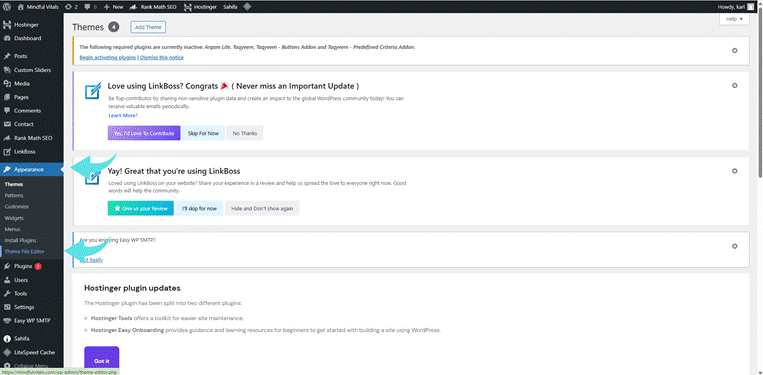
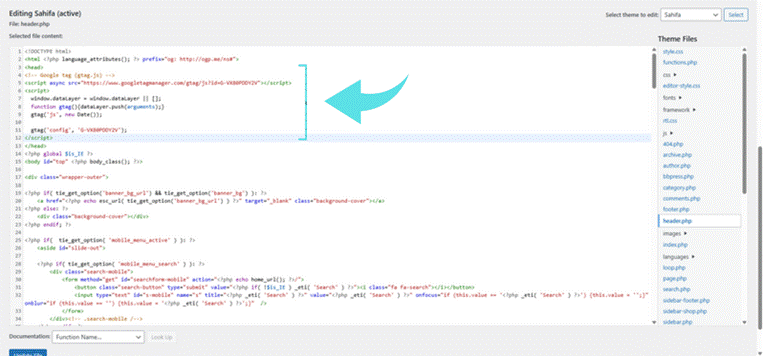
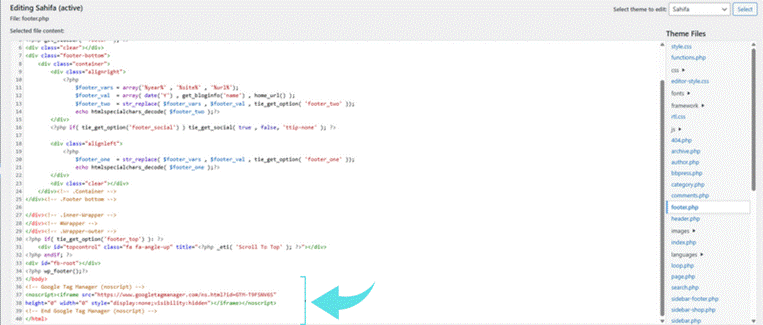
If you prefer not to install a plugin, you can manually add the Google Tag Manager code to your WordPress theme. From your WordPress dashboard, go to Appearance → Theme File Editor (or access your site files via FTP). The first snippet should be placed inside the <head> section, and the second should go immediately after the opening <body> tag. While this method works, it requires editing your theme files directly through the WordPress dashboard or FTP. Any theme update may overwrite your changes, requiring you to reapply the code. Because of this, most website owners choose plugins for long-term stability, while manual installation is better suited for developers who are comfortable editing code.
|
|
|
|
|
|
Step 4: Verify the Installation
Once you add Google Tag Manager to your WordPress site, it's important to confirm the installation is correct. Start by using GTM's Preview mode to check whether tags are firing as expected. You can also install the Tag Assistant browser extension to verify that the Google Tag Manager code is loading properly on your website.
Beyond these tools, monitor your Google Analytics account after you add Google Analytics through Tag Manager to ensure data is being collected correctly. Checking the real-time reports in Google Analytics 4 is one of the fastest ways to confirm tracking activity. Regularly reviewing your tag performance helps you catch issues early, especially if you make changes to your WordPress website or add new tracking codes.
Step 5: Integrating Tags With GTM
After installation, you're ready to add tracking codes through Google Tag Manager. A common first step is integrating Google Analytics 4 with your WordPress site. In your GTM dashboard, create a new tag, choose Google Analytics as the tag type, and enter your measurement ID.
You can also add Google Ads conversion tracking, remarketing pixels, and custom code snippets to track WordPress forms or user actions. With GTM, all of these tags can be managed from a single interface without editing your WordPress website's code. This flexibility makes it the best way to add tracking codes and integrate Google services for website analytics.
When adding tracking tags, remember that you are collecting user data. To comply with privacy regulations such as GDPR and CCPA, make sure your site includes a consent mechanism before tags fire. Many WordPress plugins support cookie consent banners and user permissions, helping website owners stay compliant while using Google Tag Manager effectively.
Troubleshooting Common Issues With GTM in WordPress
Sometimes, Google Tag Manager doesn’t track correctly due to mistakes in code placement or plugin conflicts. If tags are not firing, double-check that the container code is in both the header and opening body tag. If you’re using a plugin for WordPress, confirm the settings are correct and the plugin is active.
Another issue occurs when Google Analytics doesn’t track properly because the wrong property ID is used. Always verify your Google Analytics and Google Tag Manager account settings before testing.
Conclusion
Installing Google Tag Manager in WordPress allows website owners to manage tracking codes efficiently, integrate Google Analytics and Google Ads, and simplify website analytics. Whether you choose to add GTM using a plugin or manually through code snippets, the setup ensures you only need to install it once. From there, you can easily add, test, and manage tags without touching your WordPress site code again. For anyone looking to streamline their tracking setup, Google Tag Manager is the most effective way to add and manage tags on a WordPress website.
No comments to display
No comments to display