


How To Install Google Analytics 4 in WordPress
Google Analytics 4, also known as GA4, is the latest version of Google’s analytics platform, providing advanced tracking capabilities for both websites and mobile apps. If you run a WordPress site, integrating Google Analytics 4 is essential for monitoring website traffic, user behavior, and overall website performance. This step-by-step guide will show you exactly how to install Google Analytics 4 in WordPress using three reliable methods: a plugin, manual code insertion, and Google Tag Manager.
Set Up a Google Analytics 4 Property
Create a Google Analytics Account and Property
First, go to the Google Analytics website at analytics.google.com. If you don't have a GA4 account yet, click Start Measuring and fill in the necessary details. In the Account creation section, type your desired name to use.
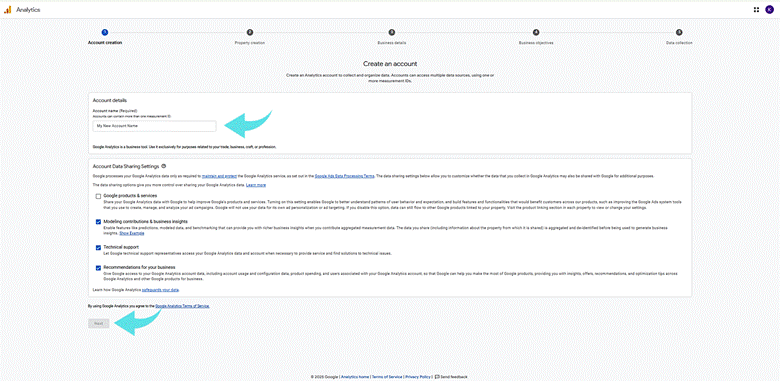
And then, in the Property section. Enter a name for your property, such as your website or business name, then select your reporting time zone and currency.
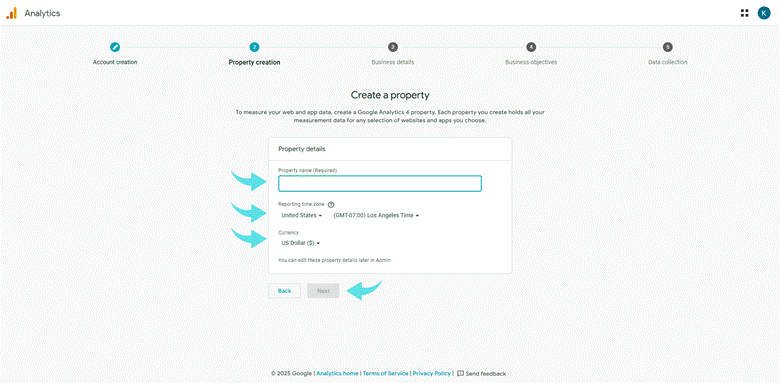
Once you have entered these details, click Next and complete the additional business information, including your industry category and business size.
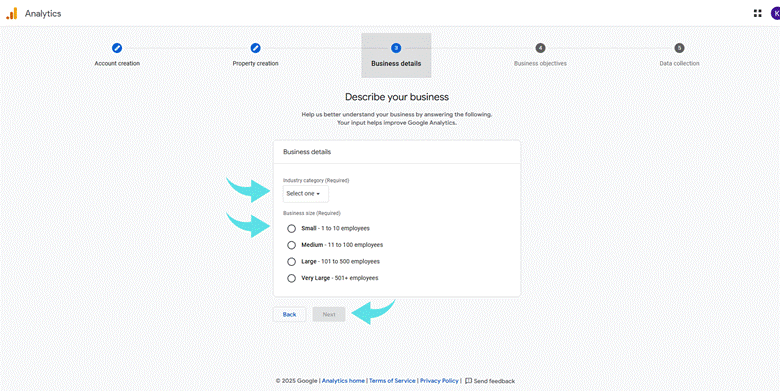
Select your business objectives or choose 'Other' to access the full reporting features. Finally, click Next to create your Google Analytics 4 Account.
Set Up a Data Stream
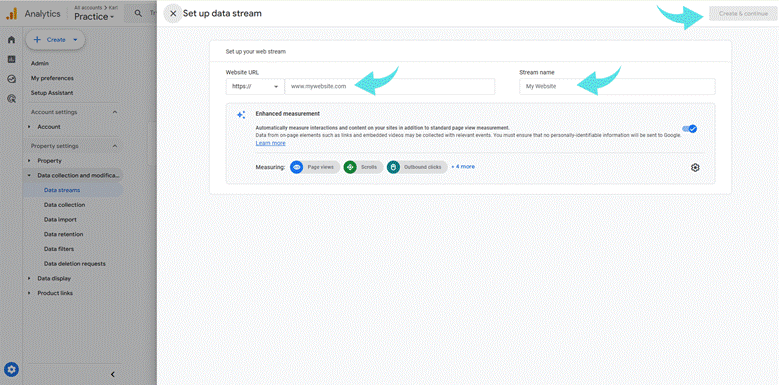
Once the property is created, you will be prompted to set up a data stream. Select 'Web' as the platform and enter your website's URL, ensuring it begins with https:// or http://. Name your stream — for example, “MySite Website.” You can also enable or adjust Enhanced Measurement settings, which automatically track events like page views, scrolls, and outbound clicks. When you're finished, click Create and Continue.
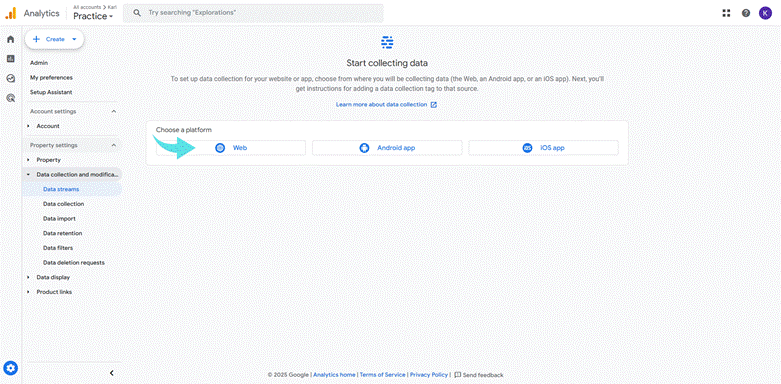
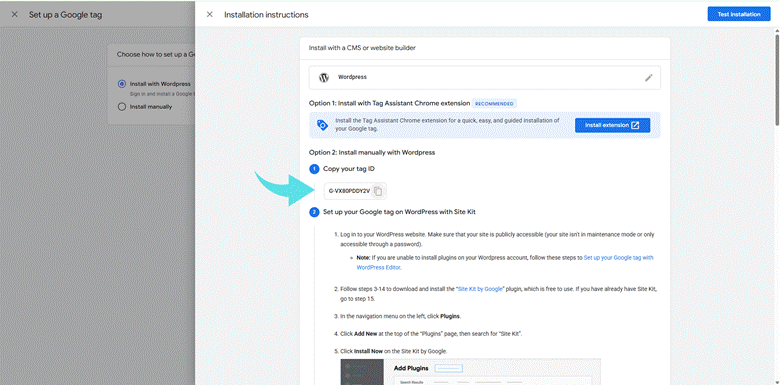
After creating the data stream, your Web Stream Details page will display your unique Measurement ID (which starts with "G-" followed by letters and numbers). Copy this Measurement ID, as it will be needed to connect Google Analytics to your WordPress site.
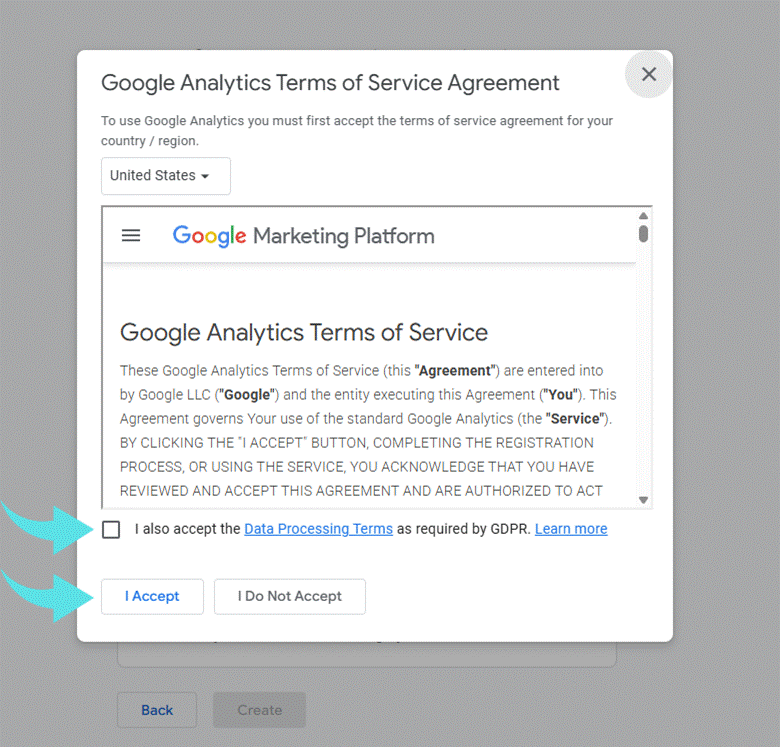
Throughout this process, be sure to review and accept the Google Analytics Terms of Service when prompted to complete your setup. Following these steps will ensure your website is correctly connected to Google Analytics 4 and ready to collect valuable visitor data.
Choose a Method to Add Google Analytics 4 to WordPress
There are three primary methods for installing Google Analytics 4 in WordPress: using a plugin, manually adding the tracking code, or integrating with Google Tag Manager. Each option suits different levels of technical experience and site needs.
Install Google Analytics 4 Using a WordPress Plugin
The easiest method for most users is to use a WordPress plugin. Several plugins support GA4 integration, simplifying the setup process through your WordPress dashboard.
To begin, log in to your WordPress admin area. Go to “Plugins” and click “Add New.” Search for a trusted plugin that supports the new Google Analytics 4, such as Site Kit by Google or Google Analytics 4 by Google. Click “Install Now” and then “Activate.”
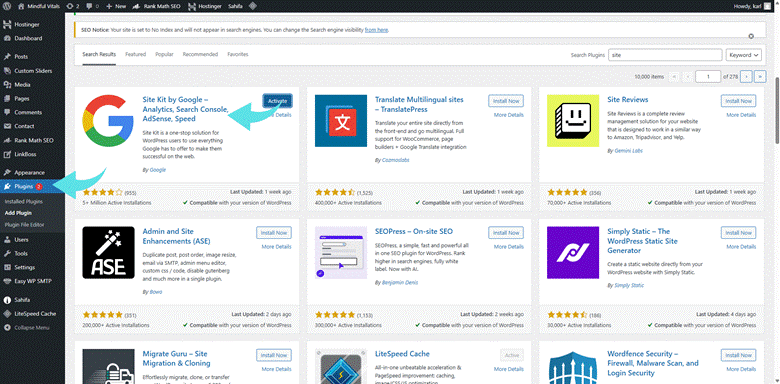
Once the plugin is active, navigate to its settings within your WordPress dashboard. You'll usually be asked to sign in with your Google account and connect your GA4 property. Paste your GA4 tracking code or select your Google Analytics 4 property directly from the interface.
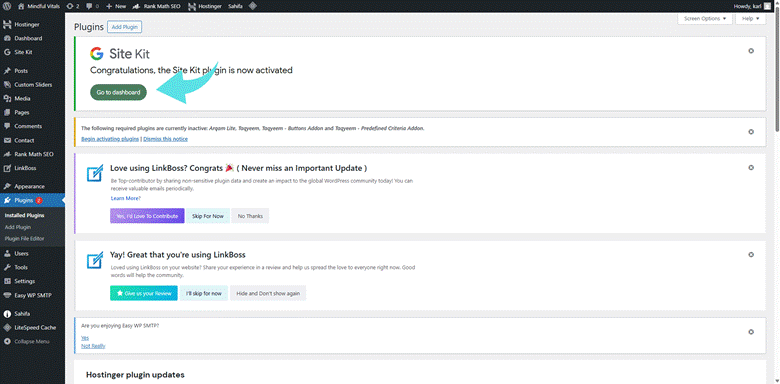
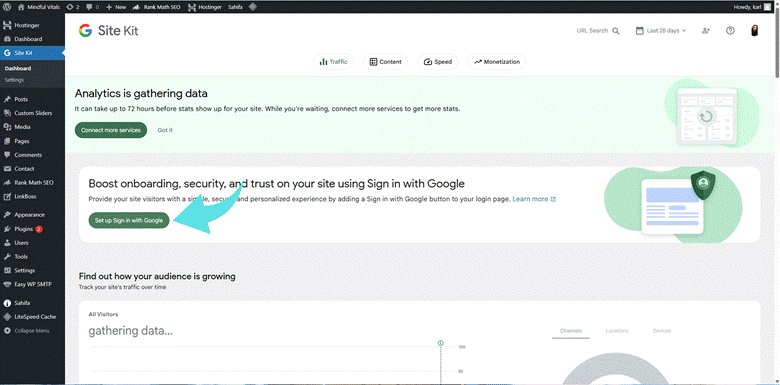
Some plugins offer additional options, such as enabling enhanced measurement or viewing the analytics dashboard directly within your WordPress dashboard. After connecting, test the setup to make sure GA4 is collecting data.
Manually Add GA4 Tracking Code Without a Plugin
If you want to add Google Analytics 4 to your WordPress site without using a plugin, you can do it by manually inserting the GA4 tracking code into your theme files. This method is straightforward and gives you direct control over how Google Analytics 4 is loaded on your site.
Start by logging into your Google Analytics account. From your Google Analytics 4 property, go to Admin, then click on Data Streams and select your web data stream. Copy the global site tag (gtag.js), which contains your GA4 Measurement ID. This is the tracking code that connects your site to Google Analytics 4.
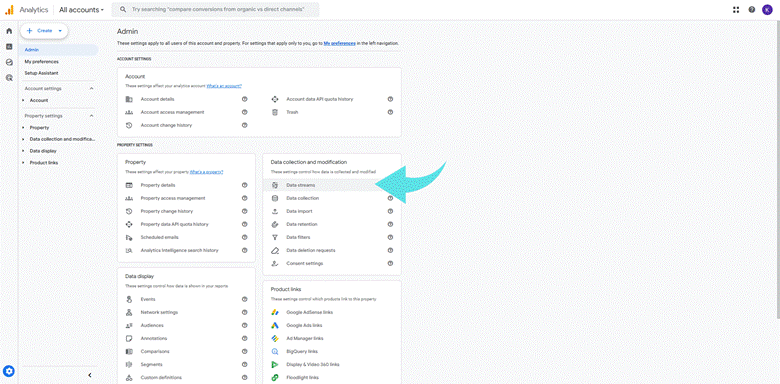
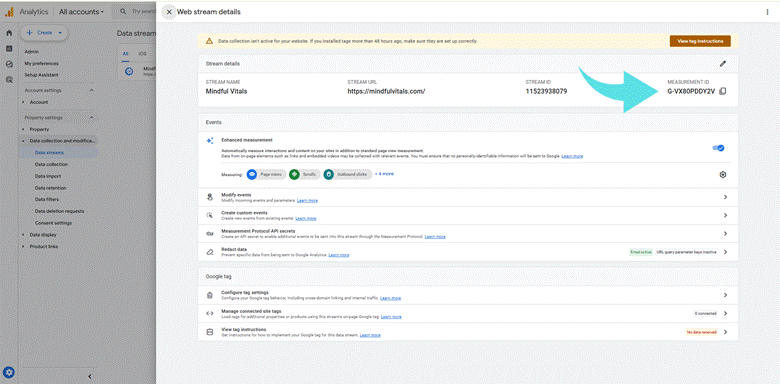
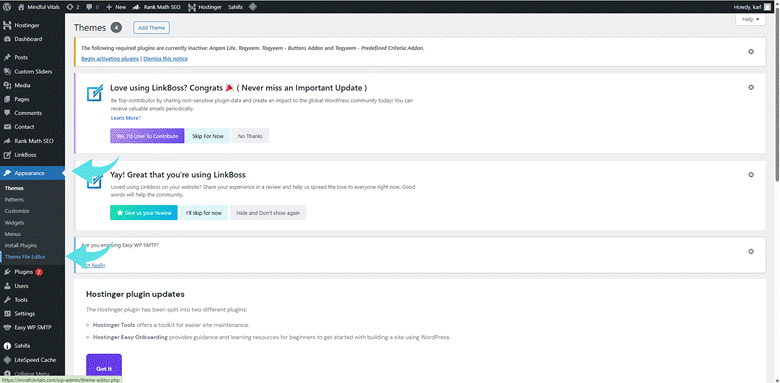
Next, log in to your WordPress dashboard and navigate to Appearance > Theme File Editor. From the list of theme files on the right side, select header.php. This file controls the code loaded in the <head> section of your WordPress website.
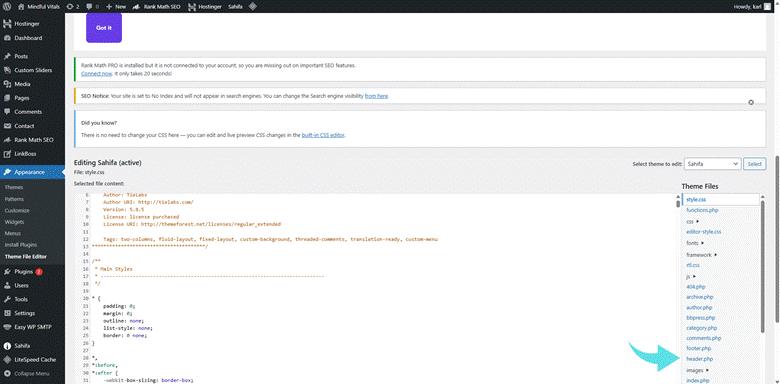
Paste the entire GA4 tracking code directly above the closing </head> tag in the header.php file. This ensures that the Google Analytics 4 script is loaded on every page of your website when a visitor arrives.
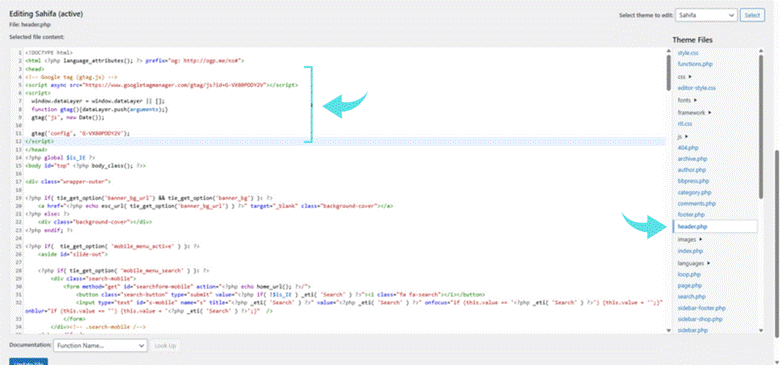
After placing the code, click Update File to save your changes.
If you're using a theme that offers a built-in field for adding scripts to the <head> section (available in some theme settings or frameworks), you can paste the GA4 code there instead. This is still considered a manual method and may help keep the tracking in place during theme updates.
Manually adding the GA4 tracking code without a plugin ensures a lightweight and direct connection between your WordPress site and your Google Analytics 4 property, giving you immediate access to website traffic insights through the Google Analytics platform.
Use Google Tag Manager to Add GA4 to WordPress
For users who prefer complete control over their tracking setup without relying on a plugin, manually adding Google Tag Manager is an efficient way to install Google Analytics 4 in WordPress. This approach is beneficial if you plan to manage multiple tags or track custom events across your WordPress site.
Begin by creating a Google Tag Manager account through your Google account. Inside the dashboard, set up a new container and select "Web" as the target platform for your WordPress website. 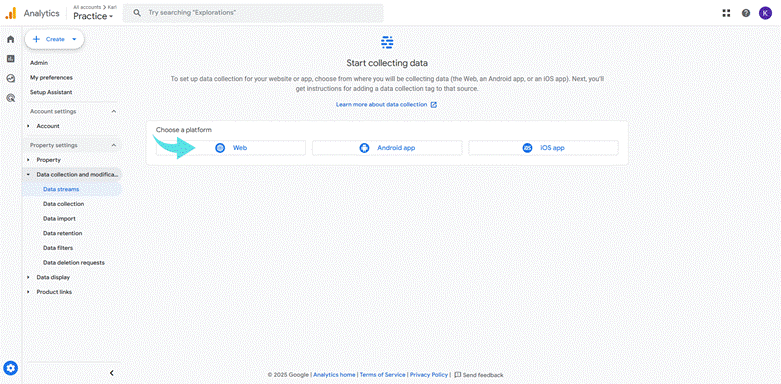
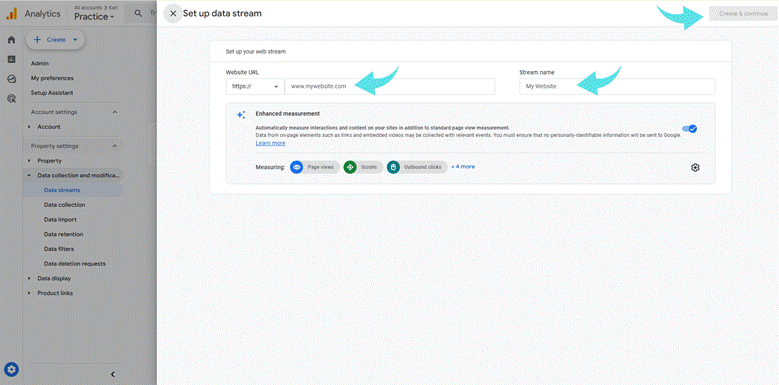
Once the container is created, Google Tag Manager generates two code snippets: one for the <head> section and one for the <body>.
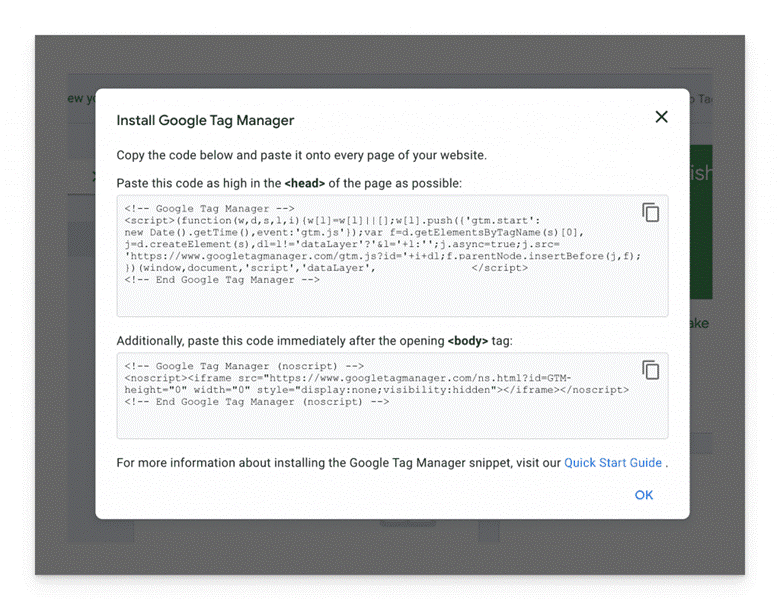
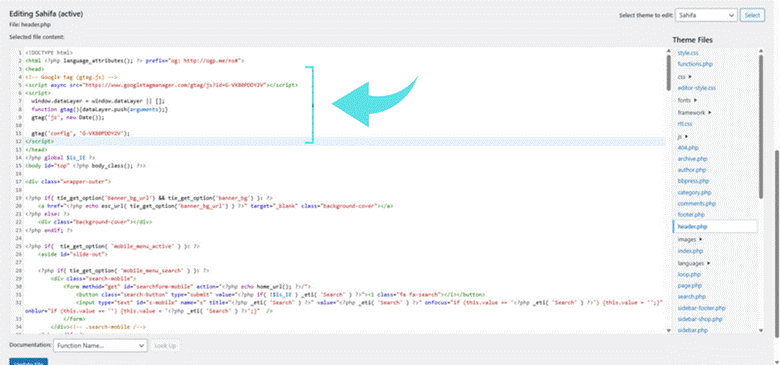
To install these manually, go to your WordPress admin panel and navigate to "Appearance"> "Theme File Editor.” Open the header.php file and paste the first container code snippet immediately before the closing </head> tag.
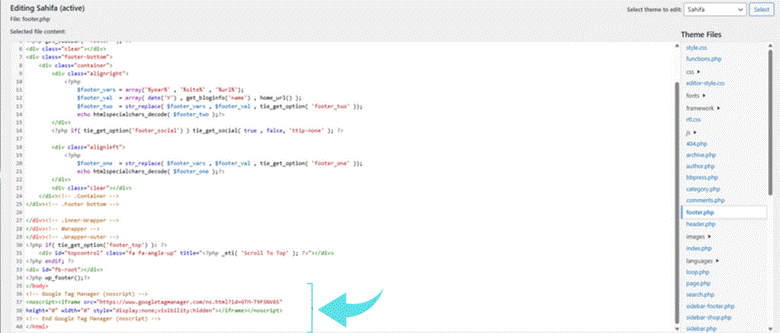
Then, open the footer.php or another appropriate template file and insert the second snippet right after the opening <body> tag. Save the changes to apply the container to your site.
After the container is active on your WordPress site, return to your Tag Manager dashboard to configure the Google Analytics 4 (GA4) tracking. Create a new tag and select "Google Analytics: GA4 Configuration” as the tag type. Enter your GA4 tracking code (Measurement ID) obtained from your Google Analytics 4 property.
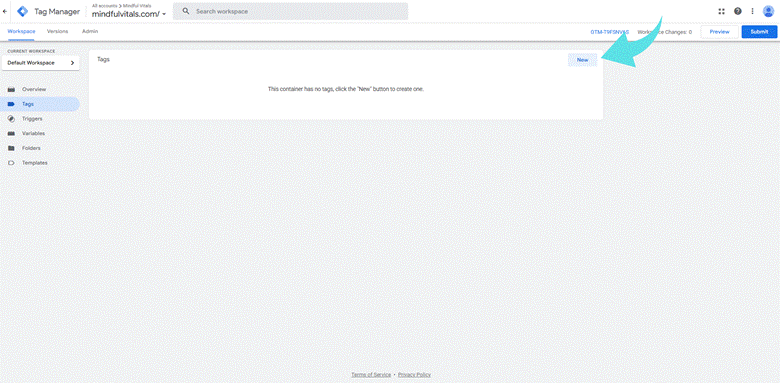
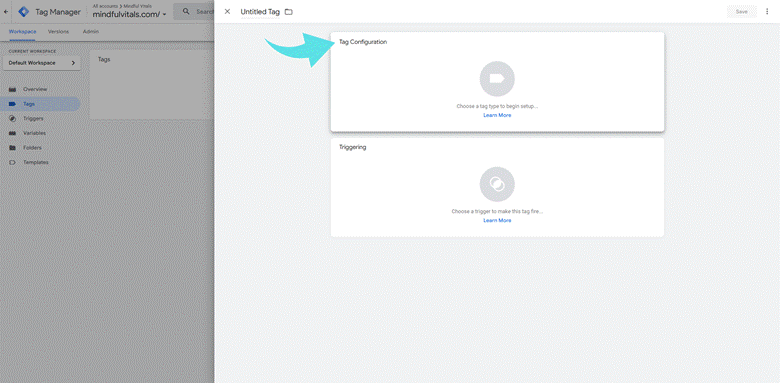
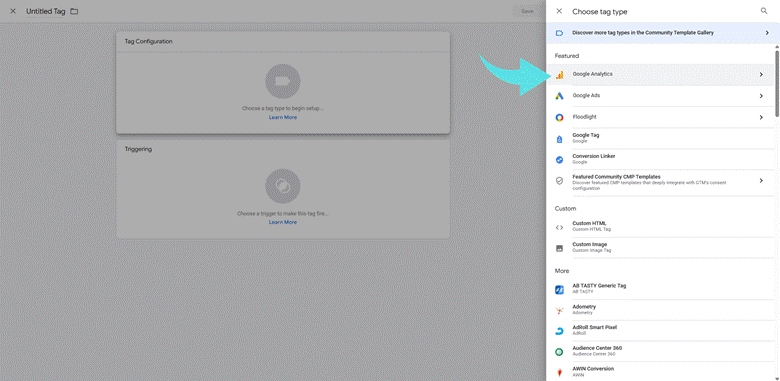
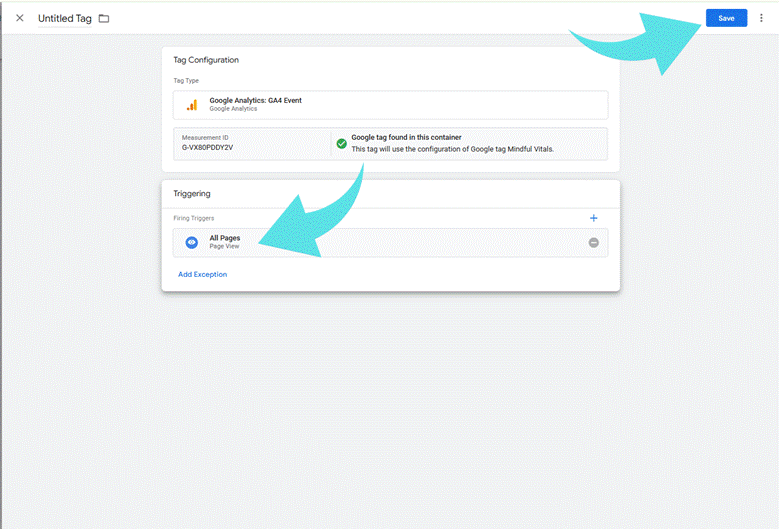
Set the trigger to "All Pages" to ensure that the GA4 tag fires on every page of your site. Once configured, click “Save" and publish the container.
By manually placing the Google Tag Manager code into your WordPress theme, you can integrate Google Analytics 4 with WordPress without the need for any additional plugins. This setup allows you to connect GA4 to your site efficiently while keeping complete control over your analytics tags and ensuring accurate analytics tracking code deployment across your entire website.
Verify That GA4 Is Working on Your WordPress Site
After completing the installation, it's essential to verify that your GA4 tracking is active. Log in to your Google Analytics 4 property and open the analytics dashboard. Visit your WordPress site in a new browser tab and check the “Real-time" report.
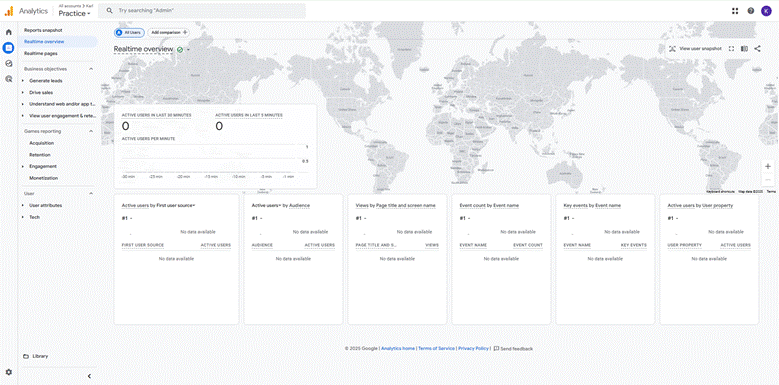
If your visit is successful, your installation is complete. If not, double-check that the tracking code or plugin was correctly implemented. You can also use the Google Tag Assistant or Chrome's developer tools to inspect whether the GA4 script is loading correctly.
Conclusion
Installing Google Analytics 4 in WordPress is crucial for accurately tracking user behavior and measuring your website’s performance. Whether you use a WordPress plugin, manually insert the GA4 tracking code, or set it up through Google Tag Manager, each method ensures your analytics platform begins collecting valuable data.
If you have the technical confidence, we recommend using the manual method to avoid unnecessary plugins. Fewer plugins typically result in better site performance and fewer compatibility issues. However, for users who prefer a simpler setup, a plugin remains a reliable and effective option.
With Google Analytics 4 properly connected to your WordPress website, you'll have the data needed to monitor traffic, improve user experience, and make informed, data-driven decisions for your business.
No comments to display
No comments to display