


Setting Up Supabase via Command Line
For developers and teams who prioritize automation, version control, or deployment on remote servers, the command-line approach provides flexibility and repeatability. Using Docker and Docker Compose directly allows you to manage Supabase stacks efficiently and integrate the process into scripts or CI/CD pipelines.
Step 1. Install Docker and Docker Compose
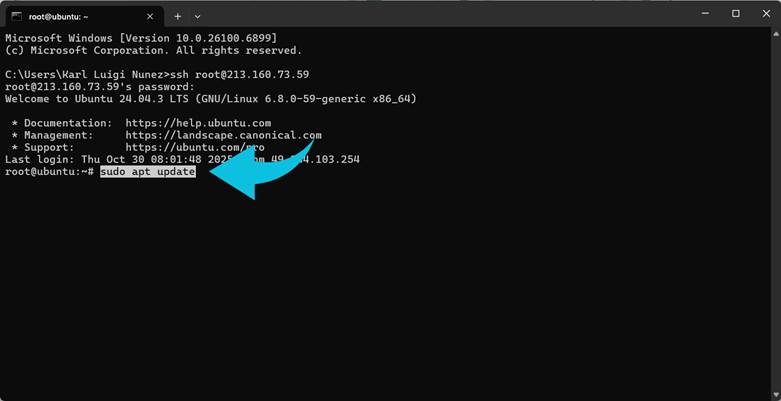
● Linux:
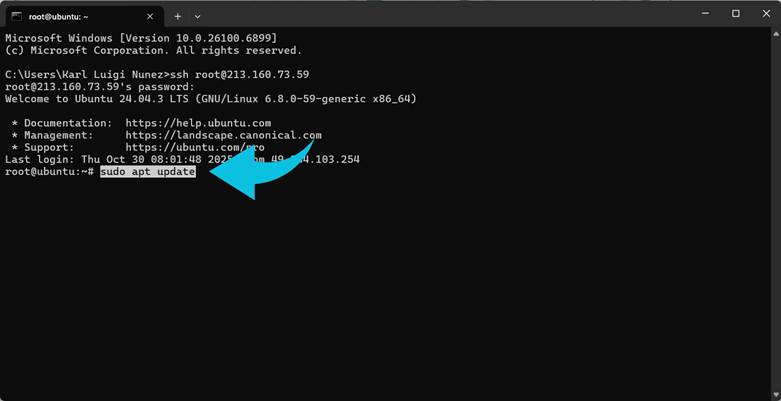
sudo apt update
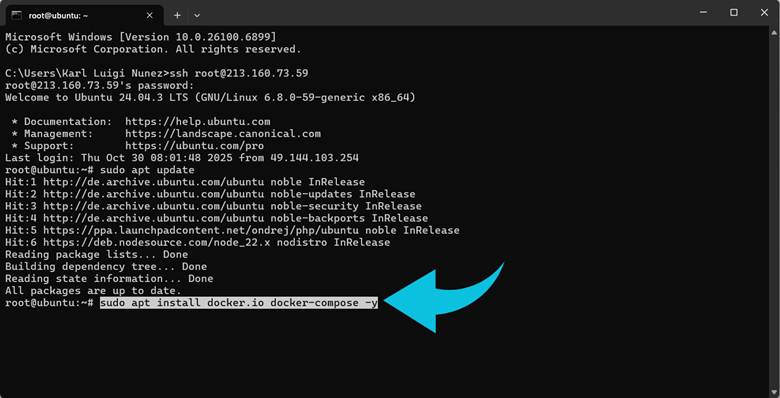
sudo apt install docker.io docker-compose -y
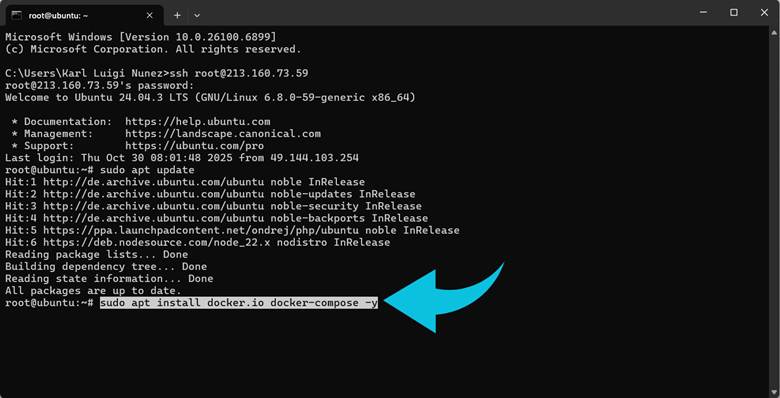
● Windows/macOS: Docker Desktop includes both tools, so no additional installation is needed.
Verify Docker is running before proceeding.
Step 2. Clone the Supabase Repository
git clone https://github.com/supabase/supabase.git
cd supabase/docker
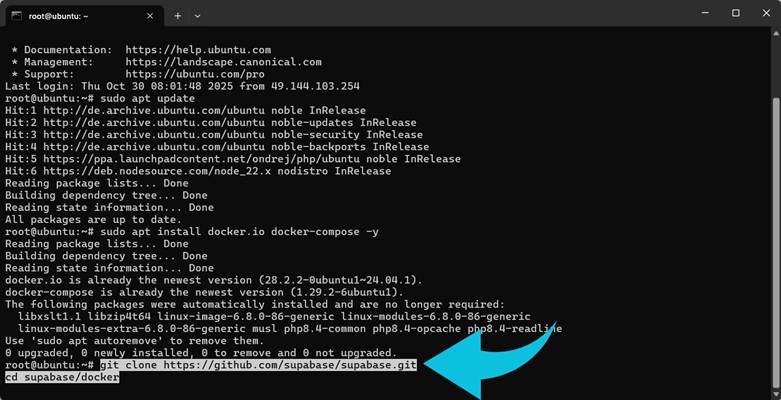
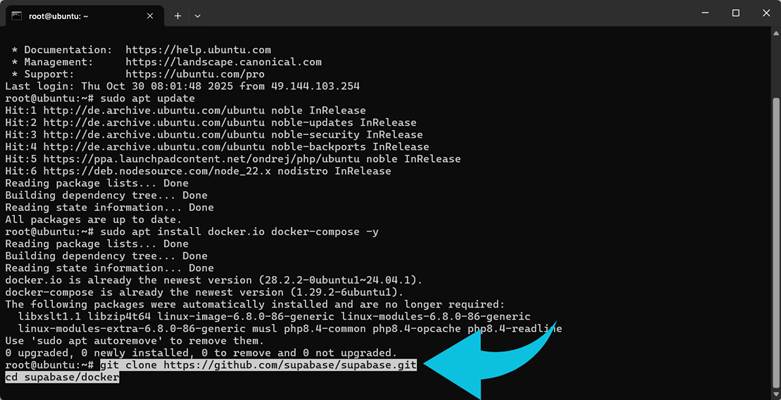
This repository contains the docker-compose.yml configuration defining all core services: PostgreSQL, APIs, authentication, Realtime, storage, and Supabase Studio.
Step 3. Configure Environment Variables
Copy the example environment file and customize it:
cp .env.example .env
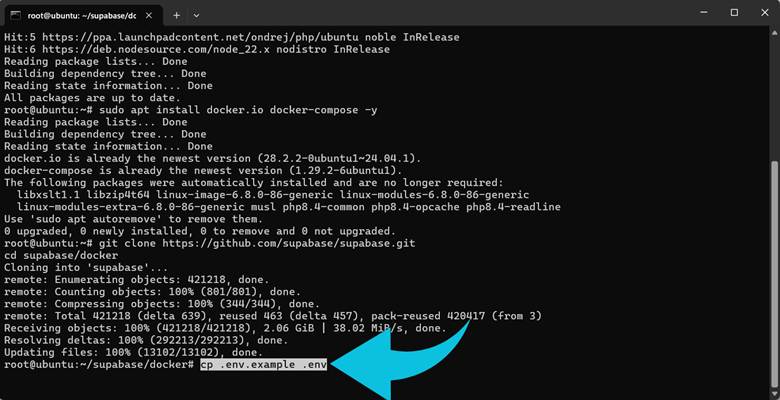
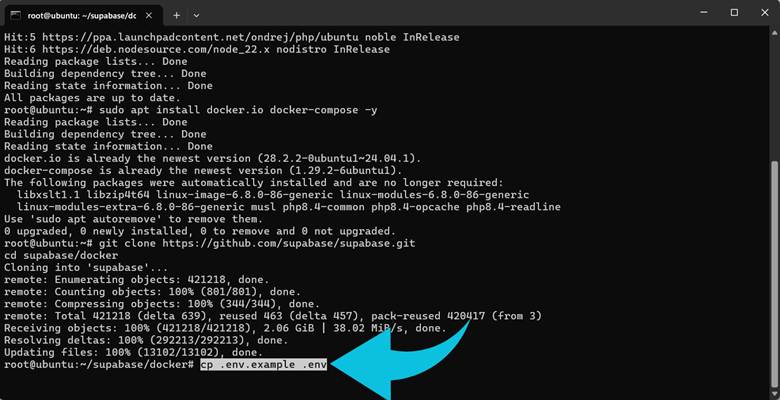
Edit .env to set your credentials and keys:
● POSTGRES_PASSWORD: PostgreSQL database password
● JWT_SECRET: authentication token secret
● ANON_KEY and SERVICE_ROLE_KEY: API access keys
Properly securing these values is critical, especially in production environments.
Step 4. Launch Supabase
Start the services in detached mode:
docker compose up -d
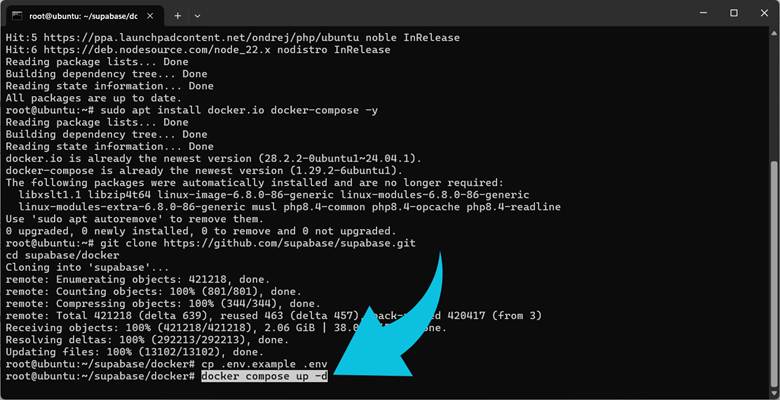
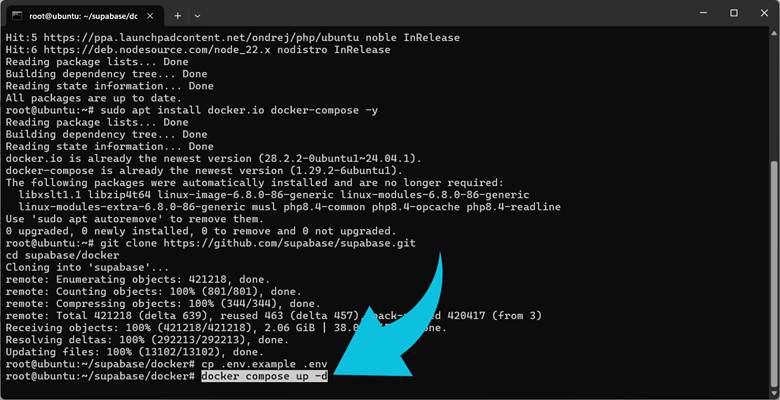
Docker Compose pulls all necessary images and runs the containers, including database, authentication, Realtime, API, and Studio.
Step 5. Verify and Access the Platform
Check that all containers are running:
docker ps
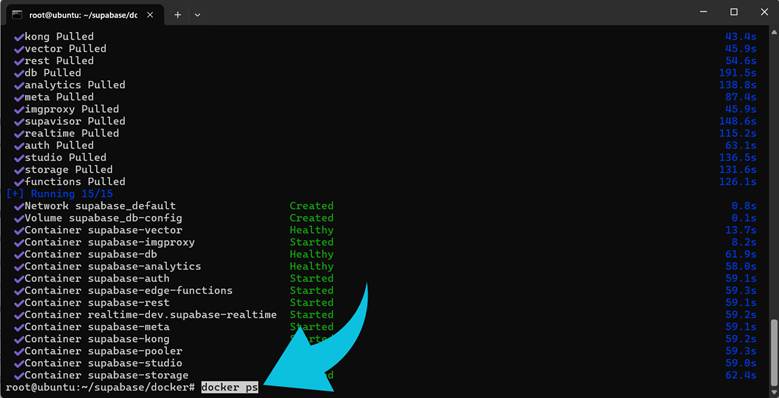
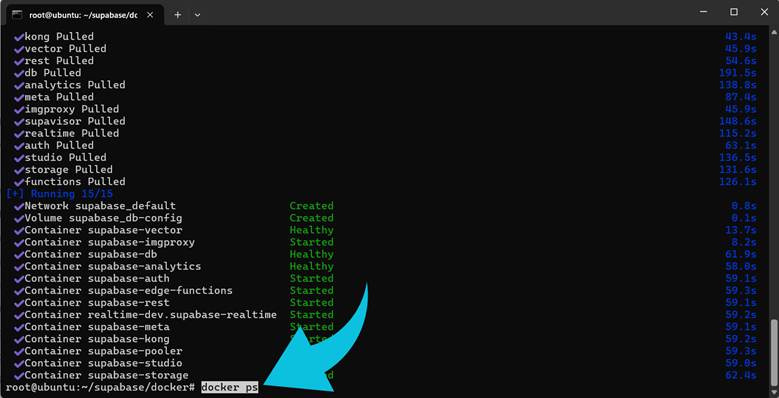
Then open Supabase Studio in your browser:
http://localhost:3000
You now have full access to your self-hosted backend.