


Setting up Microsoft Outlook Express with POP3 protocol
Create a mailbox! (How to create E-mailbox in cPanel?)
After creating the mailbox, in the cPanel interface, under under Email Accounts in the the Mail box, scroll down to to Email Accounts and click click Set Up Mail Client. cPanel will display the information required for setup.
If you want to use the mail.yourdomain.tld server in the description, replace it with your own domain name.
If you want to use the hostingID.loginssl.com server, enter your cPanel username instead of hostingID.
ADD A MAILBOX
After installing and starting the program, you can use the the Internet Connection Wizard to set up your mailbox.
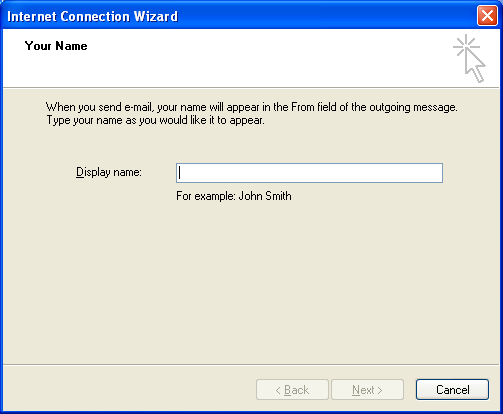
Internet Connection Wizzard – Name
As a first step, enter your name, you can enter anything here, but it is advisable to enter an identifier, a name with which those to whom you will send a letter can identify you. So this name will be seen as the sender by those who receive an email from you.
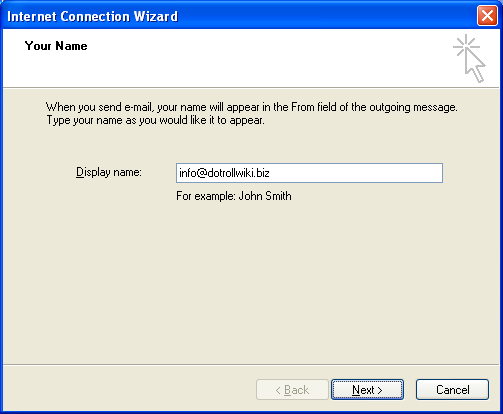
Internet Connection Wizzard – Your Name
You will then need to enter the email address you created in the cPanel interface.
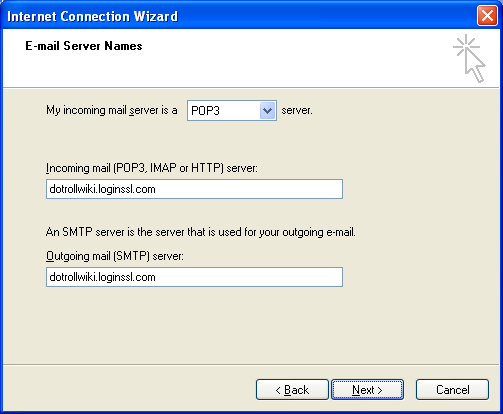
Internet Connection Wizzard – POP3 Connection
If you click click Next, you have the option of specifying the the Incoming mail (POP3, IMAP, or HTTP) server and the the Outgoing mail (SMTP) server. For For POP3 mail, both Incoming and Outgoing mail servers will be as follows:
hostingID.loginssl.com
You must enter your hosting ID, which is the same as the username for the cPanel interface, before the address ending in .loginssl.com in the image and above. To view your cPanel login at https://admin.dotroll.com, follow these steps:
- After logging in, click Services / My Services in the Top menu bar.
- On the page that appears, click the Active button at the end of the hosting service line for that domain name.
- In the middle of the page, under the Hosting Information tab, you will find the cPanel user name.
After entering the information, click Next.
The next step is to enter the email address associated with the mailbox and the password set for it.
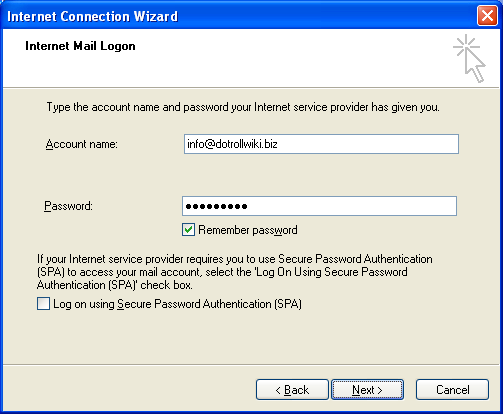
Internet Connection Wizzard – Account login name and password
In the Account Name field, enter the the full email address created in the cPanel interface. In the password field, enter the password that you set for the affected mailbox.
When entering the password, make sure that the password can contain uppercase and lowercase letters as well as numbers. Check Check Remember password.
Do not select the the Log on using Secure Password Authentication option in the window.
After entering the information, click click Next.
On the next page, the the Wizard congratulates you. Click Click Finish to successfully set up your email address.
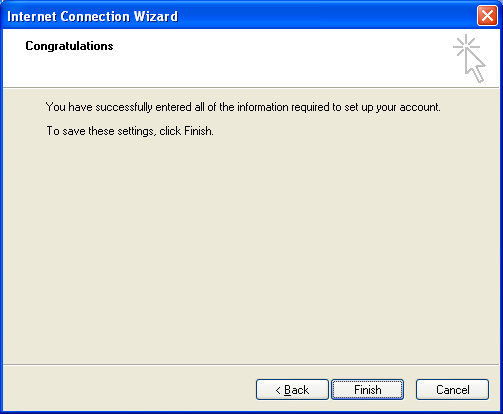
Internet Connection Wizzard – Finish
CHANGE MAILING SETTINGS
After that, Outlook Express starts. After startup, click click Tools / Accounts… in the top menu bar.
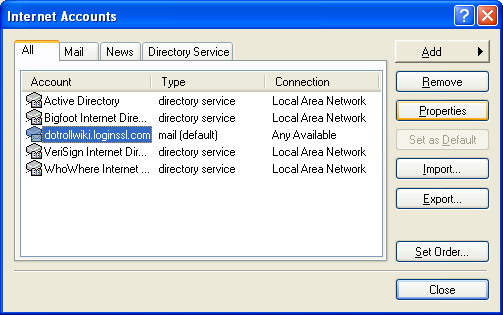
Internet Accounts window
In the the Internet Accounts window, select the server you just specified.
Tip: Clicking the Mail tab displays only the servers used for mail.
After selecting, click the the Properties button.
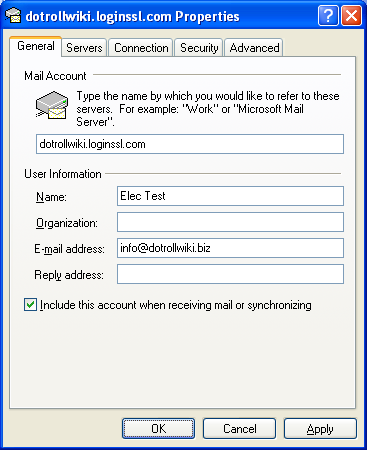
Mailbox Properties – General tab
Clicking the the Properties button will accept the the General tab. Here you can enter another name, e-mail address, reply e-mail address. Alternatively, you can rename the account here to better identify it.
The The Servers tab is important, here you can check the most important components of your account settings.
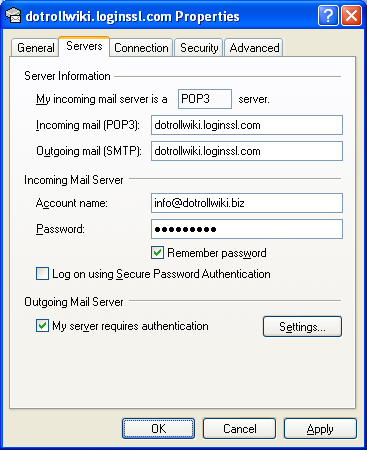
Mailbox Properties – Servers tab
Incoming (POP3) mail server, Outgoing (SMTP) server, and account name and password.
In the the Outgoing Mail Server section, select the the My server requires authentication check box before the line.
Then click the the Settings… button that becomes active.
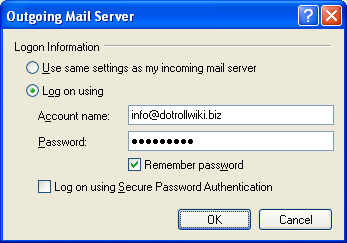
Outgoing Mail Server – Log on parameters
By default, the first radio button is selected. Use same settings as my incoming mail server, you must change this to to Log on using and re-enter the email address and password for the mailbox. Check Check Remember password.
Do not select the the Log on using Secure Password Authentication option in the window.
After entering the information, click click OK.
CHANGE ADVANCED SETTINGS
After the pop-up window closes, click the the Advanced tab
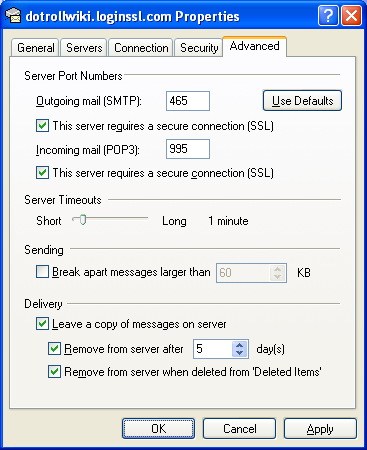
Mailbox Properties – Advanced tab
On the Advanced tab, you need to make the following settings:
- Check the box next
toto This server requires a secure connection (SSL). - Server ports should be set
toto 465forfor Outgoing mail (SMTP)andand 995forfor Incoming mail (POP3).
On this tab you have the option to keep the mails on the server.
Please note that if you also store your mail on the server, the mail stored above will take up storage space in your email account, so there may even be a situation where your storage space is full!
The settings can be saved by clicking clicking OK.