


Creating and editing a file via cPanel internal File Manager
You can create a file through FTP or SSH, and you can access the descriptions below through the following links:
The following description is just an example of how to create or modify a file with cPanel’s built-in File Manager. Following the description, make sure you create the file at the right place. If you modify it, edit the file you want.
CREATE A FILE
You can create a new file in two ways:
-
VIA ONLINE INTERFACE
- Sign in
toto https://admin.dotroll.com - Then, in the top menu bar,
clickclick Services - Select the hosting service that is associated with the domain
namename Addon domainoror Alias - On the page that appears, in
thethe Manage Resourceselectselect File Manager. - After loading, select the document_root folder for the domain name that you want to create the file for. You can access each folder by clicking on the folder name.
- Next, click on
thethe Create new file - In the popup window that appears, under
thethe File Namethethe Create
- Sign in
-
VIA CPANEL INTERFACE
- Log in to the cPanel interface.
- Find and click
onon File Managerthethe Files - In the upper right corner, click
thethe Settings - Select the home directory of the affected domain, then
selectselect Show Hidden Files (dotfiles)thethe Save - Click
thethe File - Under
thethe New filename:clickclick Create New File
MODIFY A FILE
Unfortunately, direct editing of files is only possible with the cPanel interface.
- Log in to the cPanel interface
- Find and click
onon File Managerthethe Files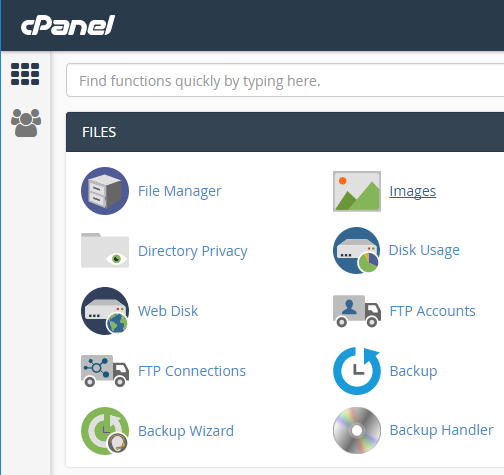
- In the upper right corner, click
thethe Settings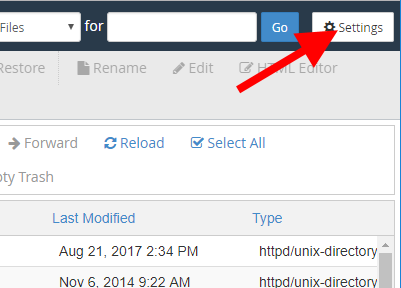
- Select the home directory of the affected domain, then
selectselect Show Hidden Files (dotfiles)thethe Save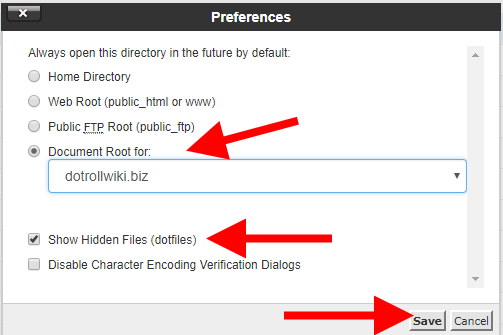
- Find the document_root folder for that domain name and include the file you want to edit, right-click and
selectselect Edit.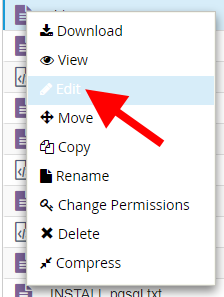
- Click
thethe Edit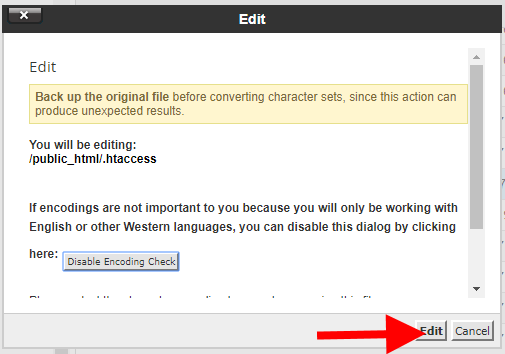
- In the editor that opens, make the necessary changes
- Lastly, save your changes to the word editor by using
thethe Save Changes button in the upper right corner.