


When the Elementor editor fails to load as expected, it can disrupt your workflow and make even simple updates difficult to complete. Instead of guessing what might be causing the issue, there is a built-in way to access the editor in a more stable environment.
In this guide, you will learn the exact steps to enable and use Safe Mode in Elementor.
What Safe Mode Does
Safe Mode runs the Elementor editor in a simplified setup, isolating it from themes, plugins, and other external influences. This creates a stable environment where the editor can load without interference.
It doesn’t affect your live website. It’s only for troubleshooting, so you can test whether the issue is caused by Elementor itself or by another conflict.
How your WordPress hosting is configured can also influence how smoothly the editor loads, especially when multiple elements are involved. By narrowing down what is active, it becomes easier to understand how the editor behaves on its own.
Step 1: Access Elementor Tools
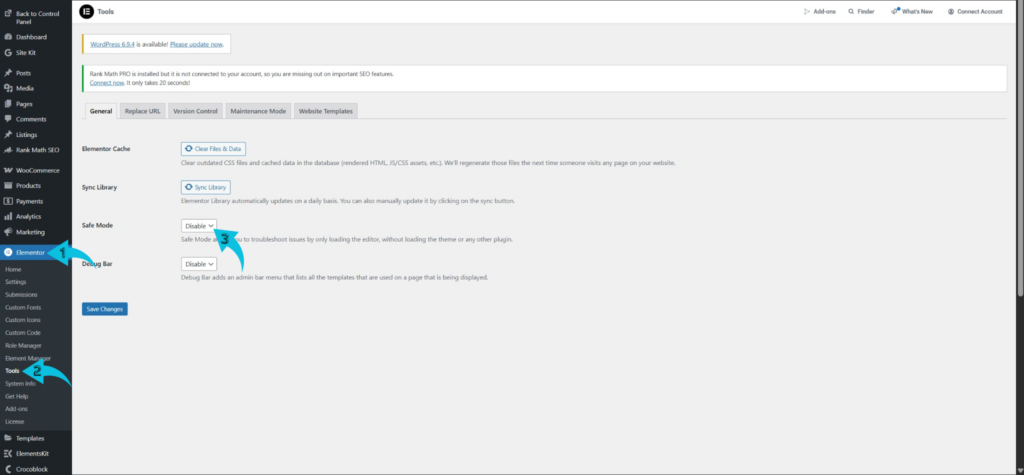
Start by logging in to your WordPress dashboard, where you manage your website settings. From the left-hand menu, navigate to Elementor and click on Tools. This section contains built-in utilities that support Elementor’s functionality. It is also where you can enable Safe Mode.
Step 2: Enable Safe Mode
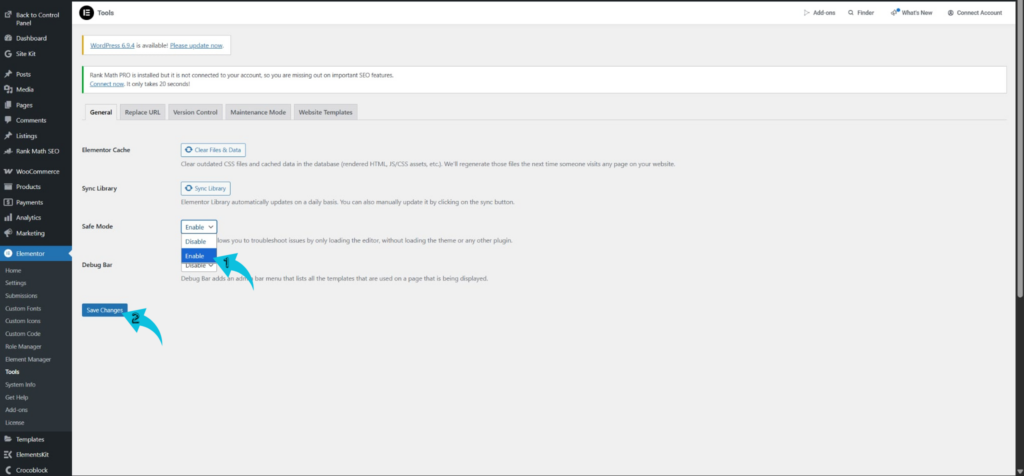
Inside the Tools section, locate the Safe Mode option. Select the option to enable it, then click Save Changes to apply the change. This prepares Elementor to run in a simplified environment when the editor is opened. The setting remains active until you choose to disable it.
Step 3: Open the Elementor Editor
After enabling Safe Mode, go to any page or post you want to edit. Click Edit with Elementor to launch the editor. The page will automatically load in Safe Mode. This allows you to access the editor without interference.
Step 4: Confirm Safe Mode is Active
Once the editor loads, check for a Safe Mode notice within the interface. This message confirms that Safe Mode is currently active. It usually appears clearly within the editor workspace. This ensures you are working inside an isolated environment.
Step 5: Use Safe Mode for Testing
With Safe Mode active, interact with the editor as you normally would. Check if the issue you encountered still appears. This helps determine whether the problem is related to Elementor itself. It also lets you review how your website design elements behave in isolation, making it easier to maintain a more consistent, personalized look. It provides a clearer view of how the editor performs on its own.
Conclusion
Using Elementor Safe Mode gives you a clear way to access the editor when issues prevent it from loading properly. Instead of relying on the standard environment, you can open the editor in a controlled setup that eliminates external interference and maintains a stable experience. From enabling it in the Tools section to accessing it through the error screen, each step helps create a more reliable editing workflow. When used correctly, Safe Mode allows you to work efficiently while containing potential issues.
The process remains simple, and even small checks can help you understand how the editor behaves on its own. At the same time, how you use Safe Mode can influence how quickly you identify and manage issues within your site. With the right approach, you can maintain a smoother editing experience while keeping your workflow consistent and uninterrupted.