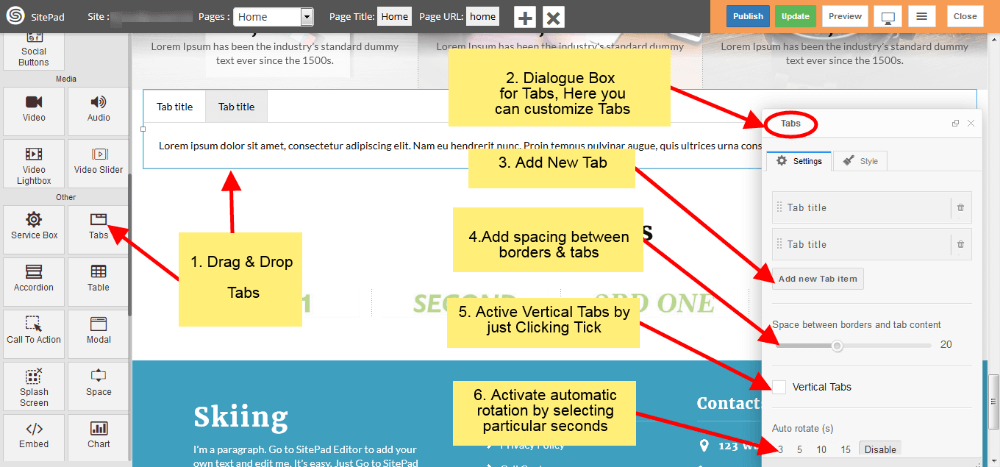
# Tabs
When the first **Theme** is selected it automatically gives the Predefined Style for **Tabs** but if you want to **Customize Tabs** you can follow this guide.
1. Drag and Drop **Tabs** from left side widget section then a **Dialogue Box** will pop up by this action for **Tabs** as shown in image below .
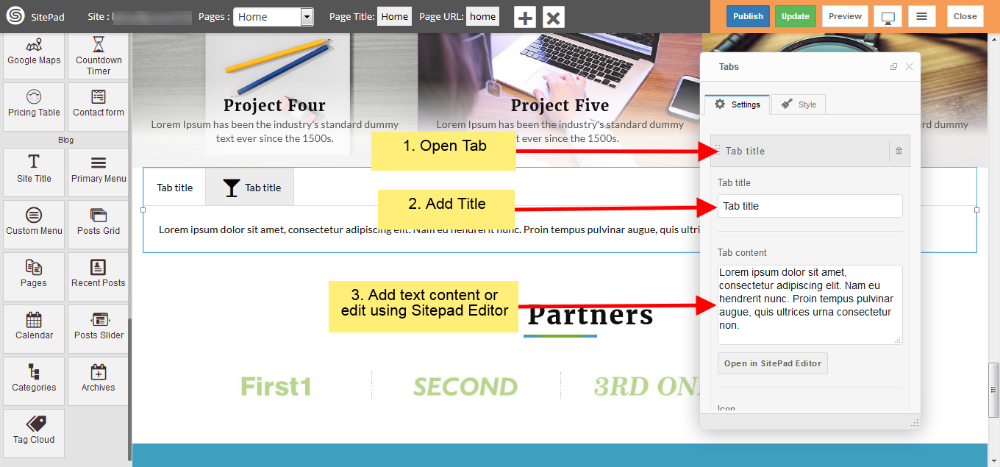
1. Now in **Settings** section of **Dialog Box** you can open **Tab** and add text of your own as shown in image below.
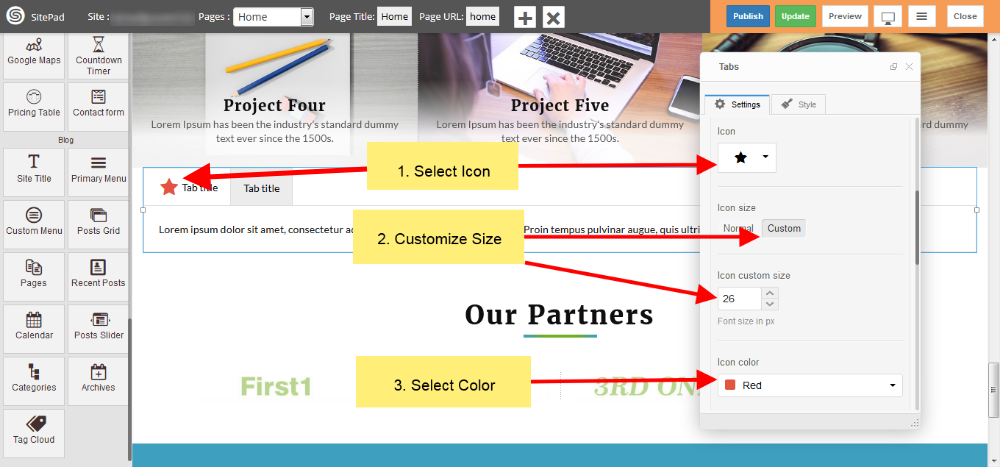
1. In **Settings** section of **Dialogue Box** you can also **select icons** and **customize** as shown in figure below.
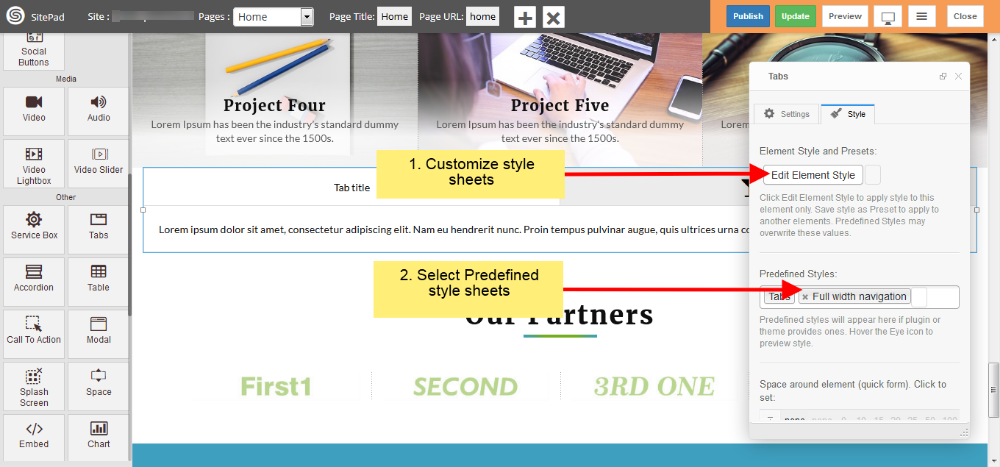
1. Now in **Style** section of **Dialog Box** you can give **Custom Style** and also use **Predefined Styles** as shown in image below.