# Social buttons
This Guide will help you to Customize **Social Buttons.**
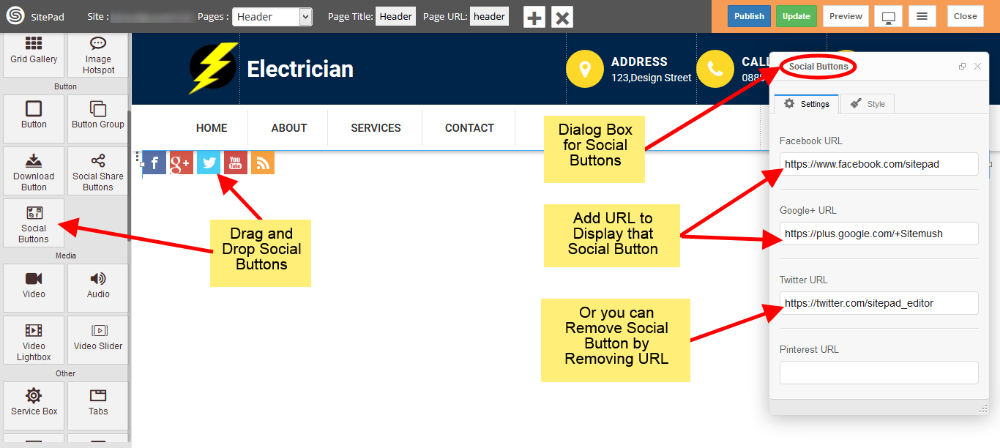
1. Drag and Drop **Social Buttons** from left side Widget panel. Now in the **Settings** section of **Social Buttons** Dialog box enter **URL** for Social Buttons to display them or remove **URL** to remove button as shown in image below.
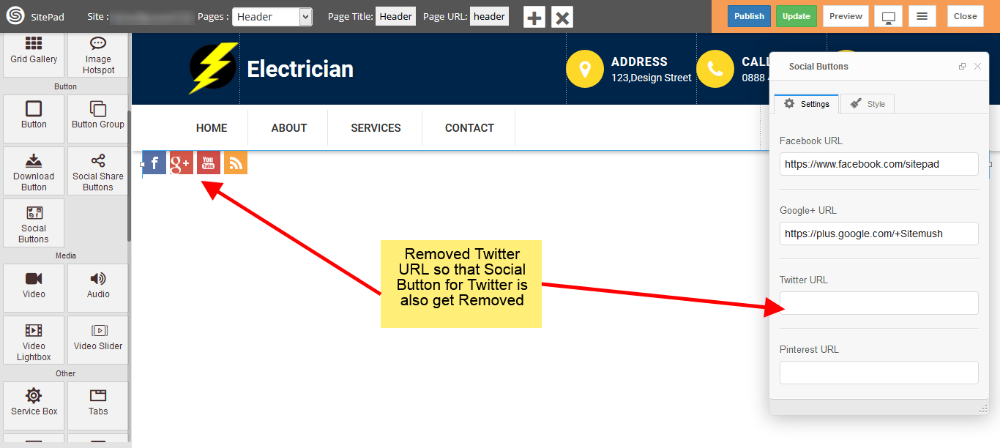
1. Here we removed **Twitter URL** so that **Social Button** for **Twitter** is also get removed.
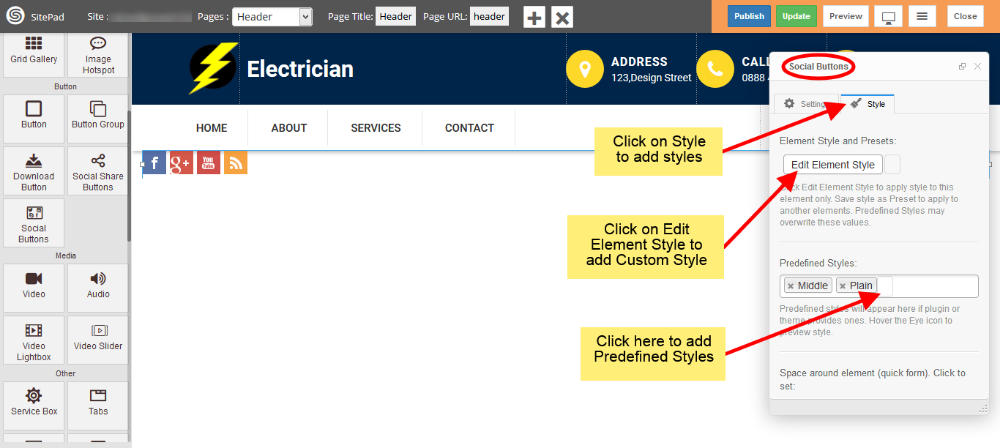
1. Now click on **Style** to add styling for **Social Buttons**. Click on **Edit Element Style** to add **Custom Style** and click in **Predefined Styles** to add **Predefined styles** as shown in image below.
**Note:** Please not that **Background Color** for **Social Buttons** is **Predefined** so you will not able to change that.
2.
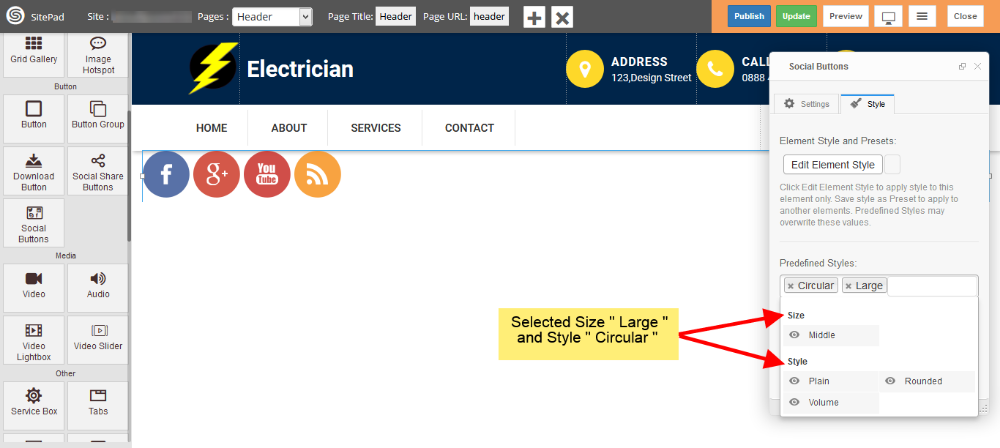
Now see in image below we have selected **Size Large** and **Style is Circular** so styling for **Social Buttons** have **Changed.
**