# Sites in multiple languages
This guide helps you how to make a site in **multiple languages**.
Make a full website with one language and clone that site so you have a full copy of your website and change the language strings with the other language string using the editor. For easily understanding, you can follow the below steps:
#### CLONE FULL SITE
For cloning the website go to the Dashboard -> Sites -> Clone Site or you can also do by clicking of Dashboard -> All Sites, click the button of cloning which sites you want to clone.
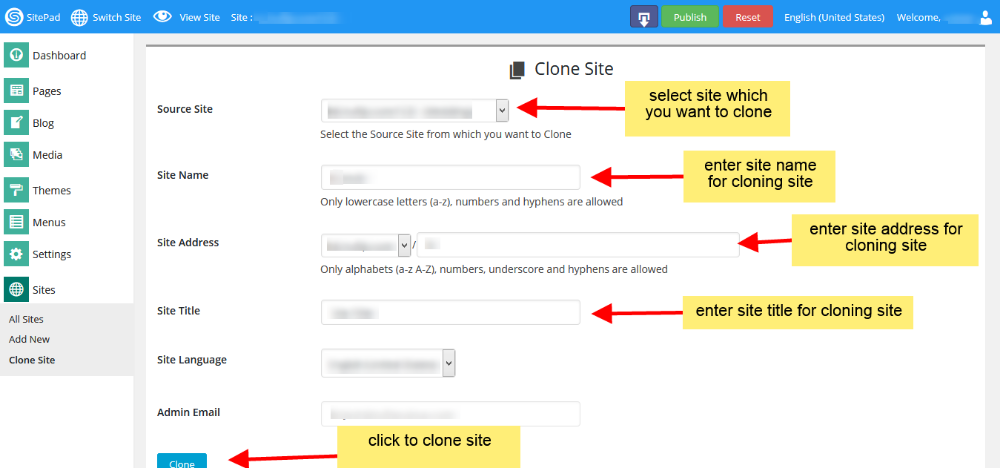
Select the **source site** which you want to clone from dropdown list. Enter **site name** which show in SitePad editor url, Select **domain name** and enter **site address** for your cloning site. This will be your site address for your cloned site after publish. And enter **Site Title**for the language which you want, after that click on **Clone** button for cloning the site.
After completing the cloning process it shows two links Visit Dashboard and Visit Site, click on **Visit Dashboard** link for editing the cloning site.
#### EDIT ON CLONE SITE
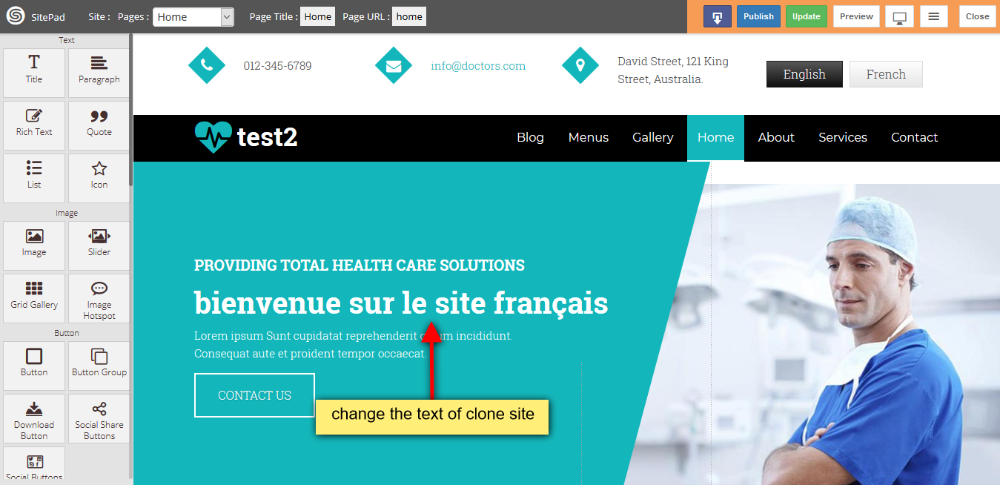
After cloning, click on **Visit Dashboard** link for editing the cloning site. You will get exact copy of site with same style and properties, and make changes on cloned site of French language.
#### ADD LINKS IN HEADER
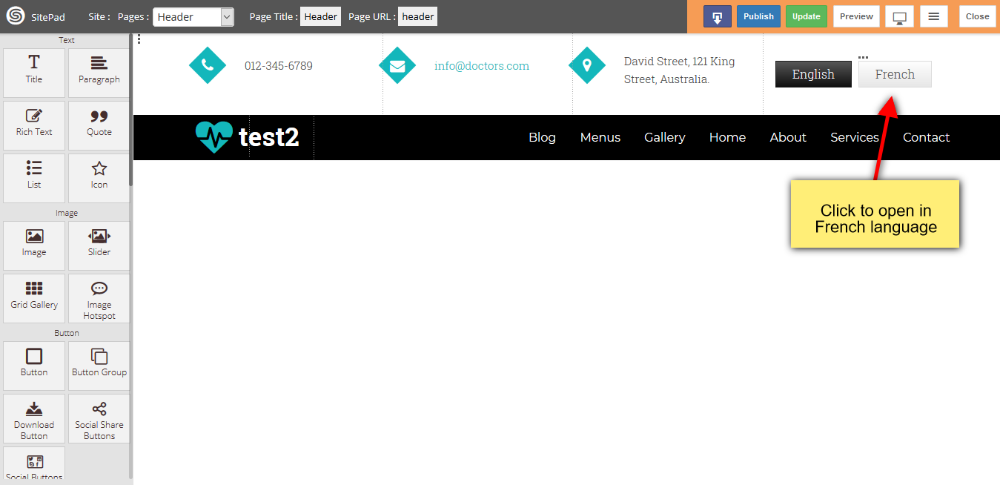
Suppose you have a domain **www.example.com**, this domain point to your **English language** and make button link for English and French languages in the header of both the sites, on clicking of their button it redirects to their languages and **French domain** is like this **www.example.com/fr**
#### PUBLISH BOTH SITES
When all changes are done then **publish** both the sites.