# Service Box
This Guide will help you to add **Service Box.**
#### DRAG AND DROP SERVICE BOX
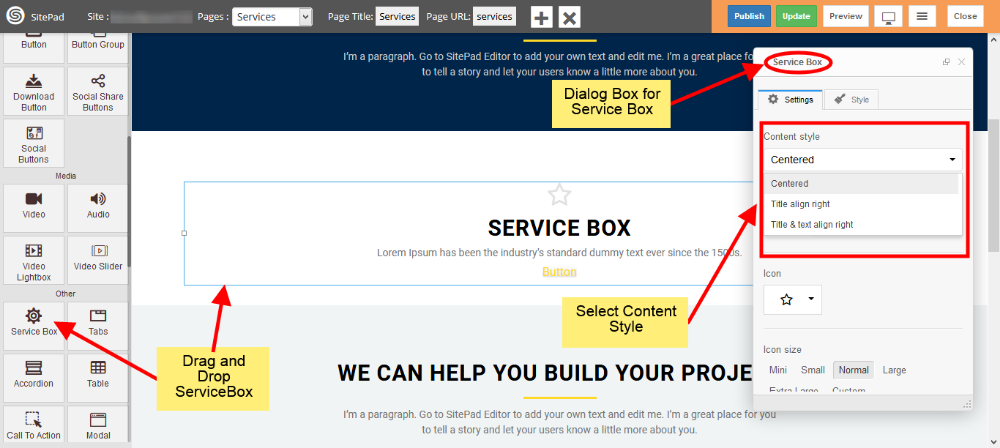
- **Drag and Drop** Service Box from left side **widget panel** as shown in image below.
- Now in **Dialog Box** of Service Box you can **Customize** Service Box.
- Select **Content Style** of your Service Box as shown in image below.
#### SERVICE BOX MEDIA TYPE
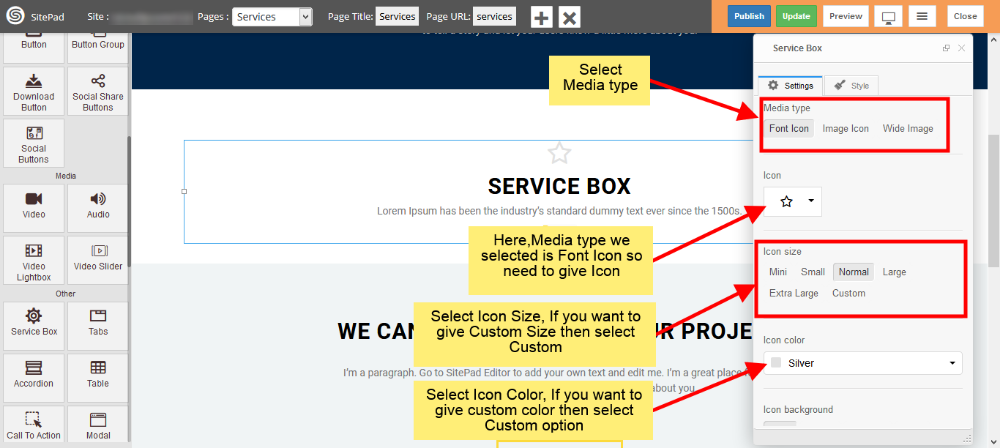
- Select **Media type** you want to display in your Service Box. We have selected **Font Icon**.
- As we selected **Font Icon** we need to Provide **Icon** as shown in image below. You need to provide image if you select **Image Icon** or **Wide Image**.
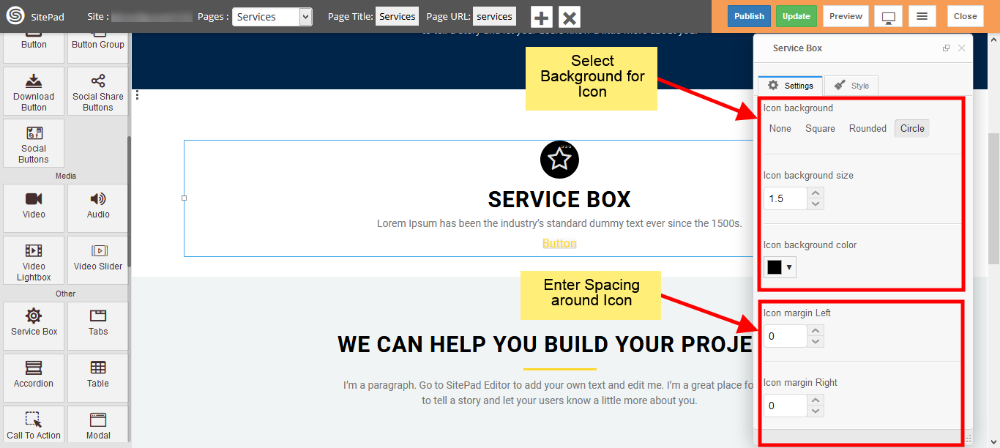
- Also provide some different **properties** for your media type like **Color, Size** etc as shown in image.
#### SERVICE BOX CONTENT
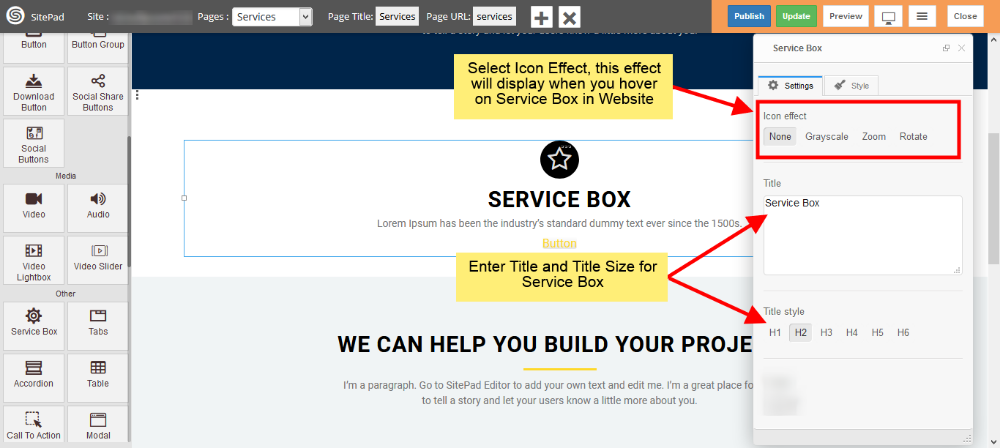
- Enter Service Box **Title** and give **Size** for Title as shown in image below.
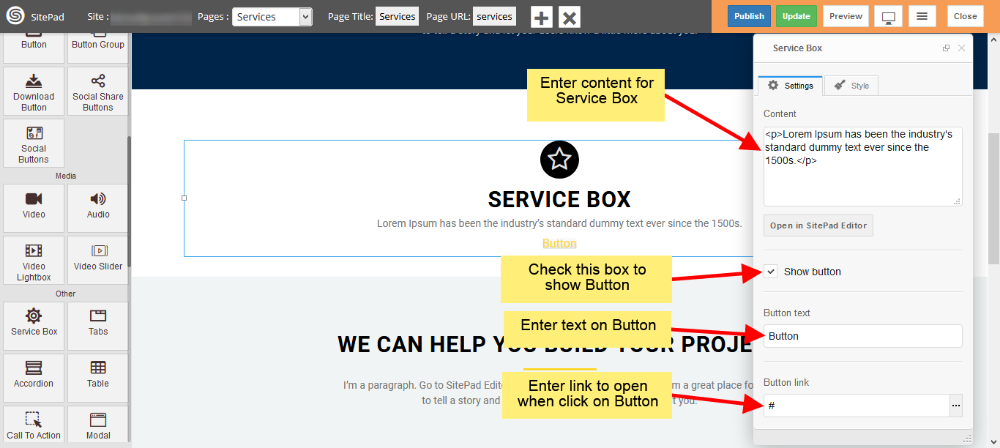
- Enter content of your Service Box in **Content** section.
### BUTTON
- Check the **Show Button** box to show **Button** in your Service Box as shown in image below.
- Next enter text to Display on Button and **Link** if you want go to other page on **Button Click.
**
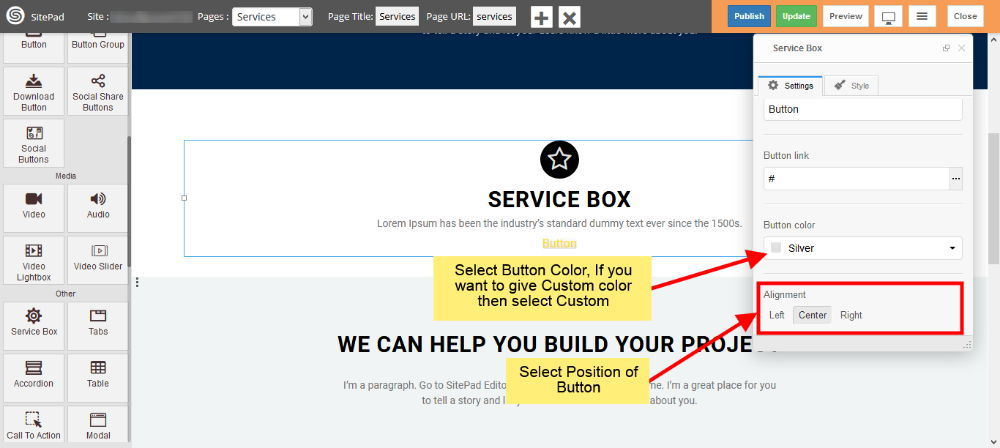
- Select **Button color** from Predefined options or you can give **Custom color** by selecting **Custom** as shown in image below.
- Select **position** for Button inside Service Box from **Alignment** section.
#### CUSTOM STYLE
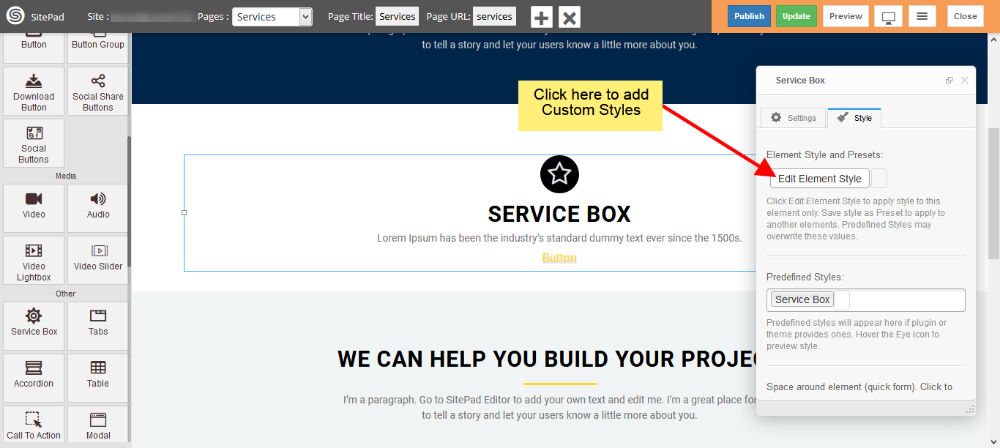
- Click on **Edit Element Style** to add **Custom styles** as shown in image below.