# Primary Menu
When the first **Theme** is selected it automatically gives the Predefined Style for **Menu** but if you want to **Customize Menu** you can follow this guide.
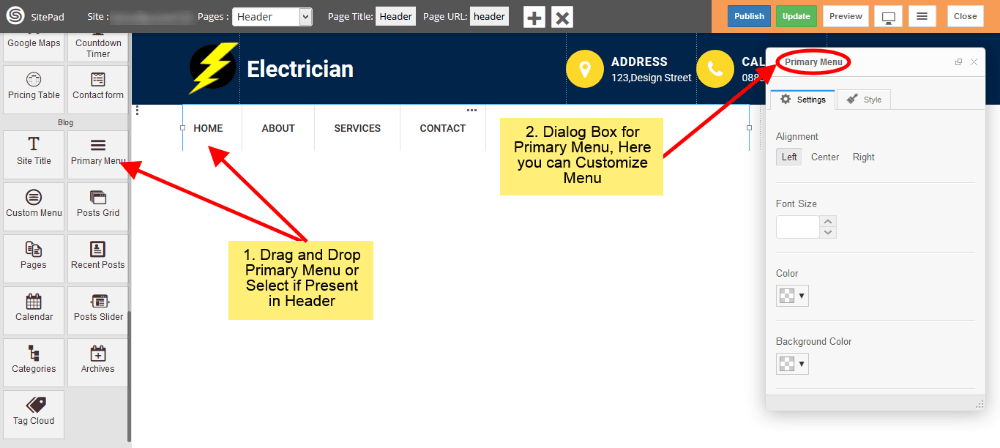
1. Drag and Drop **Primary Menu** from left side widget section or Select **Primary Menu section** in **Header** page if already present. So this action will pop up **Dialog Box** for **Primary Menu** as shown in image below.
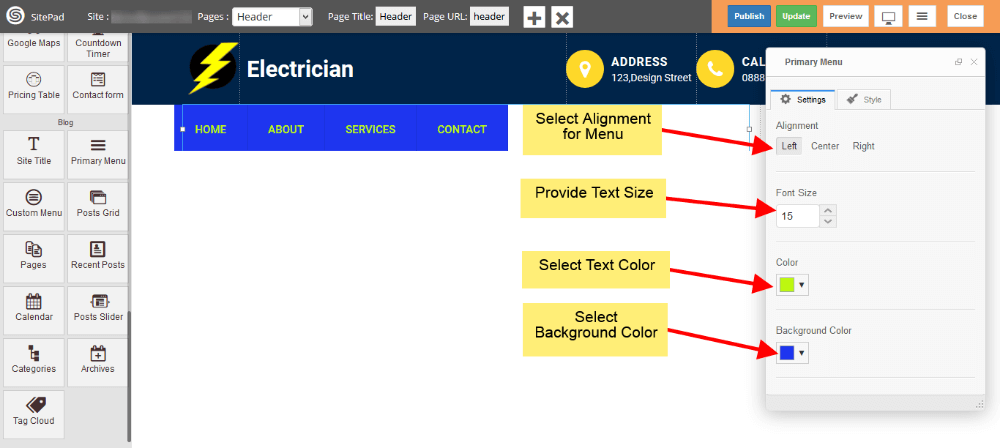
1. Now in **Settings** section of **Dialog Box** you have different option to **Customize** menu like Text Color, Background Color, Text Size etc. Just fill that as per your needs as shown in image below.
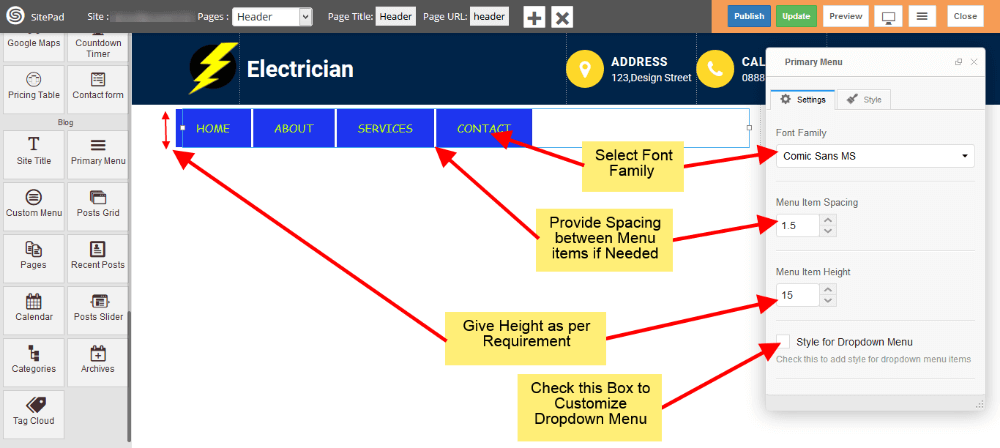
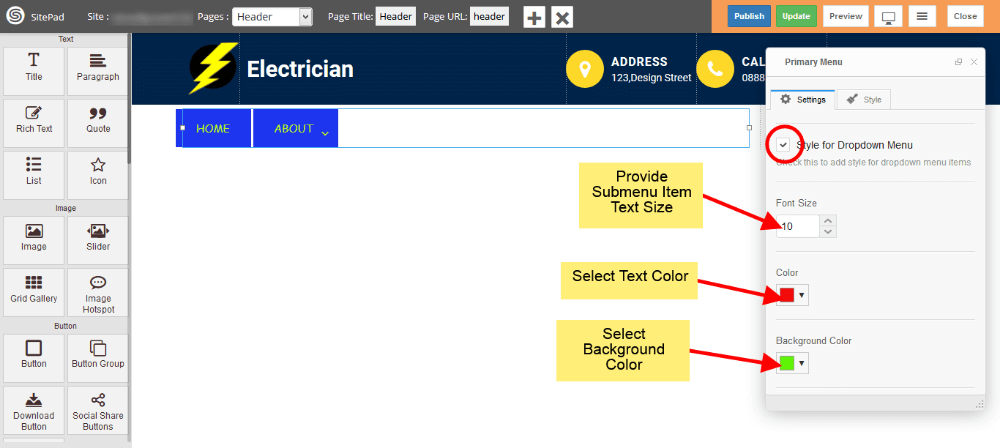
1. Last option in below image is for styling the **Sub Menu Items**, if you want to do that just check it.
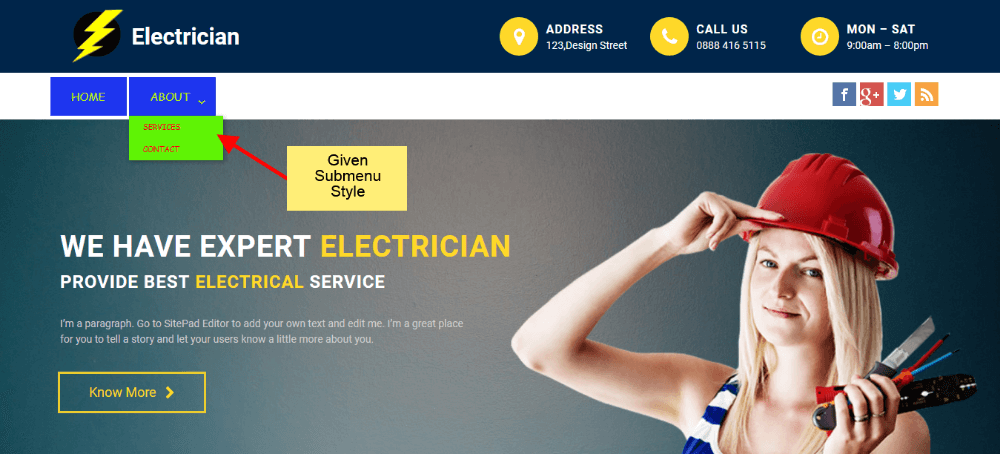
1. Now select Color, Background Color, Text Size for **Sub-Menu** as shown in image below.
Above Sub-Menu style will look like this.
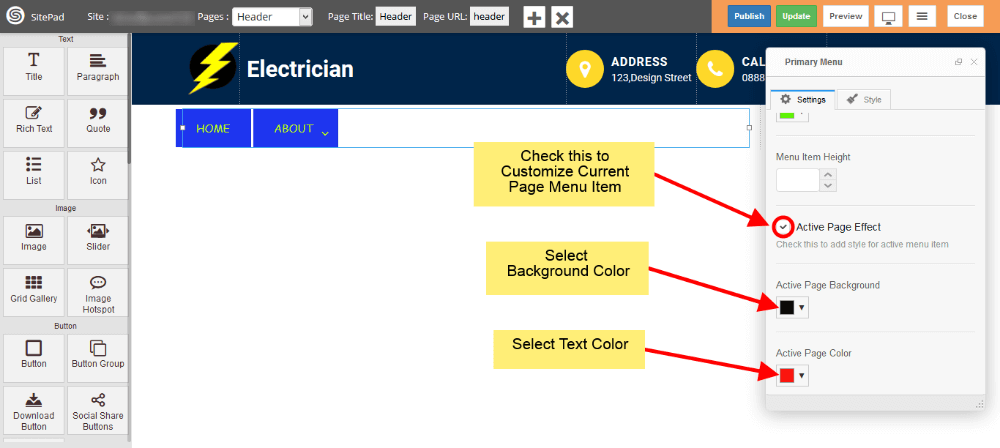
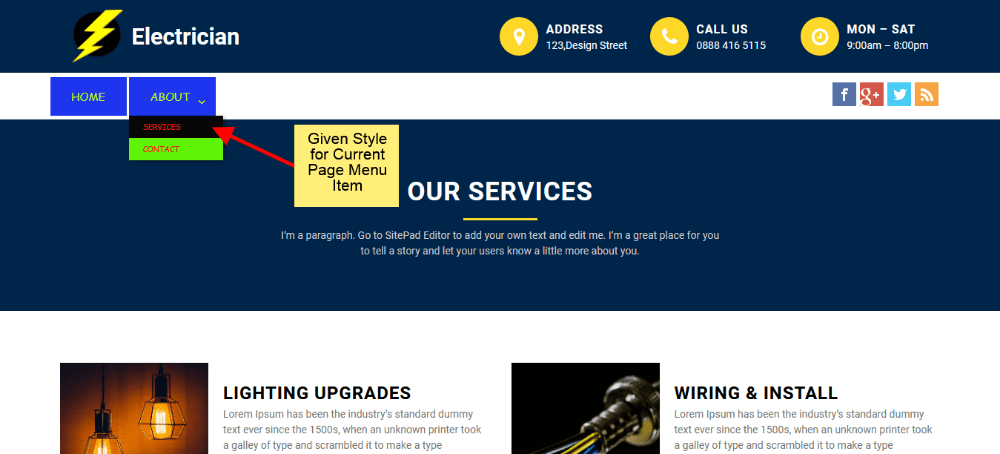
1. If you want to add custom style for **Active page Menu Item** then just check the **Active Page Effect** box and provide Color, Background Color for Active Page Menu Item as shown in image below.
Above Active Page Menu Item style will look like this.
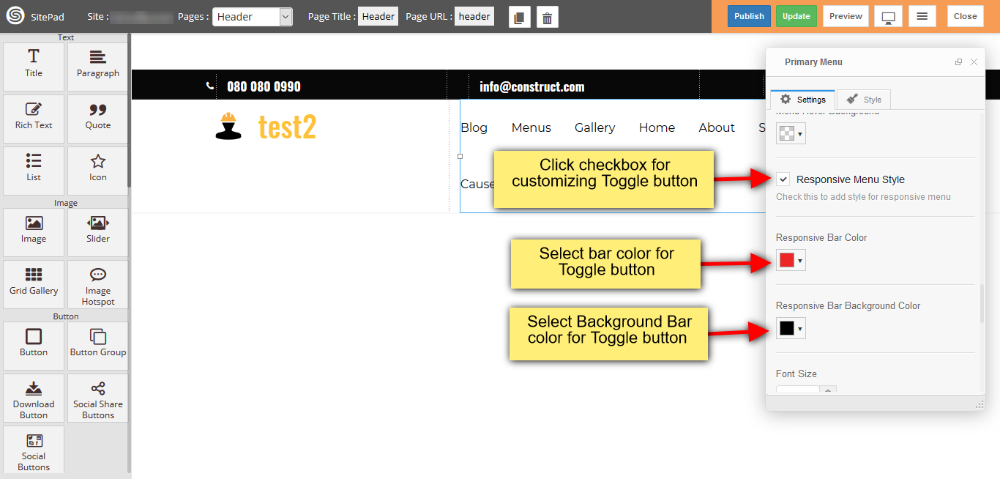
1. If you want to add custom style for **Toggle Button** then just click on the checkbox of **Responsive Menu Style** and provide Bar Color, Bar Background Color for Toggle button as shown in image below.
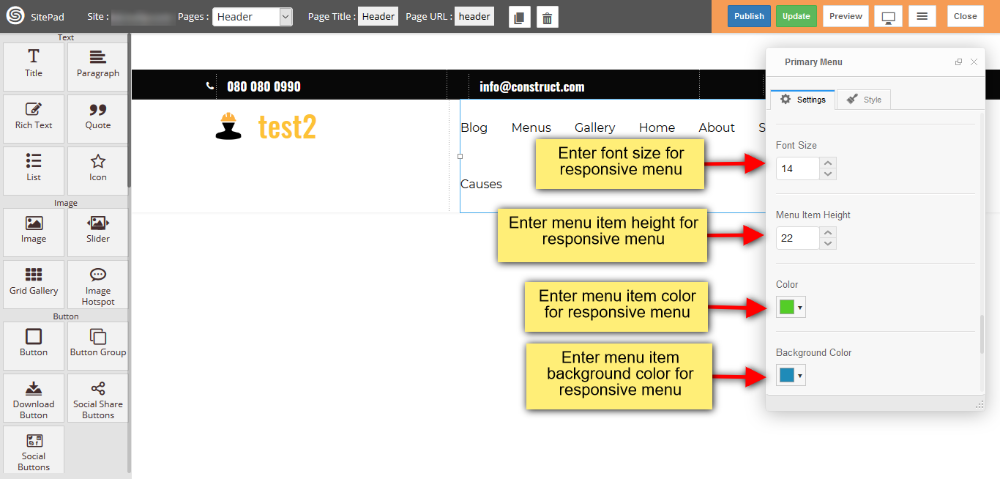
1. And also you can add custom font size, Menu Item height, color and background color for menu item as shown in image below.
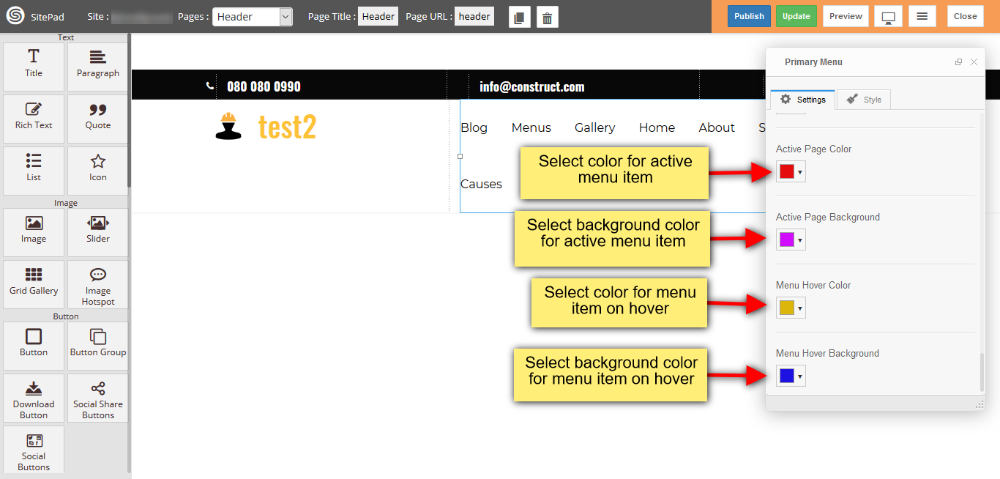
1. You can also customize **active menu item** such as color and background color, and you can also select color and background color for menu item on mouse hover as shown in image below.