# Pricing table

When the first **Theme** is selected it automatically gives the Predefined Style for **Pricing Table** but if you want to **Customize Menu** you can follow this guide.

<div id="bkmrk-drag-and-drop%C2%A0pricin">1. Drag and Drop **Pricing Table** from left side widget section. So this action will pop up **Dialog Box** for **Pricing Table** as shown in image below.  
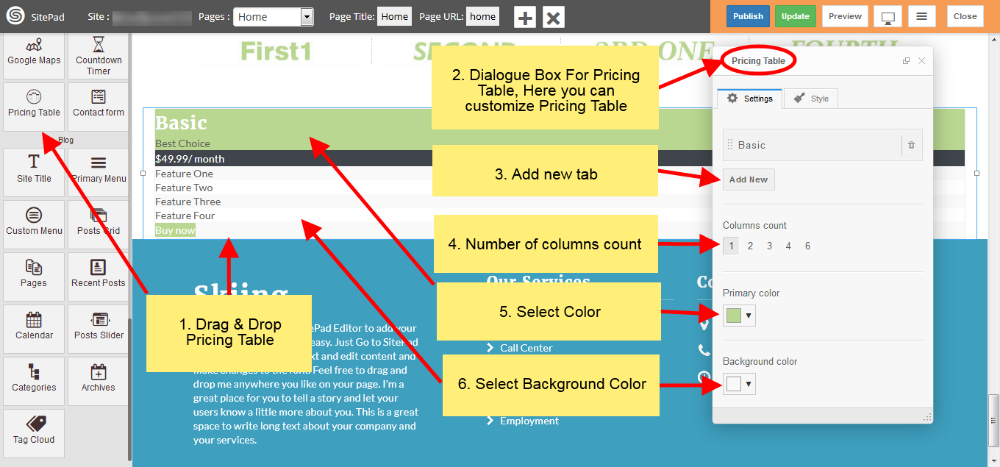
       
    ![](https://dotroll.com/wp-content/uploads/2020/08/Pricing-table-img-01.png)

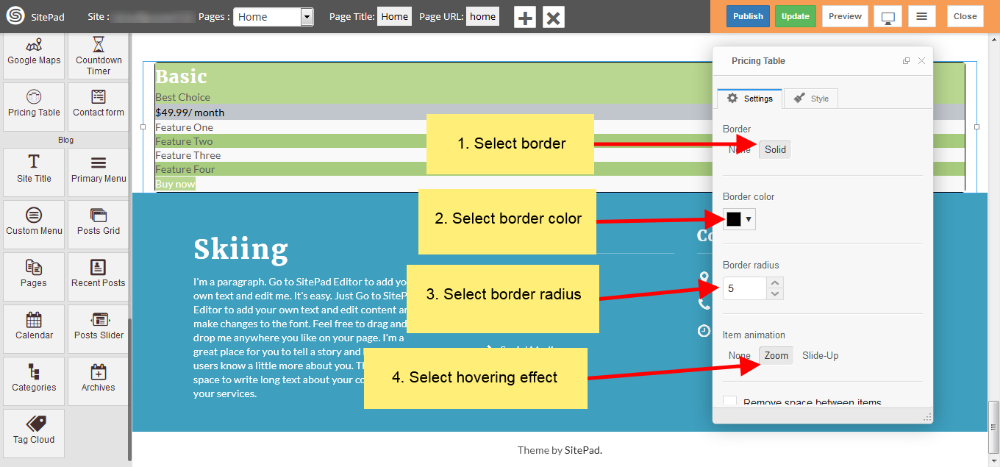
</div><div id="bkmrk-select-colors-for%C2%A0pr">1. Select Colors for **Pricing Table** pricing rows and border and select animation effect as per your needs as shown in images below.  
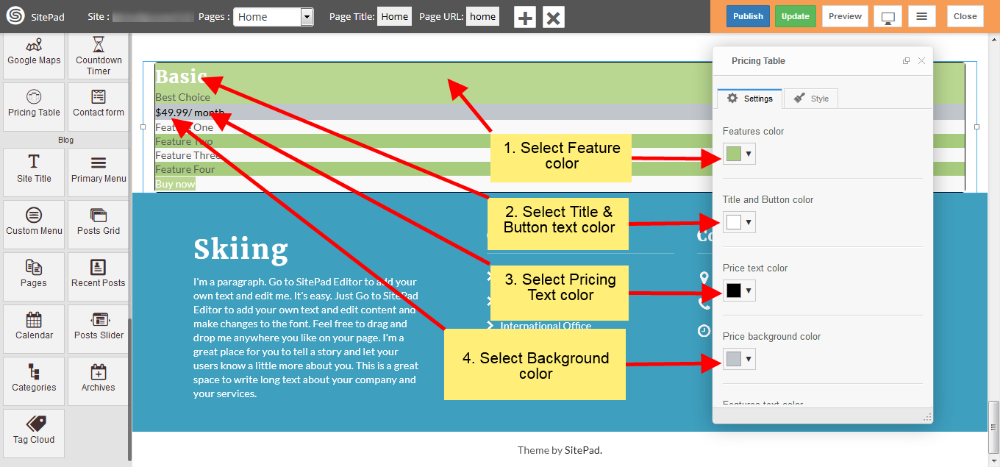
       
    ![](https://dotroll.com/wp-content/uploads/2020/08/Pricing-table-img-02.png)  
       
    ![](https://dotroll.com/wp-content/uploads/2020/08/Pricing-table-img-03.png)

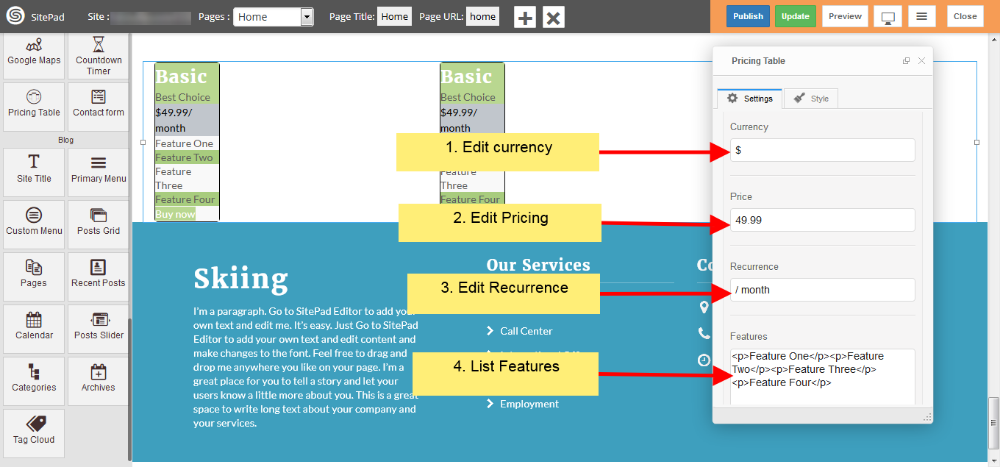
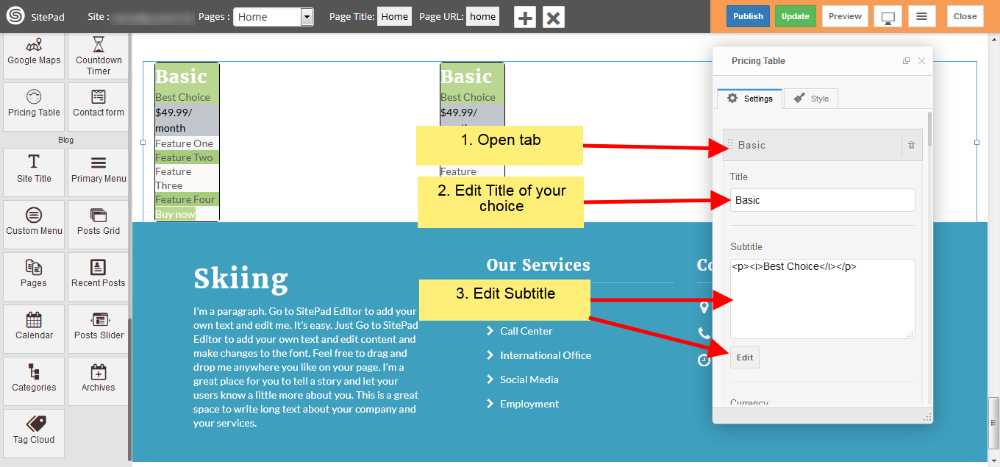
</div><div id="bkmrk-now-in%C2%A0settings%C2%A0sect">1. Now in **Settings** section of **Dialog Box** you have different option to Customize **Pricing Table** and edit text accordingly of particular row as shown in images below.  
       
    ![](https://dotroll.com/wp-content/uploads/2020/08/Pricing-table-img-04.png)  
       
    ![](https://dotroll.com/wp-content/uploads/2020/08/Pricing-table-img-05.png)

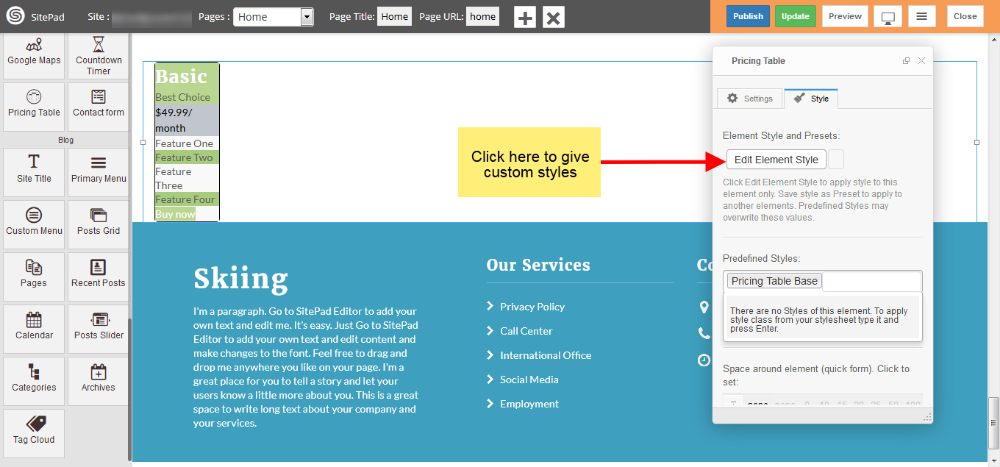
</div><div id="bkmrk-now-in%C2%A0styles%C2%A0sectio">1. Now in **Styles** section of Dialog Box you can edit element style as shown in image below.  
       
    ![](https://dotroll.com/wp-content/uploads/2020/08/Pricing-table-img-06.png)

</div><div id="bkmrk-"></div>