# How to Publish the Site
Once you have done with your **Theme Editing** and want to **Publish** your **Site** you can follow this guide.
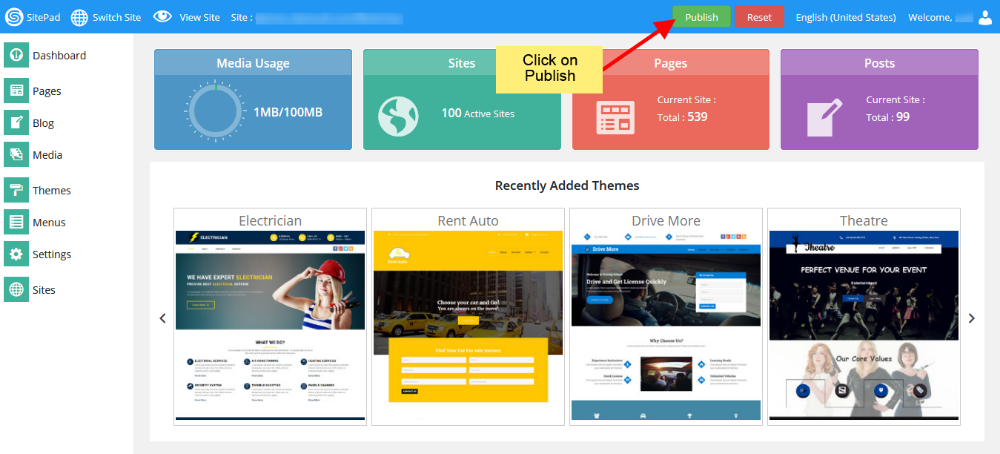
1. Go to your **Dashboard** and click on **Publish** button present at the **Top of Dashboard** as shown in the image below. **Note:** It is not necessary to always go to **Dashboard** for Publishing your Site. You can click on **Publish** button anywhere inside your **Dashboard** or **Page Editor** and follow below steps.
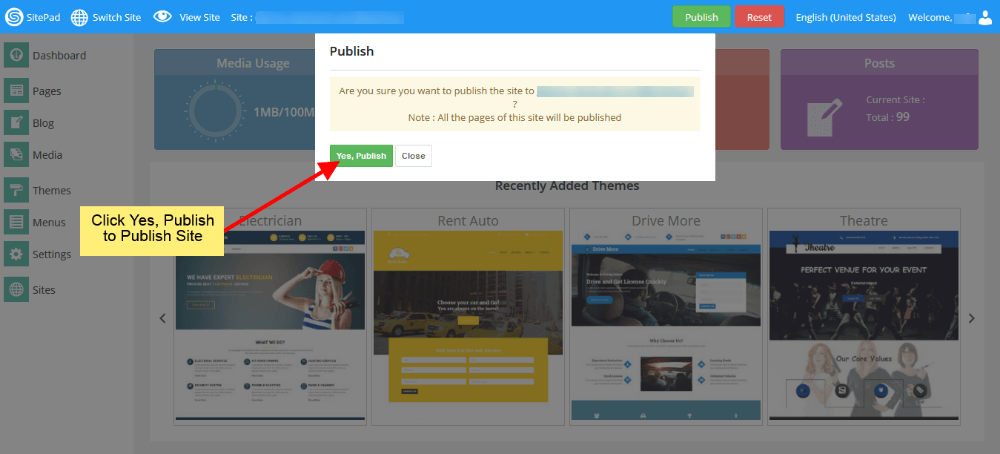
2. Step 1 will popup the **Confirmation Window** as shown in image below. Press **Yes, Publish** button to publish your site and if you want to stop process then press **Close** button as shown in image below.
1. Then **Wait** for the **Process to Complete.
**
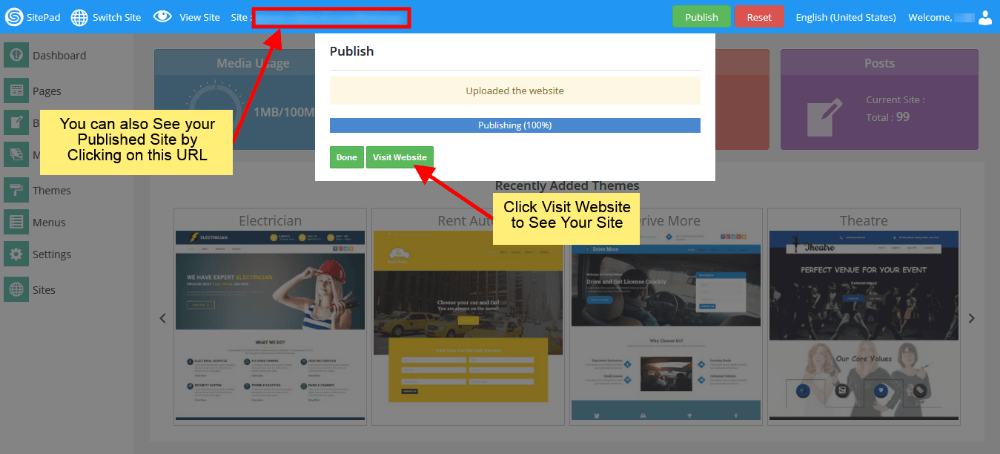
2. After the completion of process you will see the window as shown in image below. Click on **Visit website** button to see your **Published Site.** **Note:** You can also **View** your **Published website** by **Clicking** on **Site URL** as shown in image below.