# How to Add CSS using Custom HTML
This documentation will guide you on How to Insert CSS using Custom HTML code.
#### GO TO EDITOR
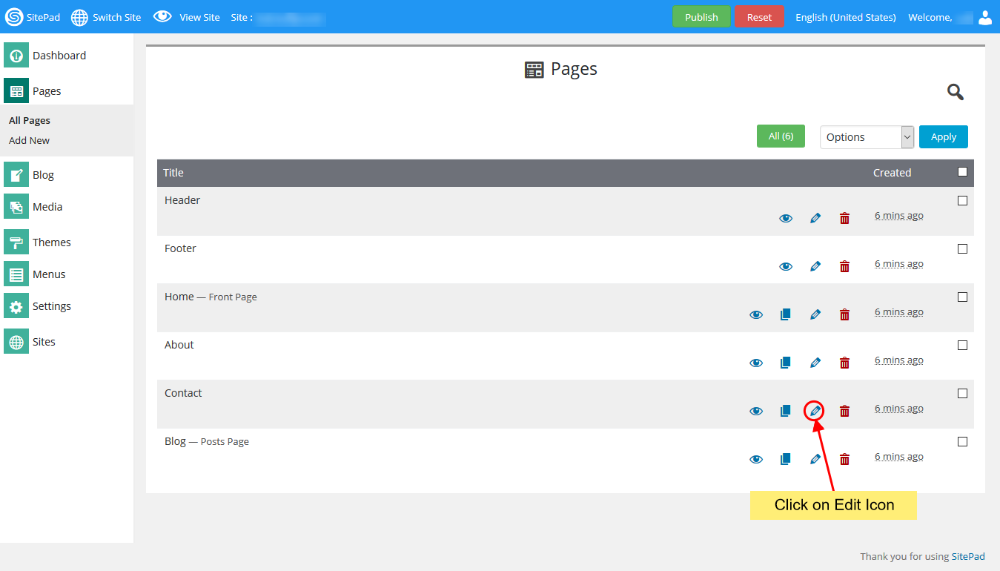
When on **SitePad Website Builder** Dashboard. Hover on **Pages** option given on the left sidebar and then click on **All Pages**. Once on all Pages Click on **Edit Icon** of Any Page.
You will be redirected to Editor.
#### SELECT CUSTOM HTML
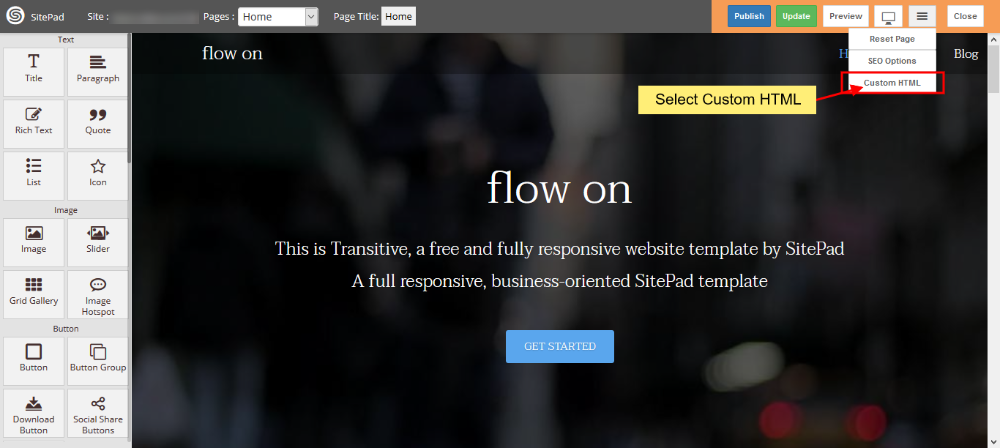
On **SitePad Editor** hover on more menu on the navigation bar. When you hover on more menu three buttons will be drop down **i.e** Reset Page, SEO Options and Custom HTML.
Click on **Custom HTML**.
#### INSERT CSS IN CUSTOM HTML
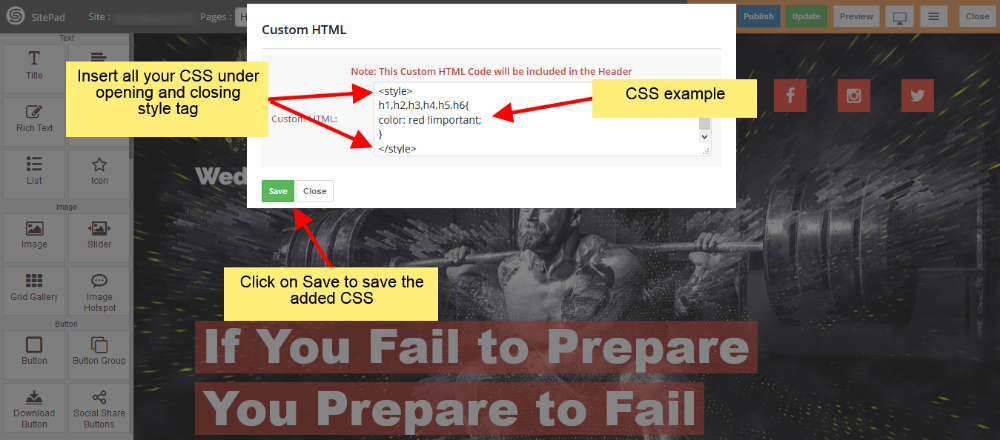
On clicking **Custom HTML** you will see a dialog box will appear. Insert all your CSS under style tag as shown in image below.