# Grid gallery
This Guide will help you to add **Grid Gallery**.
#### DRAG AND DROP
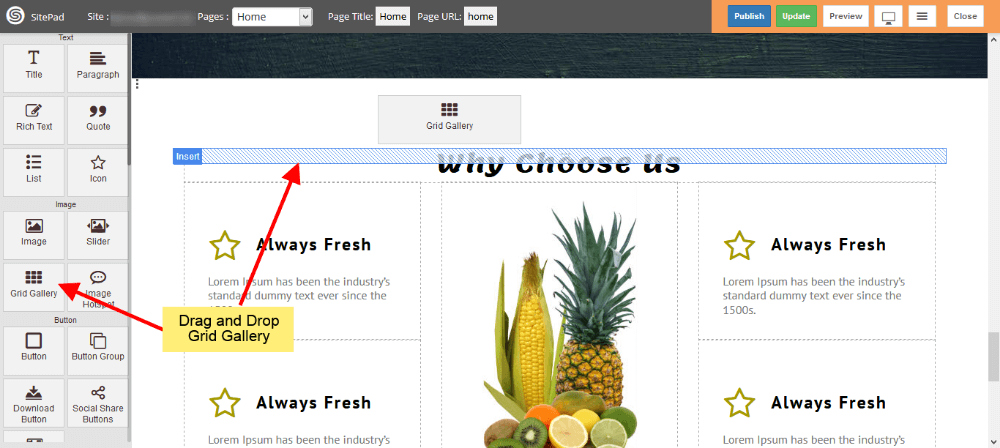
- **Drag and Drop** Grid Gallery from left side **Widget Panel** as shown in image below.
#### SELECT IMAGES
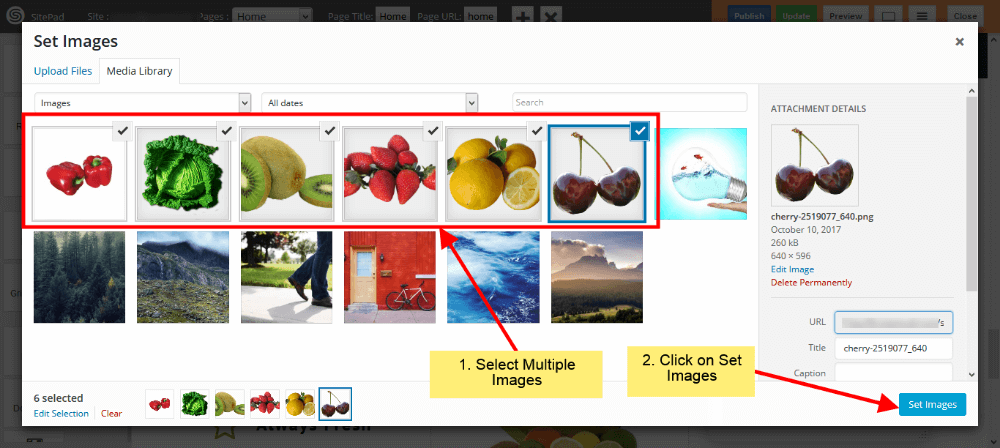
- Select images from **Media Library** as shown in below image.
- You can upload images by Clicking on **Upload Files**.
### GRID GALLERY SETTINGS
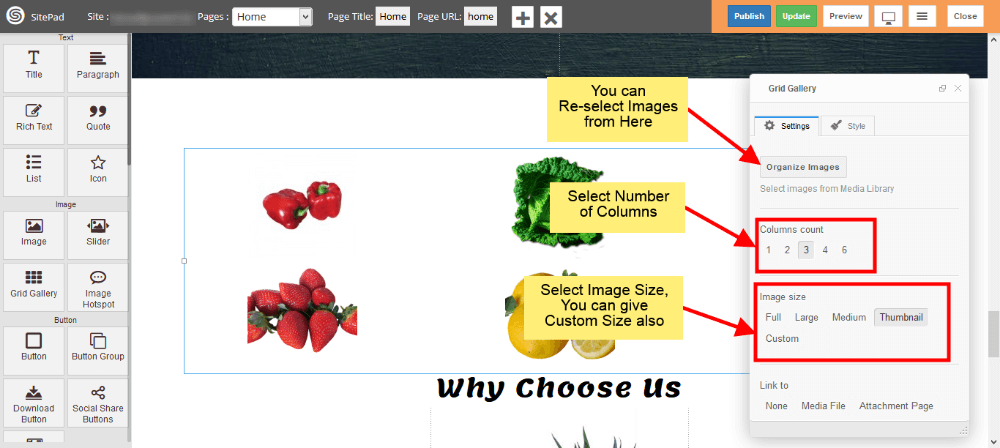
- If you want to **Change, Delete or Add** images you can do that from **Organize Images**.
- Now select **Column count** for Images.
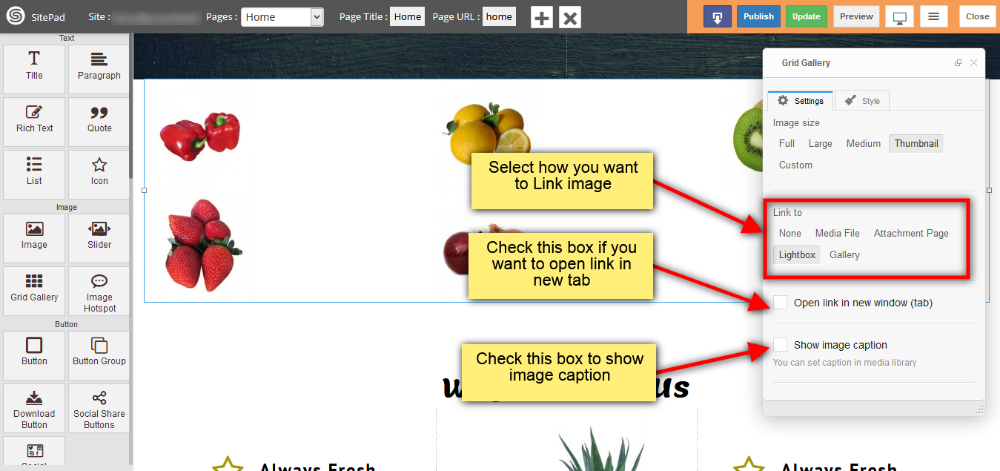
- Select **Image size** from options or Select **Custom** option to add custom size for Images.
- Now select **Link** for your Images.
- If you want open that **Link** in **New Tab** then check **Open link in new window(tab)**.
- To show image caption below image just check **Show image caption**.
#### GALLERY OPTION IN GRID GALLERY
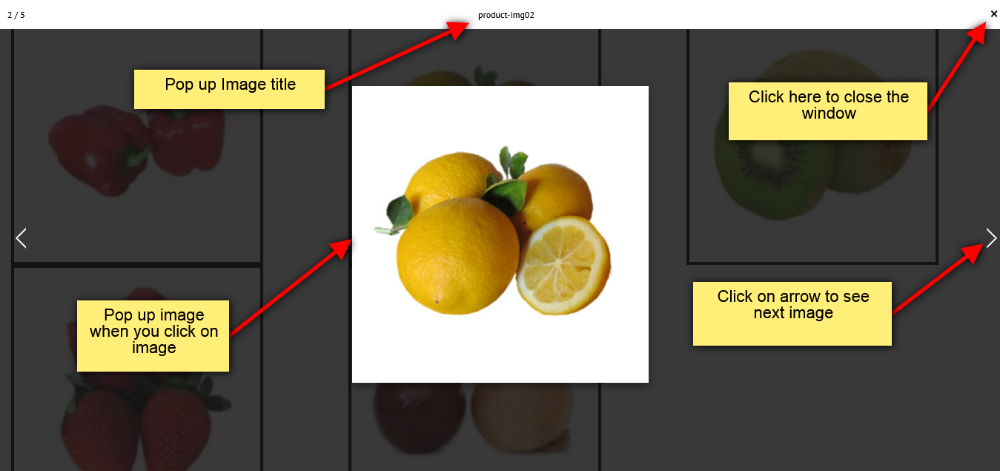
This option is available in **link to** section. By selecting this option your images will pop up when you click on it. You can add following properties for Gallery image.
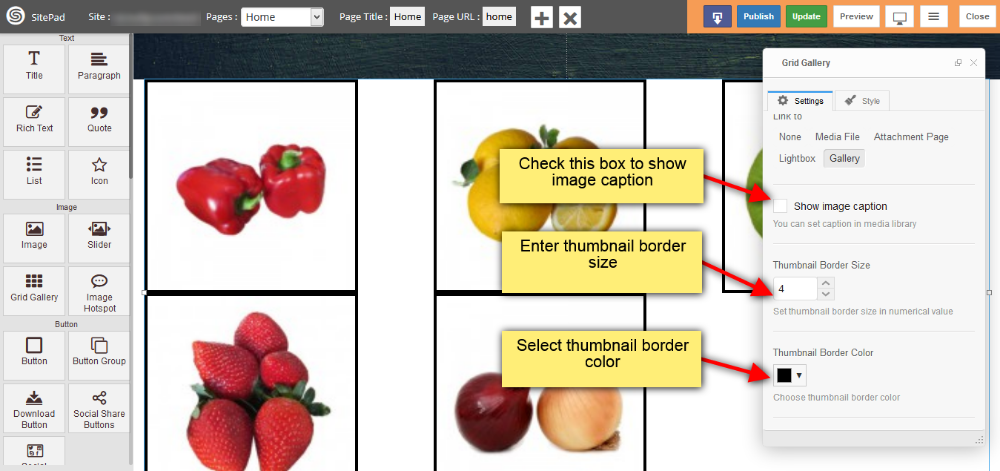
- You can add image thumbnail **Border Size** and **Color** as shown in image below.
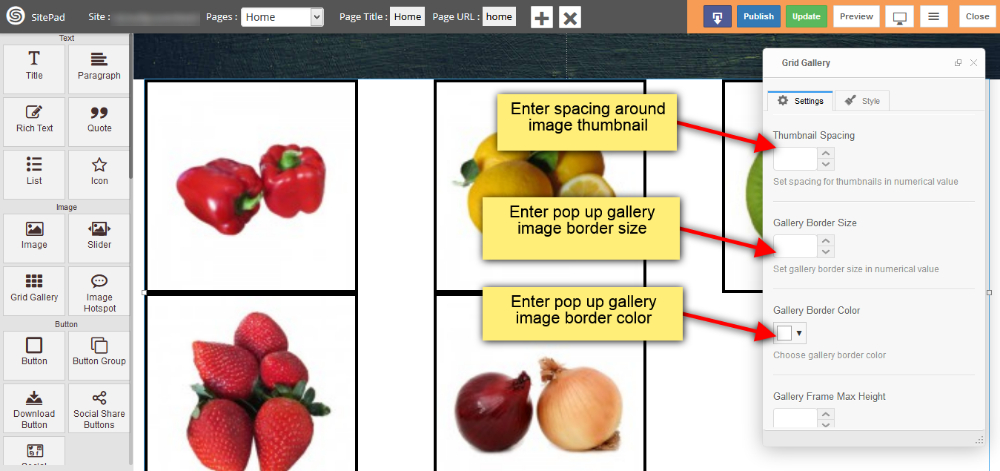
- Also you can add **spacing around image thumbnail**, set pop up gallery image **Border size and color** as shown in image below.
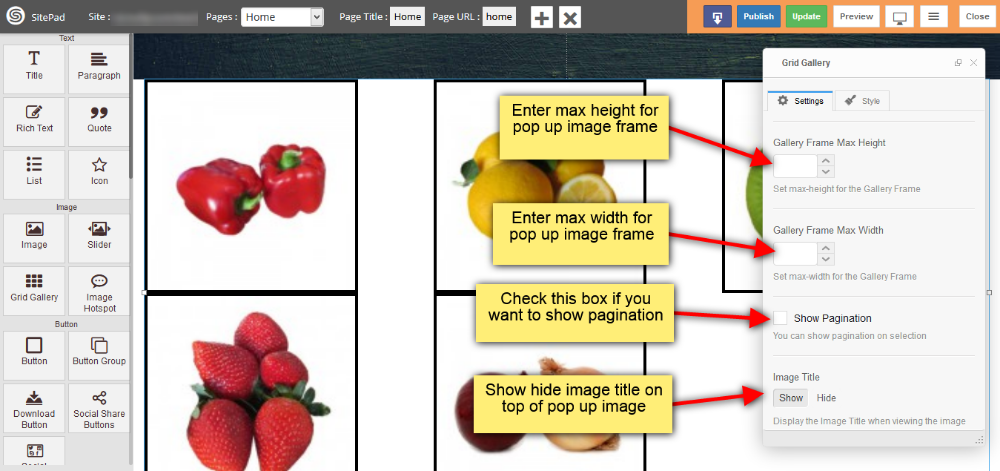
- You can set **max height** and **max width** for your pop up image frame
- Check **Show Pagination** box if you want to show pagination
- Provide the **visibility** for image title as shown in image below.
- When you click on gallery image on your webpage the pop up will appear as shown in image below.