**Note**: Currently, Disqus is supported by SitePad. We will add more to Comments option soon. **Note**: You can add Disqus comments on your blog post as well as a page. You just need to drag the Comments widget on all the pages where you want to add the comments option.
#### DRAG COMMENTS WIDGET When inside the SitePad Editor **Drag and Drop** the Comments widget. As shown in the Image Below. 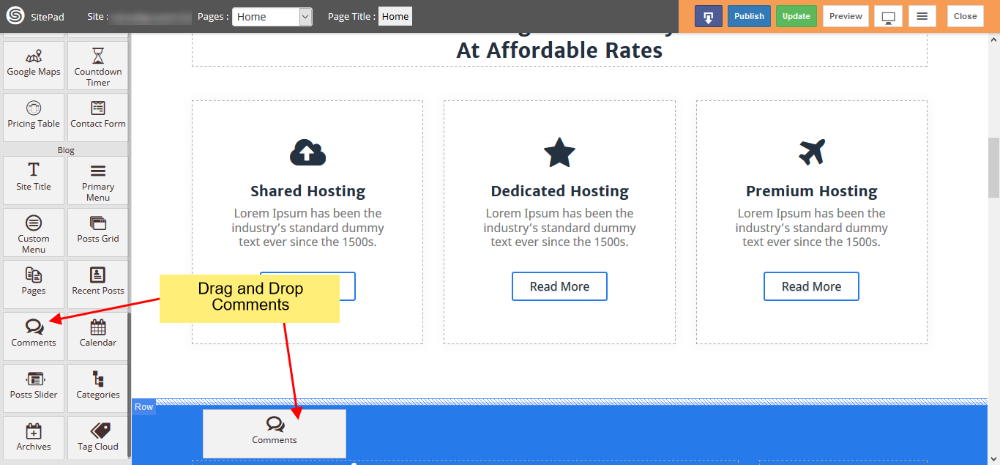 Once you have dragged and drop the **Comments Widget** you will need to Add **Disqus** short-name. ex: **shortname.disqus.com** or just the **short-name**. In-case if you do not have a **Disqus** account you can [create one here](https://disqus.com/admin/create/).**Note**: You will need to configure Disqus following the steps on their create site page, before using the short-name in SitePad.
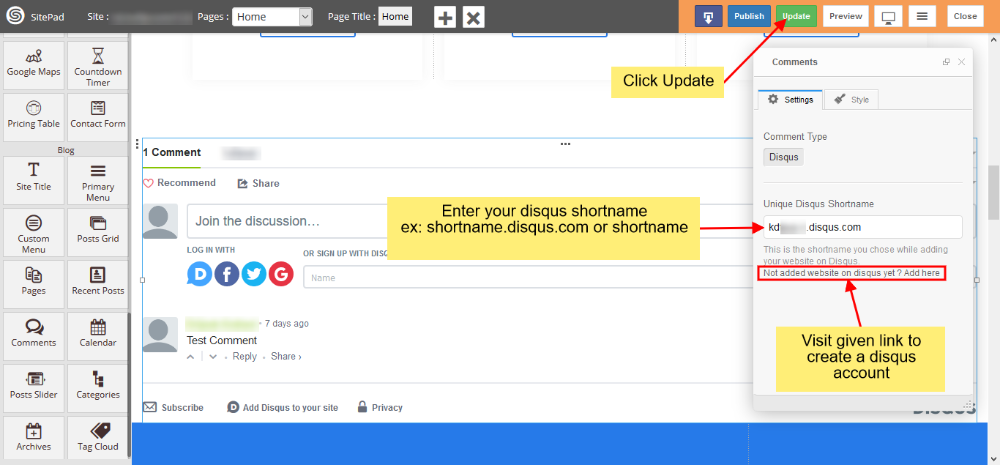 Once you have added your Disqus short-name on your page in SitePad editor click on **Update** button to save the changes. #### PREVIEW AFTER PUBLISH You can check the comments on your site after Publishing your site.