# Chart

<div id="bkmrk-this-guide-will-help"><section class="wpb-content-wrapper">This Guide will Help you to edit **Chart Widget** Settings and Style.

#### DRAG CHART WIDGET

When you **Drag and Drop** Chart Widget in a Page. You will see the image like below.

<p class="callout info"><span class=".">**Note:** Widget gives you **Default Style** provided by theme, you can **customize** as per your needs using this guide.</span></p>


![](https://dotroll.com/wp-content/uploads/2020/08/Chart-dragdrop.png)  
#### CHART TITLE AND TYPE

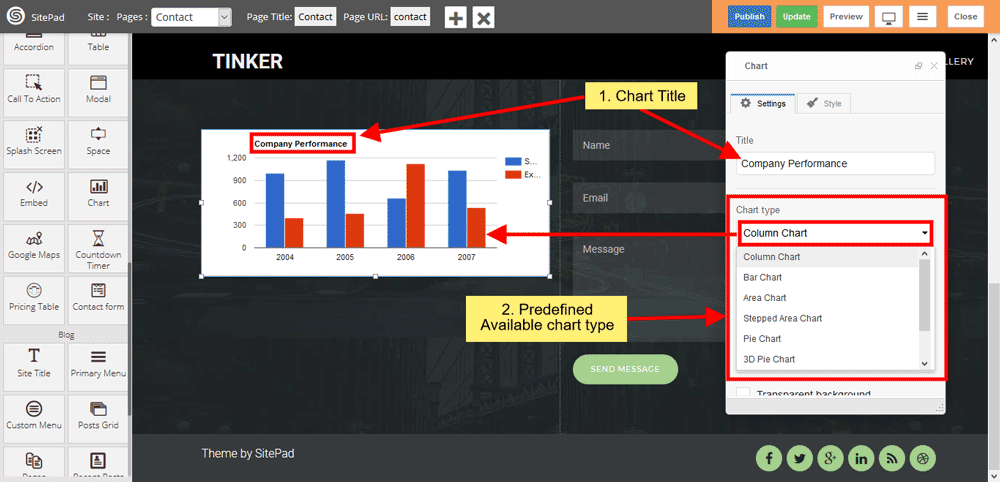
You can enter **Chart Title** and select **Chart Type** according to your needs. Various predefined chart type is available such as Column chart, Bar chart, Area chart, Histogram, Line chart etc. **Column chart** is enabled when you drag and drop the widget.  
   
![](https://dotroll.com/wp-content/uploads/2020/08/Chart-type.png)

#### CHART COLOR

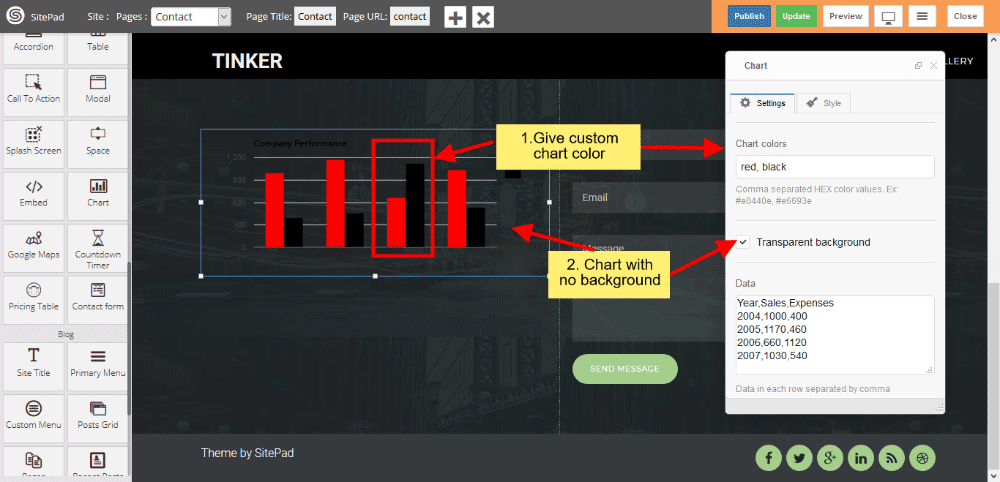
You can customize **chart color** according to your needs, click on checkbox to **remove** chart **background**.  
   
![](https://dotroll.com/wp-content/uploads/2020/08/Chart-color.png)

#### CHART DATA

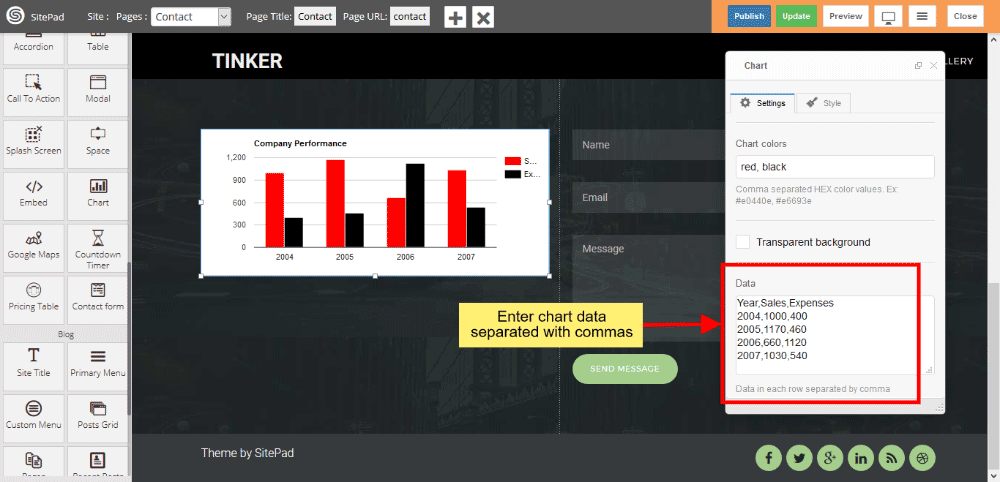
Enter chart data in **Data Textarea** box, Insert column-wise data separated with commas.  
   
![](https://dotroll.com/wp-content/uploads/2020/08/Chart-data.png)

</section></div><div id="bkmrk-"></div>