# Audio
This Guide will help you to add **Audio**
#### AUDIO USING URL
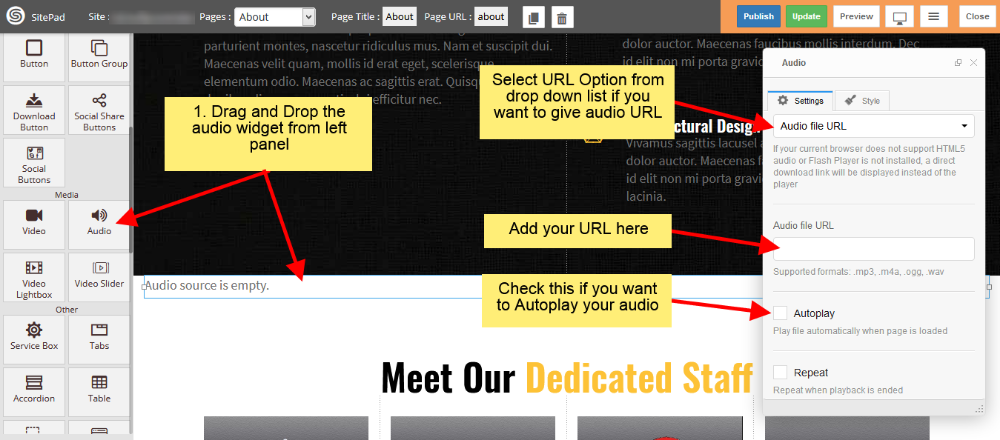
- Drag and Drop **Audio** from left side **Widget Panel**.
- Now in Dialog box of **Audio** select **Audio file URL** to give URL of audio file.
- After that enter **Audio URL** in Audio file URL section as shown in image below.
- Check the Autoplay box if you want to Autoplay your audio when page is loaded.
- Check the Repeat box if you want to Repeat your audio when it gets finished.
#### AUDIO USING MEDIA
- Drag and Drop **Audio** from left side **Widget Panel**.
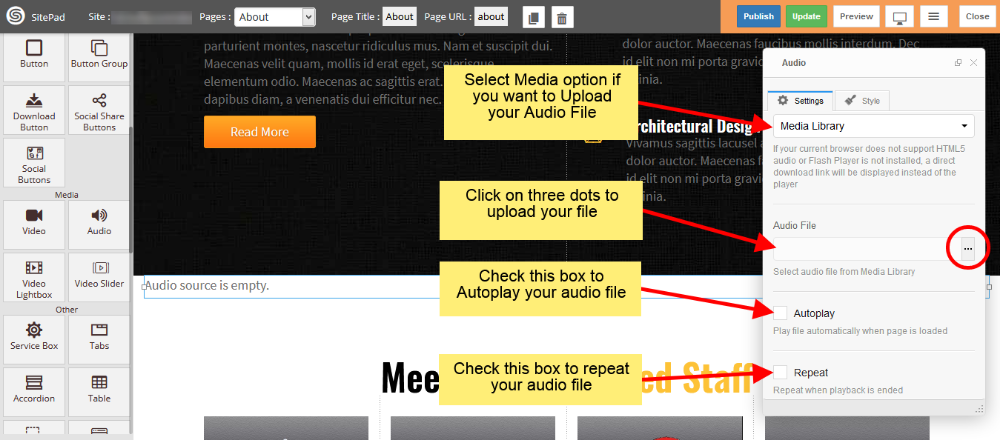
- Now in Dialog box of **Audio** select **Media Library** to Upload the audio file.
- After that click on three dots to upload your audio file as shown in image below.
- Check the Autoplay box if you want to Autoplay your audio when page is loaded.
- Check the Repeat box if you want to Repeat your audio when it gets finished.