# Accordion

This Guide will Help you to edit Accordion Widget Settings and Style.

<p class="callout info"><span class=".">**Note:** Widget gives you **Default Style** provided by theme, you can customize as per your needs using this guide.</span></p>

#### DRAG &amp; DROP ACCORDION WIDGET

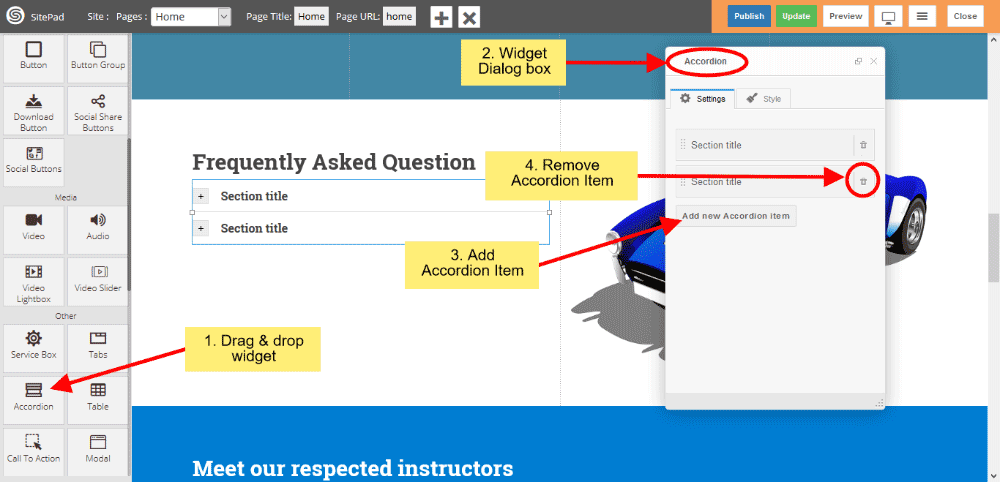
When you **Drag and Drop** Accordion Widget in a Page, You will see the image like below.

1. Click on Add new Accordion item button to add new Accordion Item.
2. If you want to **Remove Accordion item** then click on **delete icon** present on Accordion Item section.  
       
    ![](https://dotroll.com/wp-content/uploads/2020/08/Accordion-dragdrop.png)

### ACCORDION ITEM SETTINGS

1. **Section Title** in that you can insert your Accordion Item title.
2. **Section Content** gives you to insert your Item content.
3. Or you can click on **Open in SitePad Editor** button to insert item content.
4. Click on **Active** checkbox to active that particular item. <div class="ricsi info alert alert-info"><span class=".">**Note:** Only one item can be active.  
       
    ![](https://dotroll.com/wp-content/uploads/2020/08/Accordion-itemsettings.png)</span></div>

#### ACCORDION STYLE

Style gives 2 types of style **1)** Edit Element style and **2)** Predefined style

1. **Edit Element style** gives custom style in that you can change custom background color, text color, margin, border-radius etc.  
       
    ![](https://dotroll.com/wp-content/uploads/2020/08/Accordion-style.png)

1. **Predefined style** gives you **classes** of Accordion such as **Light and Dark**.
2. You can also give **your classes** to define your style.  
       
    ![](https://dotroll.com/wp-content/uploads/2020/08/Accordion-prestyle.png)