# Website Builder

# Customize Website


# How to Edit Button

This Guide will Help you to edit Button Widget Settings and Style.

#### BUTTON WIDGET SETTINGS

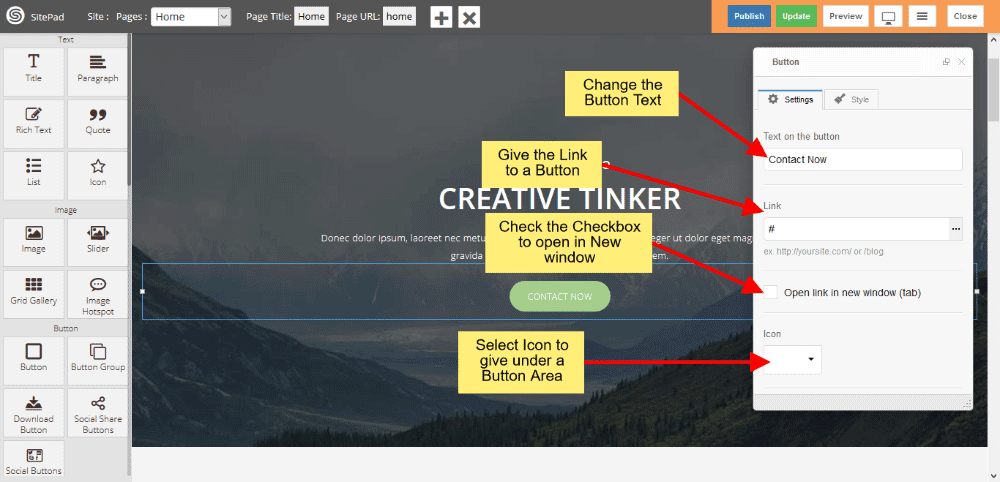
When you **Drag and Drop** Button Widget in SitePad Website Builder Dashboard. You will see **Button Settings and Style** in Button Widget. Go to Button Settings. You will see the image like below. You can change the **Button Text** and **Button Link** and after that one checkbox is there, if you check this checkbox you can **open** that link in **another window**.

If you want to display **Icon** under the **Button** then click the Icon, Choose particular Icon from a list.

If you want the Button in **full width style** then check the checkbox of **Stretch**, and **Alignment** Settings gives you Button Alignment.  
   
![](https://dotroll.com/wp-content/uploads/2020/08/Button-settings.png)

#### LINK BUTTON TO THEME PAGES

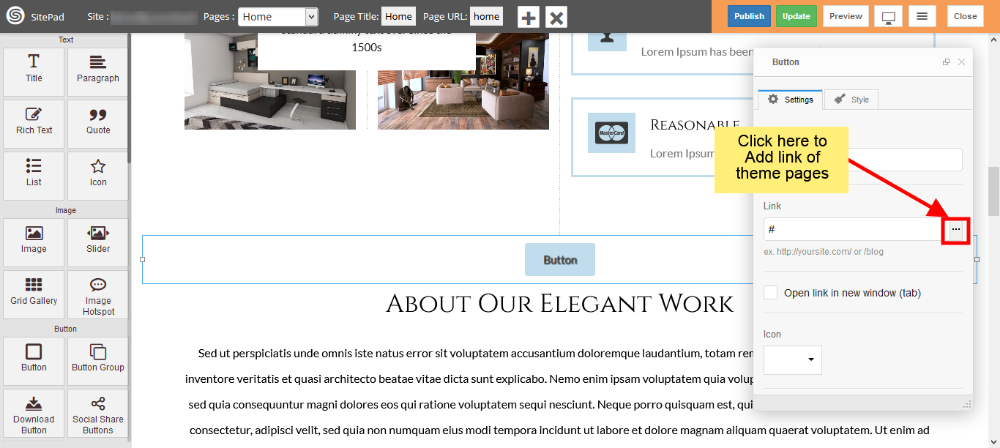
To link you **Button** to existing theme page just click on three dots of Link section as shown in image below.  
   
![](https://dotroll.com/wp-content/uploads/2020/08/Link-page-click.png)  
   
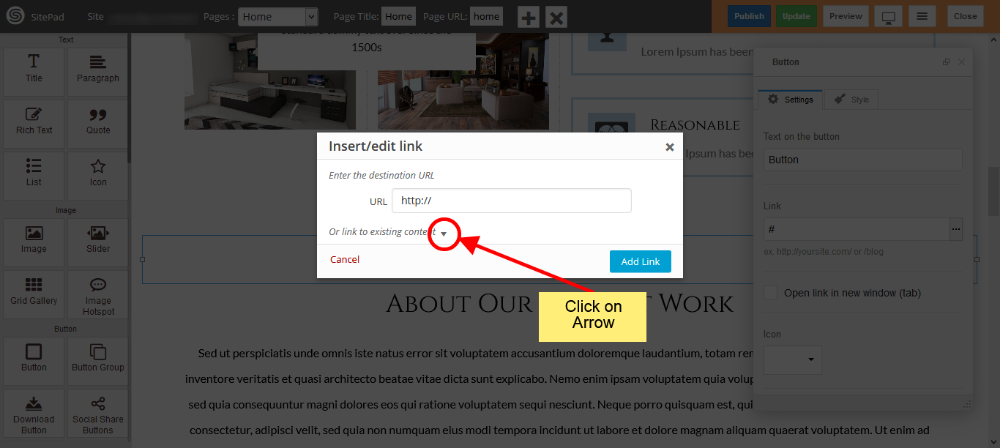
Now in popup box click on **Arrow**.  
   
![](https://dotroll.com/wp-content/uploads/2020/08/Insert-link-popup.png)  
   
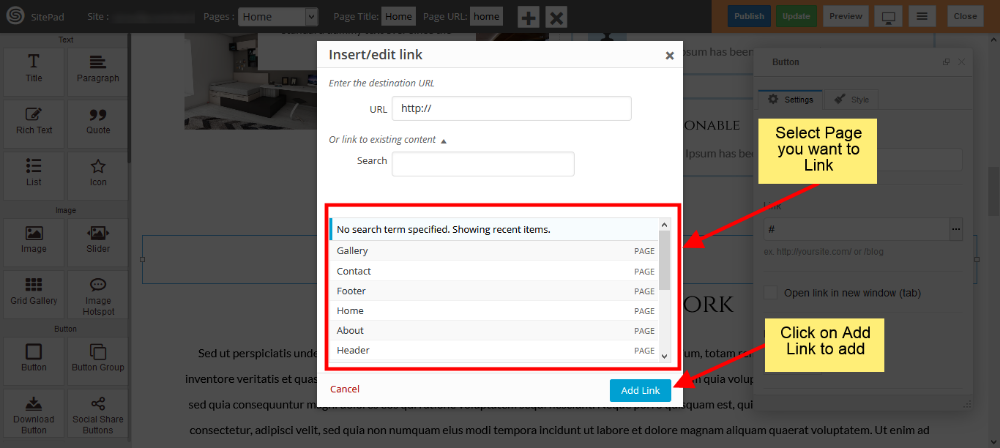
Select page which you want to link and in the end click on **Add Link**.  
   
![](https://dotroll.com/wp-content/uploads/2020/08/Select-page-to-link.png)

#### EDIT BUTTON ELEMENT STYLES AND PRESETS

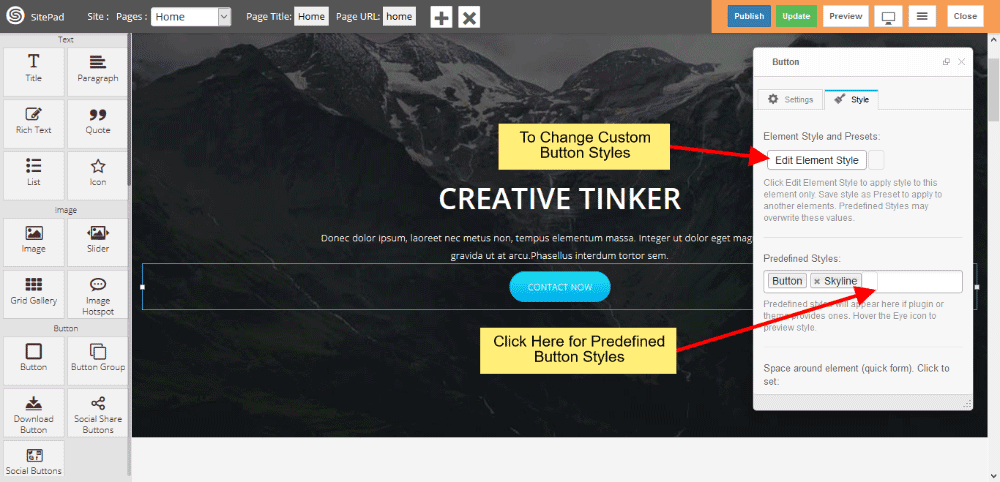
If you want to change the **Button Custom Styles** like Background color, Text color etc. then click **Edit Element Style**.

For **Predefined styles** which comes in **widget** like Background color and Text color then you can click **Predefined Styles**.  
   
![](https://dotroll.com/wp-content/uploads/2020/08/Button-style.png)

#### BUTTON CUSTOM STYLE

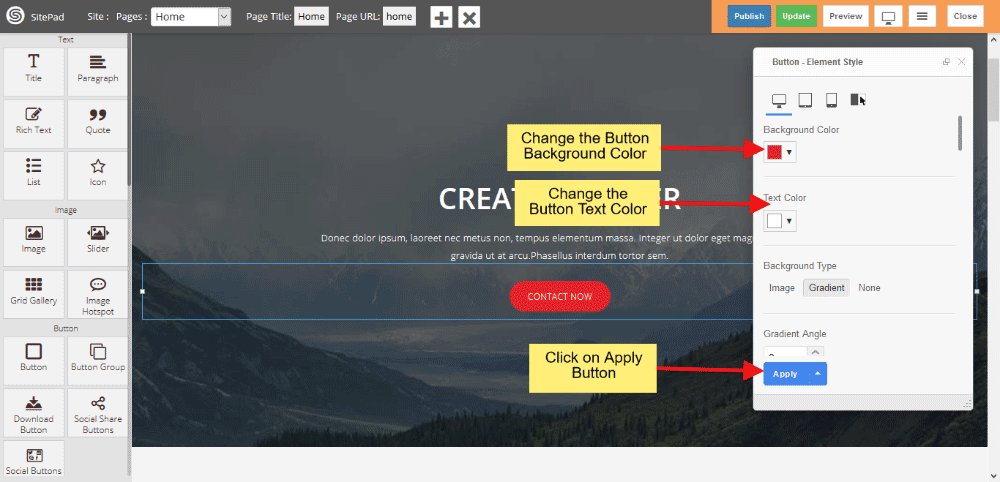
Button Custom Styles gives you to change Button Background color, Text color, Padding, Border-radius etc. When all are set then click on **Apply** button.  
   
![](https://dotroll.com/wp-content/uploads/2020/08/Button-custom-style.png)

#### BUTTON PREDEFINED STYLE

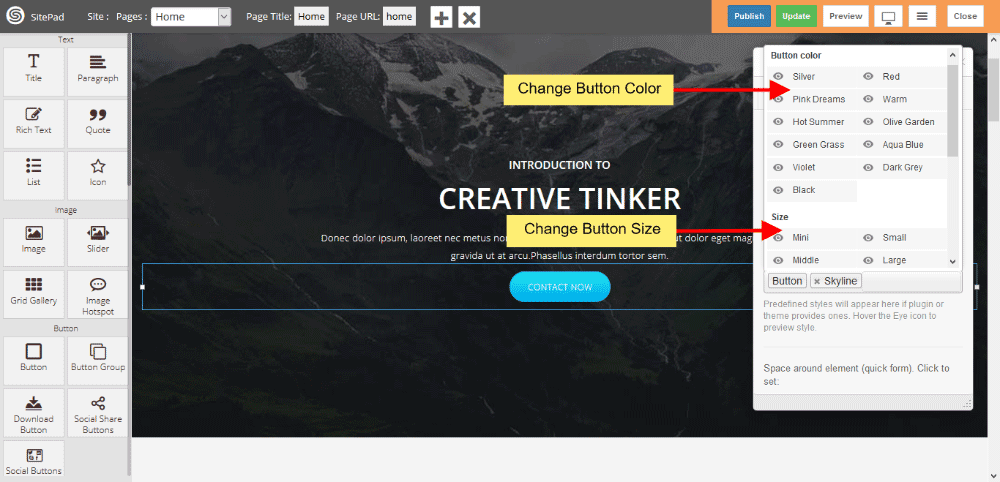
Predefined style gives you **clasees** of various predefined button for Background and Text color. And Size gives you various types of **Button Size**.  
   
![](https://dotroll.com/wp-content/uploads/2020/08/Button-predefined.png)

# How to Download the Website

In this tutorial, we will show you How to **Download the Website**.

<p class="callout info">**Note:** By default **Download** option is disabled, if you want to use the Download option you will need to contact your web host to enable the **Allow Download Website** setting from SitePad admin panel. The download option is not available in SitePad Free plan.</p>

#### GO TO SITEPAD EDITOR

From your Control Panel click on **SitePad Website Builder**. You will be redirected to SitePad Editor Server.  
   
![](https://dotroll.com/wp-content/uploads/2020/08/Click_on_sitemush.png)  
   
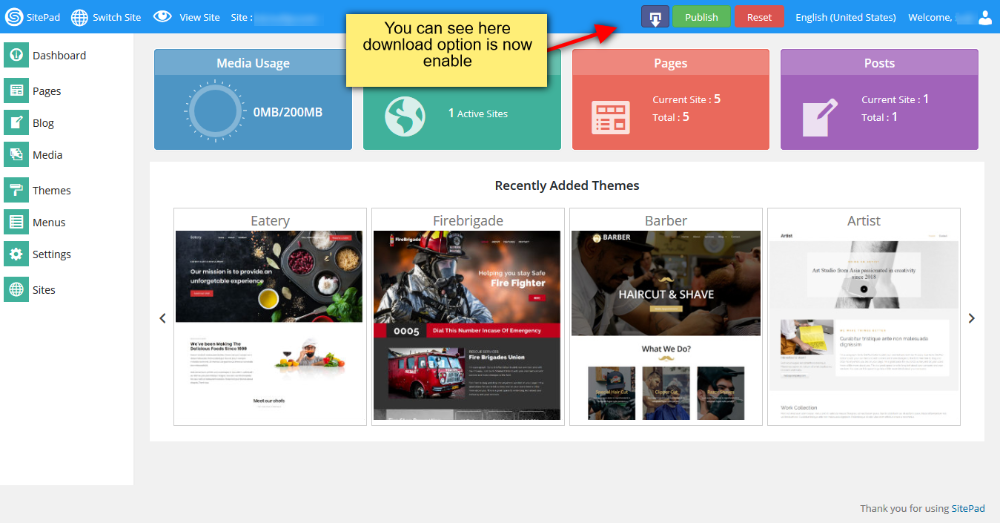
Once you are redirected to the Editor Server you will see **Download** button in the top bar.  
   
![](https://dotroll.com/wp-content/uploads/2020/08/Download_button_enable.png)

#### DOWNLOAD ZIP FILE

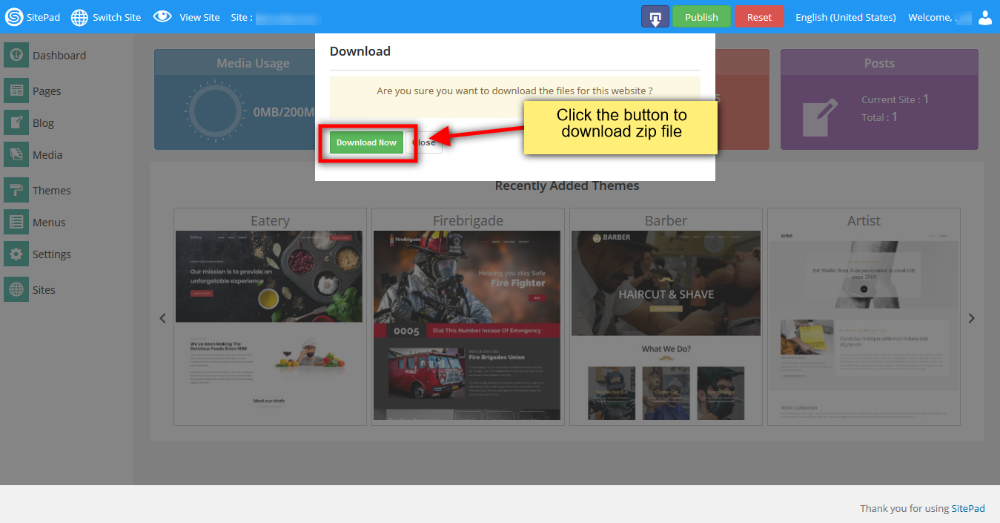
Click on **Download Now** button to download the website files in ZIP package.  
   
![](https://dotroll.com/wp-content/uploads/2020/08/Download_zip_file.png)  
   
Once the ZIP file is downloaded, upload that file on your server in your web directory e.g. **public\_html/** and unzip that file in same directory. You can use the **File Manager** feature in your control panel to upload the file.

That’s it ! Your site should now be accessible when you access your domain name in the browser.

# Sites in multiple languages

This guide helps you how to make a site in **multiple languages**.

Make a full website with one language and clone that site so you have a full copy of your website and change the language strings with the other language string using the editor. For easily understanding, you can follow the below steps:<a name="1"></a>

#### CLONE FULL SITE

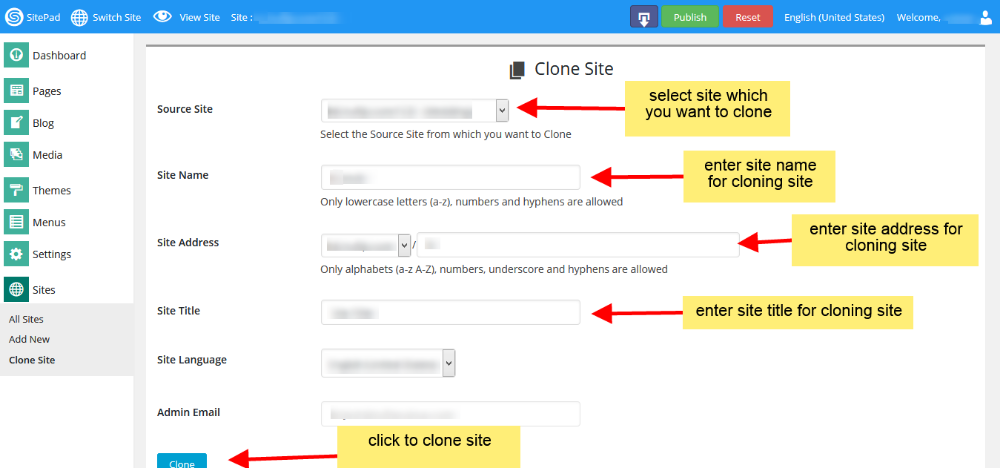
For cloning the website go to the Dashboard -&gt; Sites -&gt; Clone Site or you can also do by clicking of Dashboard -&gt; All Sites, click the button of cloning which sites you want to clone.  
   
![](https://dotroll.com/wp-content/uploads/2020/08/Clone-site.png)  
   
Select the **source site** which you want to clone from dropdown list. Enter **site name** which show in SitePad editor url, Select **domain name** and enter **site address** for your cloning site. This will be your site address for your cloned site after publish. And enter **Site Title**for the language which you want, after that click on **Clone** button for cloning the site.

After completing the cloning process it shows two links Visit Dashboard and Visit Site, click on **Visit Dashboard** link for editing the cloning site.<a name="2"></a>

#### EDIT ON CLONE SITE

   
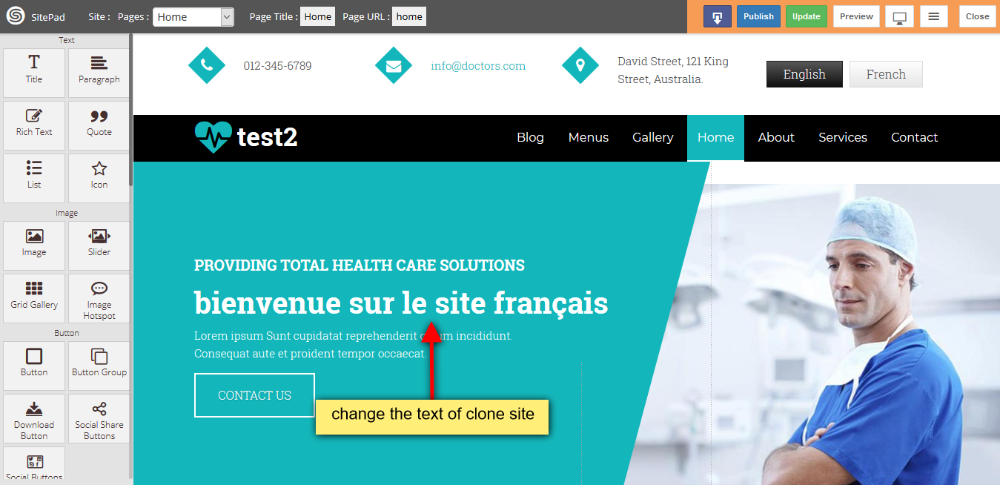
![](https://dotroll.com/wp-content/uploads/2020/08/Language-text-change.png)  
   
After cloning, click on **Visit Dashboard** link for editing the cloning site. You will get exact copy of site with same style and properties, and make changes on cloned site of French language.<a name="3"></a>

#### ADD LINKS IN HEADER

   
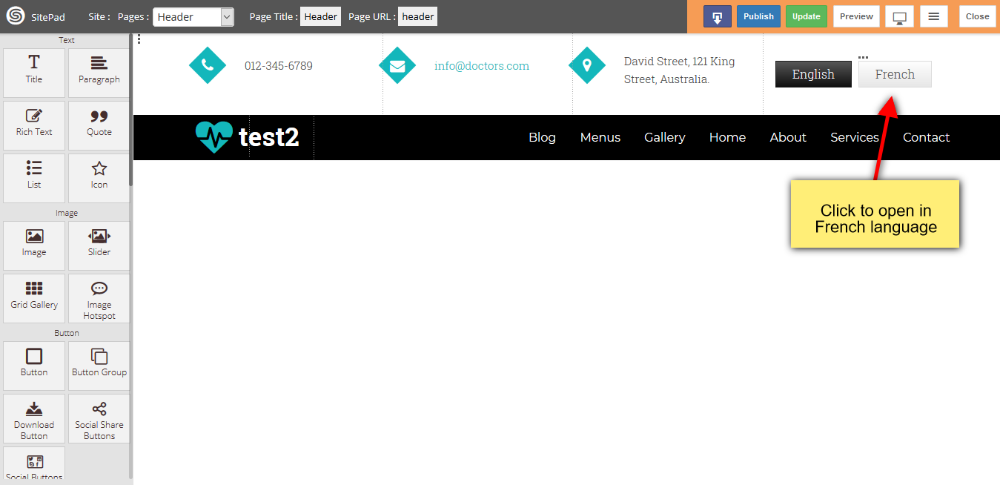
![](https://dotroll.com/wp-content/uploads/2020/08/Header-language.png)  
   
Suppose you have a domain **www.example.com**, this domain point to your **English language** and make button link for English and French languages in the header of both the sites, on clicking of their button it redirects to their languages and **French domain** is like this **www.example.com/fr**<a name="4"></a>

#### PUBLISH BOTH SITES

When all changes are done then **publish** both the sites.

# Password Protect Pages

This documentation will guide you on How to Password Protect your pages.

<p class="callout info"><span class=".">**Note:** Password Protection is supported only for Apache web server.</span><a name="1"></a></p>

#### GO TO EDITOR

When on **SitePad Website Builder** Dashboard. Hover on **Pages** option given on the left sidebar and then click on **All Pages**. Once on all Pages Click on **Edit Icon** of Any Page.  
   
![](https://dotroll.com/wp-content/uploads/2020/08/Click_edit_contact.png)  
   
You will be redirected to Editor.

#### SELECT PASSWORD PROTECT

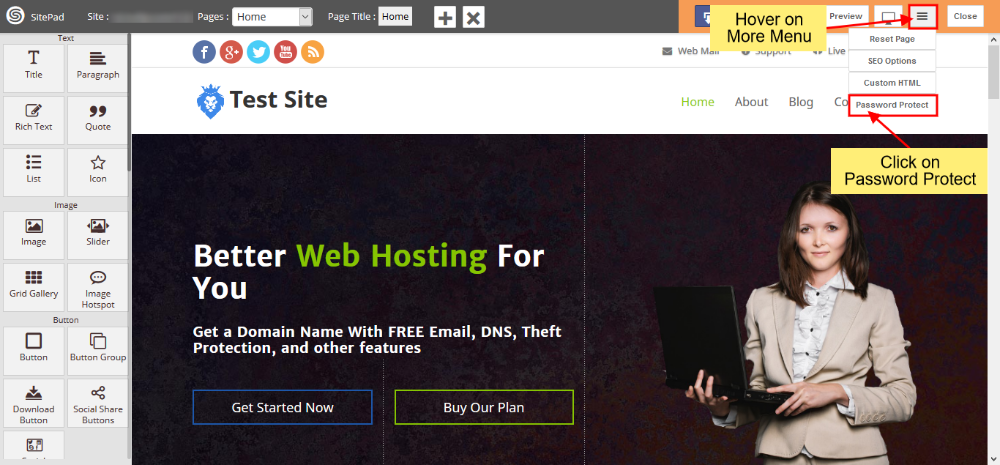
On **SitePad Editor** hover on more menu on the navigation bar. When you hover over more menu four buttons will be drop down **i.e** Reset Page, SEO Options, Custom HTML and Password Protect.

Click on **Password Protect**.  
   
![](https://dotroll.com/wp-content/uploads/2020/08/Select_password_protect.png)

#### PASSWORD PROTECT PAGES

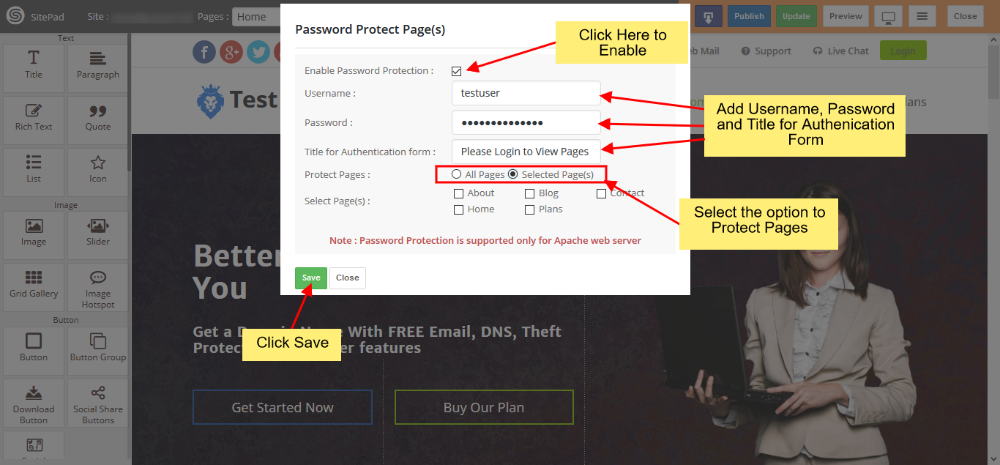
On clicking **Password Protect** you will see a dialog box will appear. Click on **Enable Password Protection** checkbox. Insert **Username**, **Password** and **Title for Authentication**. Then select the option from **Protect Pages** i.e **All Pages** or **Selected Pages**.  
   
![](https://dotroll.com/wp-content/uploads/2020/08/Password_protect_options.png)

<div class="vc_row wpb_row vc_row-fluid" id="bkmrk-on-click-of%C2%A0enable-p"><div class="wpb_column vc_column_container vc_col-sm-12"><div class="vc_column-inner"><div class="wpb_wrapper"><div class="wpb_text_column wpb_content_element "><div class="wpb_wrapper">- On click of **Enable Password Protection** your password protection option will be enabled.
- Insert **Username** that you want. It will be asked when you Log-in to password-protected pages/site.
- Insert **Password** that you can remember. It will be asked when you Log-in to password-protected pages/site.
- Insert **Title for Authentication**. This will be shown on the Log-in a Dialog box.
- Select an option from **Protect Pages** i.e **All Pages** if you want to password protect the full site or if you want only **Selected Pages** then choose the given option.
- If **Selected Pages** option has been selected you will find **Select Pages** option through which you can select which page to password protect.

</div></div></div></div></div></div>Once you have made the changes then click on **Save** to save the Password Protect Pages Option.

<div class="vc_row wpb_row vc_row-fluid" id="bkmrk-note%3A%C2%A0you-will-need-"><div class="wpb_column vc_column_container vc_col-sm-12"><div class="vc_column-inner"><div class="wpb_wrapper"><div class="vc_message_box vc_message_box-standard vc_message_box-rounded vc_color-info vc_custom_1599131237099"><div class="vc_message_box-icon">  
</div><div class="ricsi exclamation"><span class=".">**Note:** You will need to Publish your site for all the changes to take place.</span><a name="4"></a></div></div></div></div></div></div>#### REMOVING PASSWORD PROTECTION

To Remove Password Protect Pages click on **Password Protect** option. Uncheck the **Enable Password Protection** checkbox. Click on **Save**.  
   
![](https://dotroll.com/wp-content/uploads/2020/08/Remove_password_protect.png)

<div class="kb-article-content" id="bkmrk-note%3A%C2%A0you-will-need--1"><div class="ricsi exclamation"><span class=".">**Note:** You will need to Publish your site for all the changes to take place.</span></div></div>

# How to Add Custom links in Menu

This guide will show you how to add custom links in Menu.

#### GO TO MENUS

First you will need to go to the **Menus** as shown in image below.

![](https://dotroll.com/wp-content/uploads/2020/08/Click_on_menus.png)

Now in menus page click on **Custom Links** and add url of your page and give name for that page. after that click on **Add to Menu** button as shown in image below.

![](https://dotroll.com/wp-content/uploads/2020/08/Custom-link-menu-img01.png)

After all things done please click on **Save Menu**. This will add your custom link into menu.

# How to Add Unique ID

This guide will show you how to add Unique ID.

### GO TO PAGE EDITOR

Go to the page editor and select the row where you want to add **unique id** as shown in below image. Then click on **settings** in dialog box and add id for that row in **Element unique Id** section.  
   
![](https://dotroll.com/wp-content/uploads/2020/08/Unique-id-img01.png)  
   
After adding unique id please update the page as shown in image below.  
   
![](https://dotroll.com/wp-content/uploads/2020/08/Unique-id-img02.png)

# How to Add Background to Section

This guide will help you to Add Background to Section.

There are two Different ways to do that.

#### USING ROW DIALOG BOX

1\) Open Page you want to edit in editor. To do that Click on Edit icon present next to page name as shown image below.  
   
![](https://dotroll.com/wp-content/uploads/2020/08/Click_edit_contact.png)  
   
2\) Once you open Page in Editor follow steps below

1. **Select Row** where you want to **Add Background** by Clicking on **Three Vertical Dots** as shown image below.
2. Step i will pop up the **Dialog Box** for that Row.
3. Now Click on **Settings** option in Dialog Box.
4. Now Select the **Type of Background** you want to give for that **Particular Row  
       
    ![](https://dotroll.com/wp-content/uploads/2020/08/Add-background.png)**

3\) When you select one of the Option for **Background** then it will need some inputs just Fill that as shown below.

##### FOR VIDEO BACKGROUND

##### ![](https://dotroll.com/wp-content/uploads/2020/08/Background-video.png)

##### FOR YOUTUBE VIDEO BACKGROUND

##### ![](https://dotroll.com/wp-content/uploads/2020/08/Background-youtube.png)

##### FOR PARALLAX IMAGE BACKGROUND

##### ![](https://dotroll.com/wp-content/uploads/2020/08/Background-parallax.png)

##### FOR IMAGE BACKGROUND

##### ![](https://dotroll.com/wp-content/uploads/2020/08/Background-image.png)

##### FOR IMAGE SLIDER BACKGROUND

#### ![](https://dotroll.com/wp-content/uploads/2020/08/Background-slider.png)

#### USING EDIT ELEMENT STYLE

1\) Once you open Page in Editor follow steps below

1. **Select Row** where you want to **Add Background** by Clicking on **Three Vertical Dots** as shown image below.
2. Step i will pop up the **Dialog Box** for that Row.
3. Now Click on **Style** option in Dialog Box.
4. Now Click on **Edit Element Style**.  
       
    ![](https://dotroll.com/wp-content/uploads/2020/08/Edit-element-background.png)

2\) Now in **Edit Element Style** select **Background Color** or **Background Type** you want as shown in image below.  
   
![](https://dotroll.com/wp-content/uploads/2020/08/Edit-element-background-color.png)

##### FOR IMAGE BACKGROUND

If you want Image Background then just click on Image and select Image you want as shown in image below.  
   
![](https://dotroll.com/wp-content/uploads/2020/08/Edit-element-background-image.png)

##### FOR GRADIENT BACKGROUND

If you want Gradient Background then just click on Gradient and select Gradient Angle and Color as shown in image below.  
   
![](https://dotroll.com/wp-content/uploads/2020/08/Edit-element-background-gradient.png)

# How to Edit Header and Footer

This Guide will Help you to edit Header and Footer Page.

#### GO TO PAGES AND EDIT

When you are on SitePad Website Builder dashboard. You will see **Pages** option on Sidebar Navigation Menu. Hover on **Pages** and Click on **All Pages**

Once you see all Pages. Click on the Edit Icon of the Header Page or Footer Page whichever you want to Edit shown like in the image below.

![](https://dotroll.com/wp-content/uploads/2020/08/All-pages.png)

#### EDIT HEADER

Once you open **Header Page** in editor you will be able to **Edit** all the stuff from Header Page as shown image below.

![](https://dotroll.com/wp-content/uploads/2020/08/Header-editor.png)

Note: You can also add extra items that you want to display in **Header**. Just **Drag and Drop** them as shown in image below.

![](https://dotroll.com/wp-content/uploads/2020/08/Add-item.png)

#### EDIT FOOTER COPYRIGHT TEXT

You can also edit Footer Page as similar to Header Page shown above. Click edit icon of Footer Page as shown in above images and edit.

To change the footer copyright text just click on that and change as per your needs as shown in image below.

![](https://dotroll.com/wp-content/uploads/2020/08/Footer-editor.png)

# How to Add Tags to Blog Post

In this tutorial, we will show you How to **Add Tags to Blog Post**.

For Adding Tags to your Blog Post you will need to access **SitePad Editor**.<a name="editor"></a>

#### GO TO SITEPAD EDITOR

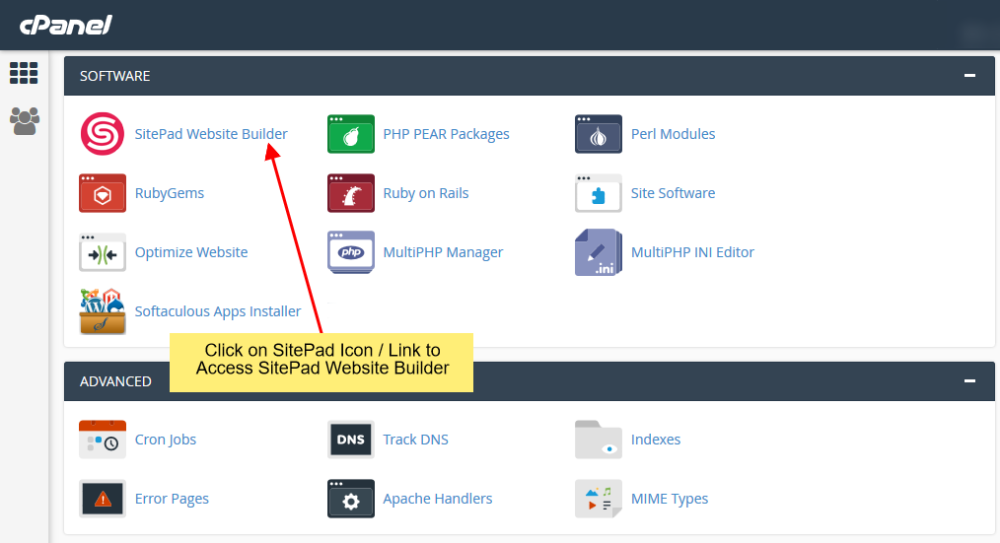
From your Control Panel click on **SitePad Website Builder**. You will be redirected to SitePad Editor Server.
![](https://dotroll.com/wp-content/uploads/2020/08/Click_on_sitemush.png)  
Once you are redirected to the Editor Server you will see **Blog** in the Main menu. Click on **All Posts** and then click on **Edit Icon** to edit the Post. You will be redirected to the Editor.

![](https://dotroll.com/wp-content/uploads/2020/08/Select_all_and_edit.png)

#### MORE OPTION AND TAGS BUTTON

In **Editor**, you will need to hover the mouse on **More** then select **Tags Button**

![](https://dotroll.com/wp-content/uploads/2020/08/Select_tags.png)  
A dialog box will appear in which you can add a **New Tags** as shown in the image below.  
![](https://dotroll.com/wp-content/uploads/2020/08/Add_tags.png)

After selecting the Tags that you want to assign to your post click on **Save** to update the Tags for the **Post** as shown in the image below.

![](https://dotroll.com/wp-content/uploads/2020/08/Save_tags.png)

#### PREVIEW CHANGES

After assigning Tags to the post, on preview, your post would look like the image given below

![](https://dotroll.com/wp-content/uploads/2020/08/Tags_on_preview.png)

Also if you assign a **single tag** to more than one post and when you click on that **tag name** it will show all the blog post assigned to that tag as shown in the image below:.

![](https://dotroll.com/wp-content/uploads/2020/08/Post_display_per_tags.png)

# How to Add Categories to Blog Post

In this tutorial, we will show you How to **Add Categories to Blog Post**.

For Adding Categories to your Blog Post you will need to access **SitePad Editor**.<a name="editor"></a>

#### GO TO SITEPAD EDITOR

From your Control Panel click on **SitePad Website Builder**. You will be redirected to SitePad Editor Server.

![](https://dotroll.com/wp-content/uploads/2020/08/Click_on_sitemush.png)  
Once you are redirected to the Editor Server you will see **Blog** in the Main menu. Click on **All Posts** and then click on **Edit Icon** to edit the Post. You will be redirected to the Editor.  
![](https://dotroll.com/wp-content/uploads/2020/08/Select_all_and_edit.png)

#### MORE OPTION AND CATEGORIES BUTTON

In **Editor**, you will need to hover the mouse on **More** then select **Categories Button.**

![](https://dotroll.com/wp-content/uploads/2020/08/Select_categories.png)  
A dialog box will appear in which you can add a **New Category** as shown in the image below or you can select from different Categories already added.

![](https://dotroll.com/wp-content/uploads/2020/08/Add_new_category.png)

After selecting which Categories you want to assign to your post then click on **Save** to update the categories for the **Post** as shown in the image below.

![](https://dotroll.com/wp-content/uploads/2020/08/Save_categories.png)

#### PREVIEW CHANGES

After assigning categories to the post, on preview, your post would look like the image given below:

![](https://dotroll.com/wp-content/uploads/2020/08/Categories_preview.png)  
Also if you assign a **single category** to more than one post and when you click on that **category name** it will show all the blog post assigned to that category as shown in the image below:

![](https://dotroll.com/wp-content/uploads/2020/08/Category_displayed_post-1.png)

# How to Edit Custom Site Title

This documentation will guide you on How to Insert Site Title for Pages.<a name="editor"></a>

#### GO TO EDITOR

When on **SitePad Website Builder** Dashboard. Hover on **Pages** option given on the left sidebar and then click on **All Pages**. Once on all Pages Click on **Edit Icon** of Any Page.  
   
![](https://dotroll.com/wp-content/uploads/2020/08/Click_edit_contact.png)  
   
You will be redirected to Editor.<a name="slctsptn"></a>

#### SELECT SEO OPTION

On **SitePad Editor** hover on more menu on the navigation bar. When you hover on more menu three buttons will be drop down **i.e** Reset Page, SEO Options and Custom HTML.

Click on **SEO Option**.  
   
![](https://dotroll.com/wp-content/uploads/2020/08/Click_on_seo.png)

#### INSERT SITE TITLE

On clicking **SEO Option** you will see a dialog box will appear. Insert Site Title for any Page using drop down menu.

<div class="vc_row wpb_row vc_row-fluid" id="bkmrk-note%3A%C2%A0if-site-title-"><div class="wpb_column vc_column_container vc_col-sm-12"><div class="vc_column-inner"><div class="wpb_wrapper"><div class="wpb_text_column wpb_content_element "><div class="wpb_wrapper"><div>  
</div></div></div><div class="vc_message_box vc_message_box-standard vc_message_box-rounded vc_color-info vc_custom_1598965746759"><div class="vc_message_box-icon">  
</div><div class="ricsi info"><span class=".">**Note:** If Site Title is set for Global Meta it will also change the main Site Title for your website in SitePad Settings. Also, if any page does not have Custom Site Title then it will be used from Global Meta.</span></div></div></div></div></div></div>   
![](https://dotroll.com/wp-content/uploads/2020/08/Add_site_title.png)  
   
Once you have made the changes then click on **Save Meta** to save the Site Title.<a name="clrmtdtl"></a>

#### CLEAR META DETAILS

To Clear Site Title of the current page click on **Clear Meta**. Site Title will be reset to none.

<div class="vc_row wpb_row vc_row-fluid" id="bkmrk-note%3A%C2%A0for%C2%A0global-met"><div class="wpb_column vc_column_container vc_col-sm-12"><div class="vc_column-inner"><div class="wpb_wrapper"><div class="wpb_text_column wpb_content_element "><div class="wpb_wrapper">  
</div></div><div class="vc_message_box vc_message_box-standard vc_message_box-rounded vc_color-info vc_custom_1598965826169"><div class="vc_message_box-icon">  
</div><div class="ricsi info"><span class=".">**Note:** For **Global Meta** if you click on Clear Meta to clear Site Title it will not reset SitePad Settings Site Title that was saved previously when Global Meta Site Title was set.</span></div></div></div></div></div></div>  
   
![](https://dotroll.com/wp-content/uploads/2020/08/Reset_meta.png)

# How to Add CSS using Custom HTML

This documentation will guide you on How to Insert CSS using Custom HTML code.<a name="editor"></a>

#### GO TO EDITOR

When on **SitePad Website Builder** Dashboard. Hover on **Pages** option given on the left sidebar and then click on **All Pages**. Once on all Pages Click on **Edit Icon** of Any Page.  
   
![](https://dotroll.com/wp-content/uploads/2020/08/Click_edit_contact.png)  
   
You will be redirected to Editor.<a name="slctcstmhtml"></a>

#### SELECT CUSTOM HTML

On **SitePad Editor** hover on more menu on the navigation bar. When you hover on more menu three buttons will be drop down **i.e** Reset Page, SEO Options and Custom HTML.

Click on **Custom HTML**.  
   
![](https://dotroll.com/wp-content/uploads/2020/08/Select_custom_html.png)

#### INSERT CSS IN CUSTOM HTML

On clicking **Custom HTML** you will see a dialog box will appear. Insert all your CSS under style tag as shown in image below.  
   
![](https://dotroll.com/wp-content/uploads/2020/08/Css_using_custom_html.png)

# How to Insert Custom HTML

This documentation will guide you on How to Insert Custom HTML code.<a name="gotoeditor"></a>

#### GO TO EDITOR

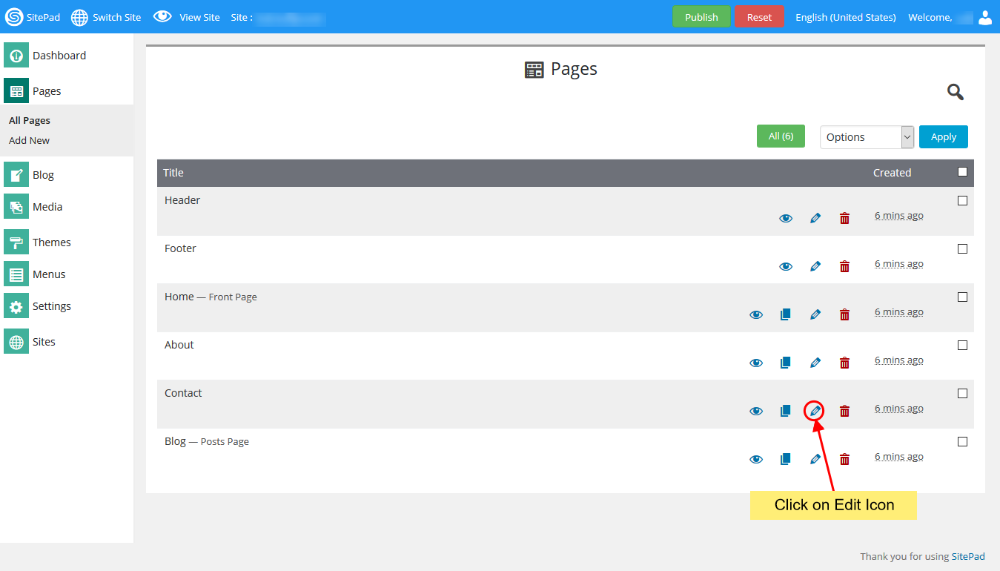
When on **SitePad Website Builder** Dashboard. Hover on **Pages** option given on the left sidebar and then click on **All Pages**. Once on all Pages Click on **Edit Icon** of Any Page.
![](https://dotroll.com/wp-content/uploads/2020/08/Click_edit_contact.png)

You will be redirected to Editor.<a name="selectcustomhtml"></a>

#### SELECT CUSTOM HTML

On **SitePad Editor** hover on more menu on the navigation bar. When you hover on more menu three buttons will be drop down **i.e** Reset Page, SEO Options and Custom HTML.

Click on **Custom HTML**.

![](https://dotroll.com/wp-content/uploads/2020/08/Select_custom_html.png)

#### INSERT CUSTOM HTML FOR HEADER

On clicking **Custom HTML** you will see a dialog box will appear. Insert Custom HTML code for Header in the given textarea.

![](https://dotroll.com/wp-content/uploads/2020/08/Insert_custom_html.png)

Once you have made the changes then click on **Save** to save the Custom HTML.

# How to Reset Pages, Blogs or Site

This guide will show you how to Reset Pages, Reset Blogs and Reset Site.

#### <span class="mw-headline" id="bkmrk-reset-1">RESET</span>

When you are on SitePad Editor you will see Reset Button. Click on the Reset Button.  
   
![](https://dotroll.com/wp-content/uploads/2020/08/Reset1.png)  
   
Then you will find three option. Choose an appropriate option.  
   
![](https://dotroll.com/wp-content/uploads/2020/08/Reset2.png)

<p class="callout info">**Note:**  
1. Reset all Pages – This will Reset only Pages.  
2. Reset all Blog Posts – This will Reset only Blog Pages.  
3. Reset full site – This will Reset full site (after reset you will need to start making the website from scratch).</p>

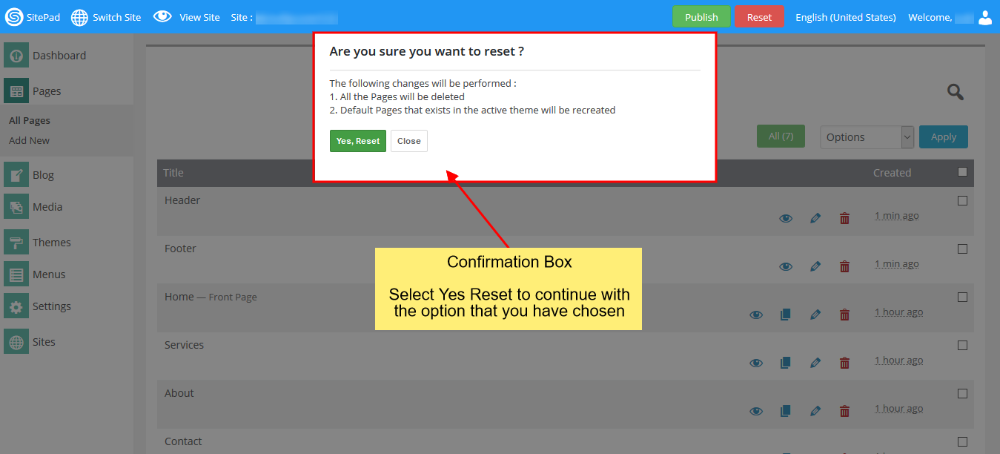
Once you select the option then click on **Continue** Button. Then you will see a confirmation box.  
   
![](https://dotroll.com/wp-content/uploads/2020/08/Reset3.png)  
   
When you click on **Yes, Reset** Button it will process ahead with the option that you have just confirmed.

Once Reset is done it will reload the page.

<p class="callout info"><span class=".">**Note:** On Full Reset you will be redirected to Themes where you will need to select the new theme.</span></p>

# How to Change Language

You can change the SitePad Editor Language in two ways (second one is easier).

#### FROM NAVIGATION BAR

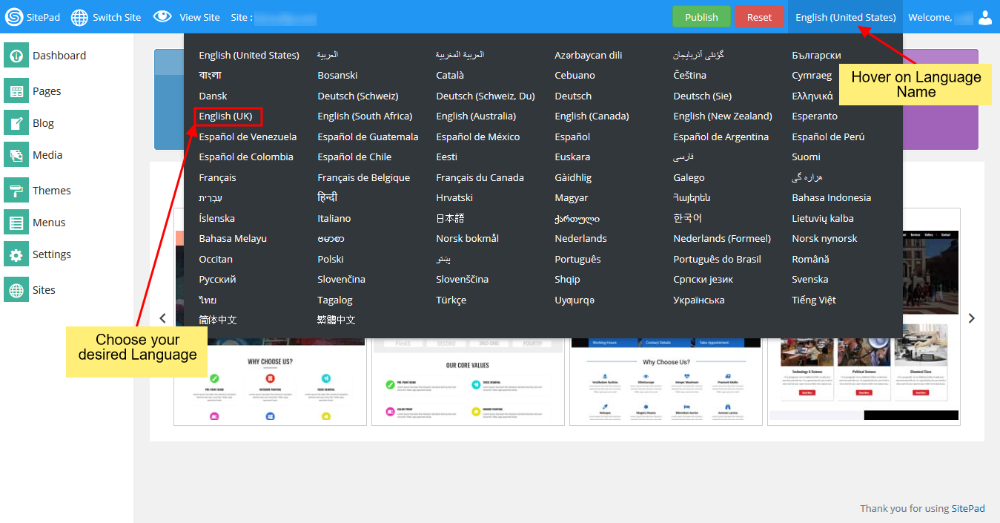
You can change language from the **Navigation bar**. i.e On Top Navigation bar where you see the selected language name being displayed you can hover on the name. This will open a drop down list of available languages you can select your desired language. Check out the example below.
![](https://dotroll.com/wp-content/uploads/2020/08/Change_language.png)

#### FROM SETTINGS PAGE

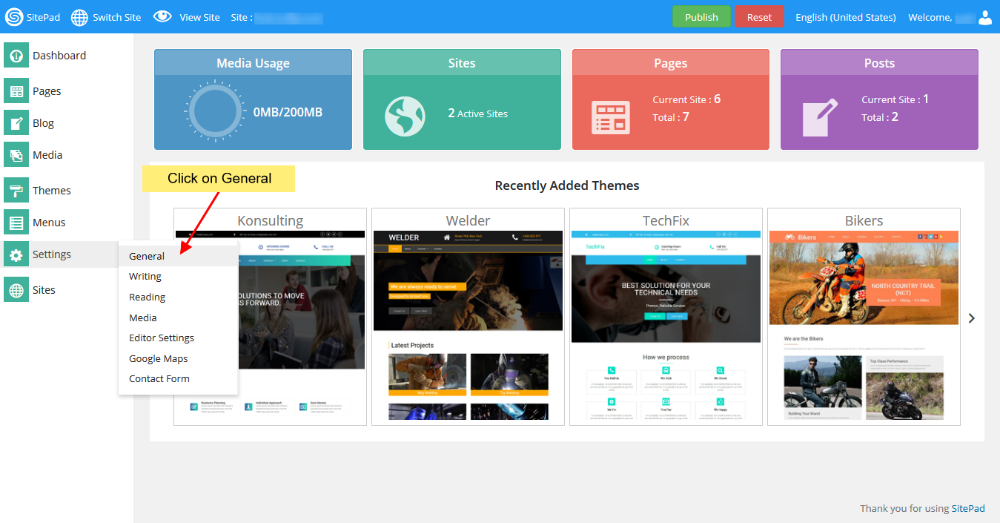
When you are on **SitePad Editor** dashboard. Hover on **Settings** and then click on **General**.
![](https://dotroll.com/wp-content/uploads/2020/08/Genera_settings.png)

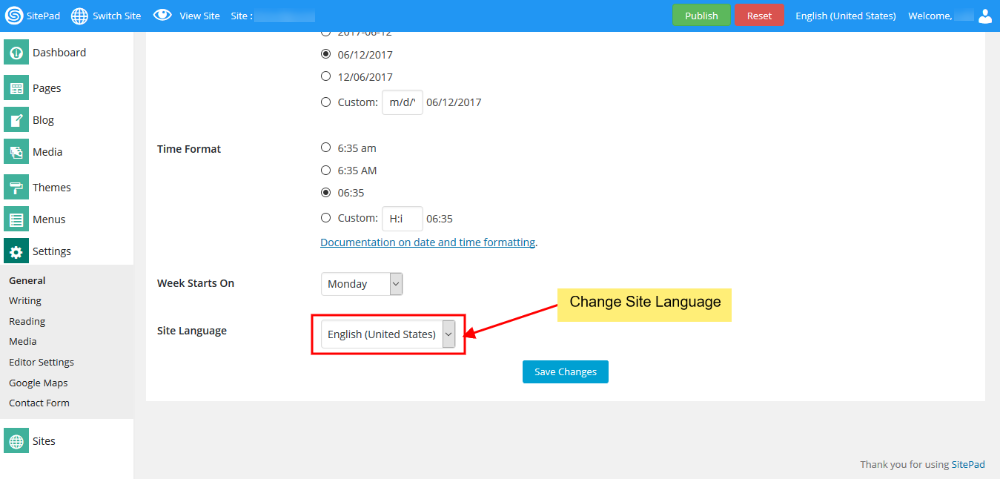
Once on **General Settings** page you will see the option **Site Language** as shown in the image below. You can select your desired language from the drop down list.
![](https://dotroll.com/wp-content/uploads/2020/08/Site_language.png)

# How to Clone a Site

This guide will show you how to Clone a Site.

#### CLONE A SITE

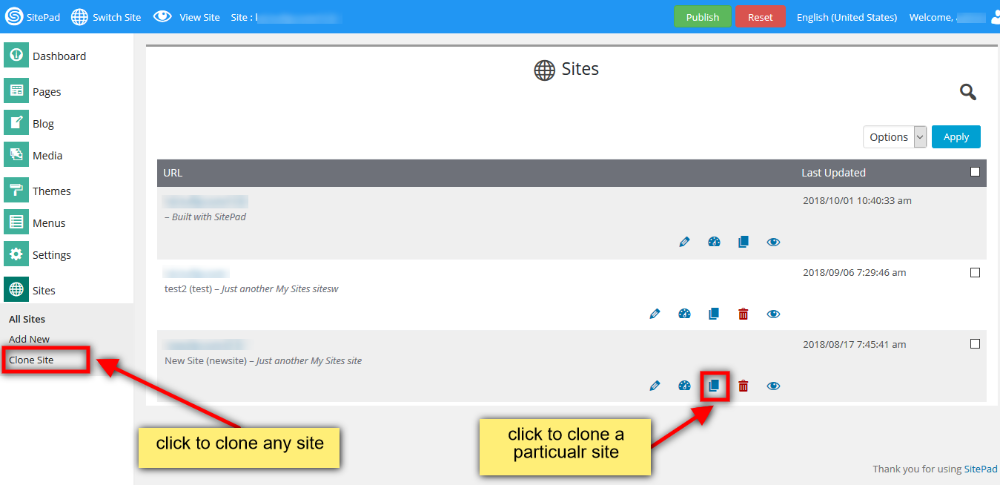
Click the **Sites** to display all the site that you have created from SitePad Dashboard.

Once you see all Sites. Click on the **Clone Icon** of the site that you want to clone or you can click on **Clone Site** as shown in the image below.  
   
![](https://dotroll.com/wp-content/uploads/2020/08/Clone_a_site.png)  
   
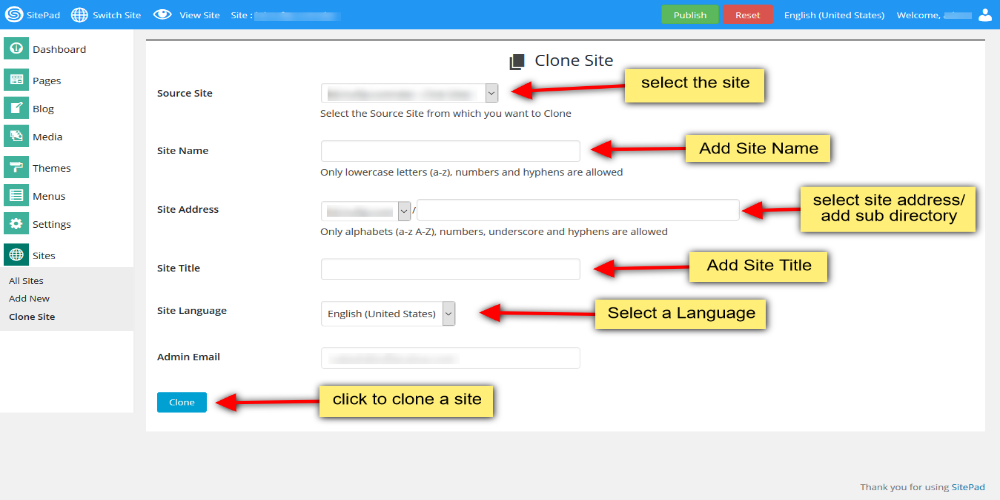
When you click on **Clone Icon** you will see all the options regarding the cloning.  
   
![](https://dotroll.com/wp-content/uploads/2020/08/Clone_site_details.png)  
   
Select the site from **source site** dropdown list and Add **New Site Name** for website. Then enter the New **Site Address** (select from your domains) and then add new directory. Next you need to Enter **Site Title**. You can also change the language of your clone site and select it to your native language.

Once the website is cloned Successfully you will see the success message asking you to **Visit Dashboard** of the clone site or **Edit** newly created clone site.

# How to Clone a Page

This guide will show you how to Clone a Page.

#### CLONE A PAGE

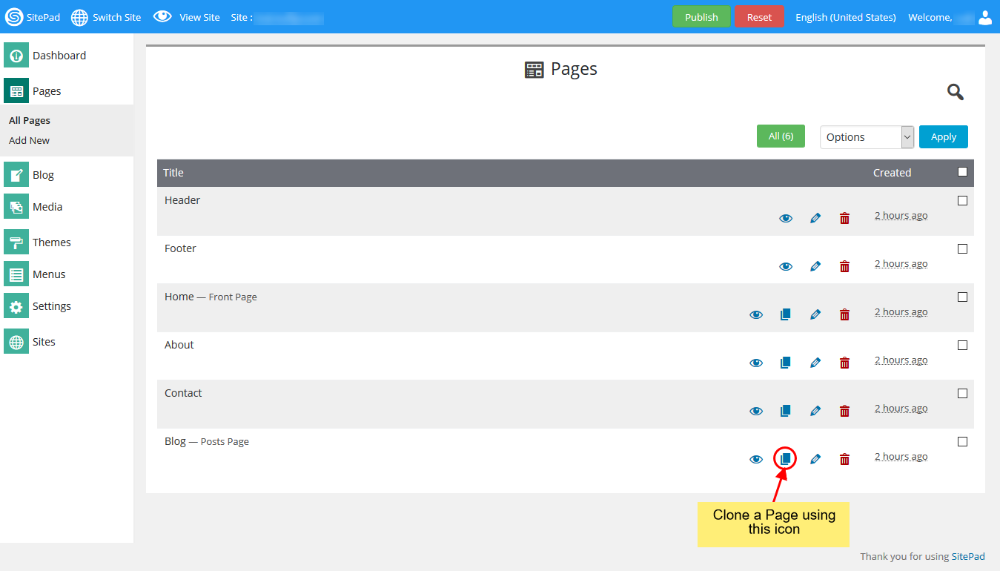
When you hover on **Pages** and Click on **All Pages**

Once you see all Pages. Click on the **Clone Icon** of the page you want to clone as shown in the image below.  
   
![](https://dotroll.com/wp-content/uploads/2020/08/Clone_a_page.png)  
   
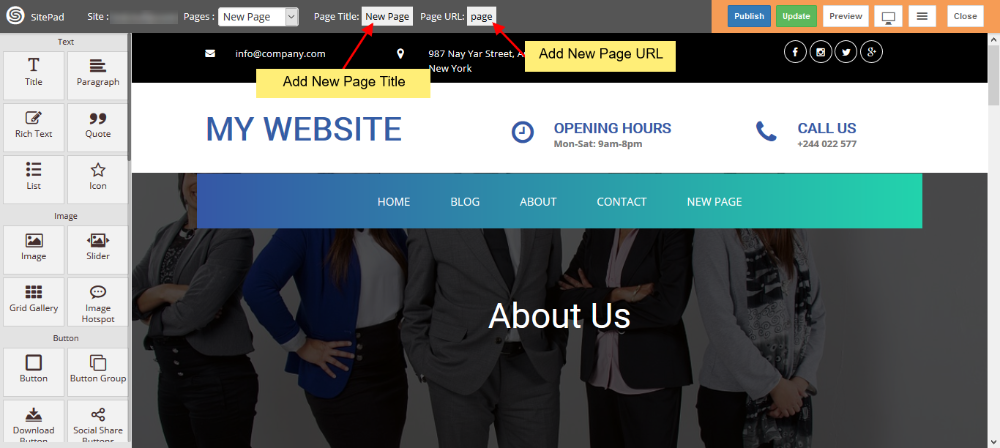
After you click on **Clone Icon** you will be redirected to **SitePad Editor** of the newly clone page. You can provide the URL and **Page Title** and then click on Update and then edit the newly cloned page as per your requirement.  
   
![](https://dotroll.com/wp-content/uploads/2020/08/Add_clone_title.png)

# How to Create Menu

When the first **Theme** is selected it automatically populates the **Menu** but if you want to **Edit** or **Create Menu** you can follow this guide.

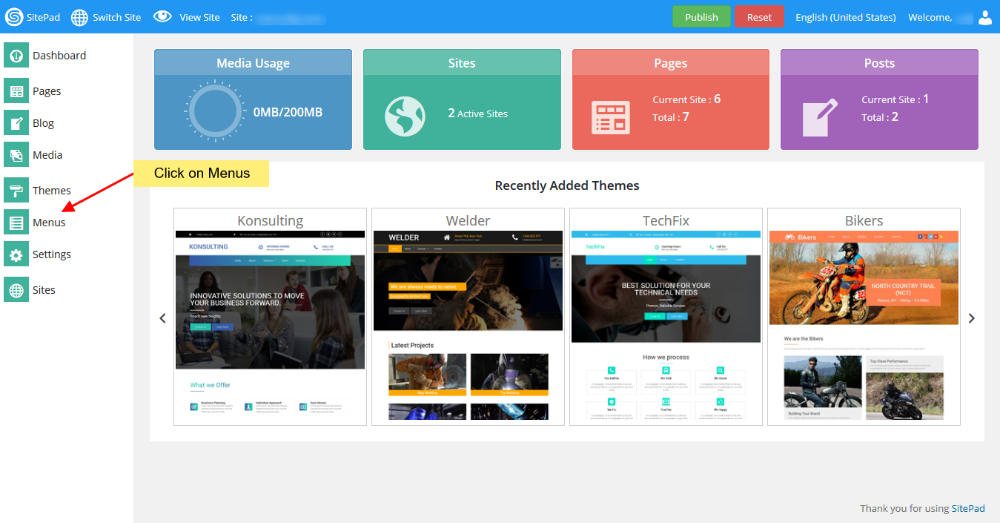
1. Hover on **Themes** tab in the left sidebar and when you see **Menus** option click on it as shown in the image below. **Please Note :** The menu name should be **Header Menu**.  
       
    ![](https://dotroll.com/wp-content/uploads/2020/08/Click_on_menus.png)

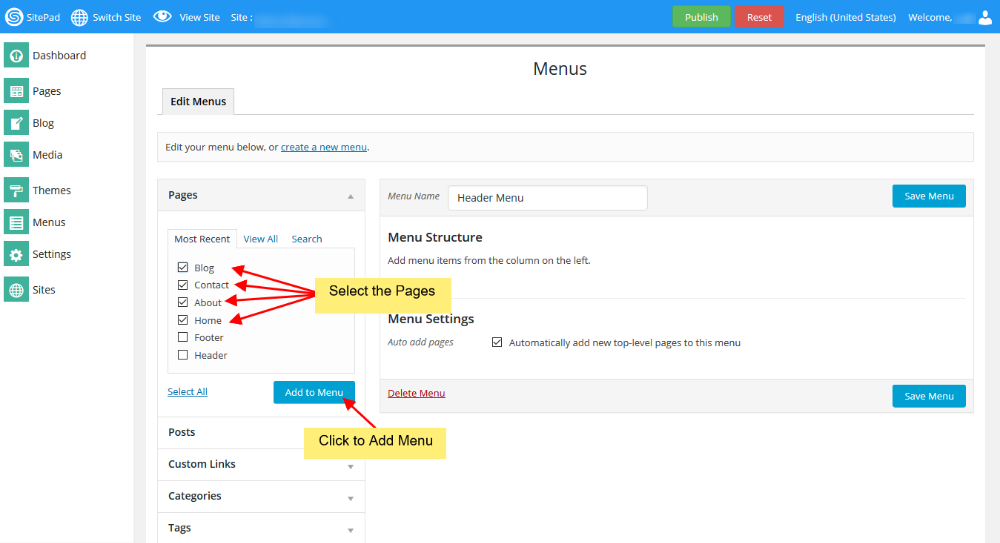
1. Select the Pages that you want to show on your **Header Menu** after Selection click on **Add Menu**.  
       
    ![](https://dotroll.com/wp-content/uploads/2020/08/Add_menu.png)

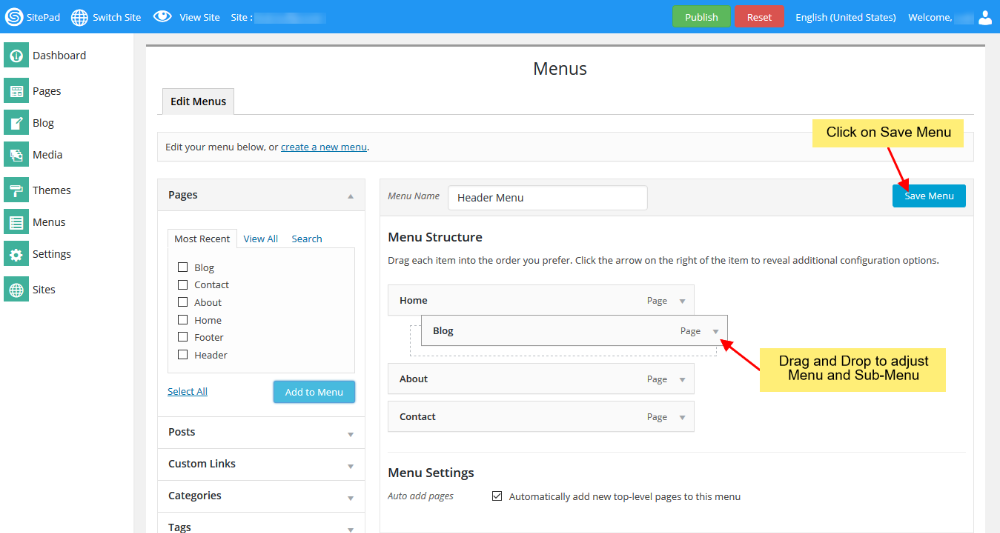
1. Adjust the **Menu** and **Sub Menu** by using **Drag &amp; Drop** once done Click on **Save Menu**.  
       
    ![](https://dotroll.com/wp-content/uploads/2020/08/Add_menu2.png)

1. If you want to remove any page from **Menu** you can do this by following below steps once done Click on **Save Menu**.  
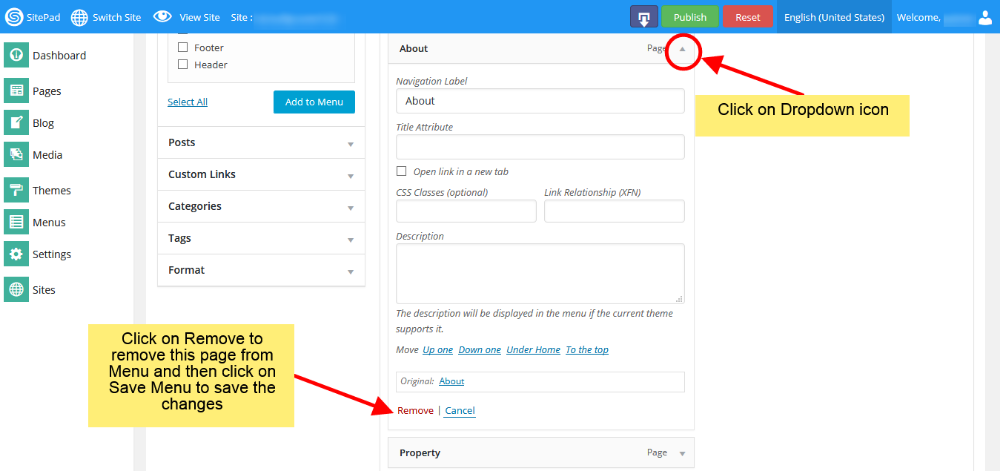
       
    ![](https://dotroll.com/wp-content/uploads/2020/08/Menu-delete-img.png)

That’s it your done.

# How to Add Add Site Title and Tagline

This documentation will show you how to add Site Title and Tagline to your website.

#### GO TO SETTINGS AND CLICK GENERAL

When you are on **SitePad Website Builder** dashboard. Hover on **Settings** tab in left menu and then click on **General**.  

   
![](https://dotroll.com/wp-content/uploads/2020/08/Genera_settings.png)  
   
Once on **General Settings** page you will see editable options like **Site Title, Tagline, Date Format, TimeZone, Time Format, Week Start On** etc.  
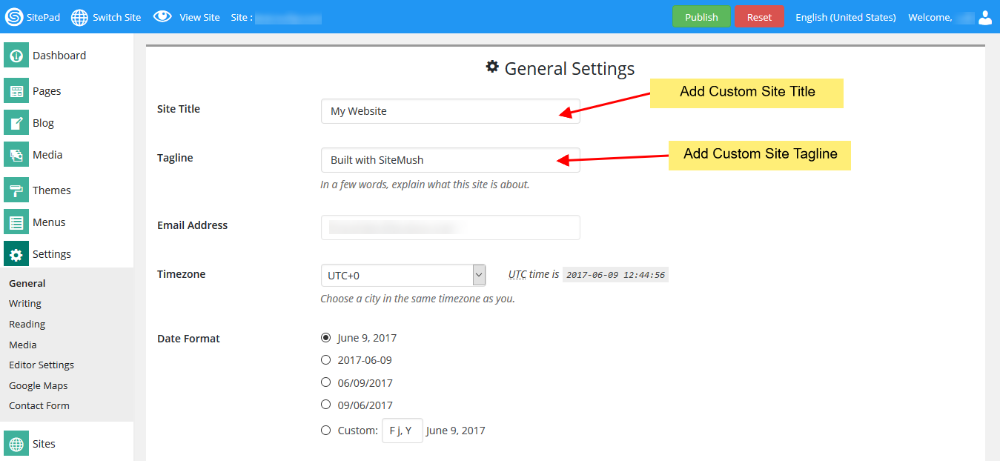
   
![](https://dotroll.com/wp-content/uploads/2020/08/Sitetitle_tagline.png)

Enter the **Site Title** and **Tagline** for your website once you add it. Click on **Save Changes** button.

# How to Add Custom Logo

This guide will show you how to Add a Custom Logo.

#### GO TO PAGES AND EDIT HEADER

When you are on SitePad Website Builder dashboard. You will see **Pages** option on Sidebar Navigation Menu. Hover on **Pages** and Click on **All Pages**

Once you see all Pages. Click on the Edit Icon of the Header Page shown like in the image below.
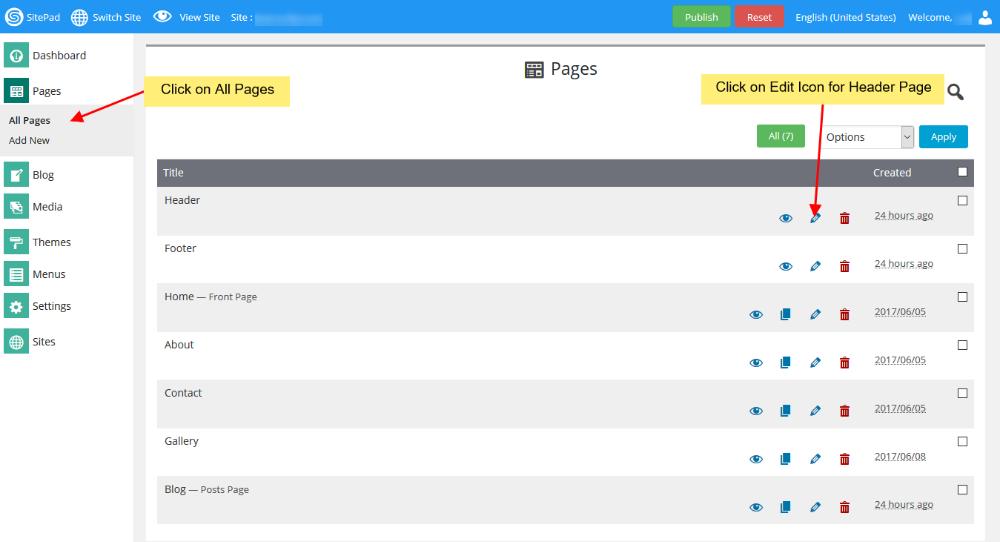
![](https://dotroll.com/wp-content/uploads/2020/08/Edit_header.png)

#### ADDING CUSTOM LOGO

You will be redirected to **SitePad Editor** for Header. When you are in **SitePad Editor** if you want to add just the logo you will need to remove **Site Title** as shown in the below image and if you want the logo as well as text you do not need to remove the **Site Title**.
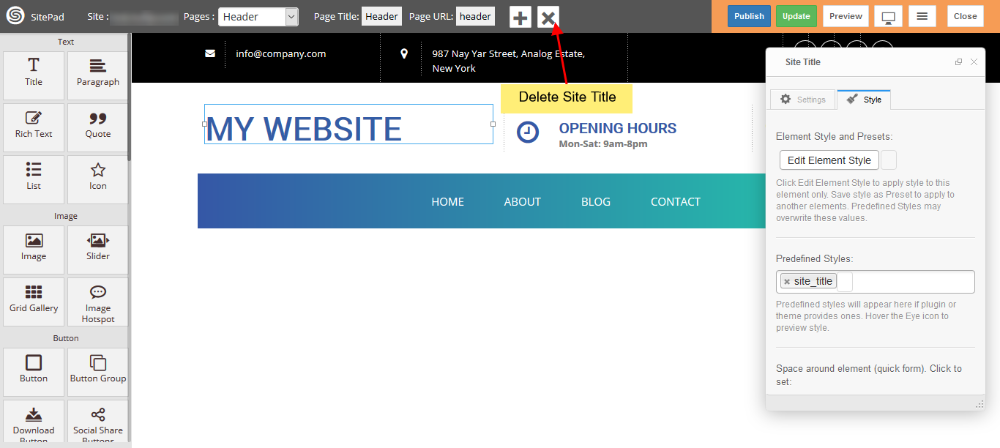
![](https://dotroll.com/wp-content/uploads/2020/08/Remove_title.png)  
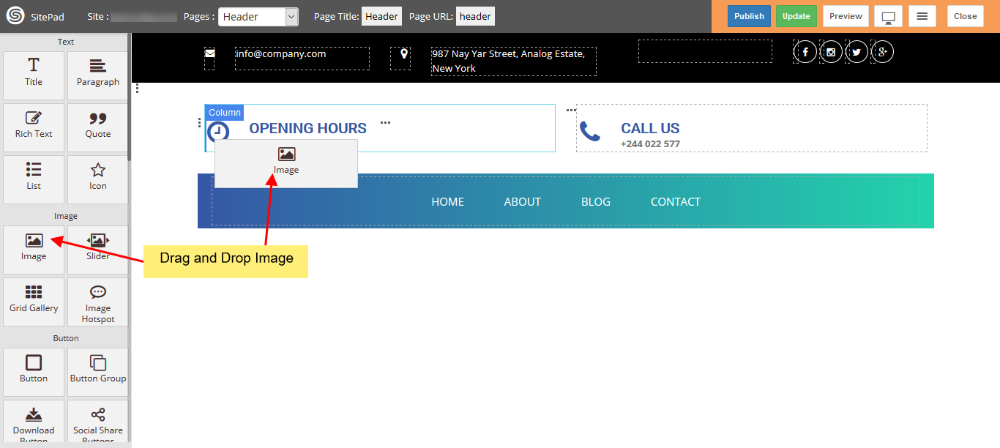
Now drag and drop **Images Widget** to a new column in the same row with menu as shown in the image below.
![](https://dotroll.com/wp-content/uploads/2020/08/Dragndrop_image.png)  
After you drop the **Image Widget**. You will see a dialog box with naming **Insert Media** shown in the image below.
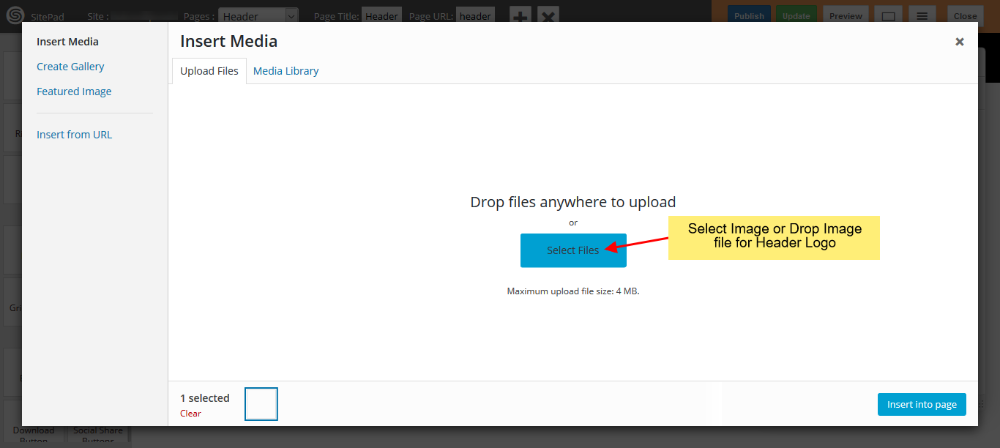
![](https://dotroll.com/wp-content/uploads/2020/08/Dialouge_box.png)  
You can select the logo file or drop the file in the dialog box.

<div class="vc_row wpb_row vc_row-fluid" id="bkmrk-note%3A-image-file-sho"><div class="wpb_column vc_column_container vc_col-sm-12"><div class="vc_column-inner"><div class="wpb_wrapper"><div class="wpb_text_column wpb_content_element "><div class="wpb_wrapper"><div class="ricsi info">  
</div></div></div><div class="vc_message_box vc_message_box-standard vc_message_box-rounded vc_color-info vc_custom_1598520271178"><div class="vc_message_box-icon">  
</div><div class="ricsi info"><div class="ricsi info">Note: Image File should be in **.jpeg**, **.jpg** or **.png** format only and Size of the Logo as per your requirement ( Image File in rectangular style would be more suitable ).</div></div></div></div></div></div></div>Once you upload the file Click on **Insert into Page**. Once the image is inserted you can adjust your logo column as per your menu.

Once Finished you can click on Update to Save if you want to edit other page.

# How to Add New Blog

This guide is to help you add new Blog Post.

#### LOGIN IN TO CONTROL PANEL

Firstly Login to your Control Panel (e.g. cPanel’s url will be [https://domain.com:2083](https://domain.com:2083/)) and login with your details. There click on the SitePad Icon or Link.  
   
![](https://dotroll.com/wp-content/uploads/2020/08/Click_on_sitemush.png)  
   
You will be redirected to **SitePad Website Builder**.

#### ADD NEW BLOG POST

Once you are on **SitePad Website Builder** dashboard. You will see **Blog** option on Sidebar Navigation Menu.  
   
![](https://dotroll.com/wp-content/uploads/2020/08/Sitemush_dashboard.jpg)  
   
Click on **Blog** and then click on **Add New.**  
   
![](https://dotroll.com/wp-content/uploads/2020/08/Add_new_blog_post.jpg)  
   
After you click on Add New it will redirect you to **SitePad Website Editor.**  
   
![](https://dotroll.com/wp-content/uploads/2020/08/Edit_new_blog.jpg)  
   
Enter the **Blog Title** then drag and drop items in your blog or you can even write a Blog Post by clicking on the textarea provided.  
   
![](https://dotroll.com/wp-content/uploads/2020/08/Edit_new_blog_with_layout.jpg)  
   
Also you can pick a predefined layout that we offer.  
   
![](https://dotroll.com/wp-content/uploads/2020/08/Click_publish_blog.jpg)

#### PUBLISH

After editing the blog post Click on **Publish** button to publish your blog post.

<div id="bkmrk-"></div><div id="bkmrk--1"></div>

# How to Add New Page

This guide will help you to Add New Page.

#### LOGIN IN TO CONTROL PANEL

Firstly Login to your Control Panel (e.g. cPanel’s url will be https://domain.com:2083) and login with your details. There click on the SitePad Icon or Link.  
   
![](https://dotroll.com/wp-content/uploads/2020/08/Click_on_sitemush.png)  
   
You will be redirected to **Website Builder**.<a name="newpage"></a>

#### ADD NEW PAGE

Once you are on Website Builder dashboard. You will see **Pages** option on Sidebar Navigation M  
   
![](https://dotroll.com/wp-content/uploads/2020/08/Sitemush_dashboard.jpg)  
   
Click on **Pages** to Add new pages or Edit pages for your website.  
   
![](https://dotroll.com/wp-content/uploads/2020/08/Add_page_view_page.png)  
   
You can click on either option i.e Add Page or Click on Pages option to Select All Pages. When you select All Pages you can see certain options such as Edit Page, Delete Page, View Page etc.

<div class="toc" id="bkmrk-note%3A-do-not-delete-"><div class="ricsi info"><div class="ricsi info">**Note**: Do not delete Header and Footer page</div><div>   
![](https://dotroll.com/wp-content/uploads/2020/08/Edit_page_delete_page.png)</div></div></div>If you Select to **Add New** Page/**Edit** Page option. Then you will be redirected to Edit Page where you can Edit Page. If you select to Add new Page the page title will be New Page and Page url will be Page. You can change these both to your desire **Page name** and URL. By default the new page gets Added on the **Menu Bar** once you update the **Menu Name** changes to that of the **Page Title**.  
   
![](https://dotroll.com/wp-content/uploads/2020/08/Edit_a_page.png)  
   
You can also drag and drop different Widgets where ever you want the to see the elements. There are many different Widgets like Title, Paragraph, Slider, Service Box, Rich Text, Images, Videos, etc.  
   
![](https://dotroll.com/wp-content/uploads/2020/08/Use_drag_and_drop.png)  
   
When the item is dropped on a particular position to Edit you will be able to find Action bar, Advance Option to Customize etc. for different types of Widgets.

**Action Bar for Title**


![](https://dotroll.com/wp-content/uploads/2020/08/Action_bar_title.png)  
   
**Advanced Option to Customize the Widget**  
   
![](https://dotroll.com/wp-content/uploads/2020/08/Customizing_an_element.png)  
   
You can select from different range of **40+ Widgets**.

**Duplicate a Widget or Delete a Widgets**  
   
![](https://dotroll.com/wp-content/uploads/2020/08/Duplicate_delete_widget.png)

#### PUBLISH

After you Finish Editing your work you can Publish your Website or you can update it and later on Publish it.  
   
![](https://dotroll.com/wp-content/uploads/2020/08/Finishing_option.png)  
   
You can find these **Finishing Option** on the upper right corner of the editor.

After you click on Publish button you will see progress bar. Once the progress bar is complete you will find visit website button you can check the website you Published.  
   
![](https://dotroll.com/wp-content/uploads/2020/08/Publish_visit_website.png)

# Add New Site

This guide will show you how to Add New Site.

#### LOGIN IN TO CONTROL PANEL

Firstly Login to your Control Panel (e.g. cPanel’s url will be https://domain.com:2083) and login with your details. There click on the SitePad Icon or Link.

<div class="toc" id="bkmrk-%C2%A0%C2%A0">   
![](https://dotroll.com/wp-content/uploads/2020/08/Click_on_sitemush.png)  
 </div>You will be redirected to **Website Builder**.

#### ADD NEW SITE

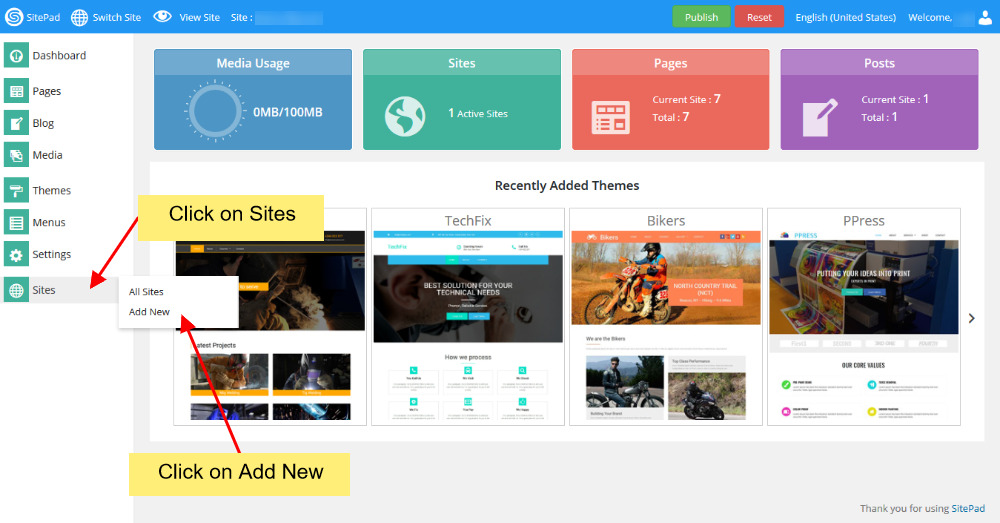
Once you are on SitePad Website Builder dashboard. You will see **Sites** option on Sidebar Navigation Menu.  

   
![](https://dotroll.com/wp-content/uploads/2020/08/Sitemush_dashboard.jpg)  
   
Click on **Sites** and then Click on **Add New Site**.  
   
![](https://dotroll.com/wp-content/uploads/2020/08/Add_new_site.jpg)  
   
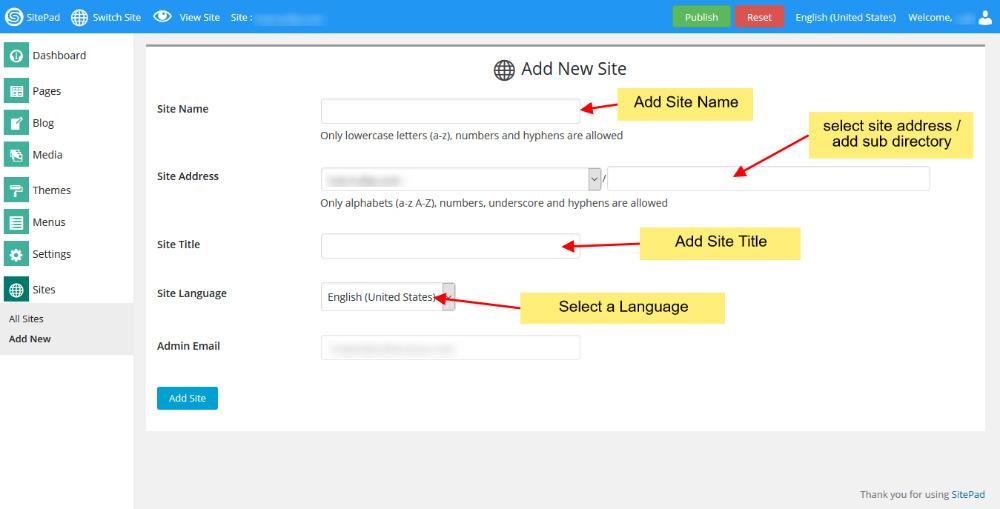
Now you will see all the options regarding adding new sites.  
   
![](https://dotroll.com/wp-content/uploads/2020/08/Enter_new_site_details.jpg)  
   
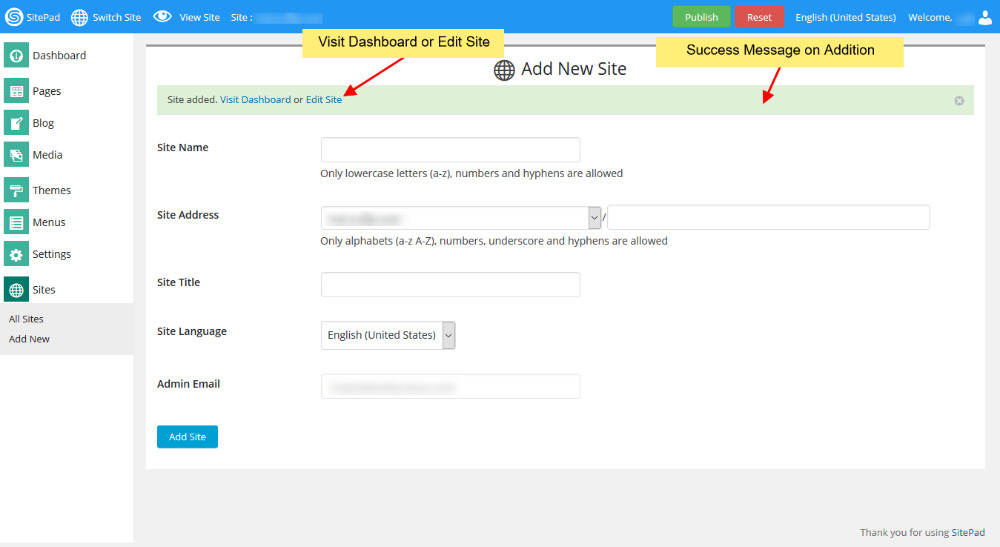
Add **New Site Name** for website to be shown on switch site. Then enter the New **Site Address** (select from your domains) and then add new directory. Next you need to Enter **Site Title**. You can also change the language of your new site and select it to your native language. Also if you want you can also add new admin email.  
   
![](https://dotroll.com/wp-content/uploads/2020/08/Success_message.jpg)

Once the website is added Successfully you will see the success message asking you to visit **Dashboard** of the new site or **Edit** newly created Site.

# How to Create Website

This guide will help you how to Create a Website using SitePad Website builder.

#### LOGIN IN TO CONTROL PANEL

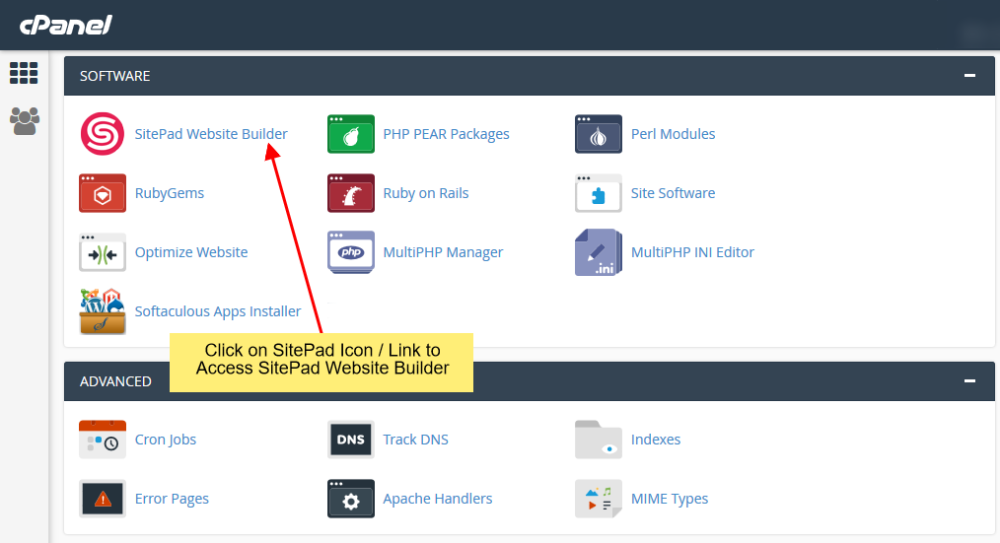
Firstly Login to your Control Panel (e.g. cPanel’s url will be https://domain.com:2083) and login with your details. There click on the SitePad Icon or Link.
![](https://dotroll.com/wp-content/uploads/2020/08/Click_on_sitemush-1.png)

You will be redirected to **SitePad Website Builder**.

#### SELECT A THEME

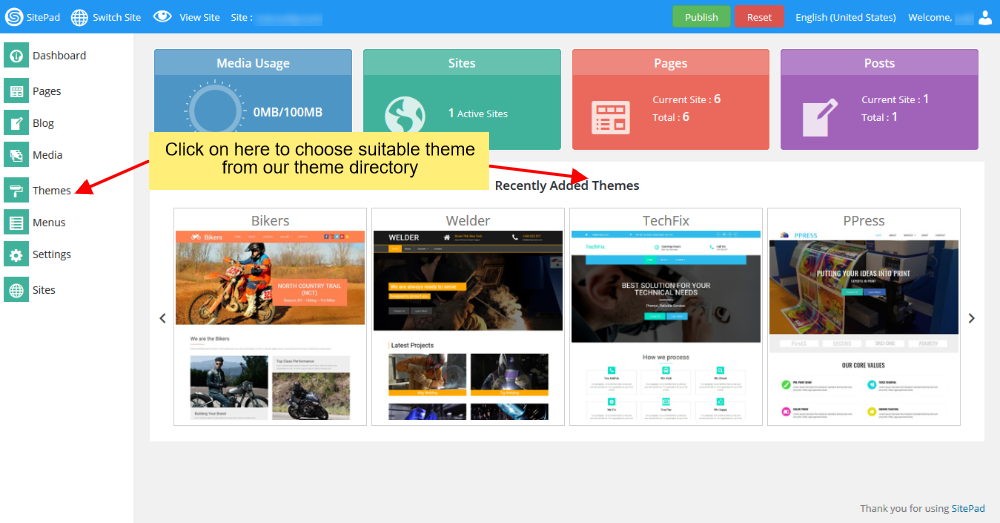
Once you are redirected to **SitePad**. You will need to select a Theme for your website
![](https://dotroll.com/wp-content/uploads/2020/08/Choose_theme_option-1.png)

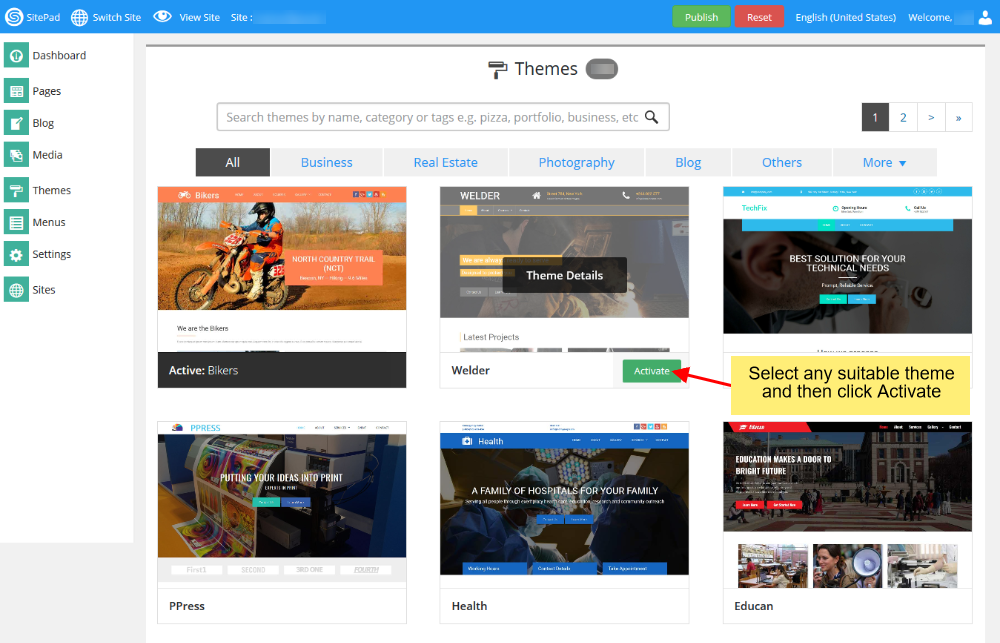
You can click on either option and you will be redirect to our Theme directory where you will need to select/choose a theme for your website. You can also search for a Theme through Theme Search Option. Checkout Theme details. Once you find a theme suitable for your website you can click on **Activate** button to Set the theme as a default theme for your Website Editing.
![](https://dotroll.com/wp-content/uploads/2020/08/Activate_theme_search_theme.png)

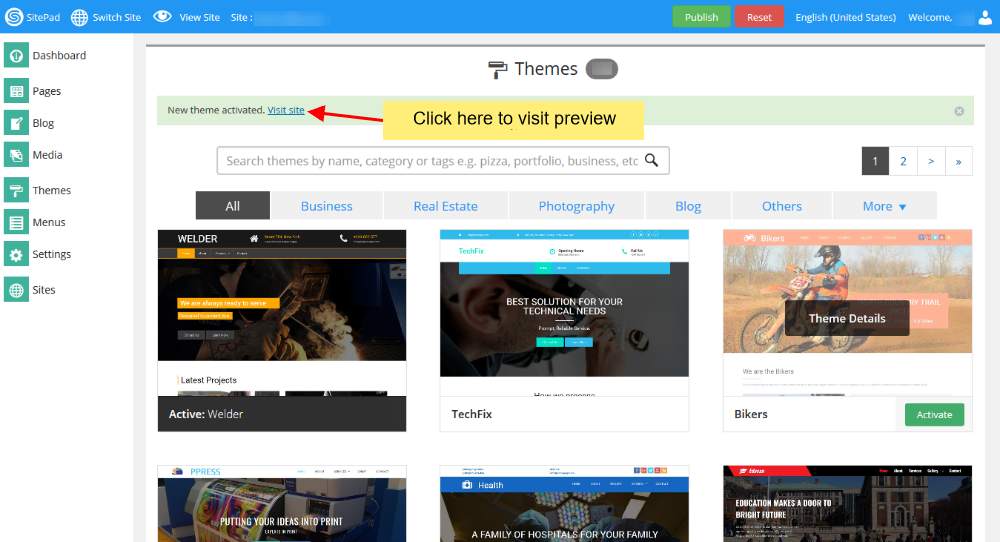
When theme is Activated. You can checkout for a preview of this Theme.
![](https://dotroll.com/wp-content/uploads/2020/08/Click_to_preview_site.png)

Click on Visit Site to Preview.

#### ADDING/EDITING PAGES

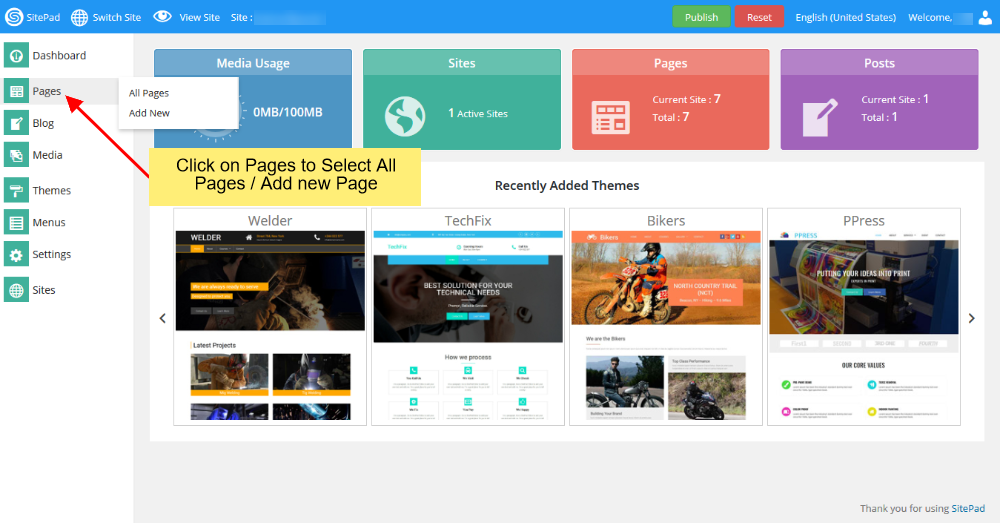
You can now Add new pages or Edit pages for your website.
![](https://dotroll.com/wp-content/uploads/2020/08/Add_page_view_page.png)

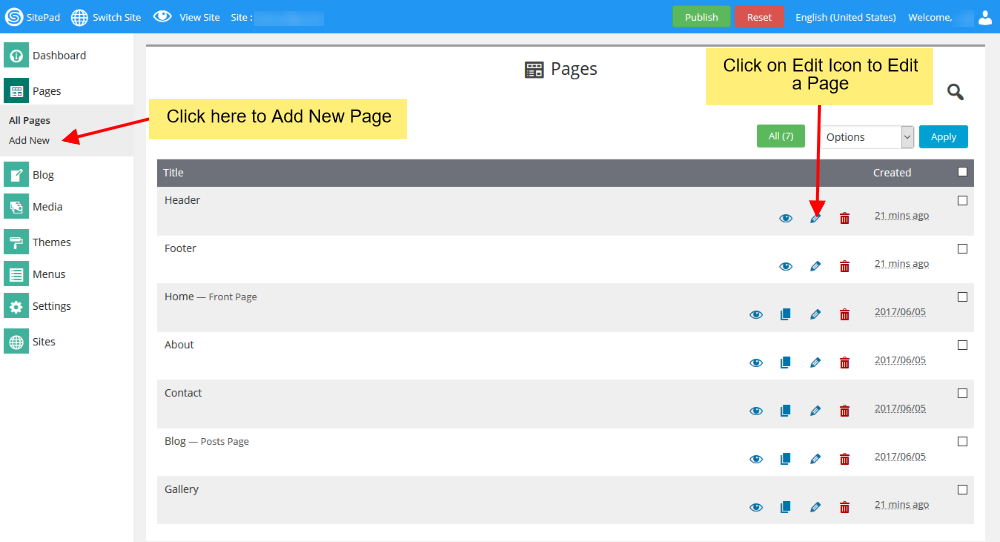
You can click on either option i.e Add Page or Click on Pages option to Select All Pages. When you select All Pages you can see certain options such as Edit Page, Delete Page, View Page etc.

**\*\*Note:** Do not delete Header and Footer page
![](https://dotroll.com/wp-content/uploads/2020/08/Edit_page_delete_page.png)

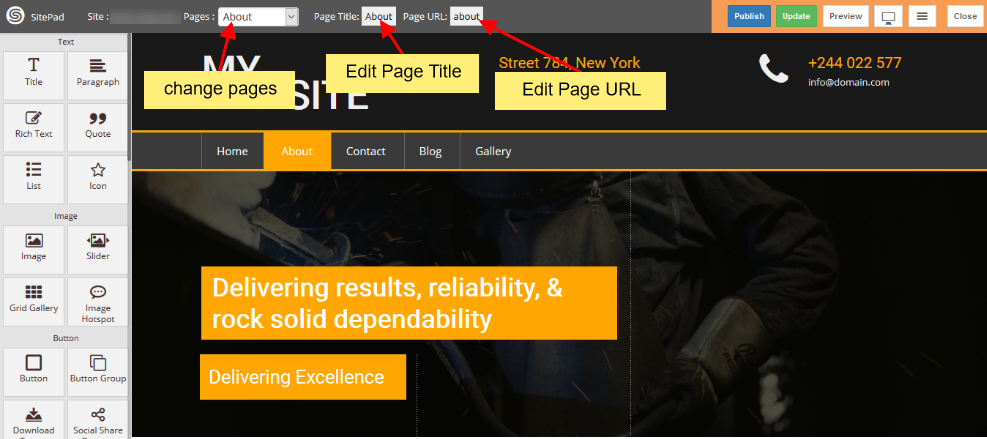
If you Select to Add New Page/Edit Page option. Then you will be redirected to Edit Page where you can Edit Page. If you select to Add new Page the page title will be New Page and Page url will be Page. You can change these both to your desire Page name and URL. By default the new page gets Added on the Menu Bar once you update the Menu Name changes to that of the Page Title.
![](https://dotroll.com/wp-content/uploads/2020/08/Edit_a_page.png)

You can also drag and drop different Widgets where ever you want the to see the elements. There are many different Widgets like Title, Paragraph, Slider, Service Box, Rich Text, Images, Videos, etc
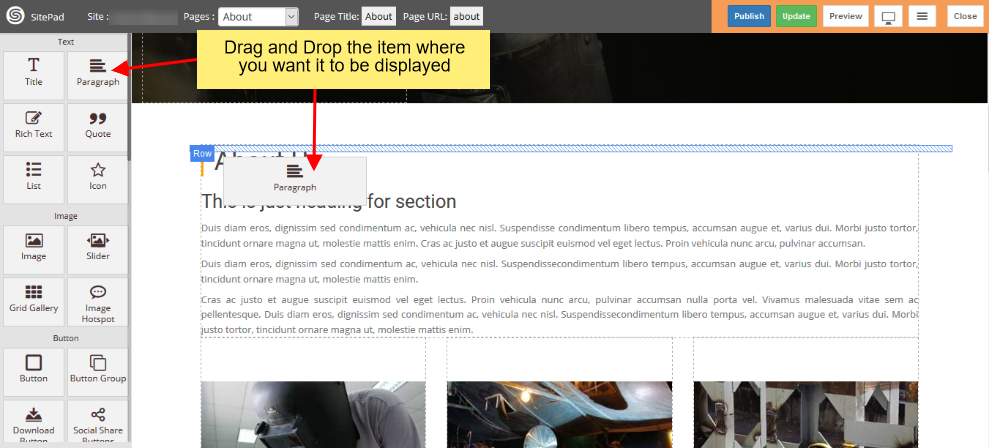
![](https://dotroll.com/wp-content/uploads/2020/08/Use_drag_and_drop.png)

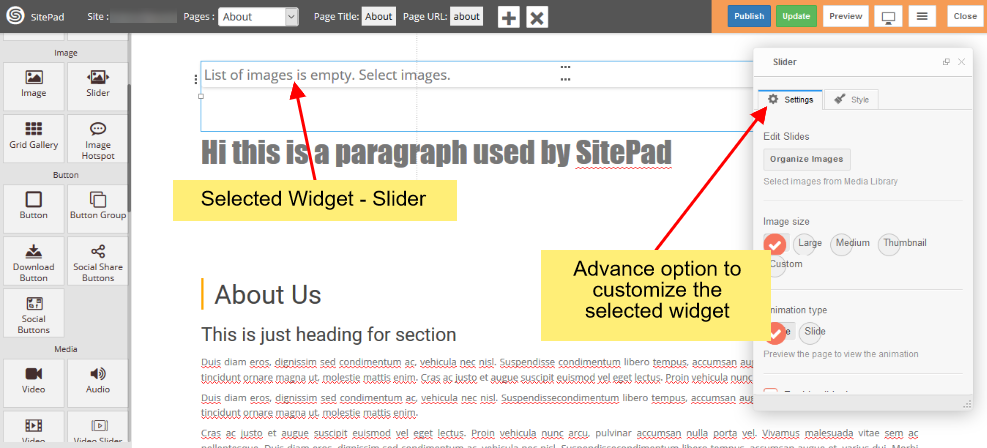
When the item is dropped on a particular position to Edit you will be able to find Action bar, Advance Option to Customize etc. for different types of Widgets.
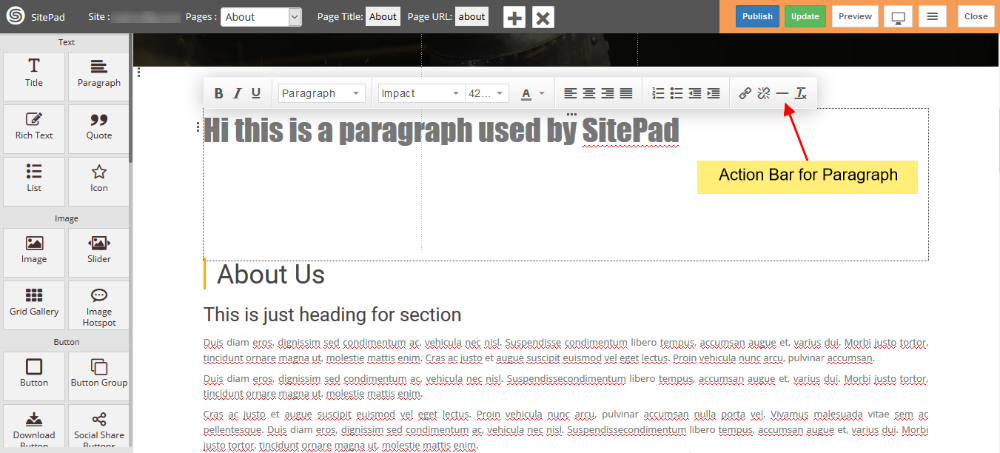
![](https://dotroll.com/wp-content/uploads/2020/08/Action_bar_title.png)

![](https://dotroll.com/wp-content/uploads/2020/08/Customizing_an_element.png)

#### PUBLISH

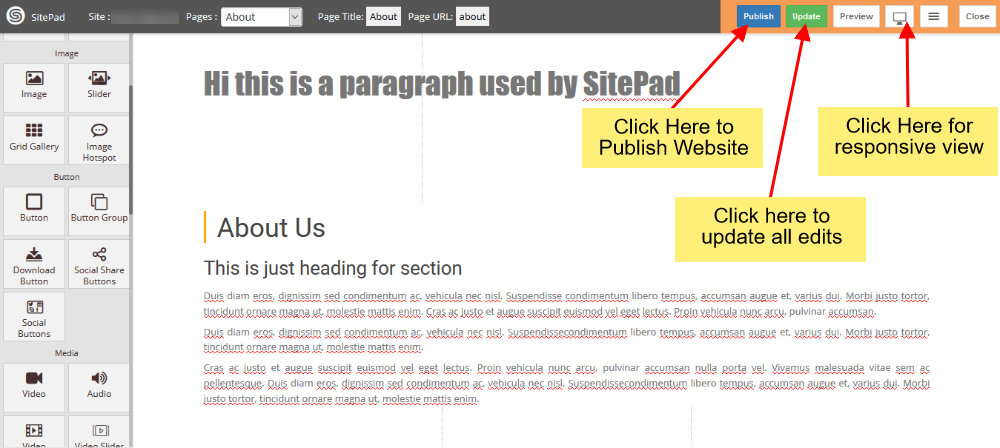
After you Finish Editing your work you can Publish your Website or you can update it and later on Publish it.
![](https://dotroll.com/wp-content/uploads/2020/08/Finishing_option.png)

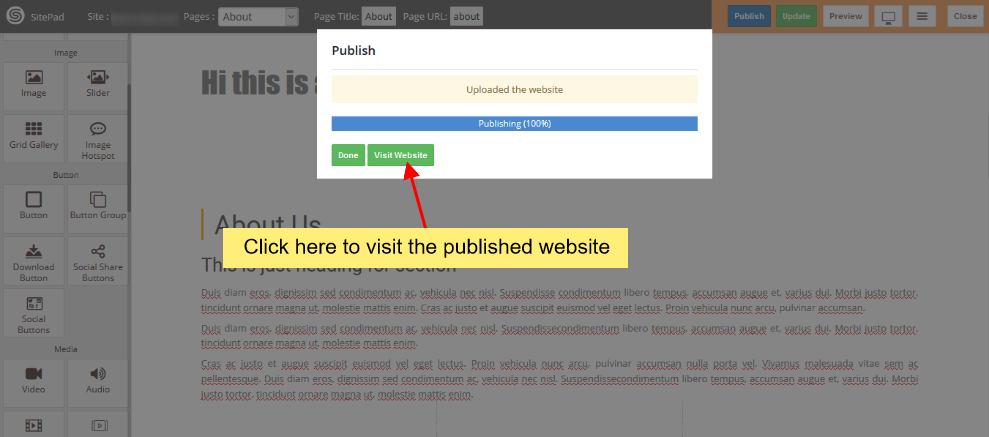
After you click on Publish button you will see progress bar. Once the progress bar is complete you will find visit website button you can check the website you Published.
![](https://dotroll.com/wp-content/uploads/2020/08/Publish_visit_website.png)

# Miscellaneous


# How to Add Cookie Consent

This guide will help you with How to Add Cookie Consent to your website.

#### LOGIN IN TO CONTROL PANEL

Firstly Login to your Control Panel (e.g. cPanel’s URL will be [https://domain.com:2083](https://domain.com:2083/)) and log in with your details. There click on the SitePad Icon or Link.

![](https://dotroll.com/wp-content/uploads/2020/08/Click_on_sitemush-1.png)

You will be redirected to **SitePad Website Builder**.

#### SELECT COOKIE CONSENT OPTION

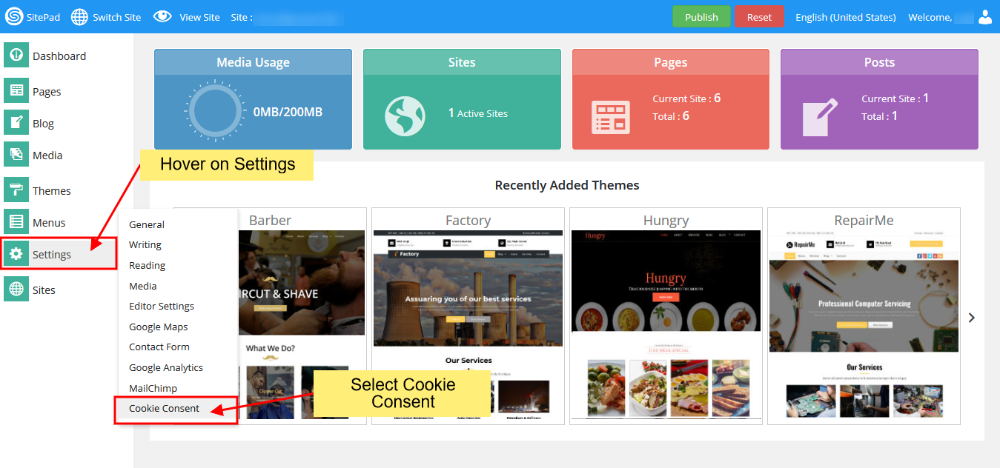
Once you are redirected to **SitePad Dashboard** Hover your mouse on **Settings** which will show submenu list, select **Cookie Consent** from the given list.
![](https://dotroll.com/wp-content/uploads/2020/08/Choose_cookie_consent.png)

#### TURN ON COOKIE CONSENT

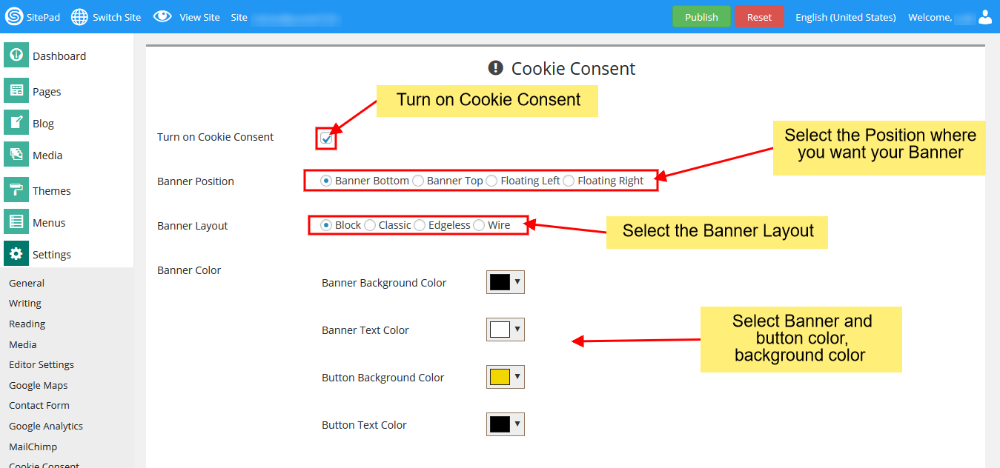
In **Cookie Consent** you will need to turn Cookie Consent On, after that you can set different options for your Cookie Consent.
![](https://dotroll.com/wp-content/uploads/2020/08/Choose_options.png)

- - Select **Banner Position**
    - Select **Banner Layout**
    - Select **Banner Color** where you can set **Banner** and **Button** color.  
        ![](https://dotroll.com/wp-content/uploads/2020/08/Choose_options2.png)

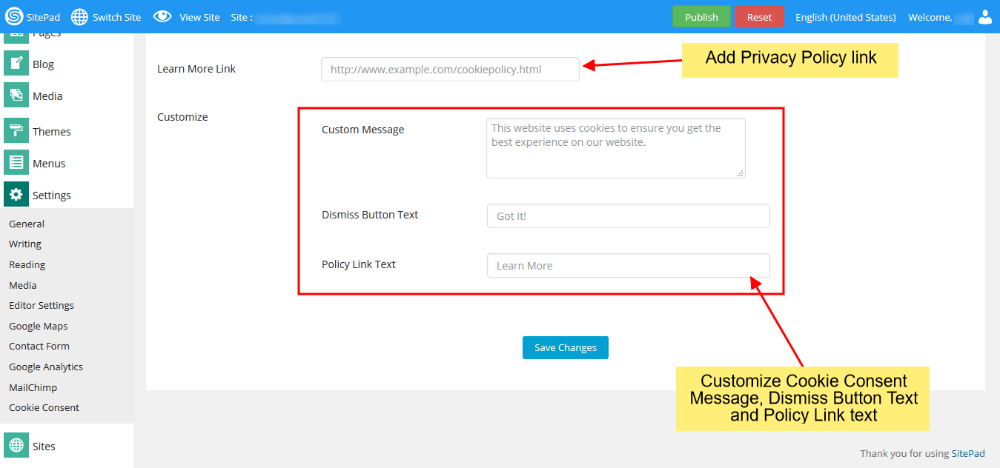
- - Add your own **Privacy Policy link**.
    - Customize the banner with your own **Cookie Consent Message**, **Dismiss Button Text** and **Policy Link Text**.

Once you’ve finished customizing you need to click on **Save**.

Changes can be viewed on the **Preview website**. Once you’ve finalized the changes then click on **Publish**

# How to Add Email Template

This guide helps when you are using more than one Contact Form in your Website.

#### CONTACT FORM

<div id="bkmrk-insert%C2%A0field-name%C2%A0%2C-">1. Insert **Field-Name** , this **Field-Name** you will use in **contact-form-id** Textarea box of contact settings page.  
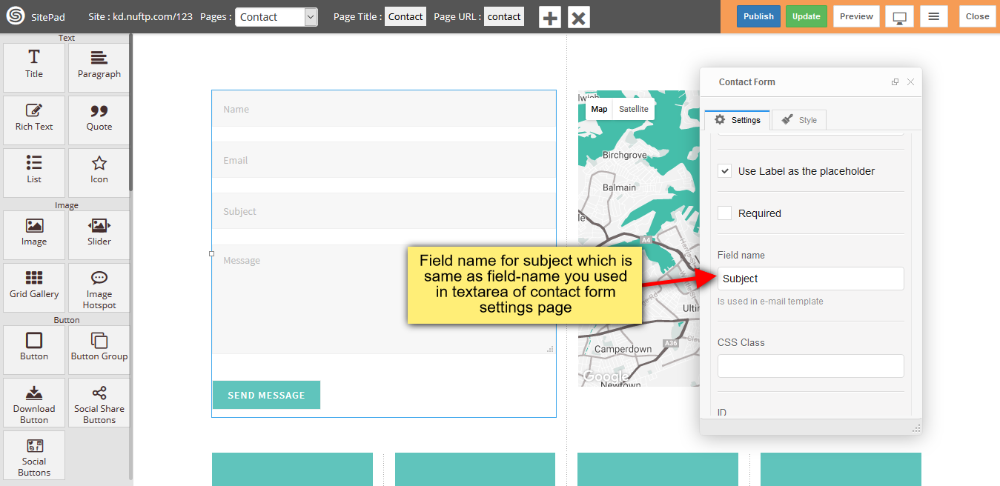
    ![](https://dotroll.com/wp-content/uploads/2020/08/Cf-email-template-field-name.png)
2. Insert **Form Id** , this **Form Id** you will use in **contact-form-id** Textbox box of contact settings page.  
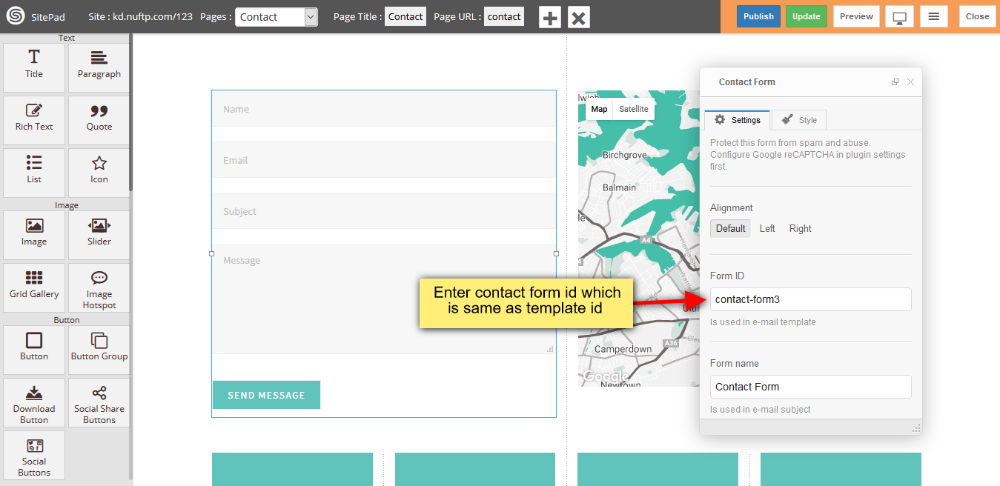
    ![](https://dotroll.com/wp-content/uploads/2020/08/Cf-email-template-form-id.png)

</div>#### CONTACT SETTINGS PAGE

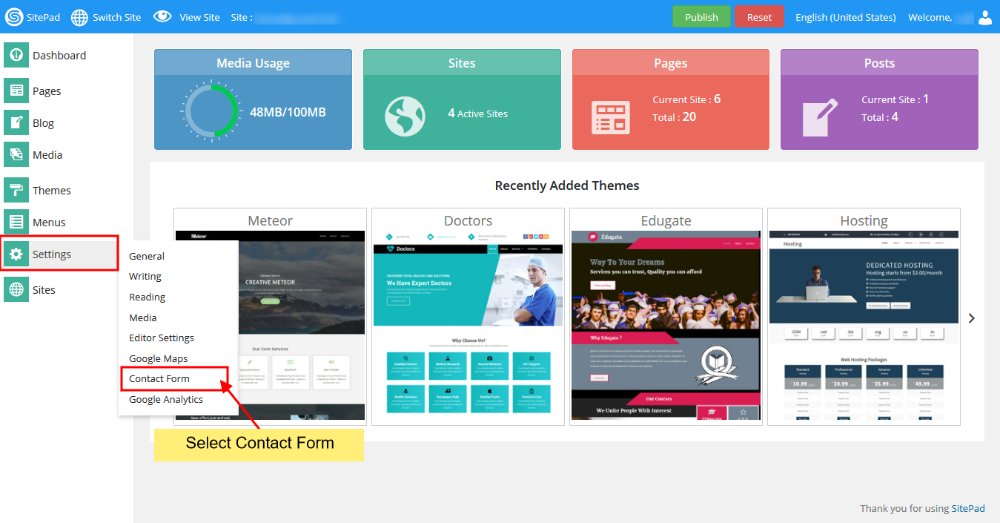
<div id="bkmrk-go-to-sitepad%C2%A0settin">1. Go to SitePad **Settings** Menu in that click on **Contact Form** submenu. You can see the image shown below.  
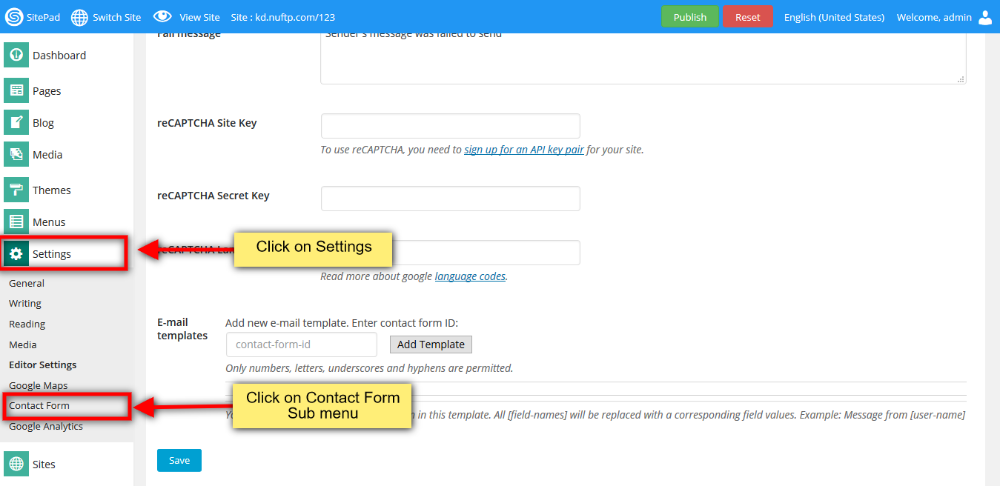
    ![](https://dotroll.com/wp-content/uploads/2020/08/Cf-email-template.png)
2. Now insert **contact-form id** which you inserted in contact form when you designed. And click on **Add Template** button.  
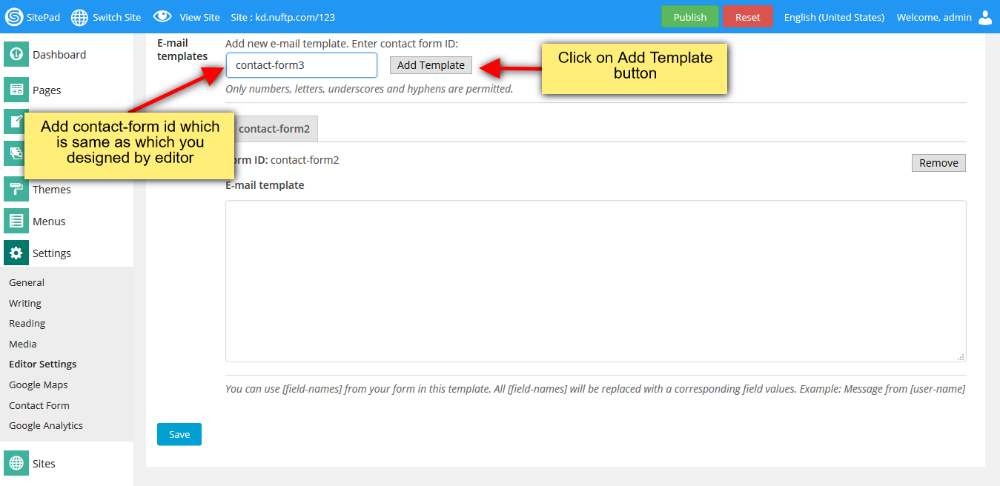
    ![](https://dotroll.com/wp-content/uploads/2020/08/Cf-email-template-button.png)
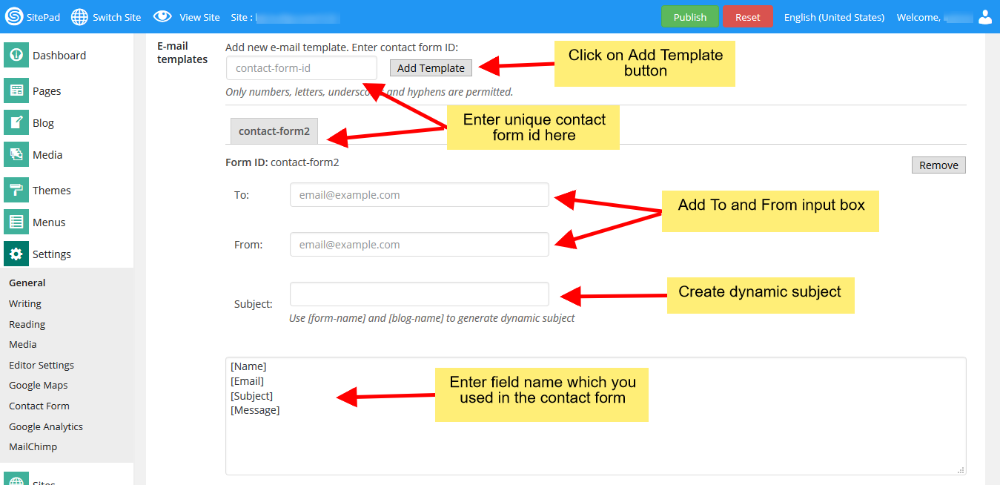
3. When you click on **Add Template** button and click on **Save** button then you will see image as shown below.  
    ![](https://dotroll.com/wp-content/uploads/2020/08/Cfs-email-template-details.png)
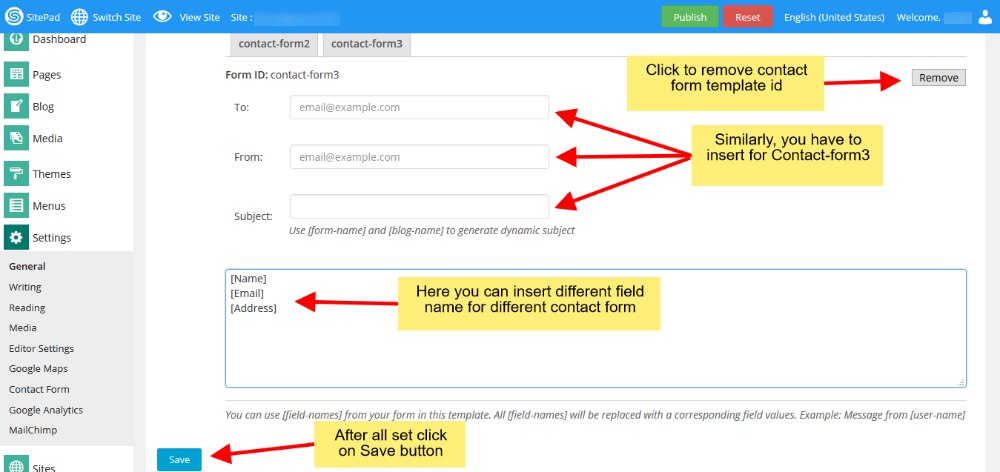
4. Enter Email address in **To** and **From** input box to a particular user for sending the details of a particular form. Textarea box you can see, in that you insert your **Field-Name** along with square bracket one-by-one. Click **Remove** button for removing the **contact-form-id** along-with all the details such as To, From, Subject and fieldname Textarea box. After all changes, click on **Save** button.  
    ![](https://dotroll.com/wp-content/uploads/2020/08/Cf-email-template-fieldname.png)

</div><div id="bkmrk-"></div>

# How to Configure SMTP/PHP Mail

**How to Configure Contact Form with SMTP/PHP Mail**

This tutorial will show you How to Configure your **Contact Form Setting** to allow **SMTP/PHP Mail** to send Email from **Contact Form**.

#### SELECT CONTACT FORM SETTING

**PHP Mail** function uses your **localhost** to send Email from Contact Form while **SMTP Mail** function uses a **Server** to send Email from your Contact Form. You can configure the Contact Form Settings at **SitePad Dashboard &gt; Settings &gt; Contact Form**.  
   
![](https://dotroll.com/wp-content/uploads/2020/08/Select_contact_form.png)

#### PHP MAIL

<div class="vc_row wpb_row vc_row-fluid" id="bkmrk-php-mail-is-selected"><div class="wpb_column vc_column_container vc_col-sm-12"><div class="vc_column-inner"><div class="wpb_wrapper"><div class="wpb_text_column wpb_content_element "><div class="wpb_wrapper">- PHP Mail is selected as a default option.
- You will need to add the same Email-Id in **To** and **From**, enter multiple email address with comma-separated if you want to send multiple recipients.
- You can add enter the format in **Subject** if you need Dynamic Subject.
- You can change **Success/Fail Message**.
- You can add **reCAPTCHA** if you want to avoid spam from your Contact Form.

</div></div></div></div></div></div>   
![](https://dotroll.com/wp-content/uploads/2020/08/Configure_contact_form.png)  
   
Click on **Save Button** once you fill the Setting.

<div class="vc_row wpb_row vc_row-fluid" id="bkmrk-note%3A%C2%A0if-your-host-d"><div class="wpb_column vc_column_container vc_col-sm-12"><div class="vc_column-inner"><div class="wpb_wrapper"><div class="wpb_text_column wpb_content_element "><div class="wpb_wrapper"><div class="ricsi exclamation alert-info">  
</div></div></div><div class="vc_message_box vc_message_box-standard vc_message_box-rounded vc_color-info vc_custom_1598439348753"><div class="vc_message_box-icon">  
</div><div class="ricsi exclamation alert-info"><span class=".">**Note:** If your host does not allow sending mail using local server then you will need to **Configure SMTP Mail**.</span></div></div></div></div></div></div>#### SMTP MAIL

**To Configure SMTP Mail** you will need a **Gmail/Yahoo/Hotmail** account or you can use your **Webmail account** with all the SMTP settings provided by your Host in your control panel.

You will need to select the **SMTP Mail** from the drop-down list in **Mailing Method**.

- Add **SMTP Server** (in-case you are using secure server port then please add ssl:// before the server domain i.e ssl://domain.com).
- Add **SMTP Port**
- Add **SMTP Username** (i.e Email Id)
- Add **SMTP Password** (i.e Email Id Password)
- You can also configure settings same as mentioned above in PHP Mail i.e change Subject, change Success/Fail Message, Add reCAPTCHA to avoid spam.

   
![](https://dotroll.com/wp-content/uploads/2020/08/Configure_SMTP-908x1024-1.png)

Click on **Save Button** once you fill the Setting.

# How to Publish the Site

Once you have done with your **Theme Editing** and want to **Publish** your **Site** you can follow this guide.

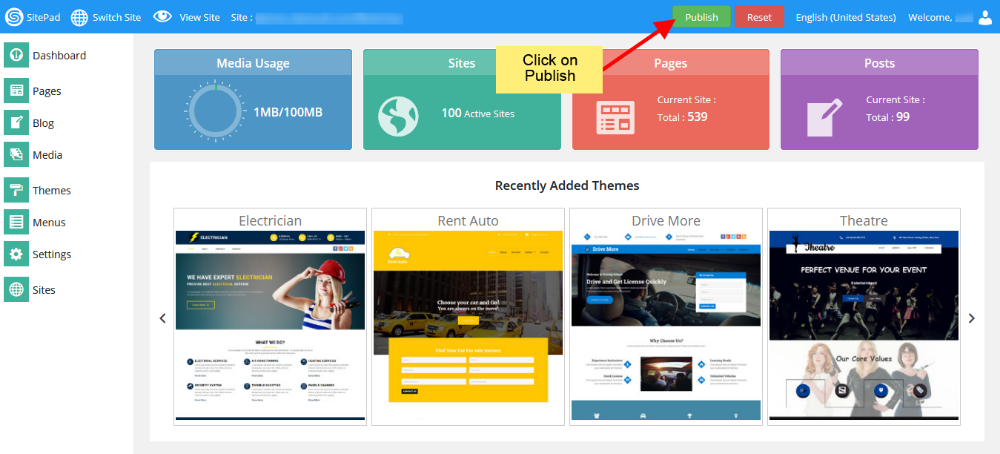
1. Go to your **Dashboard** and click on **Publish** button present at the **Top of Dashboard** as shown in the image below. <div class="ricsi exclamation alert-info"><span class=".">**Note:** It is not necessary to always go to **Dashboard** for Publishing your Site. You can click on **Publish** button anywhere inside your **Dashboard** or **Page Editor** and follow below steps.  
       
    ![](https://dotroll.com/wp-content/uploads/2020/08/Publish-site1.png)  
       
    </span></div>
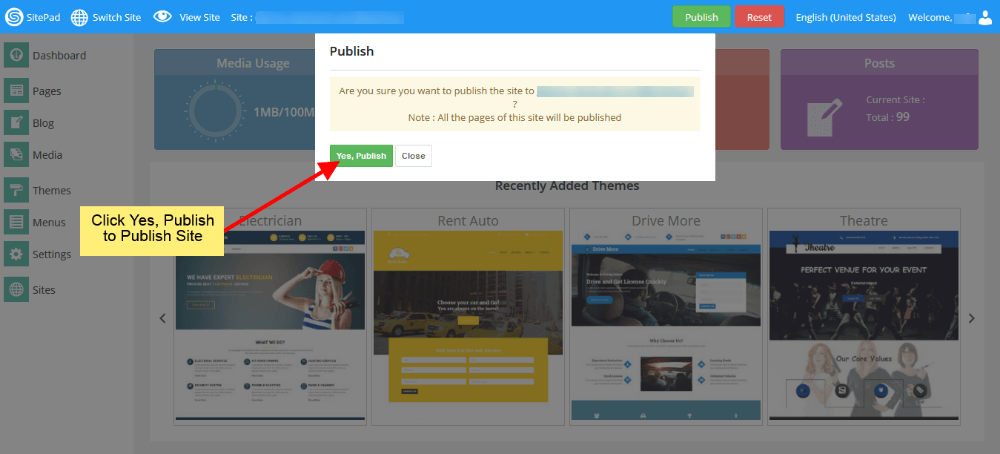
2. Step 1 will popup the **Confirmation Window** as shown in image below. Press **Yes, Publish** button to publish your site and if you want to stop process then press **Close** button as shown in image below.  
       
    ![](https://dotroll.com/wp-content/uploads/2020/08/Publish-site2.png)

1. Then **Wait** for the **Process to Complete.  
       
    ![](https://dotroll.com/wp-content/uploads/2020/08/Publish-site3.png)**
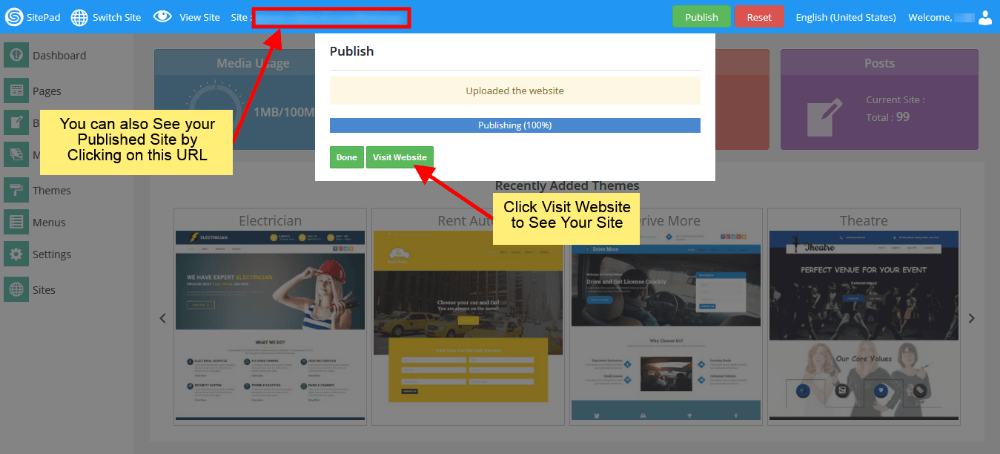
2. After the completion of process you will see the window as shown in image below. Click on **Visit website** button to see your **Published Site.** <div class="ricsi exclamation alert-info"><span class=".">**Note:** You can also **View** your **Published website** by **Clicking** on **Site URL** as shown in image below.  
       
    ![](https://dotroll.com/wp-content/uploads/2020/08/Publish-site4.png)  
     </span></div>

# How to Add SiteMap

This documentation will guide you on How to Add SiteMap for a Page

#### GO TO EDITOR

When on **SitePad Website Builder** Dashboard. Hover on **Pages** option given on the left sidebar and then click on **All Pages**. Once on all Pages Click on **Edit Icon** of Any Page.

![](https://dotroll.com/wp-content/uploads/2020/08/Click_edit_contact.png)

You will be redirected to Editor.

#### SELECT SITEMAP OPTION

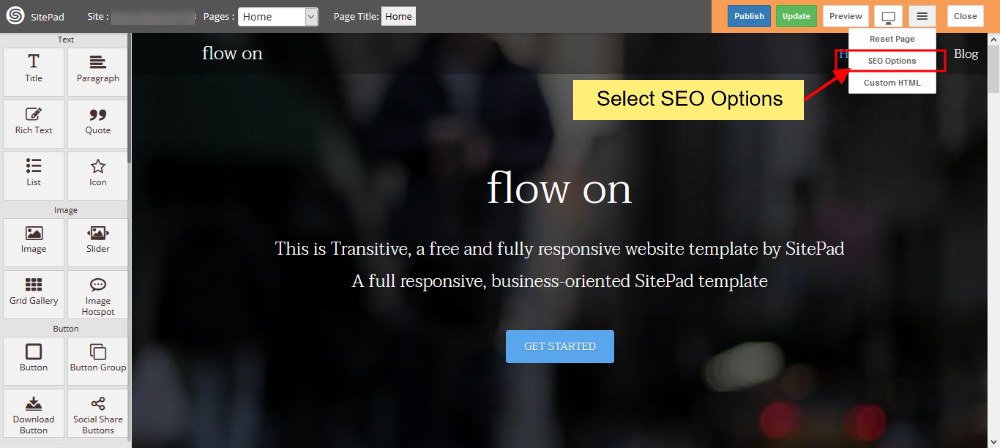
On **SitePad Editor** hover on more menu on the navigation bar. When you hover on more menu three buttons will be drop down **i.e** Reset Page, SEO Options and Custom HTML.

Click on **SEO Options**.
![](https://dotroll.com/wp-content/uploads/2020/08/Click_on_seo-1.png)  
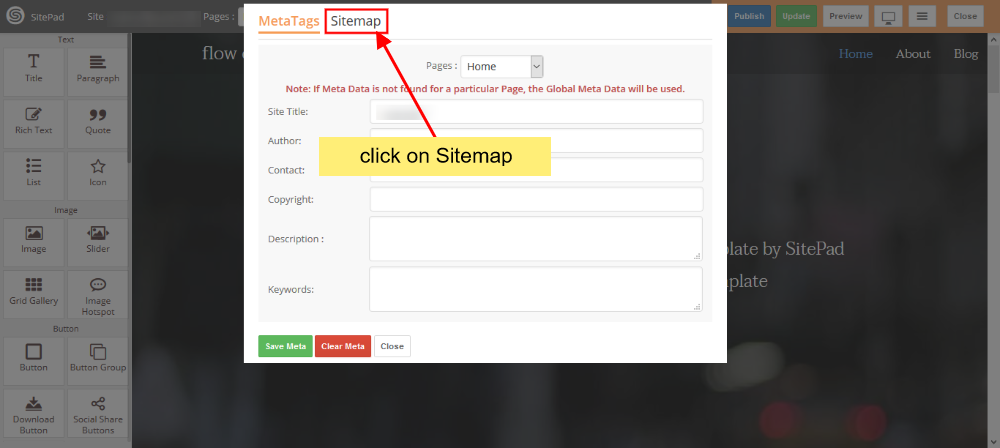
On clicking **SEO Options** you will see a dialog box will appear. In the dialog box click on **SiteMap** to load SiteMap options.
![](https://dotroll.com/wp-content/uploads/2020/08/Click_sitemap.png)

#### EDIT SITEMAP OPTION

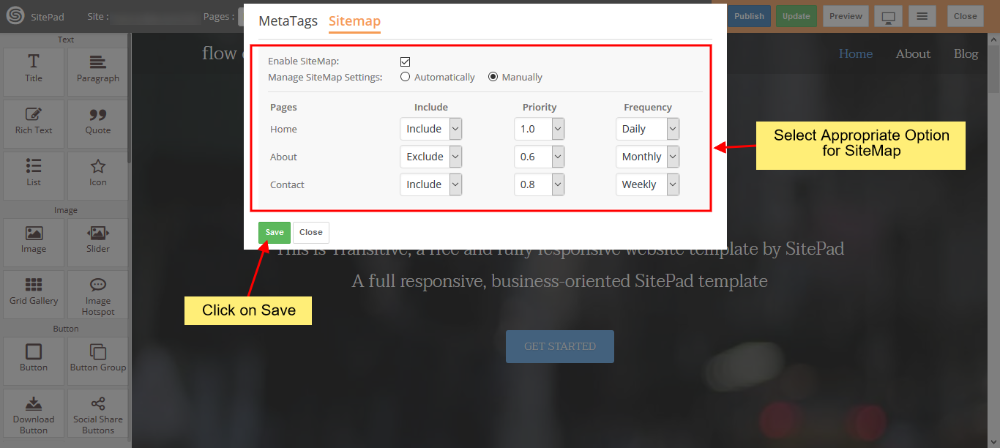
Once you are on SiteMap Detail Section select **Enable SiteMap** then you can choose any of the following option from Manage SiteMap Settings: **Automaically** / **Manually**
![](https://dotroll.com/wp-content/uploads/2020/08/Sitemap_options.png)  
Once you have made your desired changes then click on **Save** to save **SiteMap** Settings for your page.

<div class="vc_message_box vc_message_box-standard vc_message_box-rounded vc_color-info vc_custom_1598272335577" id="bkmrk-note%3A-for-blog-post-"><div class="vc_message_box-icon">  
</div><div class="kb-article-content"><div class="ricsi exclamation alert-info"><div class="kb-article-content"><div class="ricsi exclamation alert-info"><span class=".">**Note**: For Blog Post SiteMap option will be managed automatically.</span></div></div></div></div></div>

# How to Add reCAPTCHA

This documentation will help you setup **reCAPTCHA** for contact form

#### LOGIN TO GMAIL ACCOUNT TO REGISTER RECAPTCHA

You need to login to your **Gmail** account. Then follow the given link to register [Google reCAPTCHA](https://www.google.com/recaptcha/about/)

You will need to Register a New Site as shown in the image below.  
   
![](https://dotroll.com/wp-content/uploads/2020/08/Google_recaptcha1.jpg)  
   
You will need to **Add Label, Choose the type of reCAPTCHA, Add a Domain Name** and then Accept the **reCAPTCHA terms of service**.

Once done then **Click on Register**.

Once you register the Site you will be redirected to the page with **Site Key** and **Secret Key** as shown in the image below.  
   
![](https://dotroll.com/wp-content/uploads/2020/08/Google_recaptcha2.jpg)  
   
Take a Copy of both the keys.

#### LOGIN IN TO CONTROL PANEL

Now Login to your Control Panel (e.g. cPanel’s url will be [https://domain.com:2083](https://domain.com:2083/)) and login with your details. Then click on the SitePad Icon or Link.  
   
![](https://dotroll.com/wp-content/uploads/2020/08/Click_on_sitemush-1.png)  
   
You will be redirected to **SitePad Website Builder**

#### CLICK ON CONTACT FORM

After being redirected to **SitePad Website Editor** Hover on Settings on the left Sidebar you will see option for **Contact Form**. Click on Contact Form as shown in the image below.  
   
![](https://dotroll.com/wp-content/uploads/2020/08/Click_on_contact_form.png)  
   
On Contact Form Setting Page you will see input box for reCAPTCHA Site Key and reCAPTCHA Secret Key as shown in the image below.  
   
![](https://dotroll.com/wp-content/uploads/2020/08/Sitemush_recaptcha_setting.png)  
   
Fill in the site key and secret key from the Google reCAPTCHA registration page. Once done click on Save.

The reCAPTCHA that you added will be registered and now you can use reCAPTCHA for contact form.

<div id="bkmrk-"></div><div id="bkmrk--1"></div>

# How to Add Meta Tags

#### GO TO EDITOR

When on **SitePad Website Builder** Dashboard. Hover on **Pages** option given on the left sidebar and then click on **All Pages**. Once on all Pages Click on **Edit Icon** of Any Page.  
   
![](https://dotroll.com/wp-content/uploads/2020/08/Click_edit_contact.png)  
   
You will be redirected to Editor.

#### ADD META

On **SitePad Editor** hover on more menu on the navigation bar. When you hover on more menu two buttons will be drop down **i.e** Reset Page and SEO Options.

Click on **SEO Options**.  
   
![](https://dotroll.com/wp-content/uploads/2020/08/Click_on_seo-1.png)

#### ADD META DETAILS

On clicking **SEO Options** you will see a dialog box will appear. In the dialog box add all the meta details for the page.  
   
![](https://dotroll.com/wp-content/uploads/2020/08/Edit_seo_option.png)  
   
You can add Meta Tags for every page just by selecting Page from the drop down. After adding meta details click on Save Meta to update the meta details for the page.

<div class="vc_row wpb_row vc_row-fluid" id="bkmrk-note%3A-if-meta-data-i"><div class="wpb_column vc_column_container vc_col-sm-12"><div class="vc_column-inner"><div class="wpb_wrapper"><div class="wpb_text_column wpb_content_element "><div class="wpb_wrapper"><div class="ricsi info alert alert-info">  
</div></div></div><div class="vc_message_box vc_message_box-standard vc_message_box-rounded vc_color-info vc_custom_1598268621259"><div class="vc_message_box-icon">  
</div><div class="ricsi info alert alert-info"><span class=".">**Note**: If Meta Data is not found for a particular Page, the Global Meta Data will be used.</span></div></div></div></div></div></div>#### CLEAR META DETAILS

To Clear Meta Details of the current page click on **Clear Meta**. All the Meta Details for that page will be cleared. For **Global Meta** you will need to select Global Meta and then click Clear Meta.  
   
![](https://dotroll.com/wp-content/uploads/2020/08/Reset_meta-1.png)

# How to add Google Map API Keys

When on **SitePad Website Builder** Dashboard. Hover on **Settings** option given on the left sidebar and then click on **Google Maps** as shown in image below.

![](https://dotroll.com/wp-content/uploads/2020/08/Google-maps-settings.png)

You will be redirected to **Google Maps Settings page**.

#### <span class="mw-headline" id="bkmrk-add-api-keys-1">ADD API KEYS</span>

On Google Maps Settings page add your **Browser API Key** and **Server API Key** as shown in image. Or if you don’t have API Keys then just click on **Follow this link** and follow guidelines to create new API Keys.

![](https://dotroll.com/wp-content/uploads/2020/08/Add-google-api-kes.png)

# How to Add MailChimp Code

This documentation will guide you on How to Add **MailChimp** code in SidePad.

#### GO TO MAILCHIMP SETTINGS

Go to **SitePad Website Builder** Dashboard. Hover on **Settings** option given on the left sidebar and then click on **MailChimp** option as shown in image below. You will be redirected on **MailChimp Page**.  
   
![](https://dotroll.com/wp-content/uploads/2020/08/Mailchimp-settings.png)  
   
When you select **All** option, paste **MailChimp code** in text area box and click on **Save Changes** button. It will show you MailChimp script output on all pages.

#### SCRIPT OUTPUT ON SELECTED PAGE

If you want to show MailChimp script output on a particular page then click on **Selected** option, Choose particular page from dropdown and add mailchimp code in a textarea box, click on Save Changes button.  
   
![](https://dotroll.com/wp-content/uploads/2020/08/Mailchimp-selected.png)

# How to Switch Site

<p class="callout info">**Note**: To Switch Site you need at-least two sites to be in your SitePad Builder</p>

<div class="wpb_text_column wpb_content_element " id="bkmrk-"><div class="wpb_wrapper">  
</div></div>If you have a Single Site and have not added any other Site and want to Add New Site then you can follow the documentation mentioned: [Add New Site](https://dotroll.com/en/knowledge-base/books/website-builder/page/add-new-site)

#### SWITCH SITE

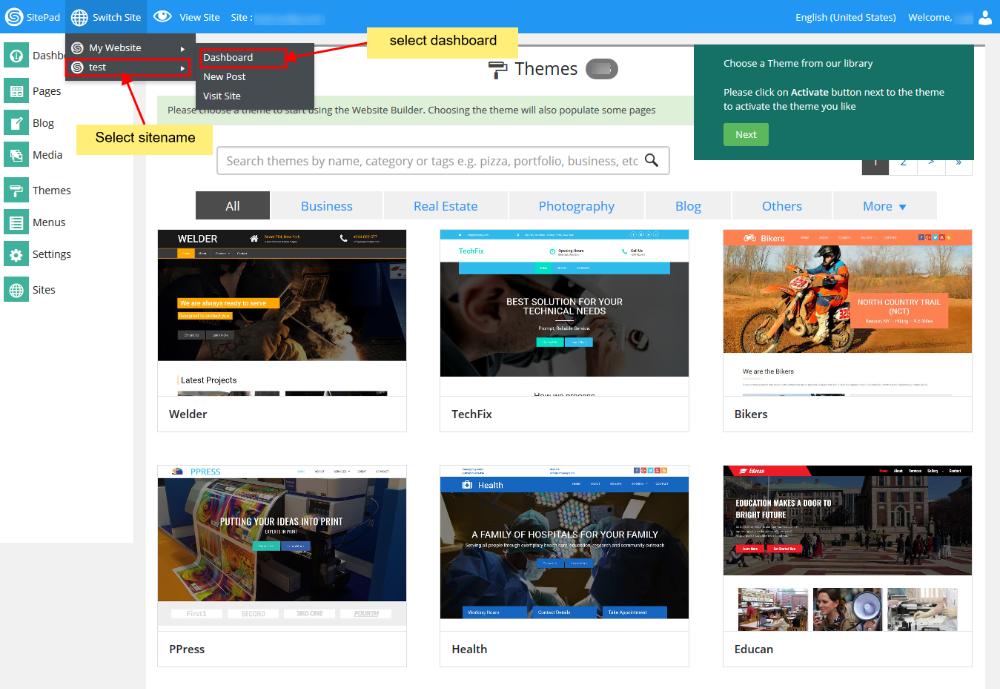
To Switch from Current Site to any other Site that you want to work on again. All you need to do is hover on **Switch Site** on Navigation Bar.

You will find the list of all the Sites that you have added. Now Click on the Site you wanted to work again and then click on Dashboard like shown in the image below.
![](https://dotroll.com/wp-content/uploads/2020/08/Switch_site.png)

Also remember the Site that was created by SitePad when you logged in first time will always be on top of the Switch Site.

# How to Add Google Analytics Account

**Google Analytics** is a web analytics service offered by Google that tracks and reports website traffic.

For this, you will need tracking ID which can be found after creating an account at [Google Analytics](https://analytics.google.com/)

You can check out the tutorial given by Google Analytic Team on [Getting Started with Analytics](https://support.google.com/analytics/answer/1008015?hl=en)<a name="1"></a>

#### LOGIN IN TO CONTROL PANEL

Firstly Login to your Control Panel (e.g. cPanel’s URL will be [https://domain.com:2083](https://domain.com:2083/)) and log in with your details. There click on the SitePad Icon or Link.

![](https://dotroll.com/wp-content/uploads/2020/08/Click_on_sitemush-1.png)

You will be redirected to **SitePad Website Builder**.

#### GO TO GOOGLE ANALYTICS

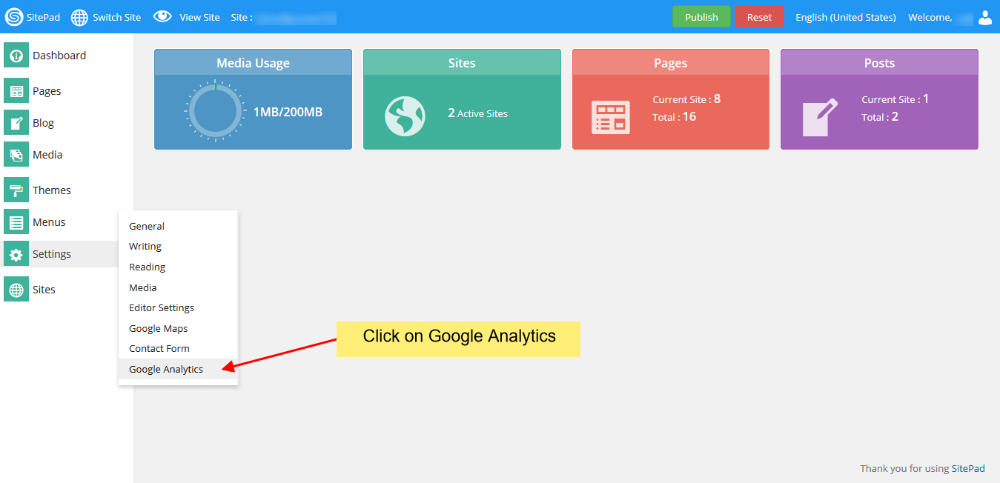
Once you are redirected to **SitePad**. You will need to hover on Settings and then select **Google Analytics**.
![](https://dotroll.com/wp-content/uploads/2020/08/Google_analytics1.png)

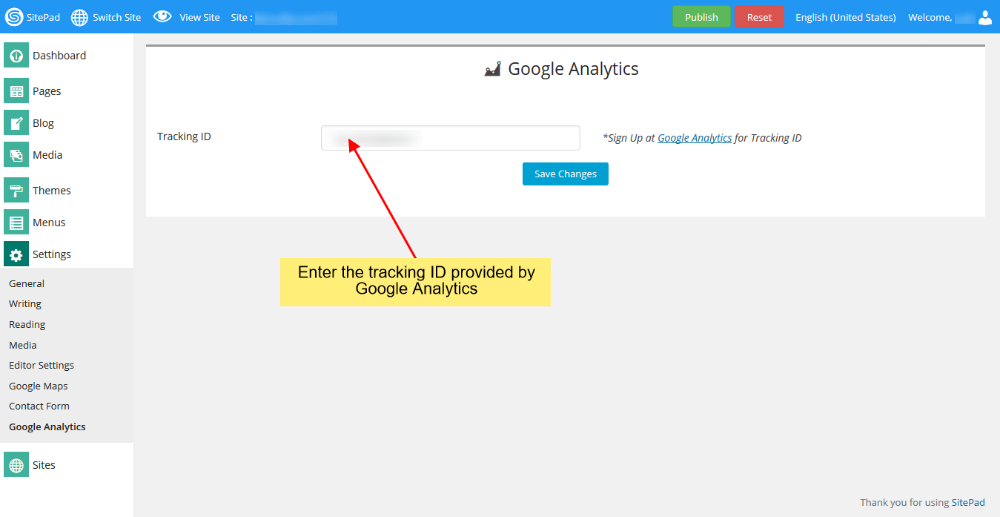
You will be redirected to **Google Analytics** setting page. There you will need to enter the **tracking ID** provided by Google Analytics after adding your account.
![](https://dotroll.com/wp-content/uploads/2020/08/Google_analytics2.png)

After entering all the details as mentioned above click on **Save Button** to save changes that you’ve made.

After this when you edit your Site and Publish it. You will be able to track your website traffic from [Google Analytics](https://analytics.google.com/).

You can check out the documentation given by Google Team on [How to Check Your Web Stats](https://support.google.com/analytics/answer/1008083?hl=en)

# What Is the Website Builder Assistant

**SitePad Assistant** is a tool which helps you navigate **SitePad Editor**.

#### HOW TO USE SITEPAD ASSISTANT

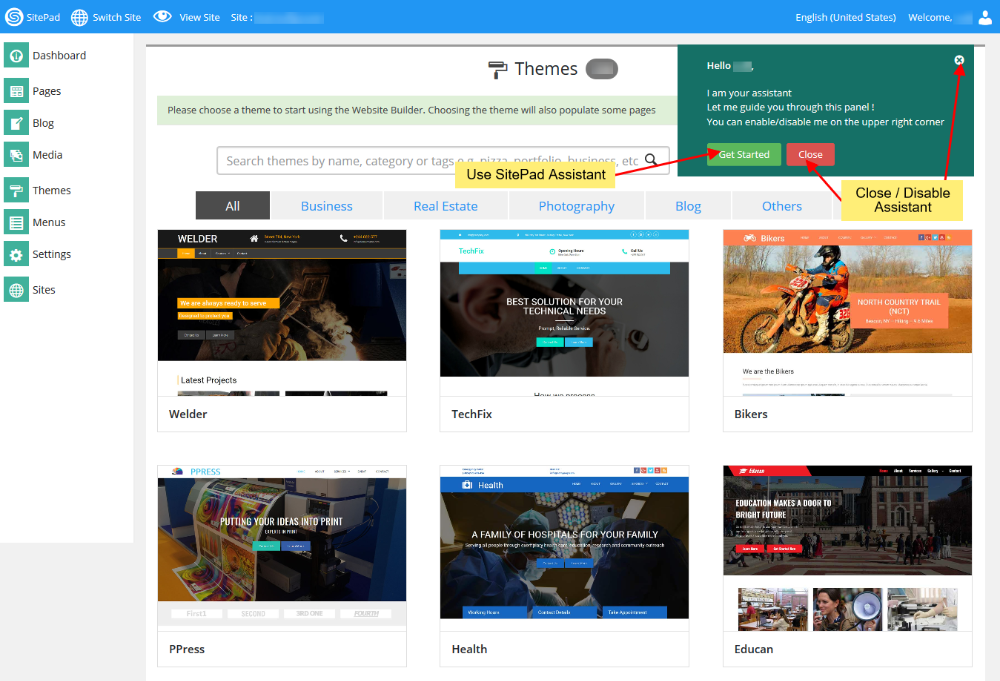
When you login for the **first** time **SitePad Website Builder** will enable the **Assistant** by default.

You need to Click on **Get Started** to navigate SitePad Editor. If you want to **Disable** the Assistant you just need to click on Close or X as shown in the Image below:  
   
![](https://dotroll.com/wp-content/uploads/2020/08/Sitemush_assistant1.png)

#### ENABLE ASSISTANT

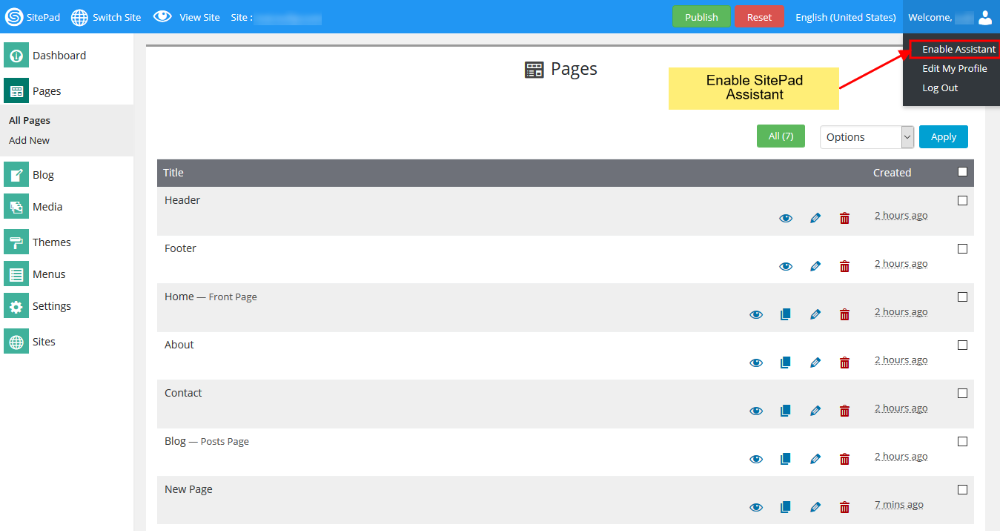
You can always Enable it back again by hovering on **Welcome, {username}** on the **Navigation Bar**. You will see a Drop Down List which mentions **Enable Assistant**.

Click on the button and **SitePad Assistant** will be enabled for you.  
   
![](https://dotroll.com/wp-content/uploads/2020/08/Sitemush_assistant2.png)

#### DISABLE ASSISTANT

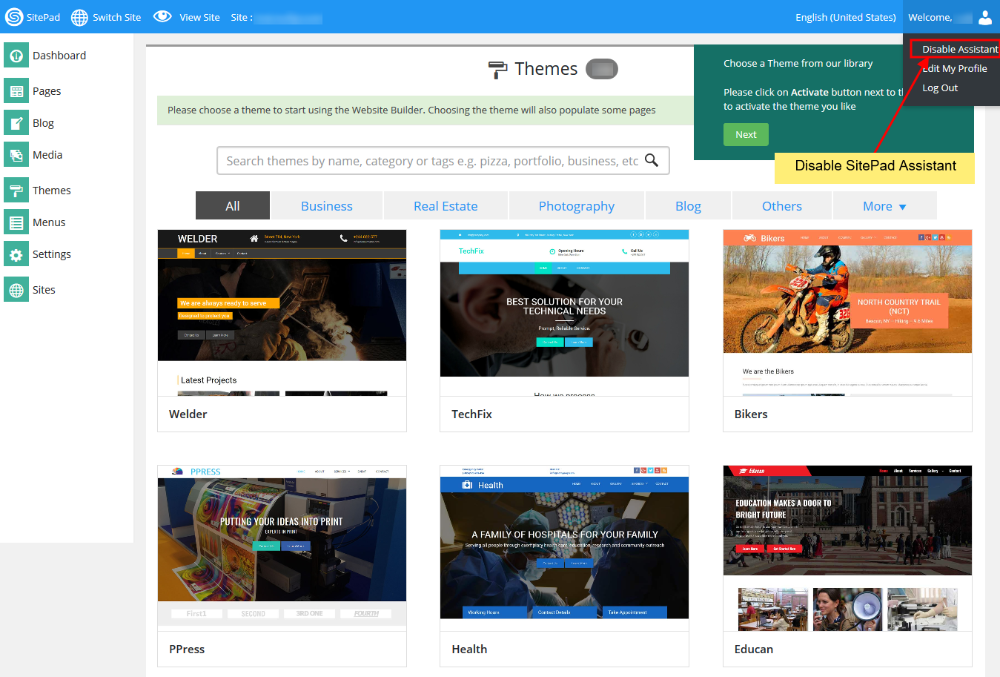
To **Disable** the Assistant you need to follow the **same procedure** that you followed to Enable the Assistant. But instead of Enable button you will see **Disable Assistant** button.

Click on the button and **SitePad Assistant** will be disabled for you.  
   
![](https://dotroll.com/wp-content/uploads/2020/08/Sitemush_assistant3.png)

<div id="bkmrk-"></div><div id="bkmrk--1"></div>

# Widgets


# Comments

This Guide will Help you to Add Comment Widget to your pages/blog post.

<p class="callout info">**Note**: Currently, Disqus is supported by SitePad. We will add more to Comments option soon.  
**Note**: You can add Disqus comments on your blog post as well as a page. You just need to drag the Comments widget on all the pages where you want to add the comments option.</p>

#### DRAG COMMENTS WIDGET

When inside the SitePad Editor **Drag and Drop** the Comments widget. As shown in the Image Below.  
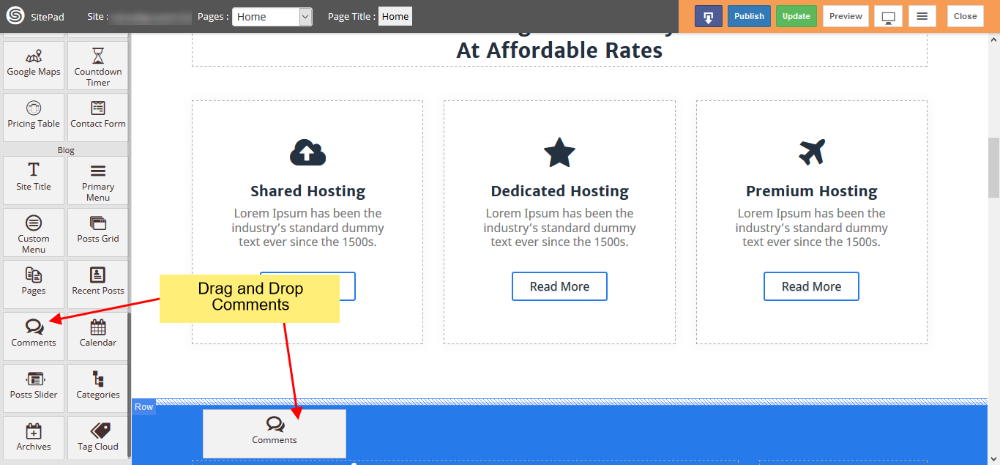
   
![](https://dotroll.com/wp-content/uploads/2020/08/Comments_dragndrop.png)  
   
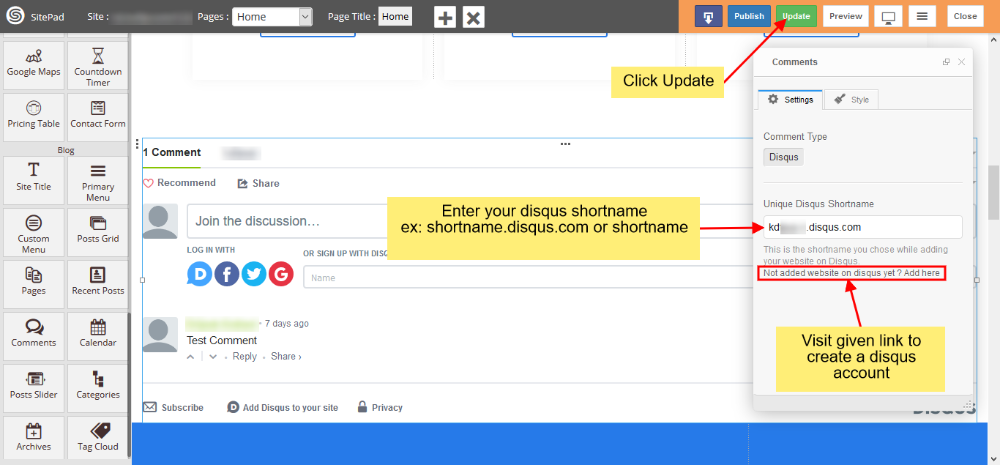
Once you have dragged and drop the **Comments Widget** you will need to Add **Disqus** short-name. ex: **shortname.disqus.com** or just the **short-name**. In-case if you do not have a **Disqus** account you can [create one here](https://disqus.com/admin/create/).

<p class="callout info"><span class=".">**Note**: You will need to configure Disqus following the steps on their create site page, before using the short-name in SitePad.</span></p>


![](https://dotroll.com/wp-content/uploads/2020/08/Add_disqus.png)  
   
Once you have added your Disqus short-name on your page in SitePad editor click on **Update** button to save the changes.

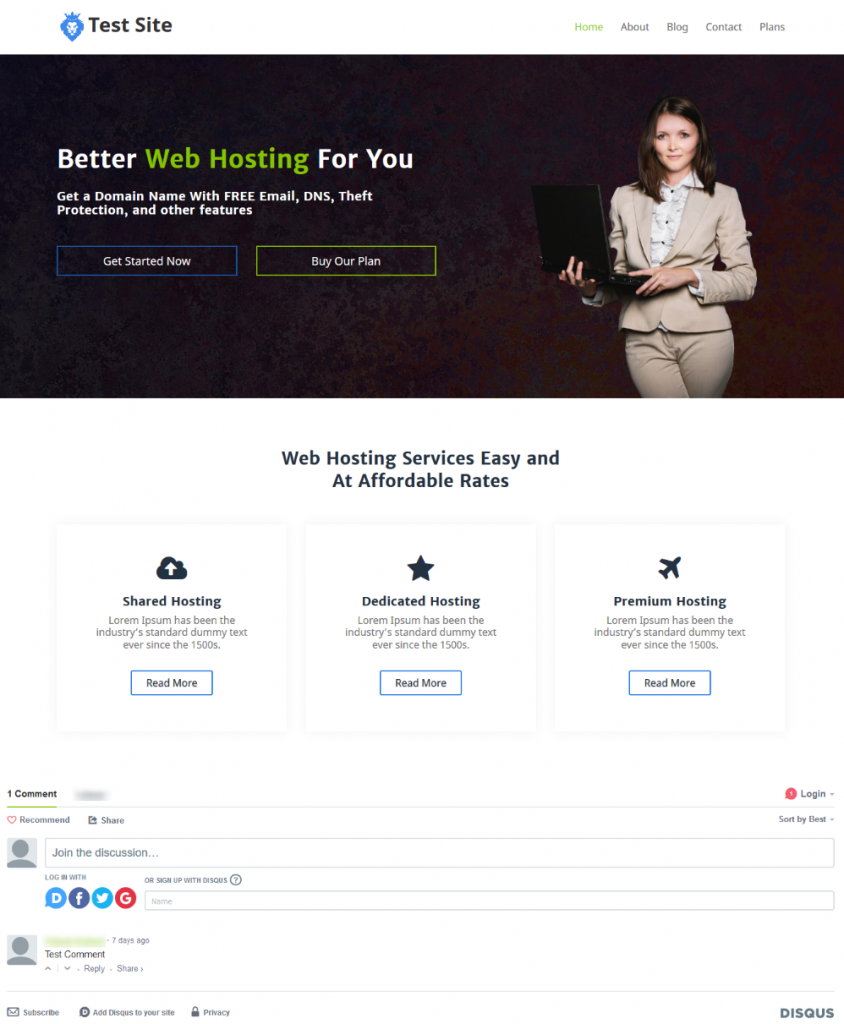
#### PREVIEW AFTER PUBLISH

You can check the comments on your site after Publishing your site.  
   
![](https://dotroll.com/wp-content/uploads/2020/08/Siteview-844x1024-1.png)

# Countdown

This Guide will Help you to customize **Countdown Timer** Widget Settings and Style.

<p class="callout info"><span class=".">**Note:** Widget gives you **Default Style** provided by theme, you can customize as per your needs using this guide.</span></p>

#### DRAG &amp; DROP COUNTDOWN TIMER WIDGET

When you **Drag and Drop** Countdown Timer Widget in a Page, You will see the image shown like below.  
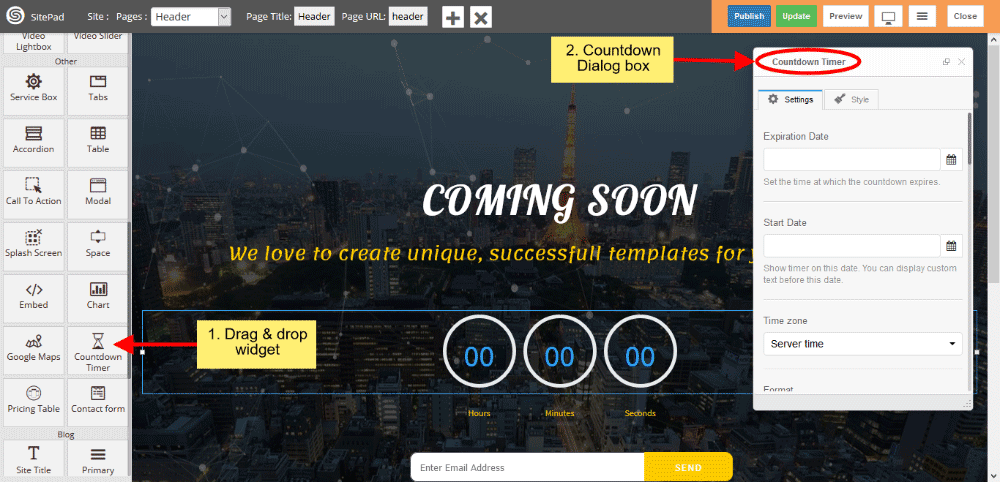
   
![](https://dotroll.com/wp-content/uploads/2020/08/Countdown-dragdrop.png)

#### COUNTDOWN TIMER SETTINGS

1. Set Expiration Date by clicking on **Icon Calendar** as per your needs, set the time at which the countdown expires and Set Start Date by clicking on Icon Calendar also.
2. Select the **time zone** from select option either user’s Local machine or Server time.  
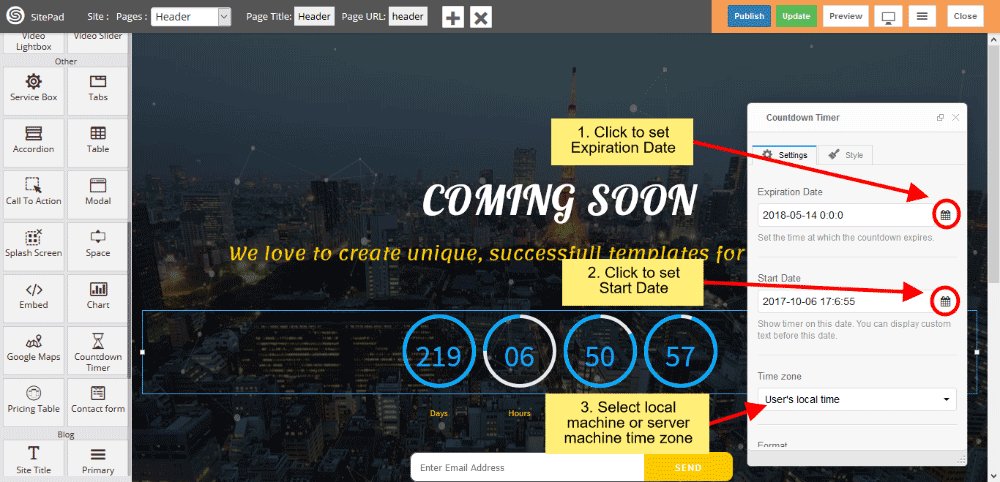
       
    ![](https://dotroll.com/wp-content/uploads/2020/08/Countdown-timer.png)

1. Write the **Date format** for displaying the Timer.
2. Style gives **Timer Style** such as Default and Circular, by default **Circular** is enabled.
3. Set the background color for **timer blocks**.  
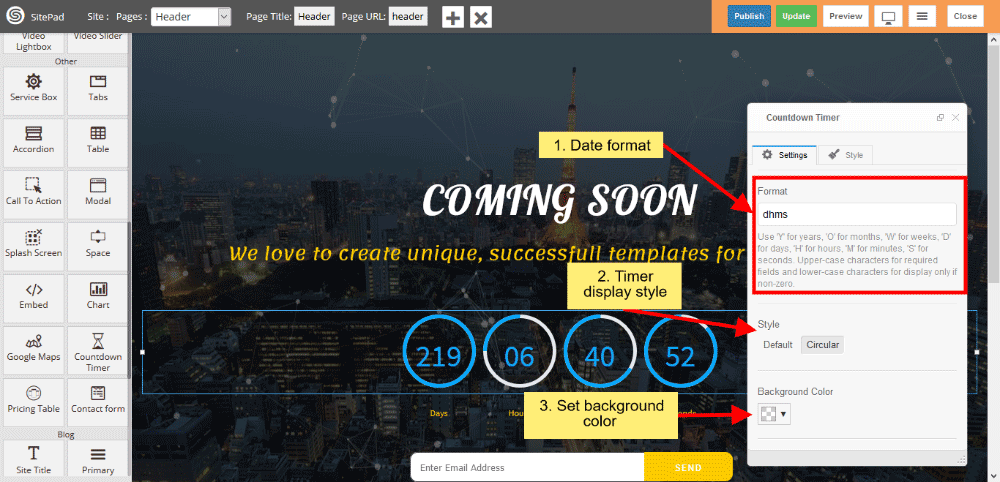
       
    ![](https://dotroll.com/wp-content/uploads/2020/08/Countdown-formatstyle.png)

1. Give the **color** of the Text, Track and Track Background.
2. Set the **Track block size**.  
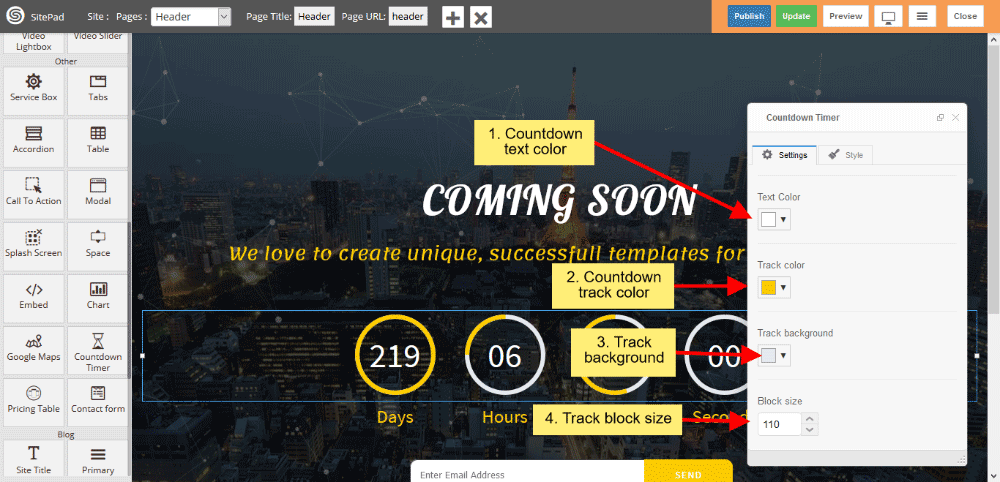
       
    ![](https://dotroll.com/wp-content/uploads/2020/08/Countdown-track-color.png)

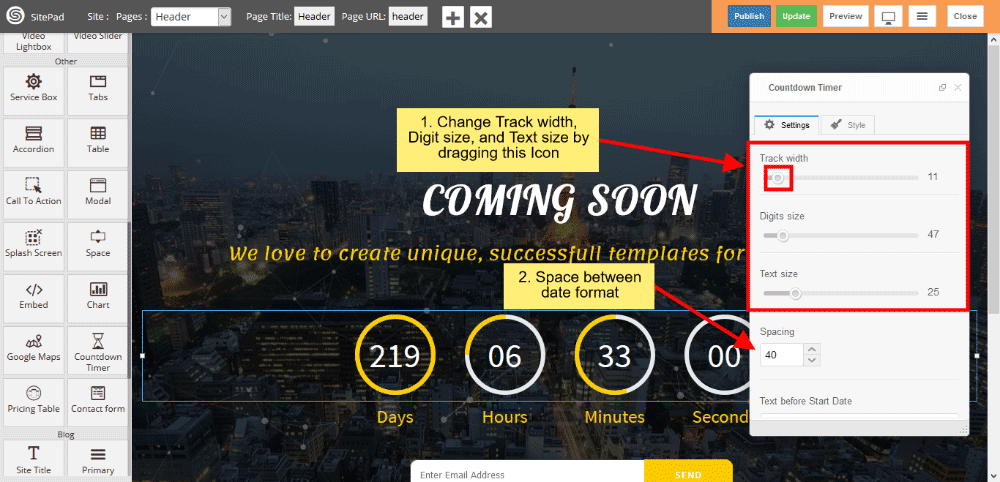
1. Change the Track width, Digit size and Text size by dragging Icon horizontally.
2. Spacing gives **space** between the **Block.  
       
    ![](https://dotroll.com/wp-content/uploads/2020/08/Countdown-track.png)**
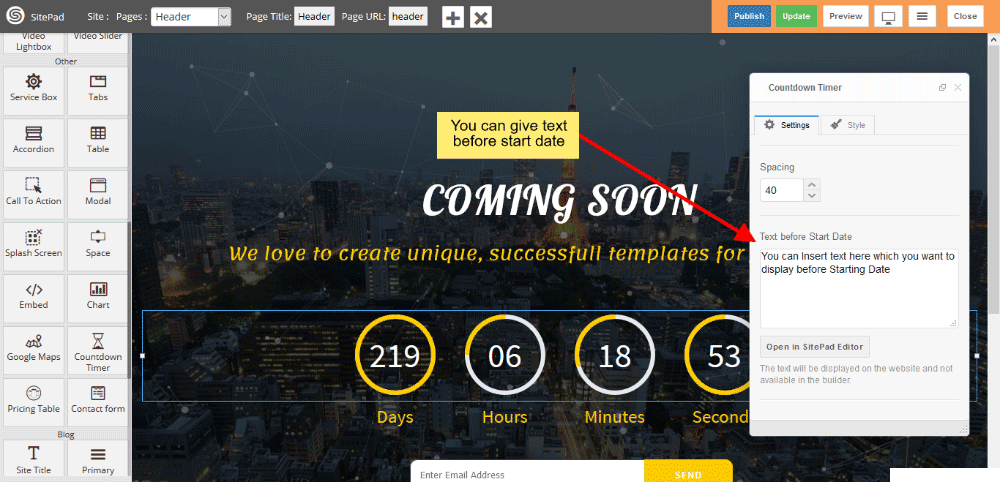
3. You can give Text before starting the date.  
       
    ![](https://dotroll.com/wp-content/uploads/2020/08/Countdown-starttext.png)

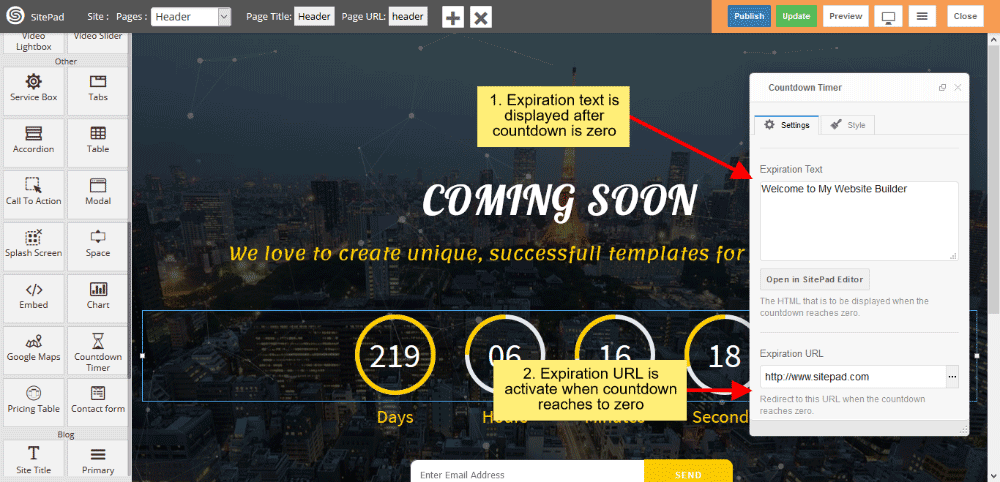
1. Expiration Text is displayed when the **countdown** reaches to **zero**.
2. Expiration Link is **activate** when the **countdown** reaches to **zero**.  
       
    ![](https://dotroll.com/wp-content/uploads/2020/08/Countdown-expiration.png)

# Grid gallery

This Guide will help you to add **Grid Gallery**.

#### DRAG AND DROP

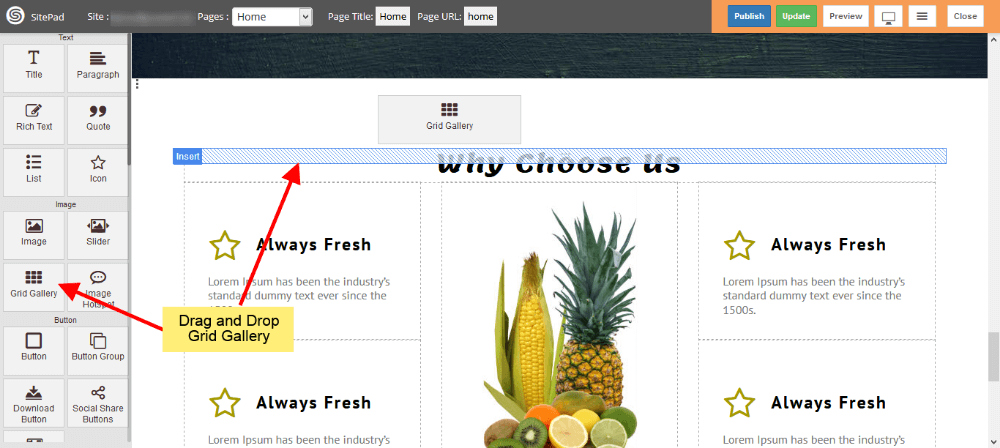
<div id="bkmrk-drag-and-drop%C2%A0grid-g">- **Drag and Drop** Grid Gallery from left side **Widget Panel** as shown in image below.
</div>   
![](https://dotroll.com/wp-content/uploads/2020/08/Grid-gallery-drag.png)

#### SELECT IMAGES

<div id="bkmrk-select-images-from%C2%A0m">- Select images from **Media Library** as shown in below image.
- You can upload images by Clicking on **Upload Files**.
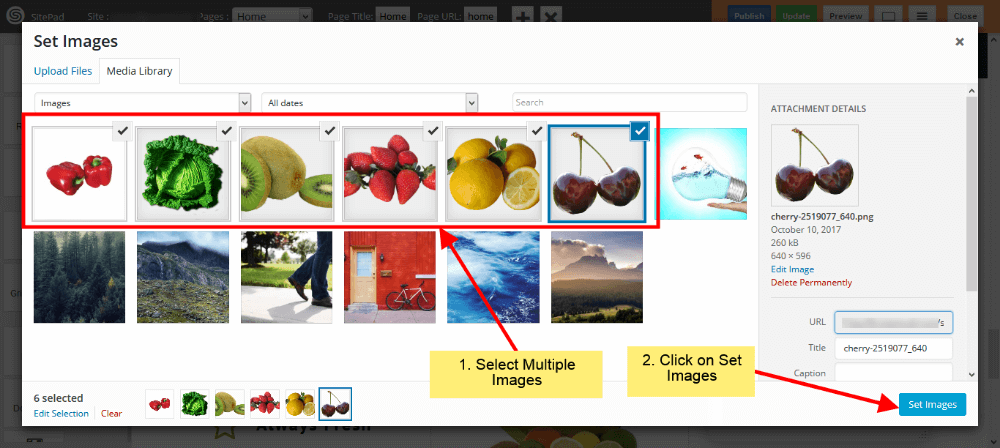
</div>   
![](https://dotroll.com/wp-content/uploads/2020/08/Grid-gallery-image-select.png)

### GRID GALLERY SETTINGS

<div id="bkmrk-if-you-want-to%C2%A0chang">- If you want to **Change, Delete or Add** images you can do that from **Organize Images**.
- Now select **Column count** for Images.
- Select **Image size** from options or Select **Custom** option to add custom size for Images.
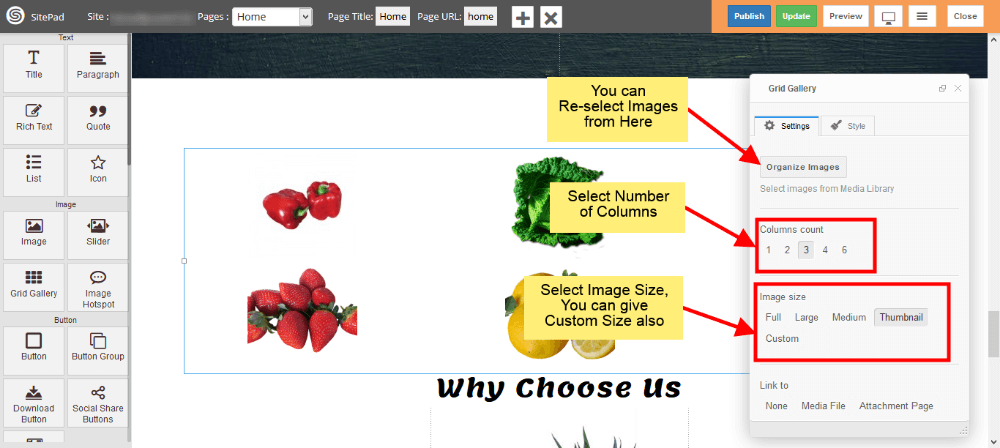
</div>   
![](https://dotroll.com/wp-content/uploads/2020/08/Grid-gallery-settings1.png)

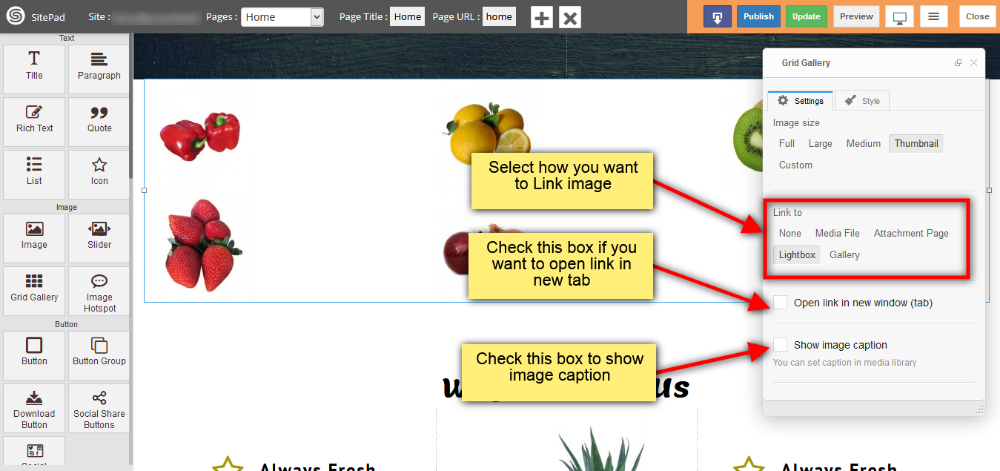
<div id="bkmrk-now-select%C2%A0link%C2%A0for-">- Now select **Link** for your Images.
- If you want open that **Link** in **New Tab** then check **Open link in new window(tab)**.
- To show image caption below image just check **Show image caption**.  
       
    ![](https://dotroll.com/wp-content/uploads/2020/08/Grid-gallery-settings2.png)

</div>#### GALLERY OPTION IN GRID GALLERY

This option is available in **link to** section. By selecting this option your images will pop up when you click on it. You can add following properties for Gallery image.

<div id="bkmrk-you-can-add-image-th">- You can add image thumbnail **Border Size** and **Color** as shown in image below.
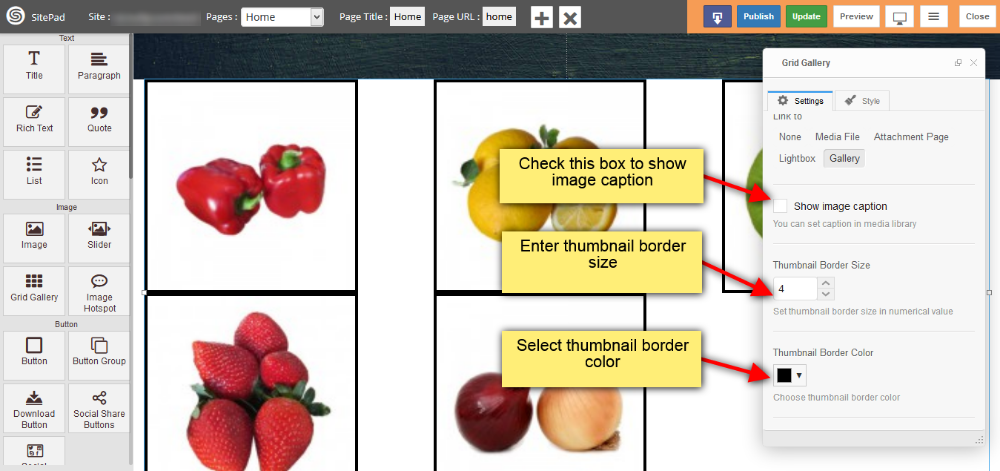
</div>   
![](https://dotroll.com/wp-content/uploads/2020/08/Gallery-img-thumbnail.png)

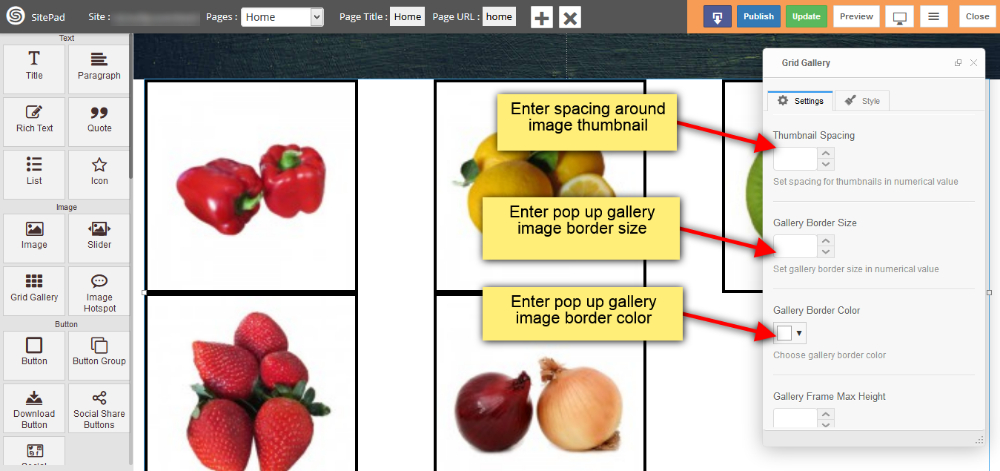
<div id="bkmrk-also-you-can-add%C2%A0spa">- Also you can add **spacing around image thumbnail**, set pop up gallery image **Border size and color** as shown in image below.  
       
    ![](https://dotroll.com/wp-content/uploads/2020/08/Gallery-img-thumbnail1.png)

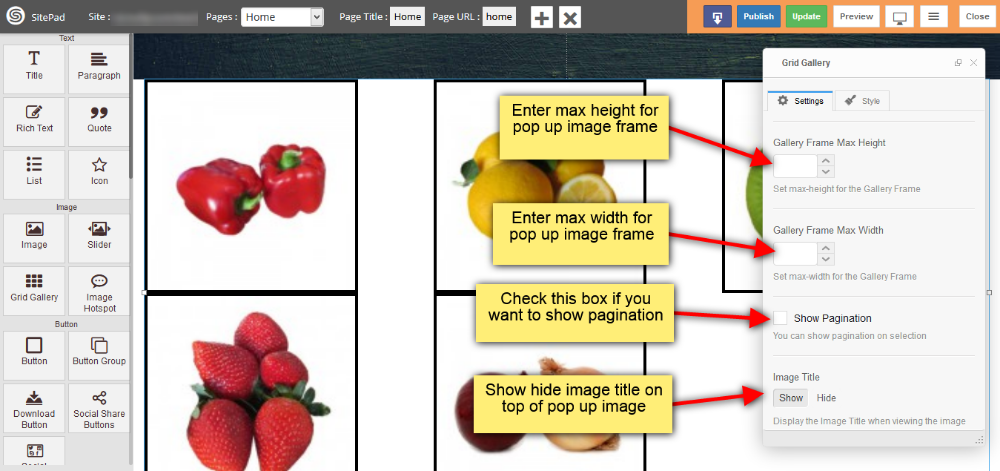
</div><div id="bkmrk-you-can-set%C2%A0max-heig">- You can set **max height** and **max width** for your pop up image frame
- Check **Show Pagination** box if you want to show pagination
- Provide the **visibility** for image title as shown in image below.  
       
    ![](https://dotroll.com/wp-content/uploads/2020/08/Gallery-img-thumbnail2.png)


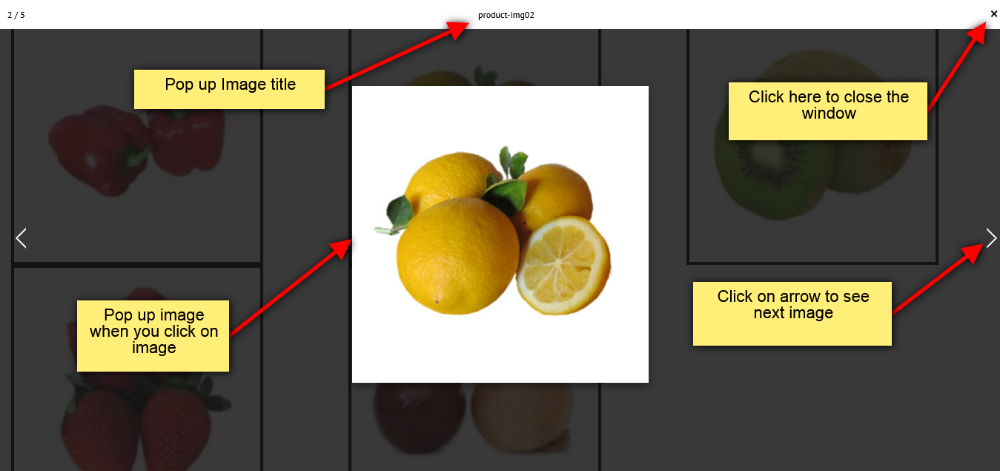
</div><div id="bkmrk-when-you-click-on-ga">- When you click on gallery image on your webpage the pop up will appear as shown in image below.  
    ![](https://dotroll.com/wp-content/uploads/2020/08/Gallery-img-thumbnail3.png)


</div><div id="bkmrk-"></div>

# Image

This Guide will help you to add **Image**.

#### DRAG AND DROP IMAGE

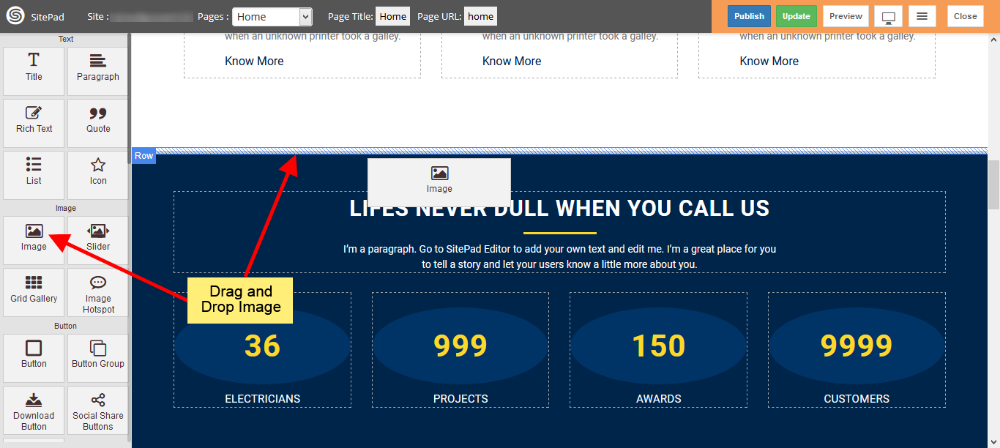
- **Drag and Drop** Image from left side **Widget panel** as shown in image below.
![](https://dotroll.com/wp-content/uploads/2020/08/Image-drag.png)

#### INSERT MEDIA

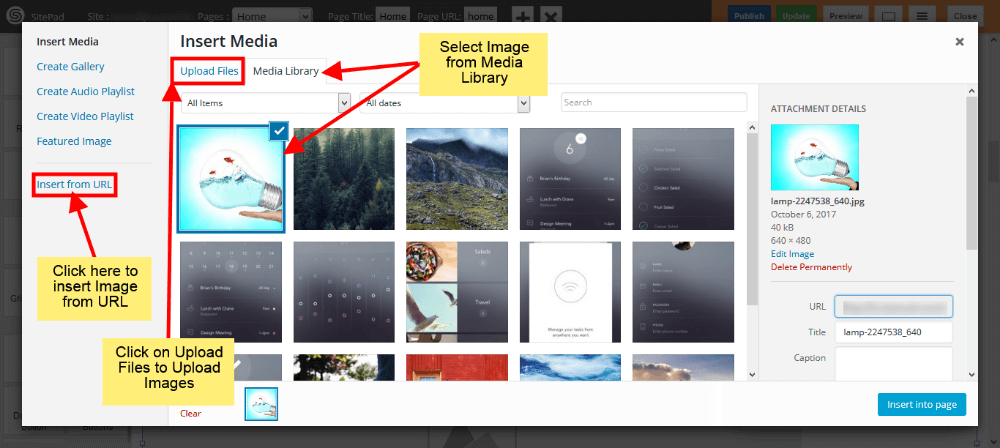
- When you **Drag and Drop** Image it will open **Insert Media** window as shown in image below.
- Here you can select image from **Media Library** or you can **upload** Image by clicking on **Upload Files**.
- You can also give **URL** of Image by clicking on **Insert From URL** as shown in image below.
![](https://dotroll.com/wp-content/uploads/2020/08/Image-insert-media.png)

#### IMAGE SIZE

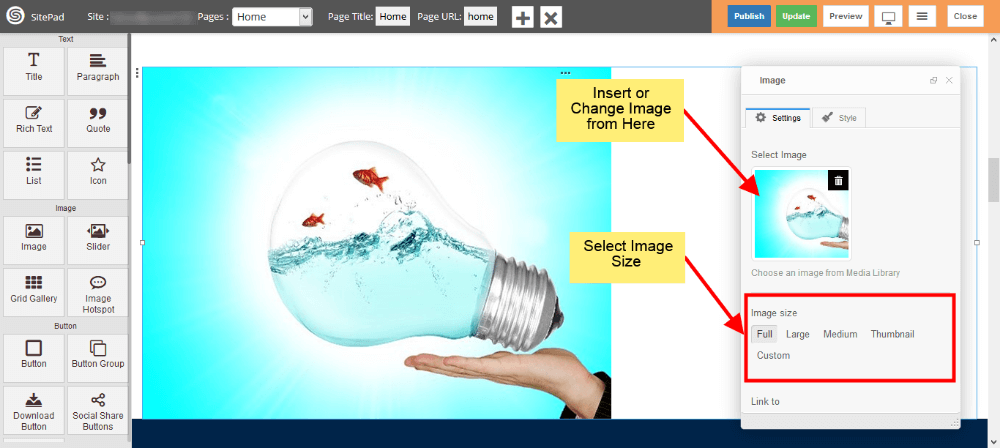
- Once you have selected image you can see **Dialog Box** for Image.
- Here you can **Select** or **Replace** Image if you want as shown in image below.
- Select Image **size** from different options, you can also give **Custom size**, for that you need to select **Custom** option and then enter **Width** and **Height**(eg. 100×100).
![](https://dotroll.com/wp-content/uploads/2020/08/Image-settings1.png)

#### IMAGE LINK

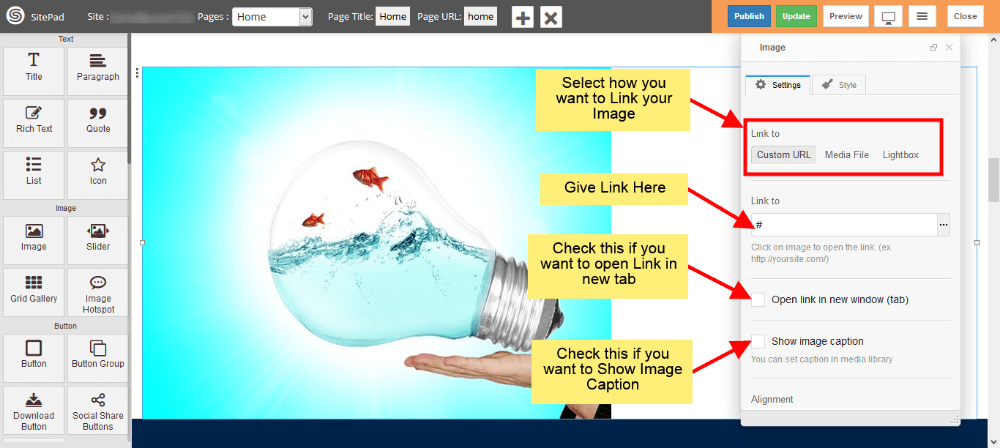
- Now select how you want to **link** your image by using **Custom URL , Media File or Lightbox**.
- Give **link** if you select Custom URL or Media File in **Link to** section. If Don’t want to attach image with link then leave it as blank.
- If you want to open link in **New Tab** then Check the box shown in image below.
- If you want to Show **Image Caption** then check **Show Image Caption** box.
![](https://dotroll.com/wp-content/uploads/2020/08/Image-settings2.png)

#### IMAGE ALIGNMENT

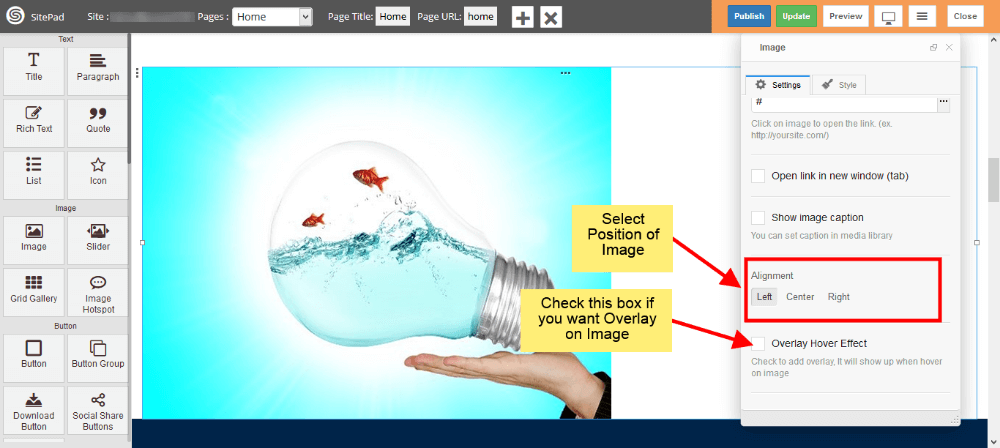
- Select **Alignment** for image as shown in image below.
- If you want **overlay** over image then check the **Overlay Hover Effect** box. This effect will show up when **Hover** on image in website.
![](https://dotroll.com/wp-content/uploads/2020/08/Image-settings3.png)

#### IMAGE OVERLAY

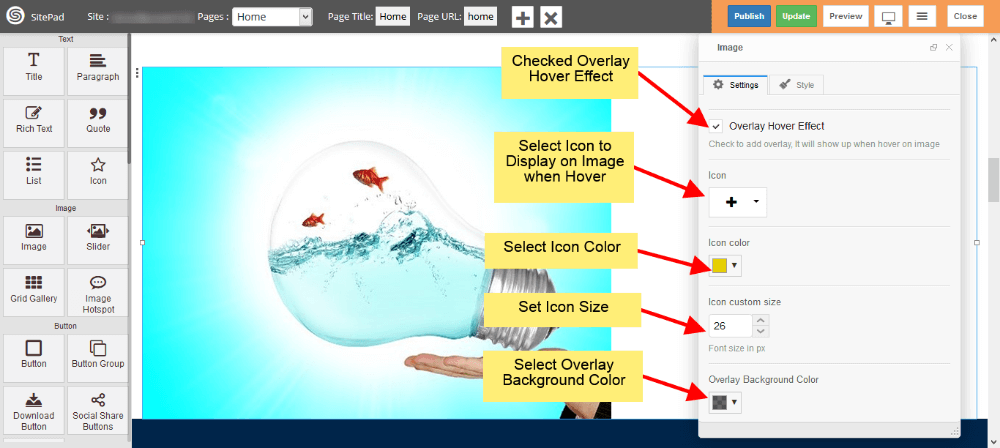
- If you want to add **overlay** over image then first check **Overlay Hover Effect** Box as shown in image below.
- Now select **Icon** to display over image.
- Select **Color** and **Size** for that Icon.
- And in the end select **Background color** for **Overlay** as shown in image below.
![](https://dotroll.com/wp-content/uploads/2020/08/Image-overlay.png)

#### CUSTOM STYLE

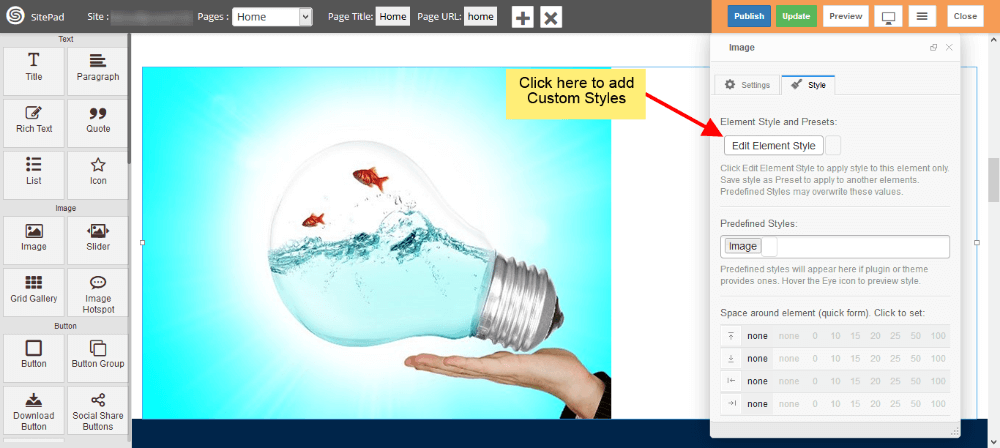
- You can add your **Custom style** by clicking on **Edit Element Style** as shown in image below.
![](https://dotroll.com/wp-content/uploads/2020/08/Image-custom-style.png)

# Call To Action

This Guide will Help you to edit Call to Action Widget Settings and Style.

<div class="vc_row wpb_row vc_row-fluid" id="bkmrk-note%3A%C2%A0widget-gives-y"><div class="wpb_column vc_column_container vc_col-sm-12"><div class="vc_column-inner"><div class="wpb_wrapper"><div class="wpb_text_column wpb_content_element "><div class="wpb_wrapper"><div class="ricsi info alert alert-info">  
</div></div></div><div class="vc_message_box vc_message_box-standard vc_message_box-rounded vc_color-info vc_custom_1600254685620"><div class="vc_message_box-icon">  
</div><div class="ricsi info alert alert-info"><span class=".">**Note:** Widget gives you **Default Style** provided by theme, you can customize as per your needs using this guide.</span></div></div></div></div></div></div>#### DRAG &amp; DROP CALL TO ACTION WIDGET

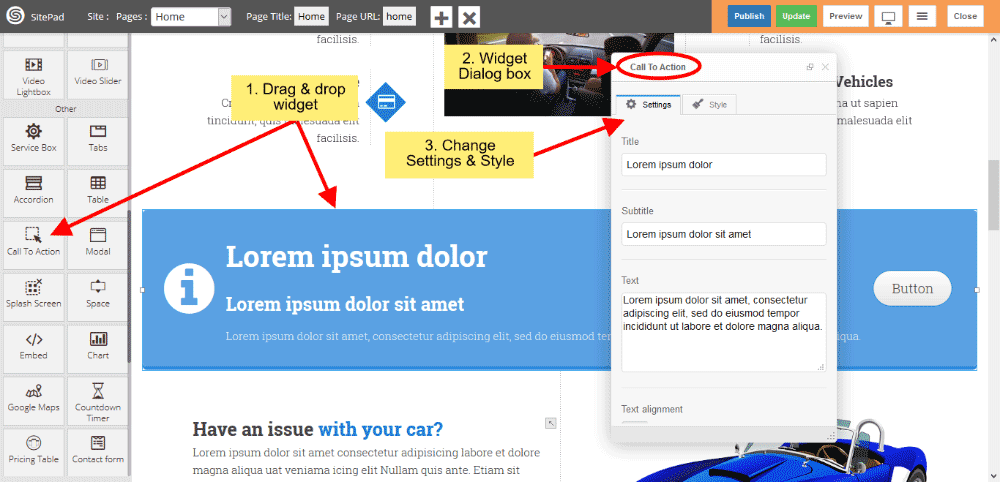
When you **Drag and Drop** Call to Action Widget in a Page, You will see the image shown like below.  
   
![](https://dotroll.com/wp-content/uploads/2020/08/CTA-dragdrop.png)

#### CALL TO ACTION TEXT

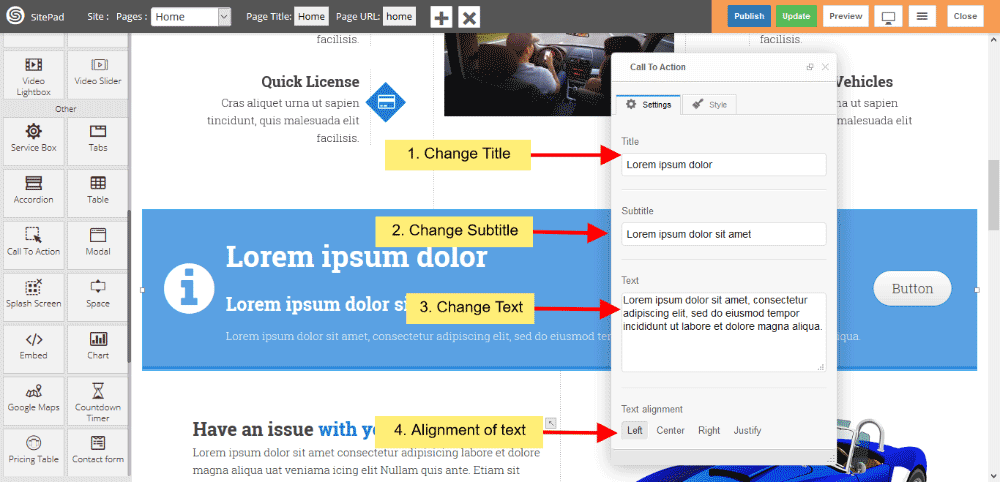
- You can change or customize your **Title, Subtitle and Text**.
- Text alignment gives you **alignment** of text.
   
![](https://dotroll.com/wp-content/uploads/2020/08/CTA-customtext.png)

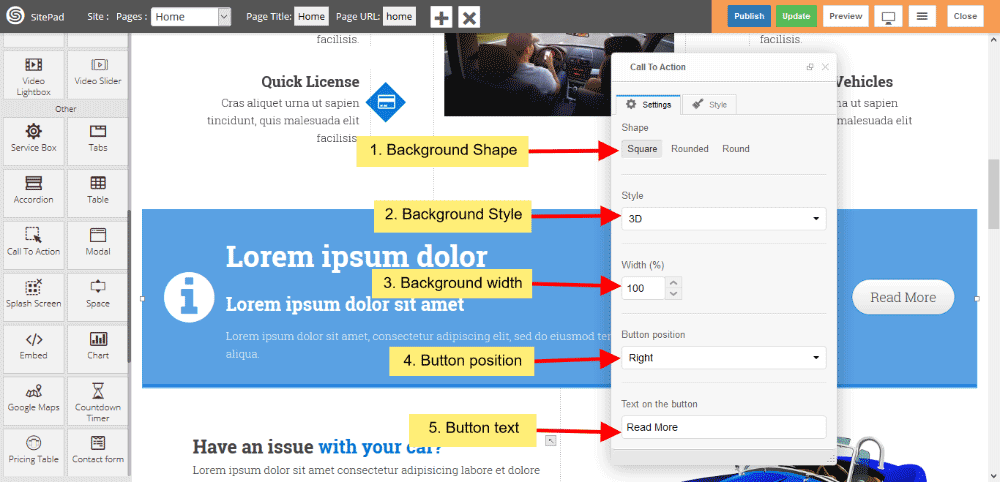
#### CALL TO ACTION BACKGROUND

- You can change Background **shape**, Background predefined **style** or custom style.
- You can change **total width** of background also.
- You also changed **button position** in background shape and **text** of the button.
   
![](https://dotroll.com/wp-content/uploads/2020/08/CTA-background.png)

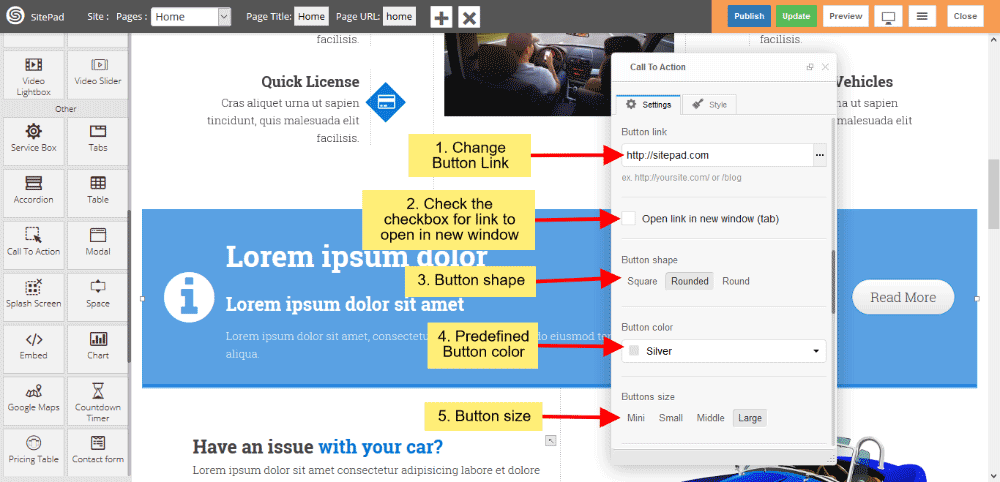
#### CALL TO ACTION BUTTON

- You can also give **button link**, and if you want that link open in new window, then **click** on checkbox.
- Button shape gives **shape of button** and choose **predefined** button color from dropdown list.
- Button size gives **predefined** Button size.
   
![](https://dotroll.com/wp-content/uploads/2020/08/CTA-button.png)

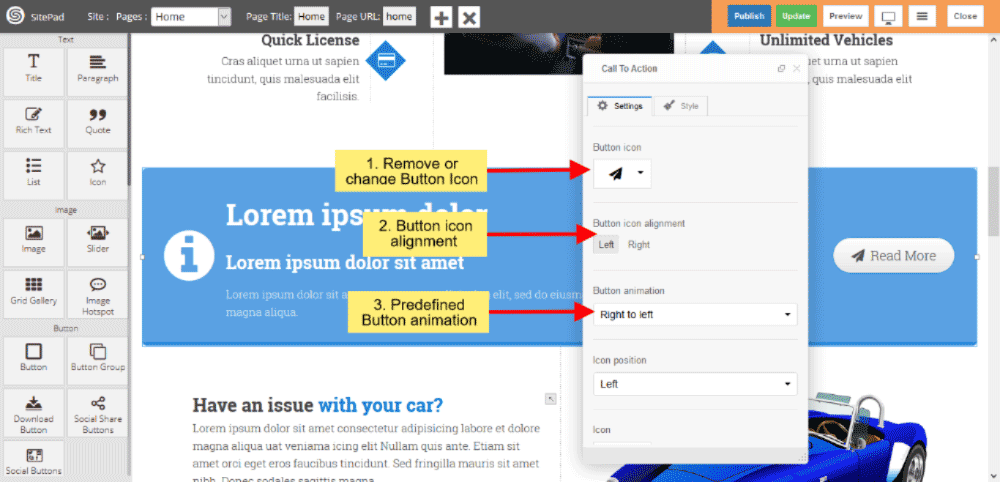
#### CALL TO ACTION BUTTON ICON

- Change Button Icon from Icon list.
- Button Icon alignment gives **alignment of Icon** such as Left and Right.
- Button animation gives **animation** from predefined dropdown list.
   
![](https://dotroll.com/wp-content/uploads/2020/08/CTA-btnIcon.png)

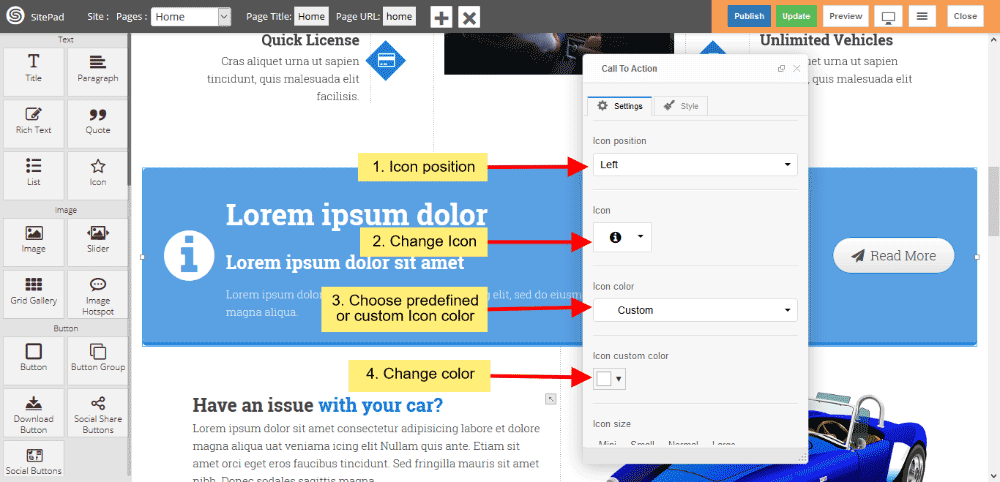
#### CALL TO ACTION ICON

- You can also change Icon **position** from dropdown list.
- **Change Icon** as per your choise from dropdown list.
- Change **predefined** Icon color and **custom** color, If you choose custom color then you can change custom color.  
       
    ![](https://dotroll.com/wp-content/uploads/2020/08/CTA-Icon.png)

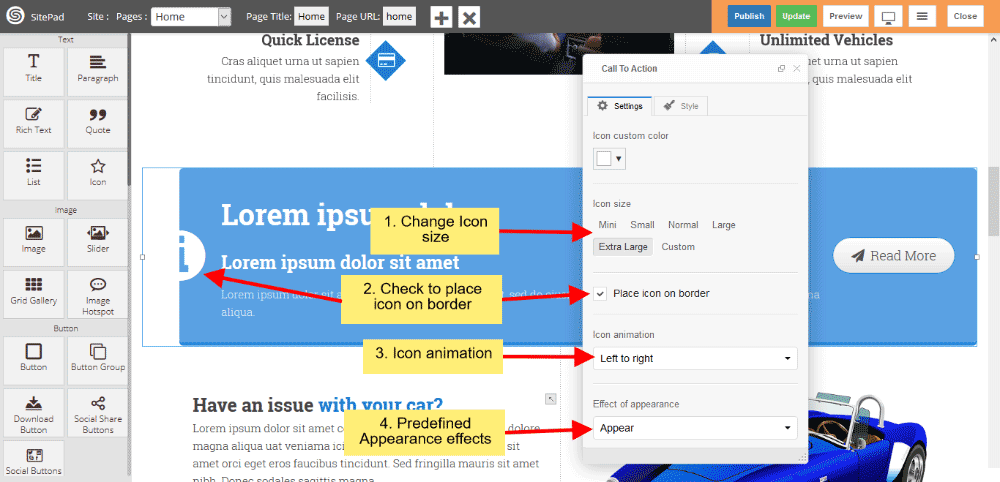
- Icon size gives you to change **predefined** size or **custom** size.
- If you want’s to place **half Icon** on border then click on checkbox.
- Icon animation provides to change **animation style** when page loads.  
       
    ![](https://dotroll.com/wp-content/uploads/2020/08/CTA-Icon-custom.png)

#### CALL TO ACTION STYLE

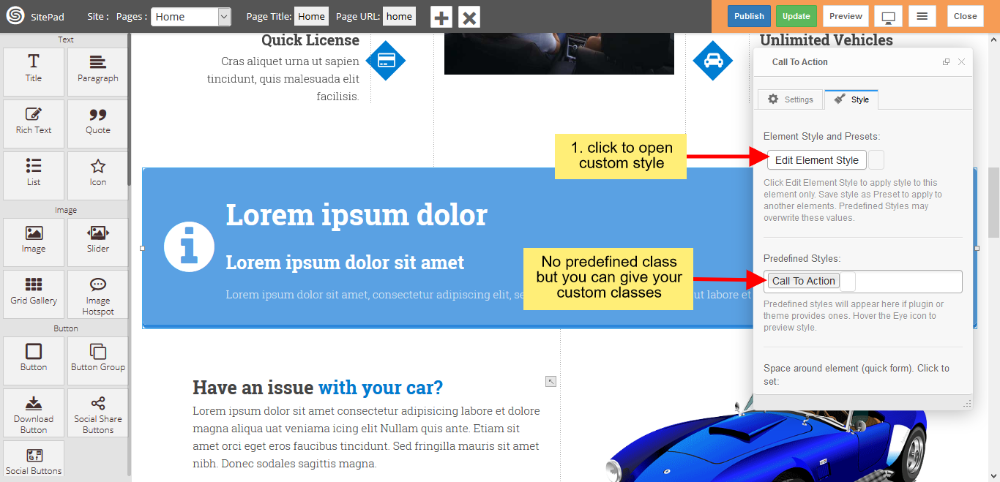
Style gives 2 types of style **1)** Edit Element style and **2)** Predefined style

- **Edit Element style** gives custom style in that you can change custom background color, text color, margin, border-radius etc.
- There is no predefined style but you can give **your classes** to define your custom style.
   
![](https://dotroll.com/wp-content/uploads/2020/08/CTA-style.png)

# Service Box

<div id="bkmrk-custom-style"><div class="eckb-article-toc eckb-article-toc--position-middle eckb-article-toc--bmode-between eckb-article-toc-reset " data-exclude_class="" data-max="6" data-min="2" data-offset="0" data-speed="300"><div class="eckb-article-toc__inner"><nav aria-label="Article outline" class="eckb-article-toc-outline" role="navigation"></nav></div></div></div>This Guide will help you to add **Service Box.**

#### DRAG AND DROP SERVICE BOX

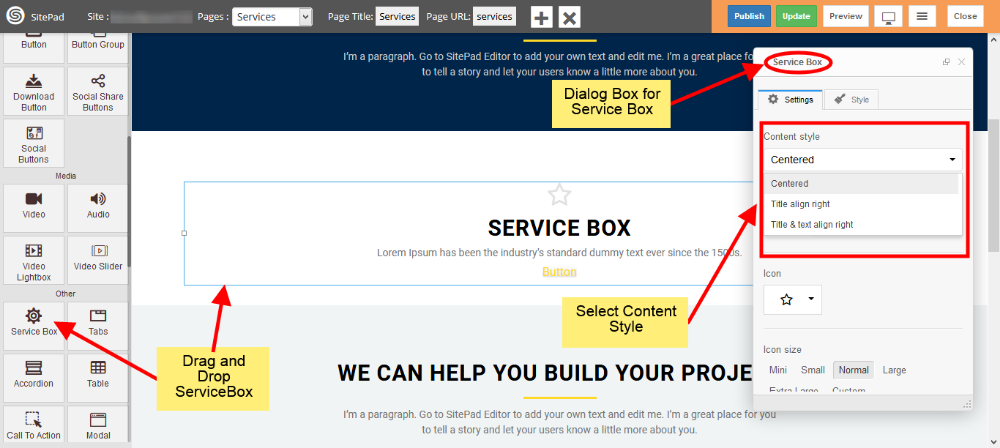
<div id="bkmrk-drag-and-drop%C2%A0servic">- **Drag and Drop** Service Box from left side **widget panel** as shown in image below.
- Now in **Dialog Box** of Service Box you can **Customize** Service Box.
- Select **Content Style** of your Service Box as shown in image below.
</div>   
![](https://dotroll.com/wp-content/uploads/2020/08/Service-box-drag.png)

#### SERVICE BOX MEDIA TYPE

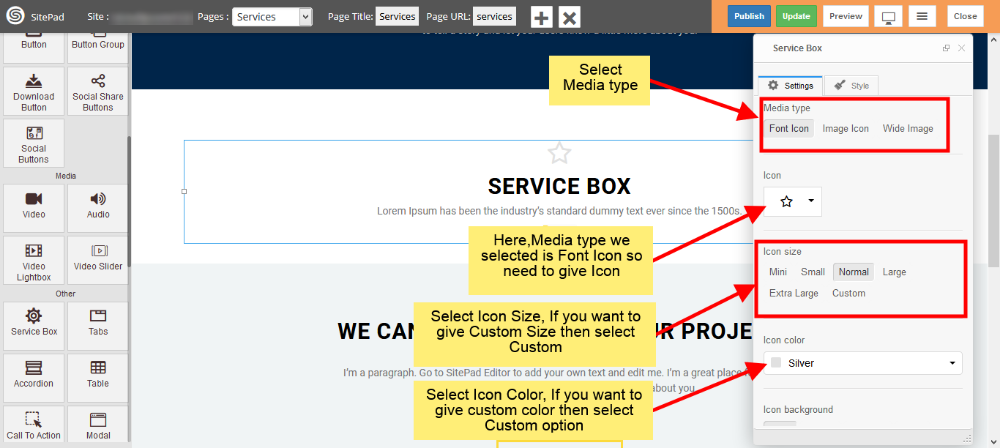
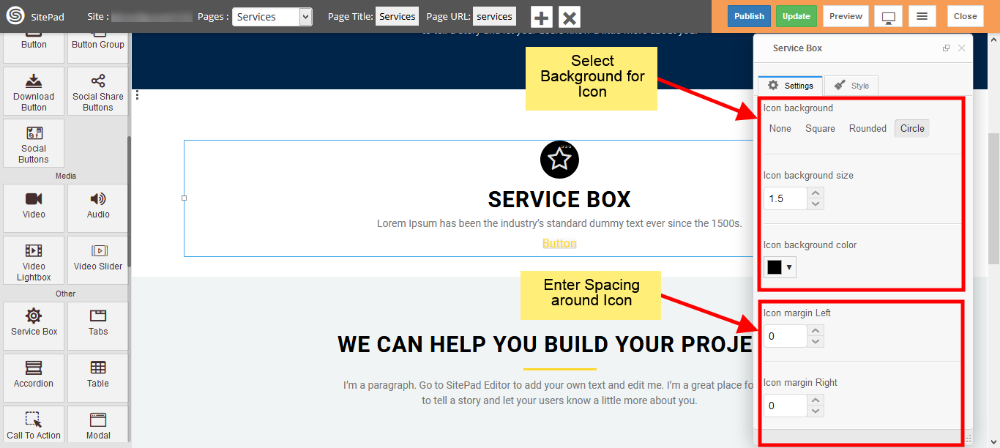
<div id="bkmrk-select%C2%A0media-type%C2%A0yo">- Select **Media type** you want to display in your Service Box. We have selected **Font Icon**.
- As we selected **Font Icon** we need to Provide **Icon** as shown in image below. You need to provide image if you select **Image Icon** or **Wide Image**.
- Also provide some different **properties** for your media type like **Color, Size** etc as shown in image.
</div>   
![](https://dotroll.com/wp-content/uploads/2020/08/Service-box-settings1.png)  
   
![](https://dotroll.com/wp-content/uploads/2020/08/Service-box-settings2.png)

#### SERVICE BOX CONTENT

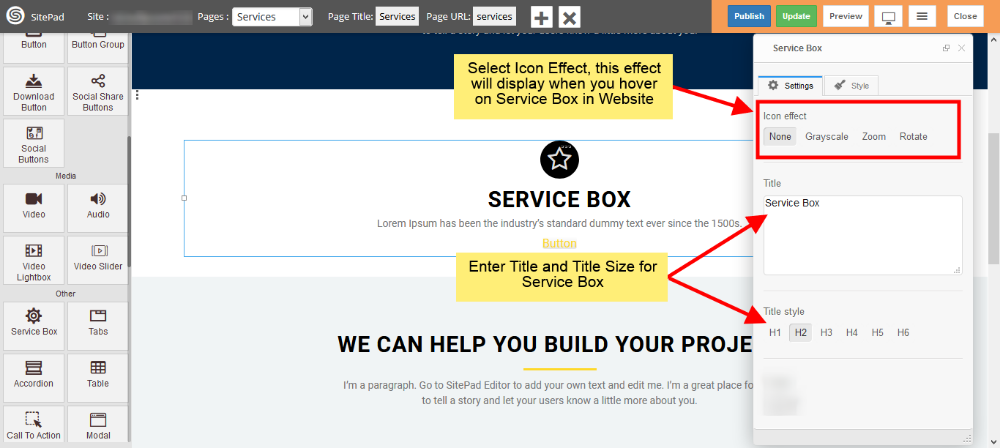
<div id="bkmrk-enter-service-box%C2%A0ti">- Enter Service Box **Title** and give **Size** for Title as shown in image below.
- Enter content of your Service Box in **Content** section.
</div>   
![](https://dotroll.com/wp-content/uploads/2020/08/Service-box-settings3.png)

### BUTTON

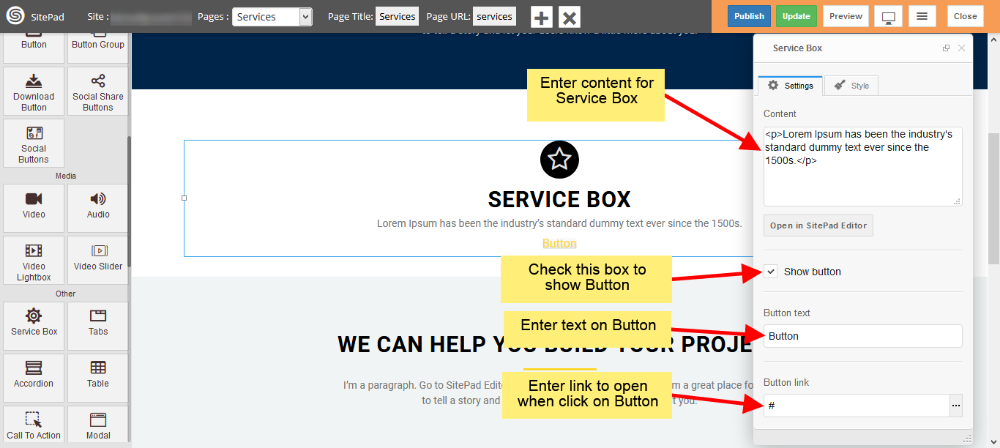
<div id="bkmrk-check-the%C2%A0show-butto">- Check the **Show Button** box to show **Button** in your Service Box as shown in image below.
- Next enter text to Display on Button and **Link** if you want go to other page on **Button Click.  
       
    ![](https://dotroll.com/wp-content/uploads/2020/08/Service-box-settings4.png)**
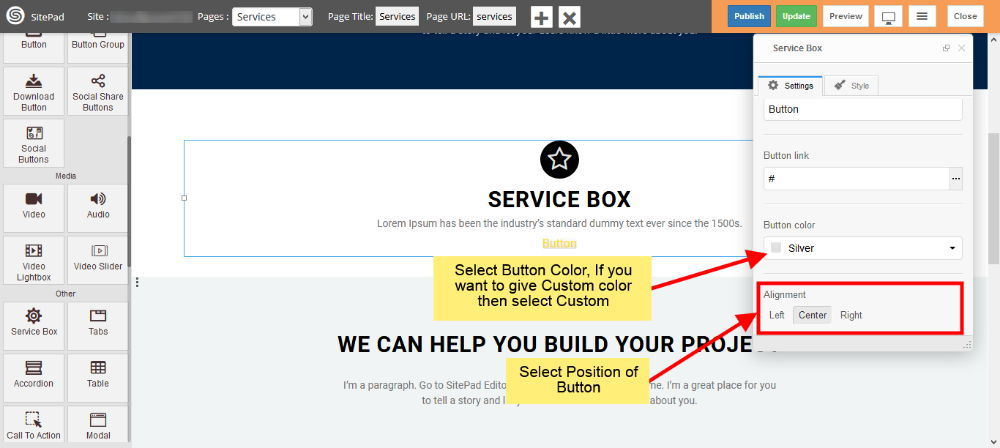
- Select **Button color** from Predefined options or you can give **Custom color** by selecting **Custom** as shown in image below.
- Select **position** for Button inside Service Box from **Alignment** section.  
       
    ![](https://dotroll.com/wp-content/uploads/2020/08/Service-box-settings5.png)

</div>#### CUSTOM STYLE

<div id="bkmrk-click-on%C2%A0edit-elemen">- Click on **Edit Element Style** to add **Custom styles** as shown in image below.
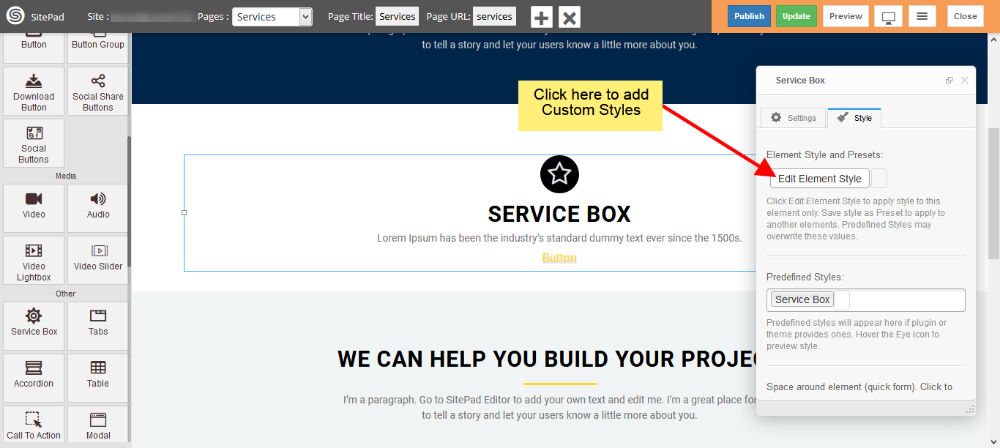
</div>   
![](https://dotroll.com/wp-content/uploads/2020/08/Service-box-styles.png)

<div id="bkmrk-"></div>

# Modal

This Guide will help you to add **Modal.**

#### DRAG AND DROP MODAL

- **Drag and Drop** Modal from left side **Widget Panel** as shown in image below.
- Now in **Dialog box** of Modal you can change Modal content and Customize Modal.
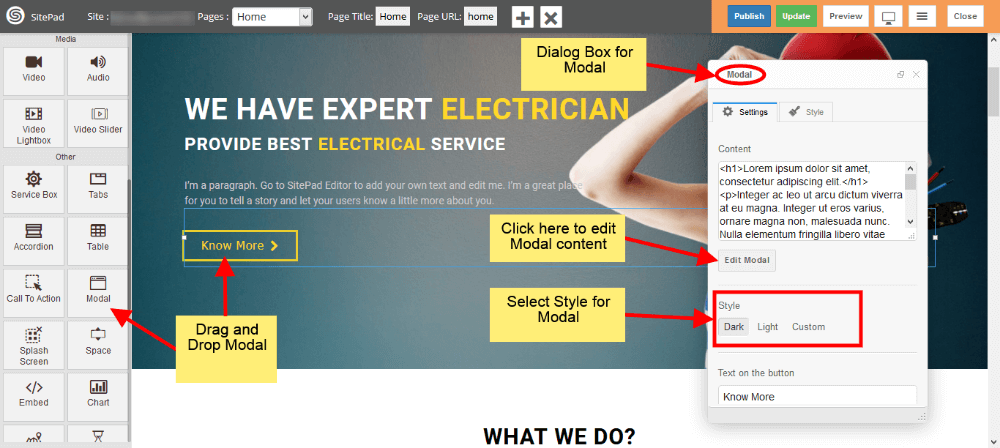
   
![](https://dotroll.com/wp-content/uploads/2020/08/Modal-drag.png)

### CUSTOMIZE MODAL

- To give ‘**Custom styling** to Modal just select **Custom** from **Style** as shown in image below.
- Once you select the **Custom** you will able to edit **Background color** and **Box color** as shown in image below.
- Now enter **Text on Button** to see it on your **Modal Button**.
- If you want **Button** to have **Full Width** then just check the **Stretch** box shown in image below.  
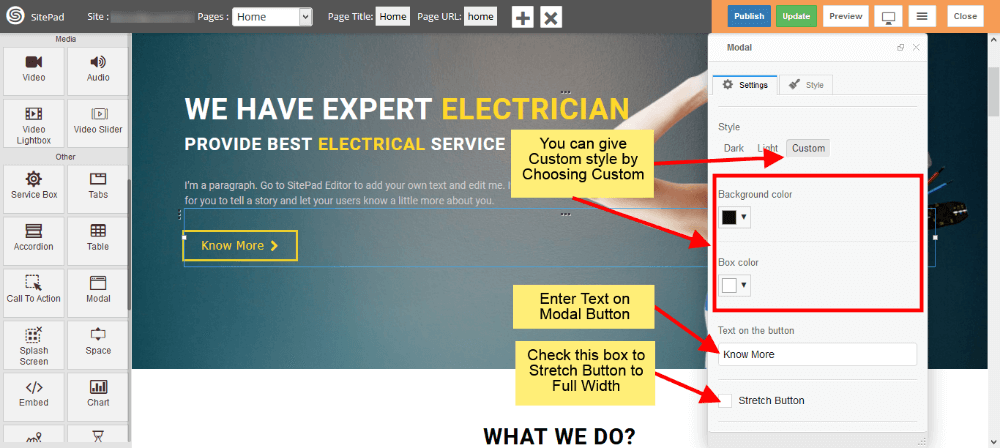
       
    ![](https://dotroll.com/wp-content/uploads/2020/08/Modal-settings1.png)

- Now select **Position** for Modal Button. There are 3 options **Left, Center, Right** just select one of them.
- Select **Icon** to display in Modal Button or if you don’t want icon then you can give it as Blank.
- If you select **Icon** then you need to give **Position** for Icon. By default it is **Left** but you can change it to **Right** also.
- Now select type of **Animation** to **Arrive** the modal screen on website and same for **Hide** also as shown in image below.  
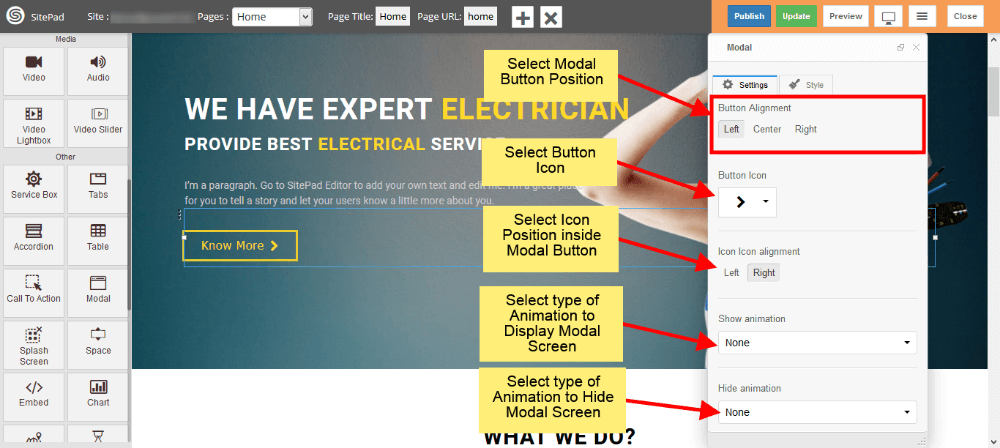
       
    ![](https://dotroll.com/wp-content/uploads/2020/08/Modal-settings2.png)

#### CUSTOM STYLES

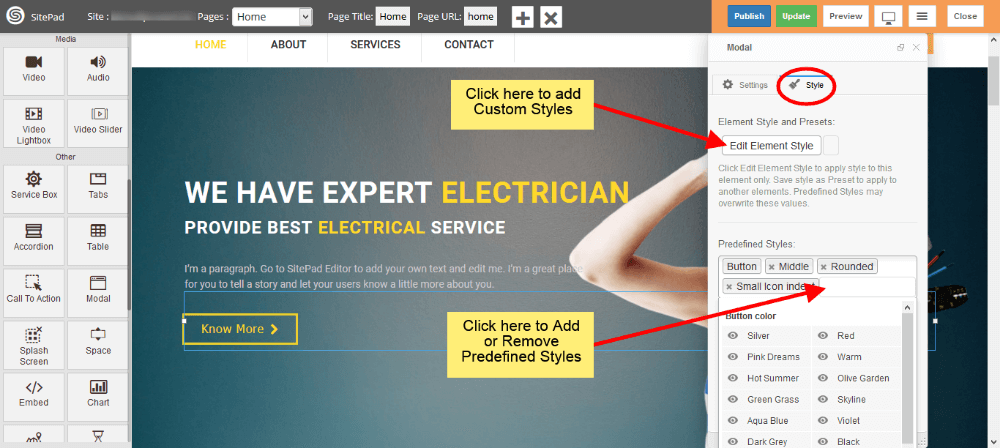
- You can select **Predefined style** by clicking on **Predefined Styles** as shown in image below.
- You can also give custom styles by clicking on Edit Element Style as shown in image below.
   
![](https://dotroll.com/wp-content/uploads/2020/08/Modal-styles.png)

#### MODEL SCREEN VIEW

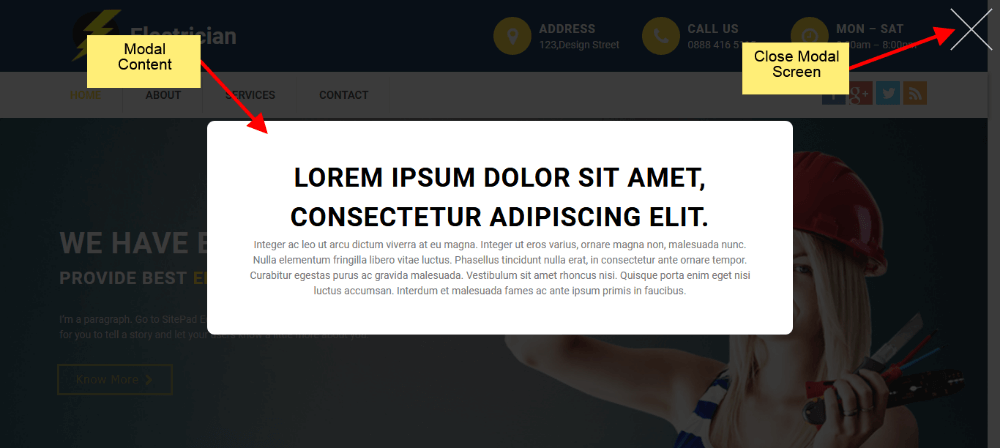
- When you **Click** on Model Button it will **Display screen** like in image below.
   
![](https://dotroll.com/wp-content/uploads/2020/08/Modal-view.png)

# Embed

This Guide will Help you to edit Embed Widget Settings and Style.

<p class="callout info"><span class=".">**Note:** Widget gives you **Default Style** provided by theme, you can customize as per your needs using this guide.</span></p>

#### DRAG &amp; DROP EMBED WIDGET

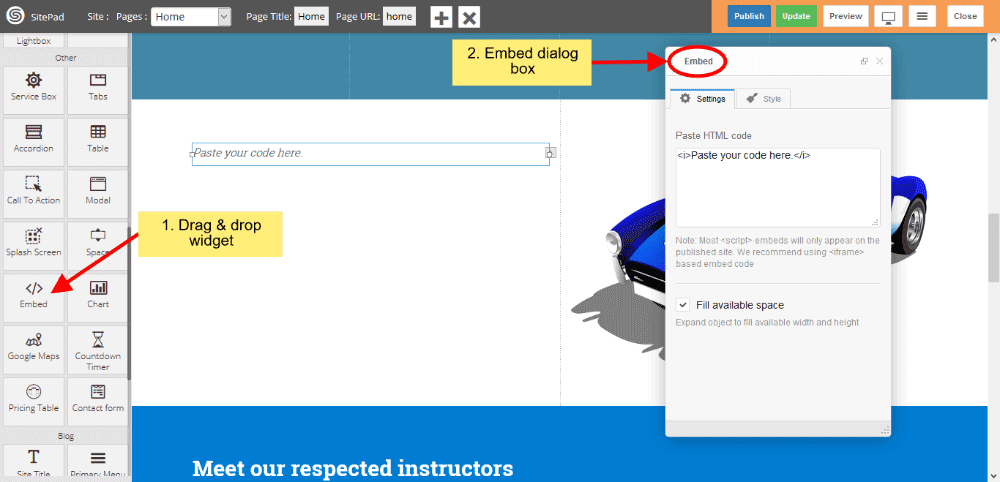
When you **Drag and Drop** Embed Widget in a Page, You will see the image like below.  
   
![](https://dotroll.com/wp-content/uploads/2020/08/Embed-dragdrop.png)

#### EMBED SETTINGS

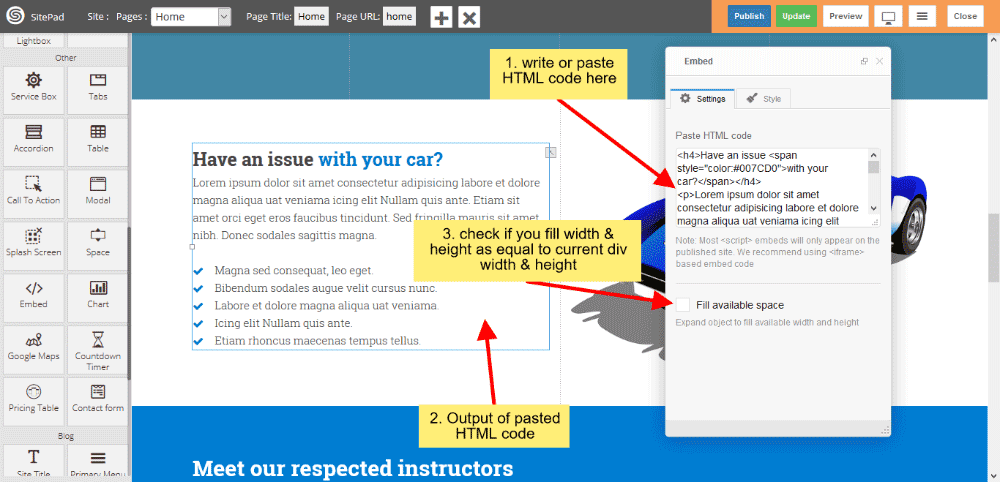
1. **Write or paste** HTML code in textarea box and you can give style also.
2. Check the checkbox if you want’s full-width and height available in current div of a page.  
       
    ![](https://dotroll.com/wp-content/uploads/2020/08/Embed-settings.png)

#### EMBED STYLE

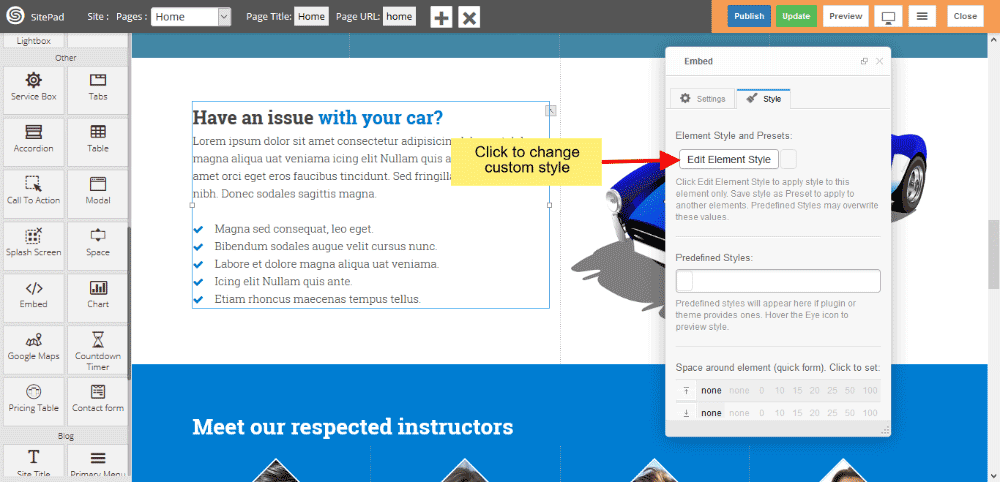
1. **Edit Element style** gives custom style in that you can change custom background color, text color, margin, border-radius etc.
2. There is **No** Predefined style.
3. You can also give **your classes** to define your custom style.  
       
    ![](https://dotroll.com/wp-content/uploads/2020/08/Embed-style.png)

# Pricing table

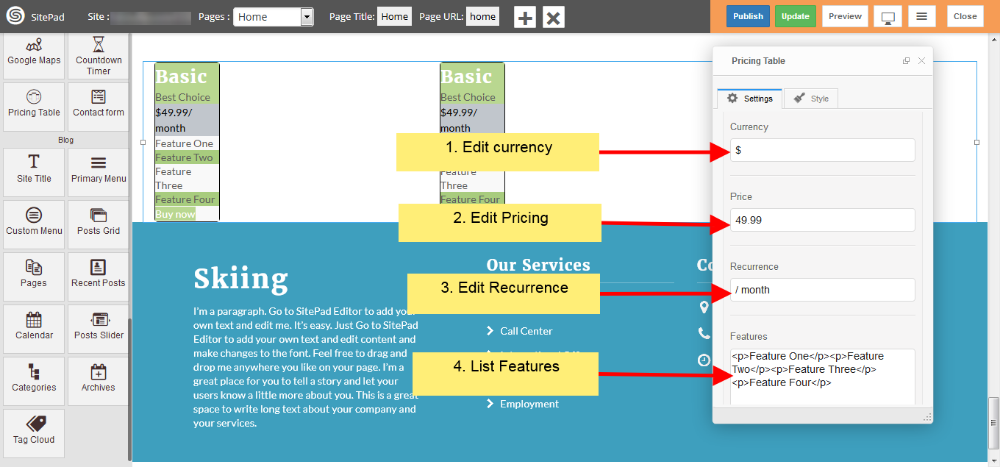
When the first **Theme** is selected it automatically gives the Predefined Style for **Pricing Table** but if you want to **Customize Menu** you can follow this guide.

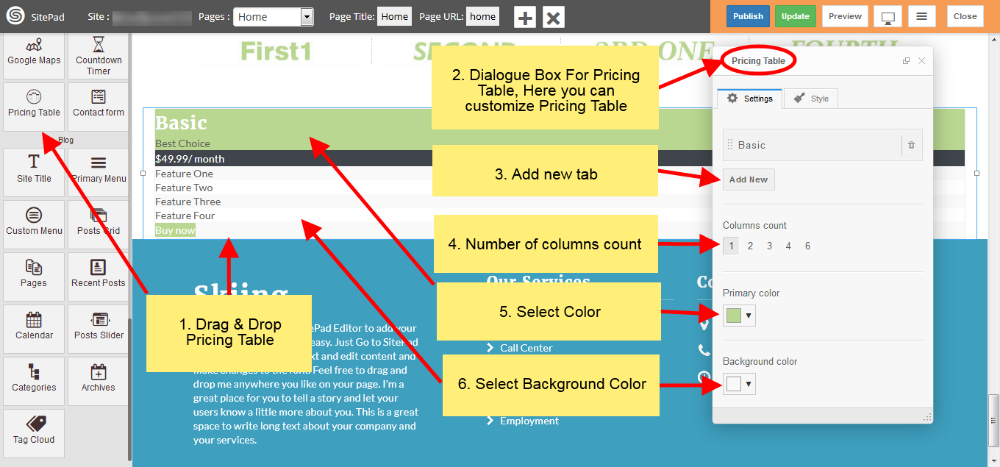
<div id="bkmrk-drag-and-drop%C2%A0pricin">1. Drag and Drop **Pricing Table** from left side widget section. So this action will pop up **Dialog Box** for **Pricing Table** as shown in image below.  
       
    ![](https://dotroll.com/wp-content/uploads/2020/08/Pricing-table-img-01.png)

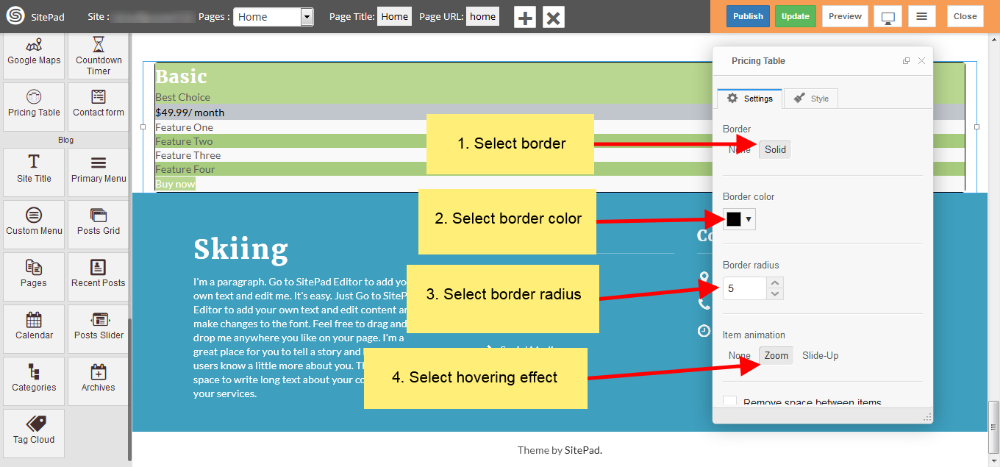
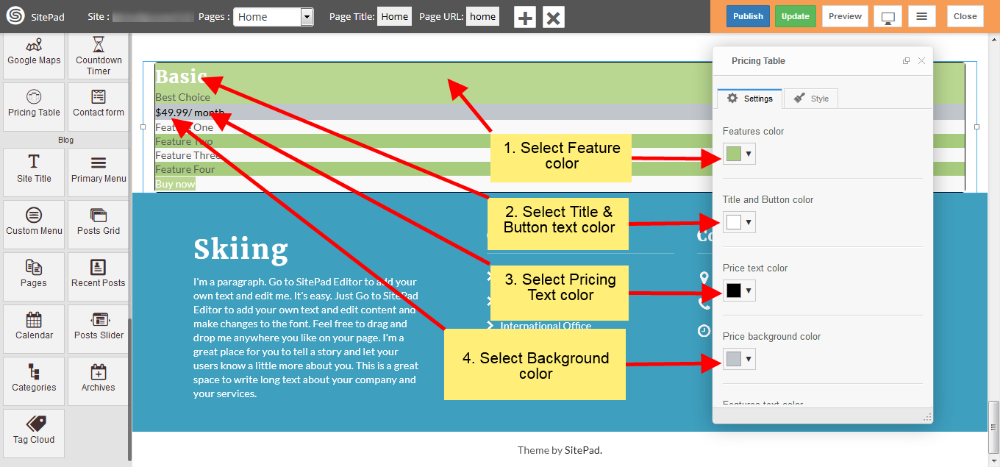
</div><div id="bkmrk-select-colors-for%C2%A0pr">1. Select Colors for **Pricing Table** pricing rows and border and select animation effect as per your needs as shown in images below.  
       
    ![](https://dotroll.com/wp-content/uploads/2020/08/Pricing-table-img-02.png)  
       
    ![](https://dotroll.com/wp-content/uploads/2020/08/Pricing-table-img-03.png)

</div><div id="bkmrk-now-in%C2%A0settings%C2%A0sect">1. Now in **Settings** section of **Dialog Box** you have different option to Customize **Pricing Table** and edit text accordingly of particular row as shown in images below.  
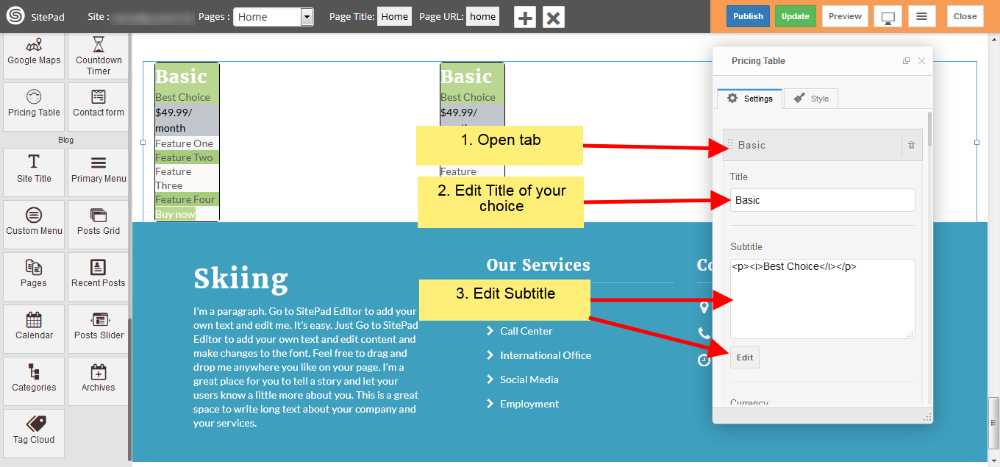
       
    ![](https://dotroll.com/wp-content/uploads/2020/08/Pricing-table-img-04.png)  
       
    ![](https://dotroll.com/wp-content/uploads/2020/08/Pricing-table-img-05.png)

</div><div id="bkmrk-now-in%C2%A0styles%C2%A0sectio">1. Now in **Styles** section of Dialog Box you can edit element style as shown in image below.  
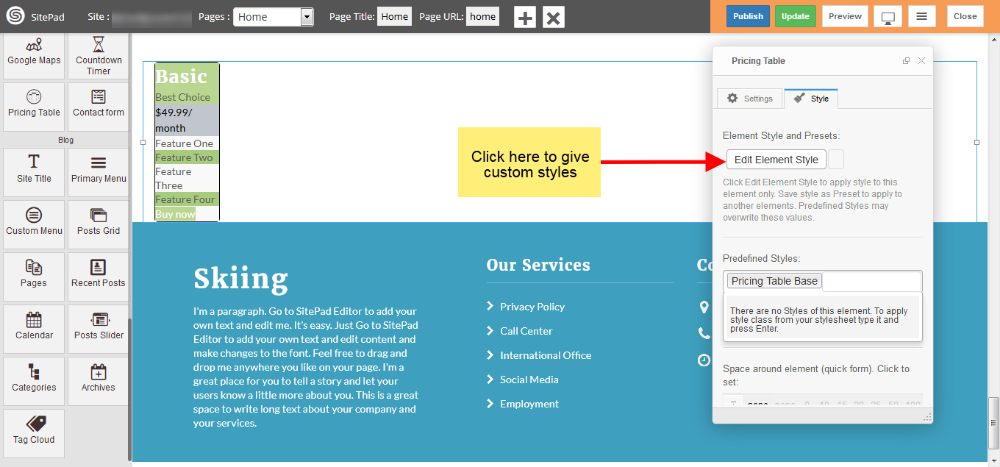
       
    ![](https://dotroll.com/wp-content/uploads/2020/08/Pricing-table-img-06.png)

</div><div id="bkmrk-"></div>

# Tabs

When the first **Theme** is selected it automatically gives the Predefined Style for **Tabs** but if you want to **Customize Tabs** you can follow this guide.

<div id="bkmrk-drag-and-drop%C2%A0tabs%C2%A0f">1. Drag and Drop **Tabs** from left side widget section then a **Dialogue Box** will pop up by this action for **Tabs** as shown in image below .  
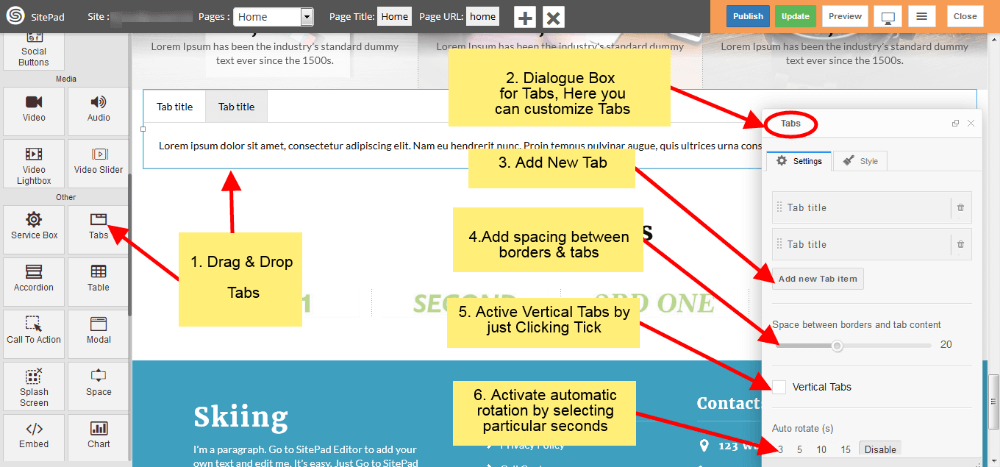
       
    ![](https://dotroll.com/wp-content/uploads/2020/08/Tabs-image-01.png)

</div><div id="bkmrk-now-in%C2%A0settings%C2%A0sect">1. Now in **Settings** section of **Dialog Box** you can open **Tab** and add text of your own as shown in image below.  
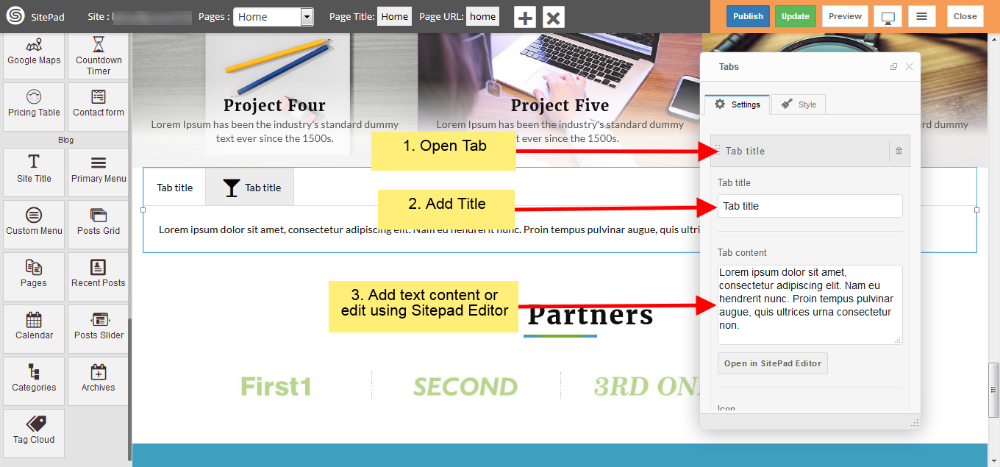
       
    ![](https://dotroll.com/wp-content/uploads/2020/08/Tabs-image-02.png)

</div><div id="bkmrk-in%C2%A0settings%C2%A0section-">1. In **Settings** section of **Dialogue Box** you can also **select icons** and **customize** as shown in figure below.  
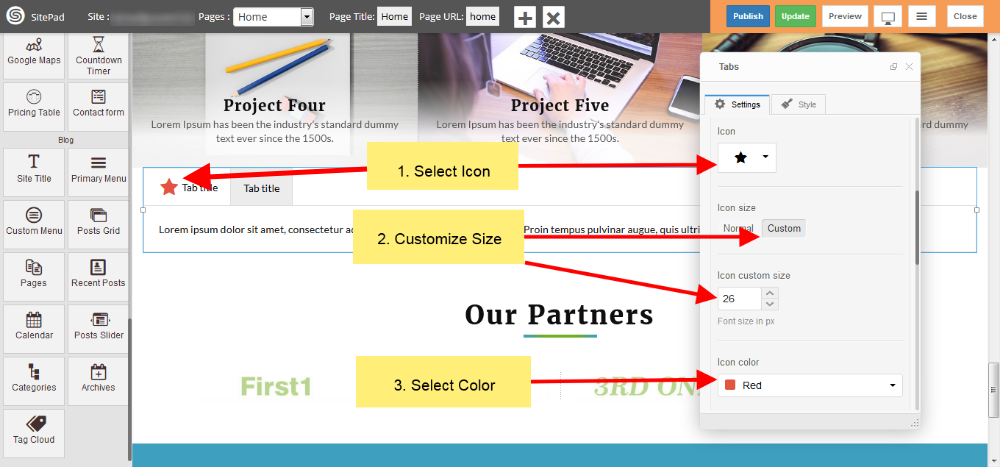
       
    ![](https://dotroll.com/wp-content/uploads/2020/08/Tabs-image-03.png)

</div><div id="bkmrk-now-in%C2%A0style%C2%A0section">1. Now in **Style** section of **Dialog Box** you can give **Custom Style** and also use **Predefined Styles** as shown in image below.  
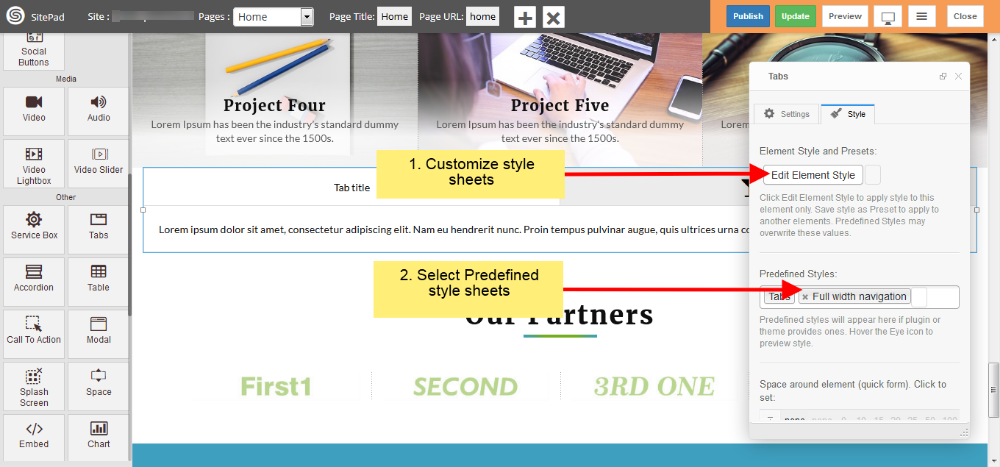
       
    ![](https://dotroll.com/wp-content/uploads/2020/08/Tabs-image-04.png)

</div><div id="bkmrk-"></div>

# Accordion

This Guide will Help you to edit Accordion Widget Settings and Style.

<p class="callout info"><span class=".">**Note:** Widget gives you **Default Style** provided by theme, you can customize as per your needs using this guide.</span></p>

#### DRAG &amp; DROP ACCORDION WIDGET

When you **Drag and Drop** Accordion Widget in a Page, You will see the image like below.

1. Click on Add new Accordion item button to add new Accordion Item.
2. If you want to **Remove Accordion item** then click on **delete icon** present on Accordion Item section.  
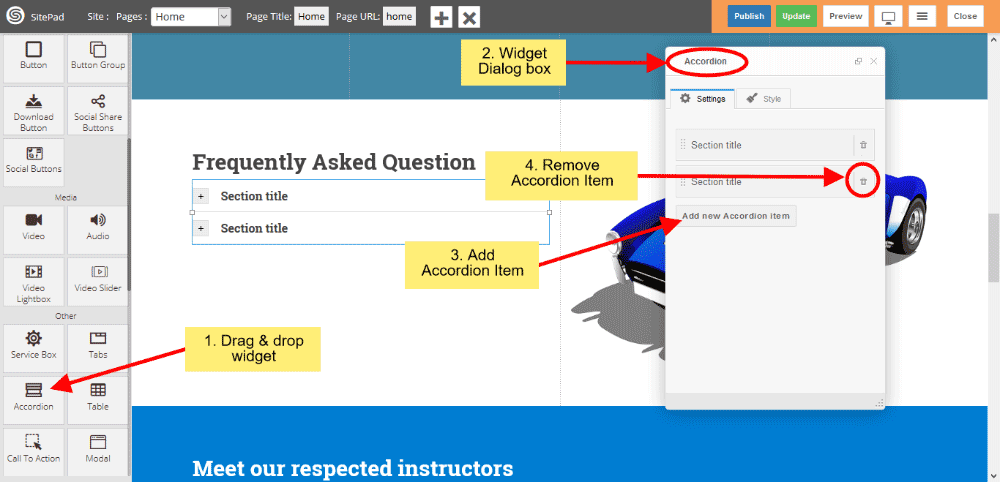
       
    ![](https://dotroll.com/wp-content/uploads/2020/08/Accordion-dragdrop.png)

### ACCORDION ITEM SETTINGS

1. **Section Title** in that you can insert your Accordion Item title.
2. **Section Content** gives you to insert your Item content.
3. Or you can click on **Open in SitePad Editor** button to insert item content.
4. Click on **Active** checkbox to active that particular item. <div class="ricsi info alert alert-info"><span class=".">**Note:** Only one item can be active.  
       
    ![](https://dotroll.com/wp-content/uploads/2020/08/Accordion-itemsettings.png)</span></div>

#### ACCORDION STYLE

Style gives 2 types of style **1)** Edit Element style and **2)** Predefined style

1. **Edit Element style** gives custom style in that you can change custom background color, text color, margin, border-radius etc.  
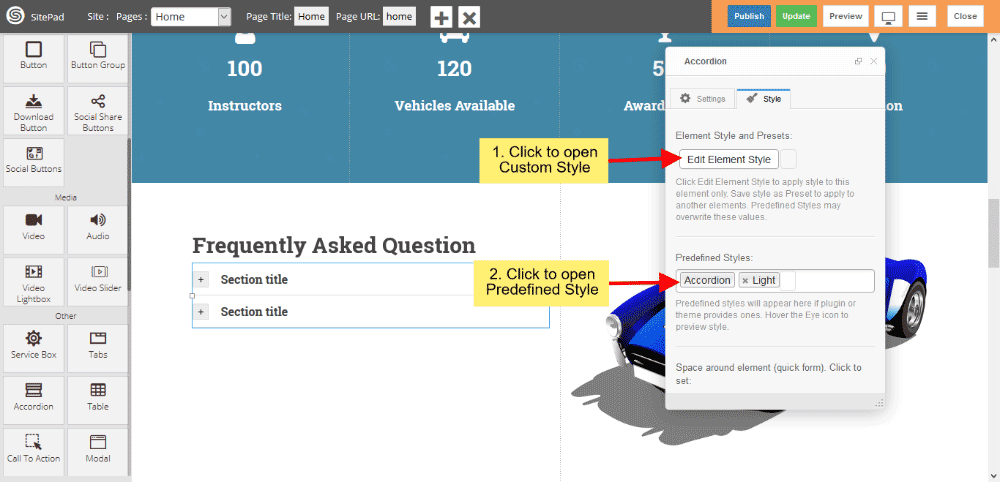
       
    ![](https://dotroll.com/wp-content/uploads/2020/08/Accordion-style.png)

1. **Predefined style** gives you **classes** of Accordion such as **Light and Dark**.
2. You can also give **your classes** to define your style.  
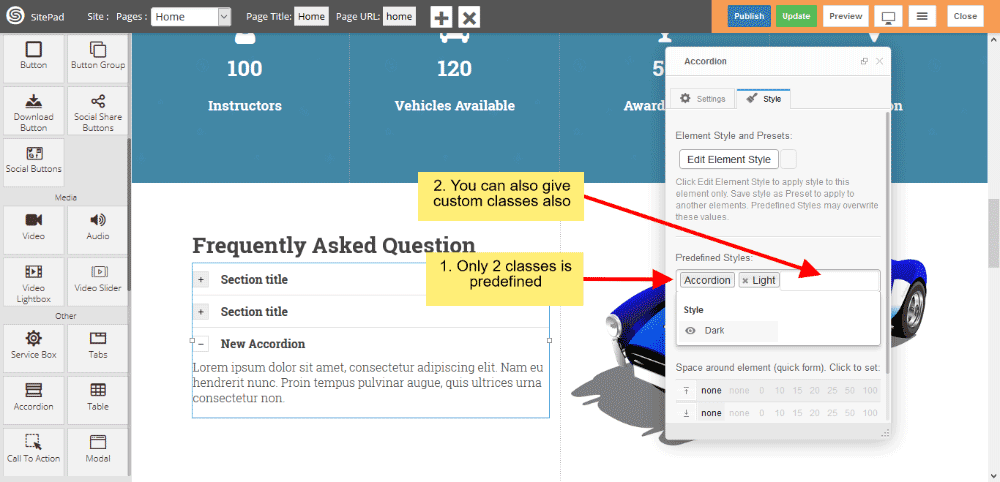
       
    ![](https://dotroll.com/wp-content/uploads/2020/08/Accordion-prestyle.png)

# Splash Screen

This Guide will help you to add **Splash Screen.**

#### DRAG AND DROP SPLASH SCREEN

<div id="bkmrk-drag-and-drop%C2%A0splash">- Drag and Drop **Splash Screen** from left side **Widget Panel** at your desired portion of page.
- When your website window reach that portion, At that time **Splash Screen** will get Displayed.
- Here we have **Dragged** it at the Start of Page, so it will get **Displayed** when we load Page in Website.
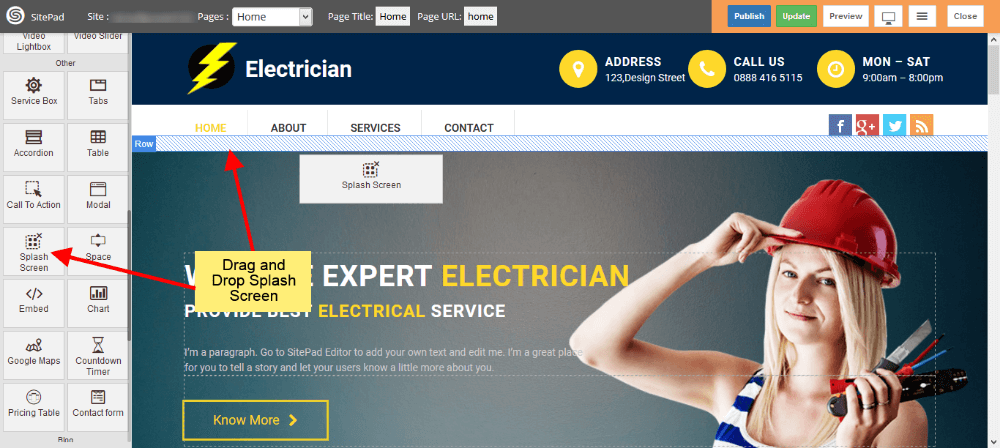
</div>   
![](https://dotroll.com/wp-content/uploads/2020/08/Splash-screen-drag.png)

#### EDIT CONTENT

<div id="bkmrk-when-you-drag-and-dr">- When you Drag and Drop **Splash Screen** it will open **Dialog Box** for it.
- Now in Dialog Box you can edit content by clicking on **Edit Splash Screen** as shown in image below.
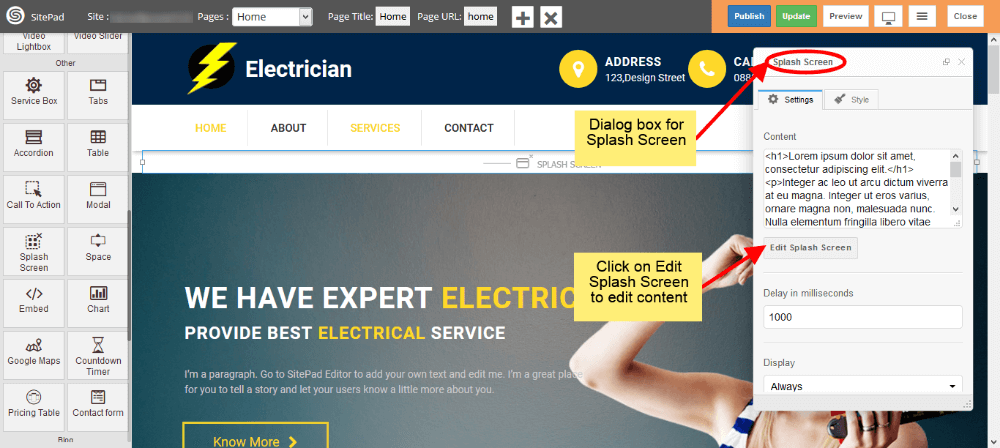
</div>   
![](https://dotroll.com/wp-content/uploads/2020/08/Splash-screen-content.png)

#### DELAY TIME AND DISPLAY

<div id="bkmrk-delay-time-will-dela">- Delay time will delay the *Arrival* of **Splash Screen** with that much time.
- Select when you want to display **Splash Screen** from **Display** options.
- Select style of Splash Screen. If you want to give your **custom style** then select **Custom**.
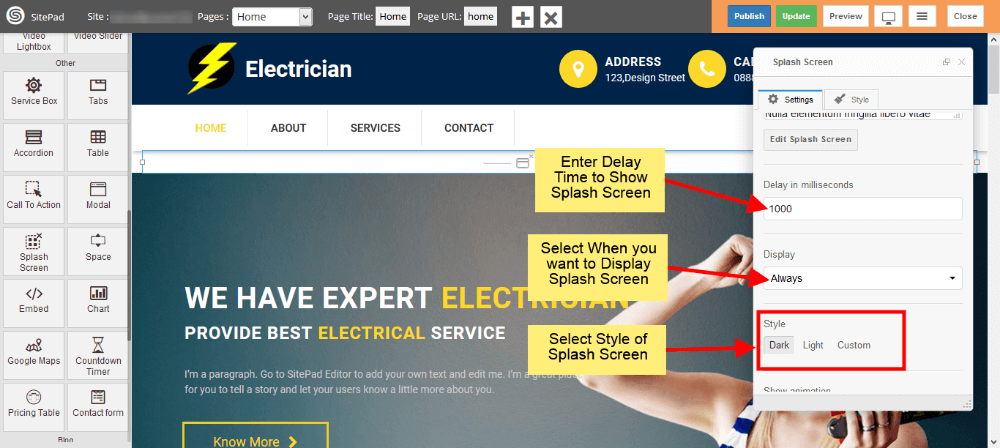
</div>   
![](https://dotroll.com/wp-content/uploads/2020/08/Splash-screen-settings1.png)

#### STYLE AND ANIMATION

<div id="bkmrk-you-can-add-your%C2%A0cus">- You can add your **custom style** by selecting **Custom** as shown image below.
- There is another way to give **custom styles** which is given in later steps.
- Now select type of **Animation** to **Arrive** the Splash Screen on your page. Same to **Hide** the Splash Screen.
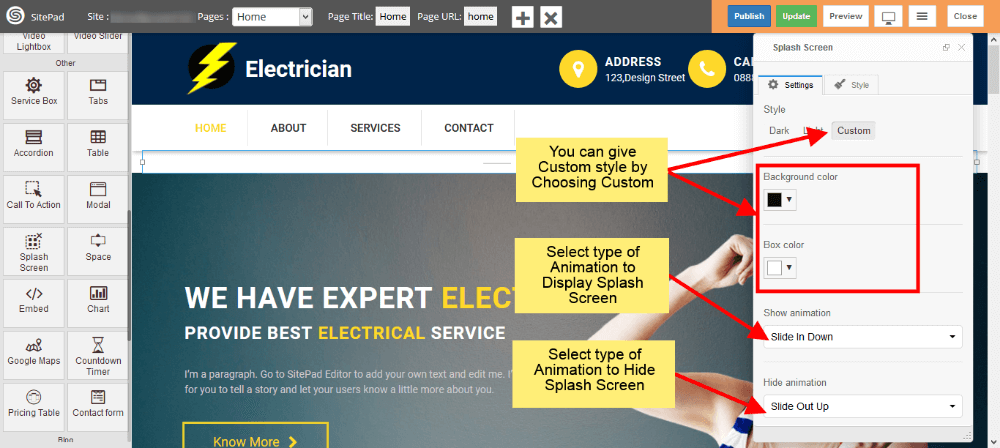
</div>   
![](https://dotroll.com/wp-content/uploads/2020/08/Splash-screen-settings2.png)

#### CUSTOM STYLES

<div id="bkmrk-this-is-the-second-w">- This is the second way to give custom style to Splash Screen.
- Just click on Edit Element Style to add custom styles.
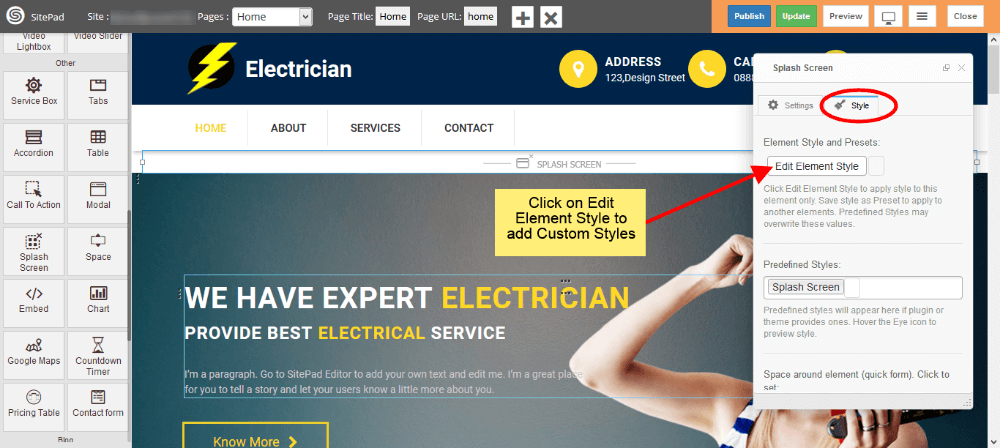
</div>   
![](https://dotroll.com/wp-content/uploads/2020/08/Splash-screen-styles.png)

#### SPLASH SCREEN VIEW

<div id="bkmrk-splash-screen-will-l">- Splash Screen will look like as shown in image below in your website.
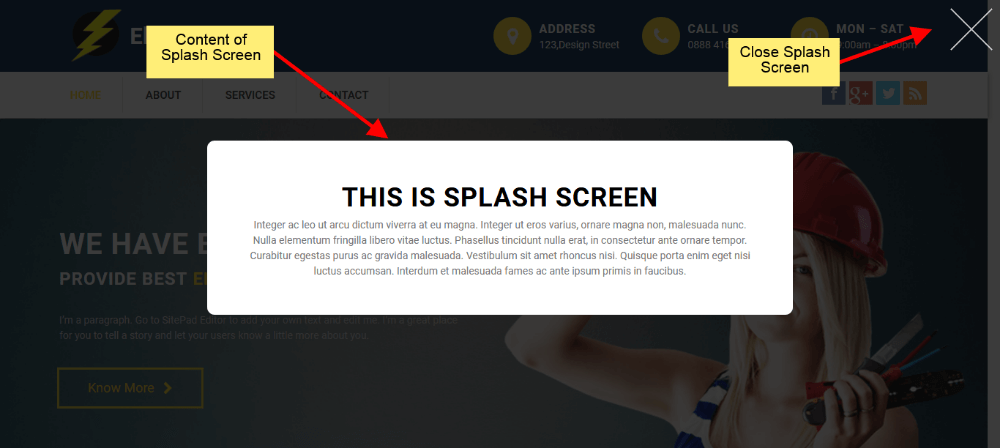
</div>   
![](https://dotroll.com/wp-content/uploads/2020/08/Splash-screen-view.png)

<div id="bkmrk-"></div><div id="bkmrk--1"></div>

# Download Button

This Guide will Help you to edit Button Widget Settings and Style.

#### DRAGDROP DOWNLOAD BUTTON WIDGET

When you **Drag and Drop** Download Button Widget in a Page, You will see the image like below.

<p class="callout info"><span class=".">**Note:** Widget gives you **Default Style** provided by theme, you can customize as per your needs using this guide.</span></p>


![](https://dotroll.com/wp-content/uploads/2020/08/Download-dragdrop.png)

#### DOWNLOAD BUTTON SETTINGS

1. **Media File** If you want to upload Files for **downloading** then you have to upload files by clicking on 3 horizontal dots and Insert Button text in button textbox.
2. If you want to **remove** or **change** font Icon then click on Icon List and choose Icon from them.  
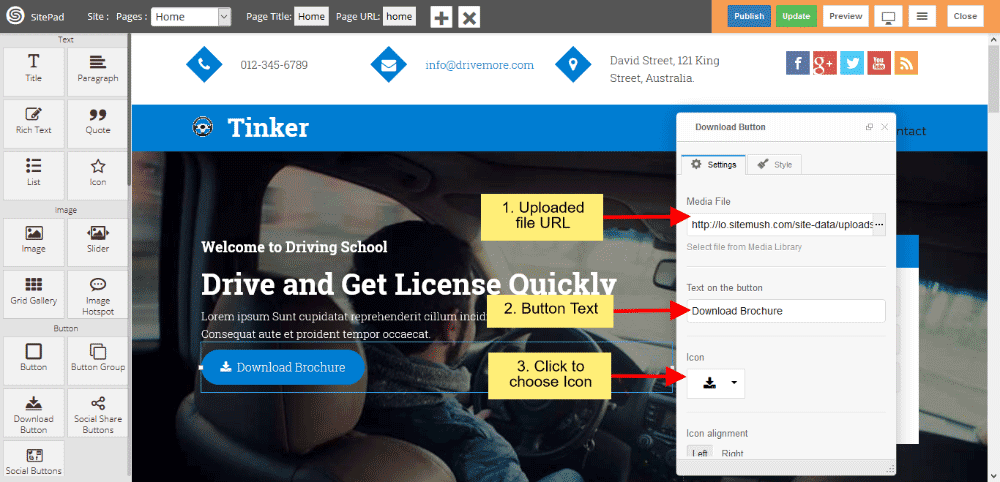
       
    ![](https://dotroll.com/wp-content/uploads/2020/08/Download-uploadmedia.png)

1. Icon alignment gives you alignment of Icon such as Left or Right.
2. If you want the Button in **full width style** then check the checkbox of **Stretch**, and **Alignment** Settings gives you Button Alignment.  
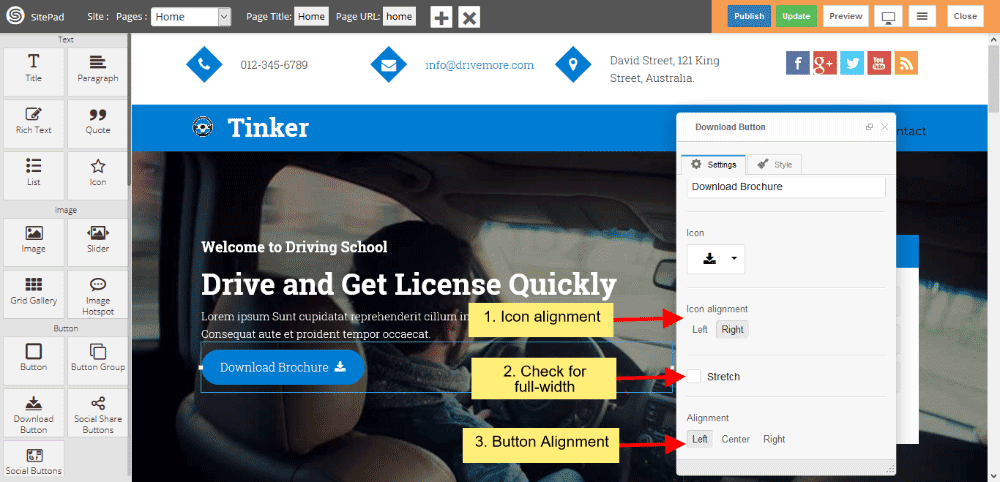
       
    ![](https://dotroll.com/wp-content/uploads/2020/08/Downloadbutton-settings.png)

### DOWNLOAD BUTTON STYLE

Style gives 2 types of style **1)** Edit Element style and **2)** Predefined style

1. **Edit Element style** gives custom style in that you can change custom background color, text color, margin, border-radius etc.  
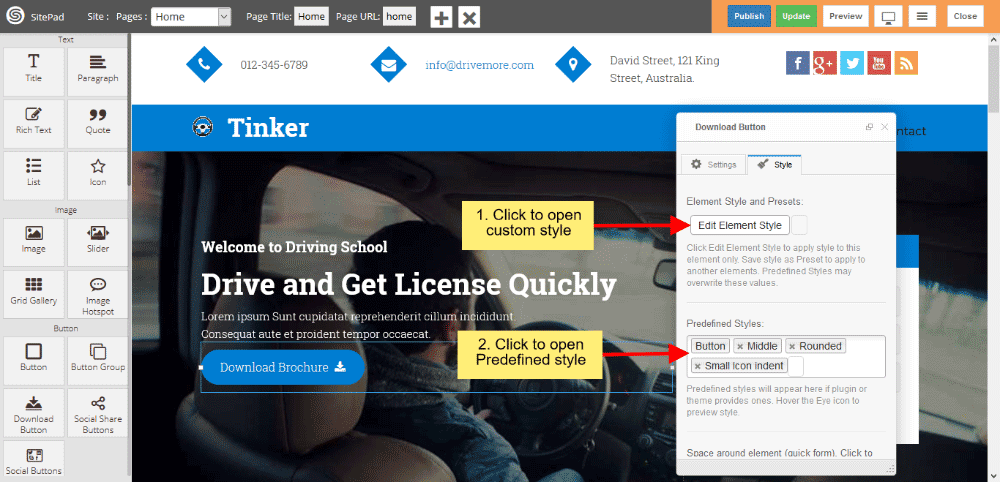
       
    ![](https://dotroll.com/wp-content/uploads/2020/08/Downloadbutton-style.png)

1. **Predefined style** gives you **classes** of various predefined button for Background and Text color. And Size gives you various types of **Button Size**.  
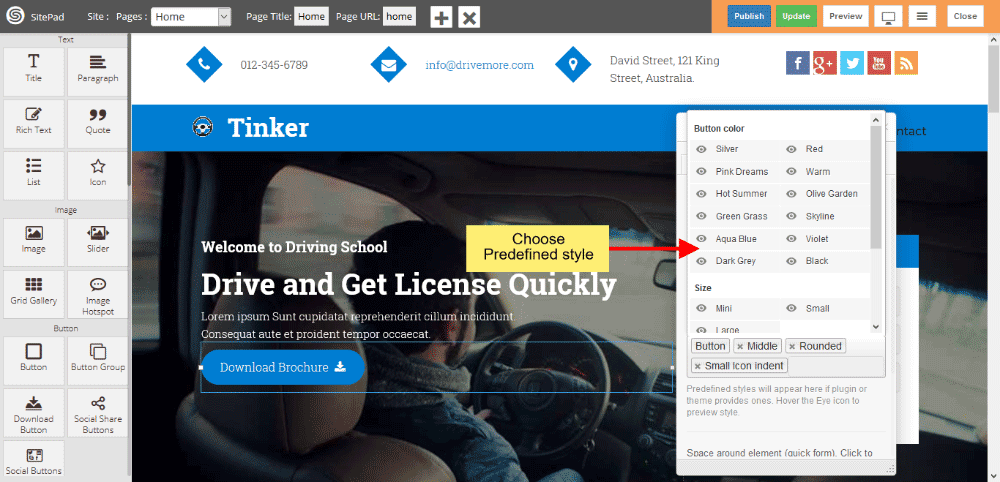
       
    ![](https://dotroll.com/wp-content/uploads/2020/08/Downloadbtn-predefined-style.png)

# Space

This Guide will help you to add **Space Widget.**

#### DRAG AND DROP SPACE WIDGET

- Drag and Drop **Space Widget** from left side **Widget Panel** as shown in image below.
- Now in **Dialog box** of Space widget you can select **Predefined Styles** and you can also add **custom styles** by clicking on **Edit Element Style** as shown in image below.
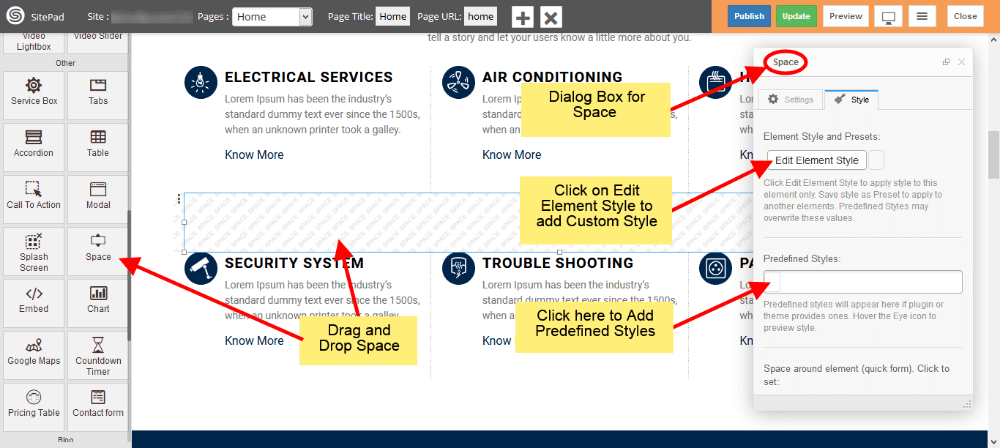
   
![](https://dotroll.com/wp-content/uploads/2020/08/Space-drag.png)

### PREDEFINED STYLES

- You can add **Border** in middle of Space area as shown in image below, We have selected **Heavy**.
- Select type of border you want from different options.
- You can resize the **Height** and **Width** of Space by **Dragging** as shown in image.
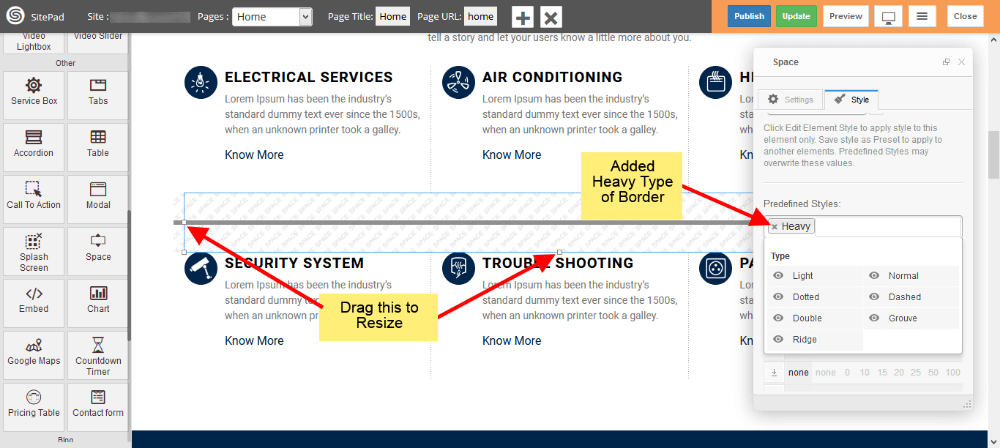
   
![](https://dotroll.com/wp-content/uploads/2020/08/Space-predefined-styles.png)

# Video Lightbox

This Guide will help you to add **Video Lightbox.**

#### YOUTUBE SOURCE

<div class="vc_row wpb_row vc_row-fluid" id="bkmrk-drag-and-drop%C2%A0video-"><div class="wpb_column vc_column_container vc_col-sm-12"><div class="vc_column-inner"><div class="wpb_wrapper"><div class="wpb_text_column wpb_content_element "><div class="wpb_wrapper">- Drag and Drop **Video Lightbox** from left side **Widget Panel**.
- Now in Dialog box of **Video Lightbox** select **Youtube** from source section as shown in image below.
- After that enter **Youtube Video URL**.
- Select **Cover Image** if you need any.

</div></div></div></div></div></div>   
![](https://dotroll.com/wp-content/uploads/2020/08/Video-lightbox-drag.png)

#### VIMEO SOURCE

<div class="vc_row wpb_row vc_row-fluid" id="bkmrk-select%C2%A0vimeo%C2%A0from-so"><div class="wpb_column vc_column_container vc_col-sm-12"><div class="vc_column-inner"><div class="wpb_wrapper"><div class="wpb_text_column wpb_content_element "><div class="wpb_wrapper">- Select **Vimeo** from source section as shown in image below.
- After that enter **Vimeo Video URL**.
- Select **Cover Image** if you need any.

</div></div></div></div></div></div>   
![](https://dotroll.com/wp-content/uploads/2020/08/Video-lightbox-vimeo.png)

#### HTML5 SOURCE

<div class="vc_row wpb_row vc_row-fluid" id="bkmrk-select%C2%A0html5%C2%A0from-so"><div class="wpb_column vc_column_container vc_col-sm-12"><div class="vc_column-inner"><div class="wpb_wrapper"><div class="wpb_text_column wpb_content_element "><div class="wpb_wrapper">- Select **HTML5** from source section as shown in image below.
- After that upload Video in any one format by clicking on Three Vertical dots as shown in image below.

</div></div></div></div></div></div>   
![](https://dotroll.com/wp-content/uploads/2020/08/Video-lightbox-html5.png)

<p class="callout info"><span class=".">**Note**: In **HTML5 Source** you need to select **Cover image** for your video as shown in image below.</span></p>


![](https://dotroll.com/wp-content/uploads/2020/08/Video-lightbox-html5-cover.png)

# Google Maps

This Guide will Help you to customize **Google Map Widget** Settings and Style.

#### DRAG GOOGLE MAP WIDGET

When you **Drag and Drop** Google Map Widget in a Page. You will see the image like below.

<p class="callout info"><span class=".">**Note:** Widget gives you **Default Style** provided by theme, you can **customize** as per your needs using this guide.</span></p>


![](https://dotroll.com/wp-content/uploads/2020/08/Map-dragdrop.png)

#### COMPANY DETAILS

1. When you click **Add new Marker**, you can able to customize **Company Details** such as Title, Address and other information.  
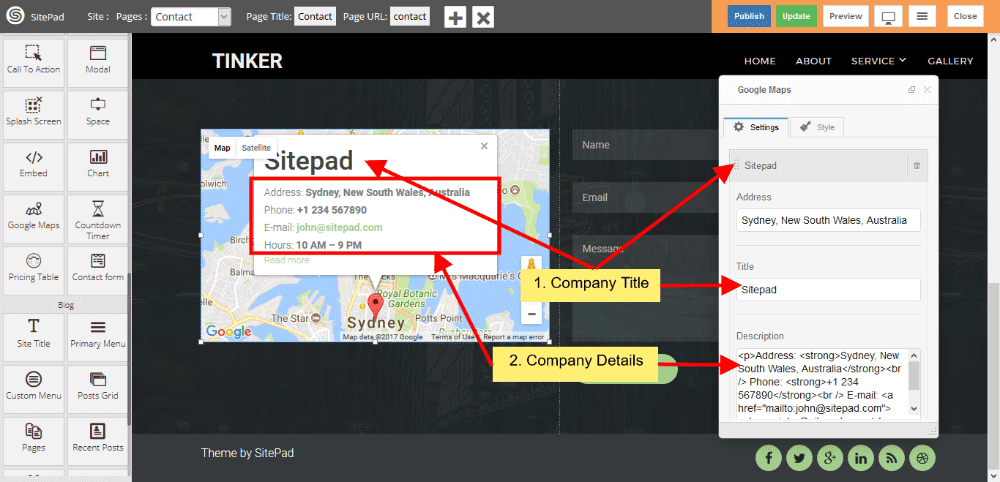
       
    ![](https://dotroll.com/wp-content/uploads/2020/08/Map-details.png)

1. You can add **Link Text** to company details for other information and that text give **Link** also. If you want to change **Icon** then select **Icon type**, ‘**Default** is enabled when you drag and drop the widget.  
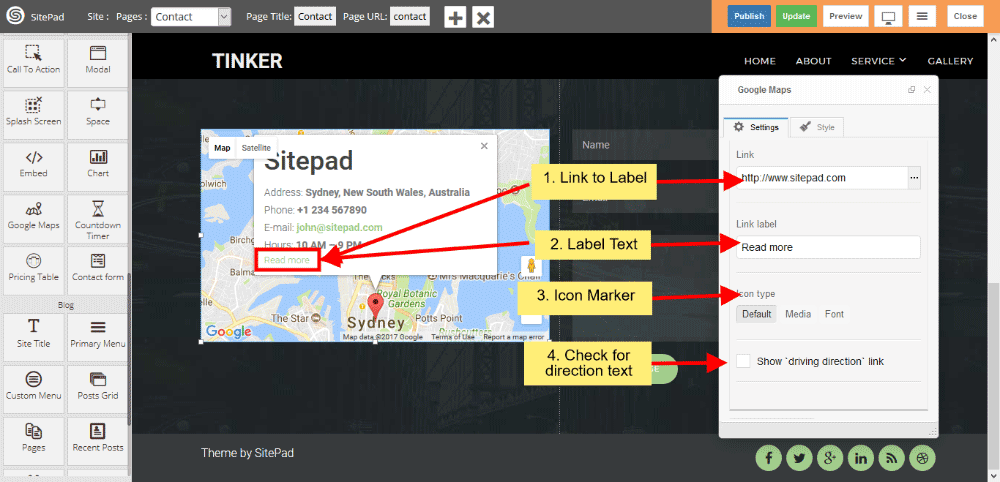
       
    ![](https://dotroll.com/wp-content/uploads/2020/08/Map-link-text.png)

1. When Darg and Drop the widget **Default** is enabled, If you want to give **Image** instead of **Icon** for marker, then select **image**. And select **Icon Type** for giving the styling of Icon. Choose **Icon** from the list, choose **Icon color** and give **font size** for selecting the **Icon size**.  
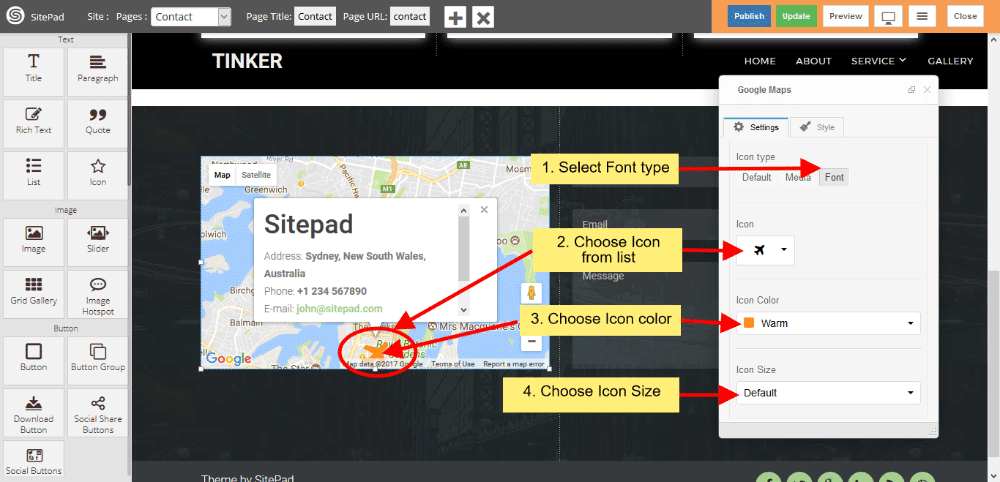
       
    ![](https://dotroll.com/wp-content/uploads/2020/08/Map-font-type.png)

1. Click **checkbox** for giving the **Driving Direction Text and Link**. You can **zoom-in** and **zoom-out** map with the help of **Zoom** control. Click on checkbox to give **Embed Code** for Google Map.  
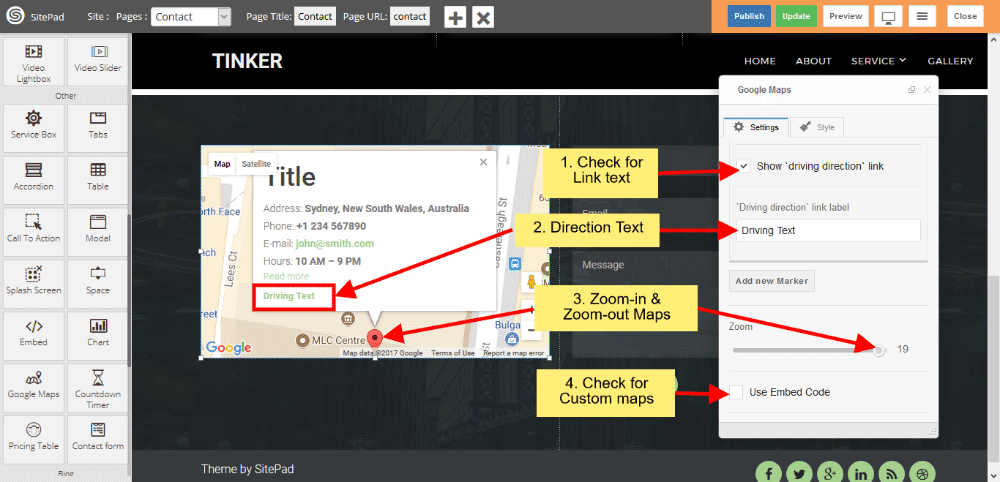
       
    ![](https://dotroll.com/wp-content/uploads/2020/08/Map-zoom.png)

#### EMBED GOOGLE MAP

Click on checkbox to use **Google Embed code** from **Google Map**, paste that **Iframe code** in Embed code area.  
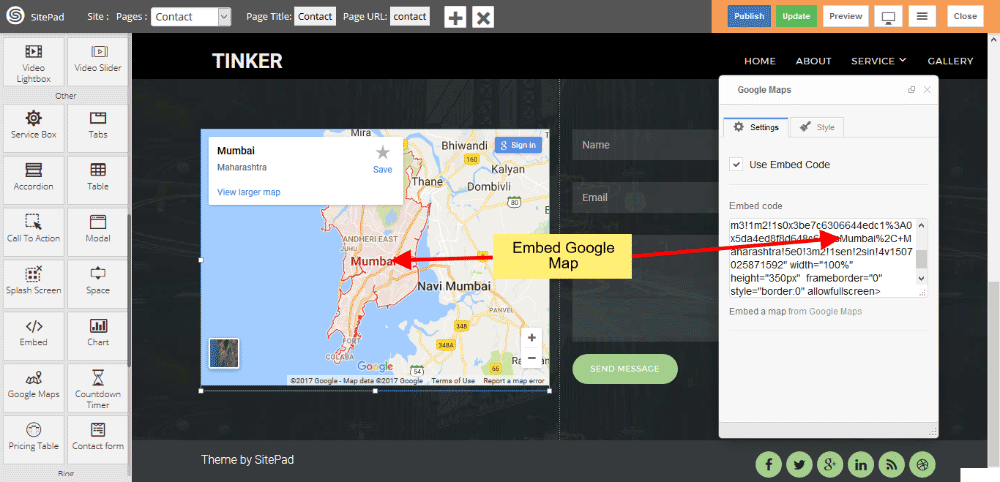
   
![](https://dotroll.com/wp-content/uploads/2020/08/Embed-googlemap.png)

#### MULTIPLE LOCATION

Click on **Add new Marker** to give address details and other information, For giving multiple location click on **Add new Marker**. **Scroll Zooming** check this checkbox for zooming while scrolling.  
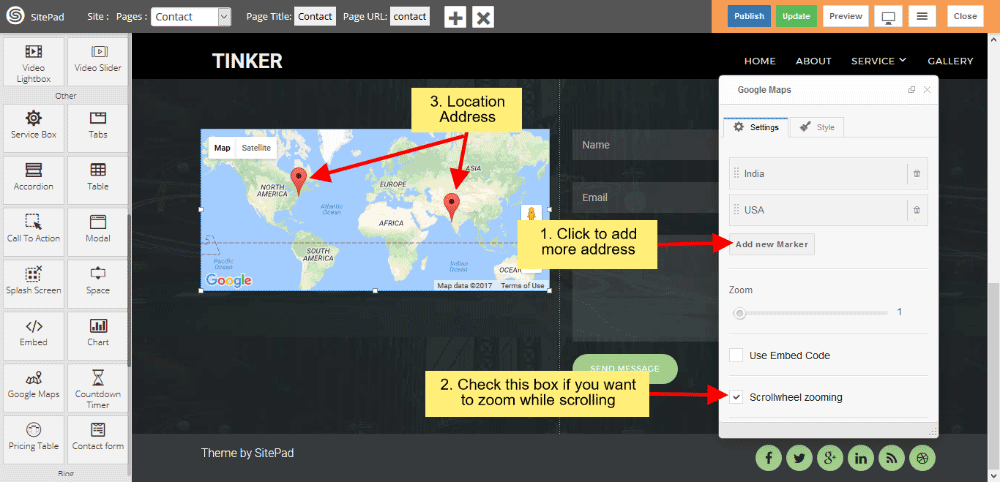
   
![](https://dotroll.com/wp-content/uploads/2020/08/Map-marker.png)

#### MAP TYPE AND MAP STYLE

Select predefined **Map type** from dropdown list, and select predefined **Map style** from dropdown list.  
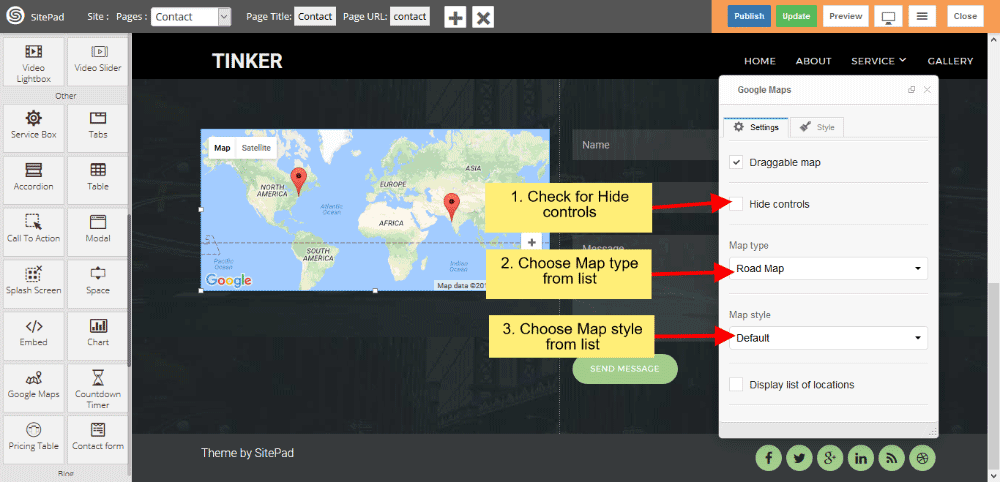
   
![](https://dotroll.com/wp-content/uploads/2020/08/Map-type.png)

#### MAP CUSTOM STYLES

1. Select **Custom** in Map style to give custom style for Map. Click on **Snazzy Maps** to give **custom style** for Google Map.  
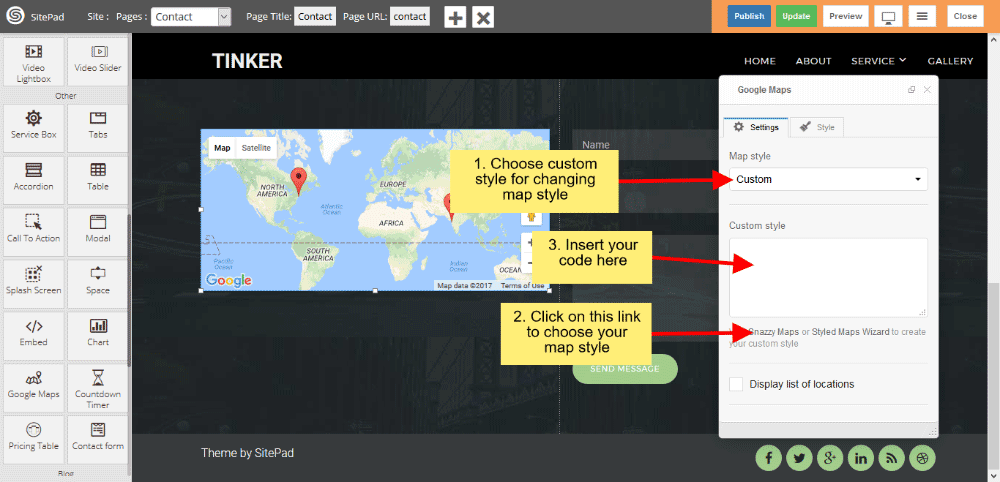
       
    ![](https://dotroll.com/wp-content/uploads/2020/08/Map-custom-style.png)

1. Paste **custom code** in Custom Style textarea.  
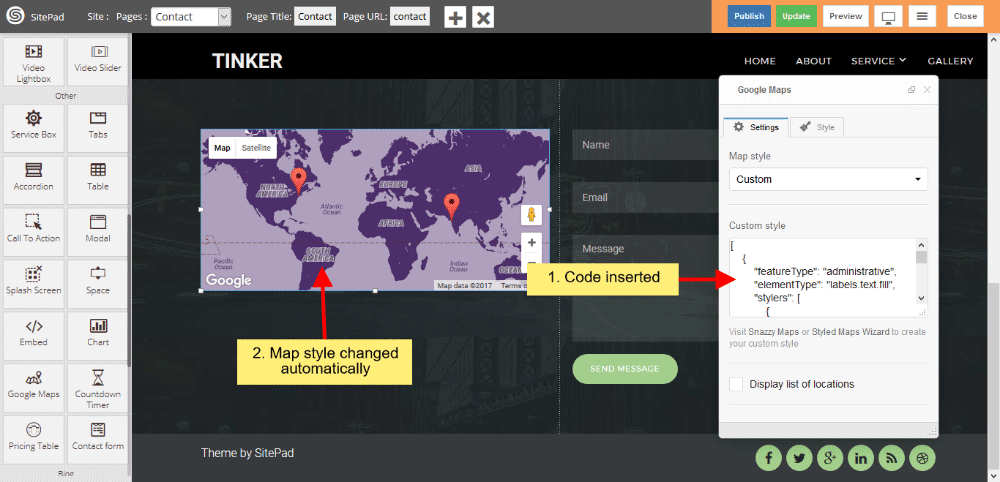
       
    ![](https://dotroll.com/wp-content/uploads/2020/08/Map-code.png)

#### LOCATION LIST

Click on **checkbox** for displaying **Location List**. List column count gives **column count** for displaying location list in selected particular column. List maximum width gives **total width** for displaying Location list.  
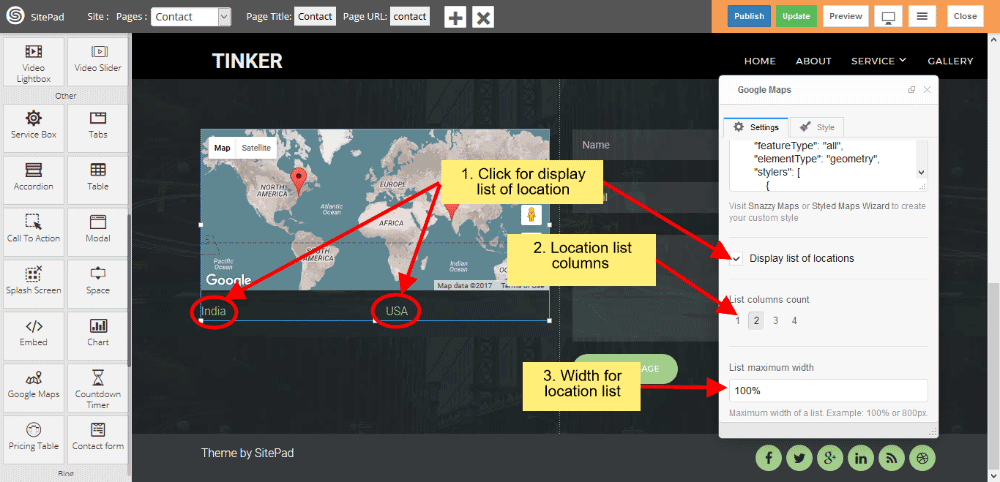
   
![](https://dotroll.com/wp-content/uploads/2020/08/Map-location-list.png)

# Social buttons

This Guide will help you to Customize **Social Buttons.**

<div id="bkmrk-drag-and-drop%C2%A0social">1. Drag and Drop **Social Buttons** from left side Widget panel. Now in the **Settings** section of **Social Buttons** Dialog box enter **URL** for Social Buttons to display them or remove **URL** to remove button as shown in image below.  
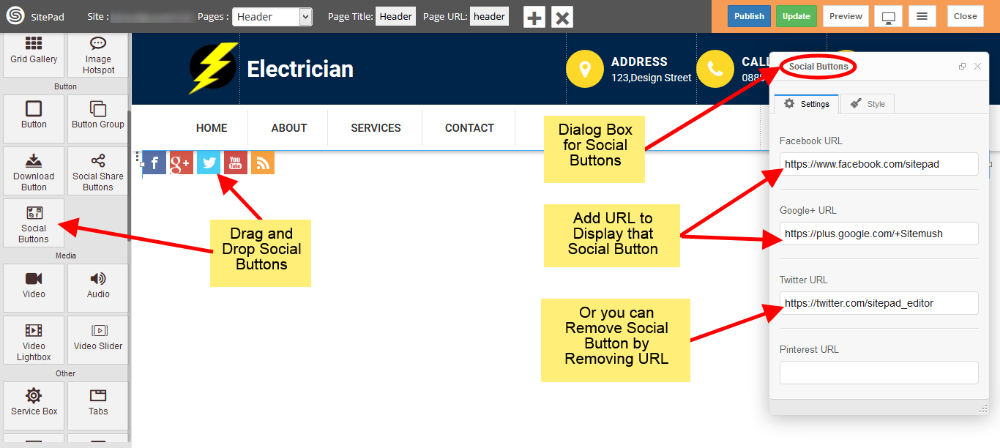
       
    ![](https://dotroll.com/wp-content/uploads/2020/08/Social-buttons-drag.png)

</div><div id="bkmrk-here-we-removed%C2%A0twit">1. Here we removed **Twitter URL** so that **Social Button** for **Twitter** is also get removed.  
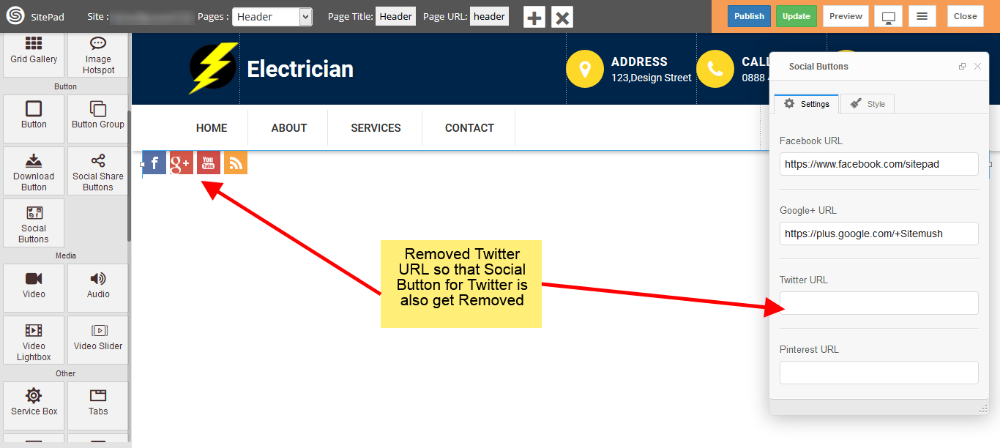
       
    ![](https://dotroll.com/wp-content/uploads/2020/08/Social-buttons-remove.png)

</div><div id="bkmrk-now-click-on%C2%A0style%C2%A0t">1. Now click on **Style** to add styling for **Social Buttons**. Click on **Edit Element Style** to add **Custom Style** and click in **Predefined Styles** to add **Predefined styles** as shown in image below. <div class="ricsi info alert alert-info"><span class=".">**Note:** Please not that **Background Color** for **Social Buttons** is **Predefined** so you will not able to change that.  
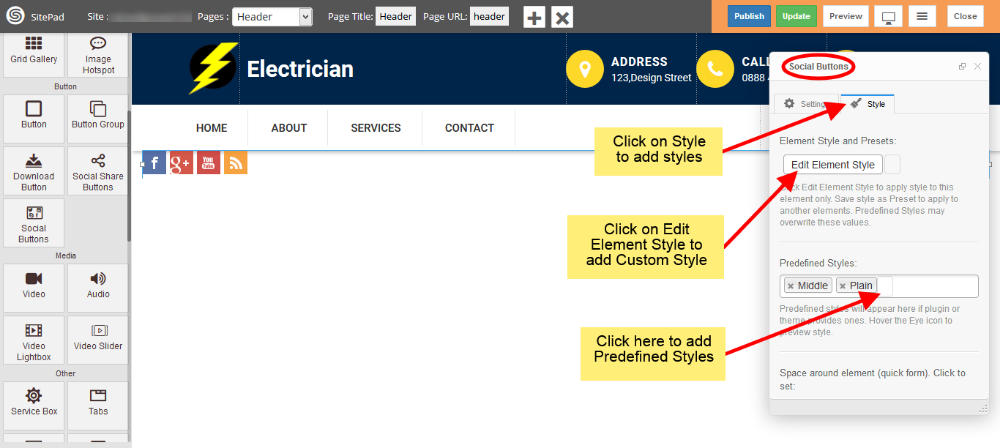
       
    ![](https://dotroll.com/wp-content/uploads/2020/08/Social-buttons-style.png)  
       
    </span></div>
2. <div class="ricsi info alert alert-info">  
    </div>Now see in image below we have selected **Size Large** and **Style is Circular** so styling for **Social Buttons** have **Changed.  
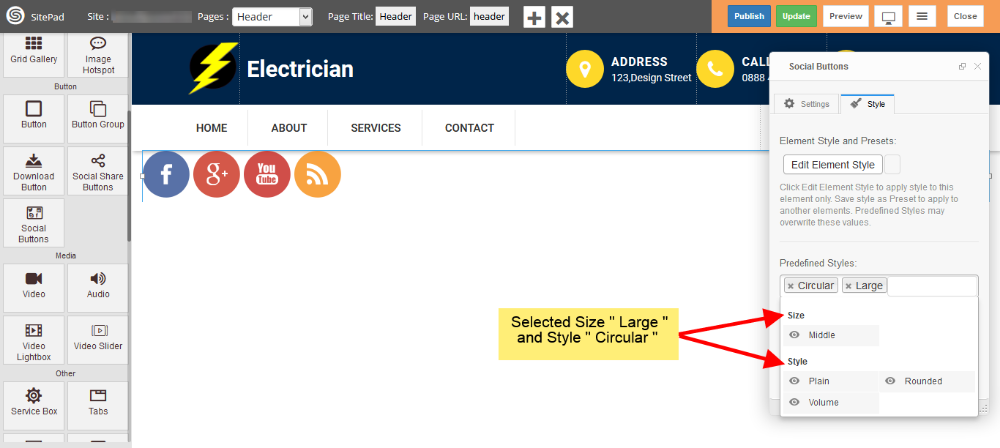
       
    ![](https://dotroll.com/wp-content/uploads/2020/08/Social-buttons-predefined-styles.png)**

</div><div id="bkmrk-"></div>

# Contact Form

This guide will help you to **Customize Contact Form**.

<div id="bkmrk-drag-and-drop%C2%A0contac">1. 1. **Drag and Drop** Contact Form from left side Widget Panel or simply click on it if already present in page to open **Dialog Box**. Now in Dialog Box Click on **Add New Field** to add new input field to your Form. Enter Button label and check **use reCAPTCHA** box if you want to use it as shown image below. If you don’t know how to setup **reCAPTCHA** then follow this guide. Setup [reCAPTCHA for Contact Form](https://dotroll.com/en/knowledge-base/books/website-builder/page/how-to-add-recaptcha)![](https://dotroll.com/wp-content/uploads/2020/08/Contact-form-drag.png)
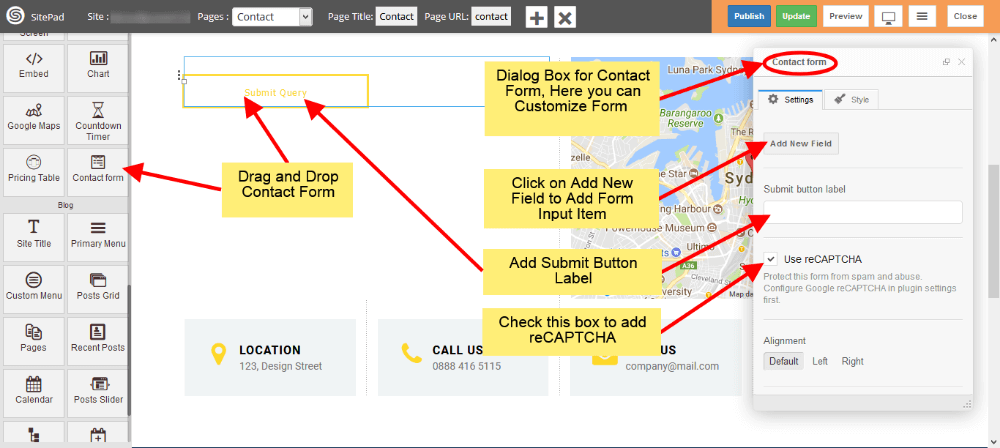
</div><div id="bkmrk-now-select%C2%A0alignment">1. 1. Now select **Alignment** for your Contact Form as per requirements. **Form ID** and **Form Name** this fields is used in **E-mail template.**![](https://dotroll.com/wp-content/uploads/2020/08/Contact-form-drag2.png)
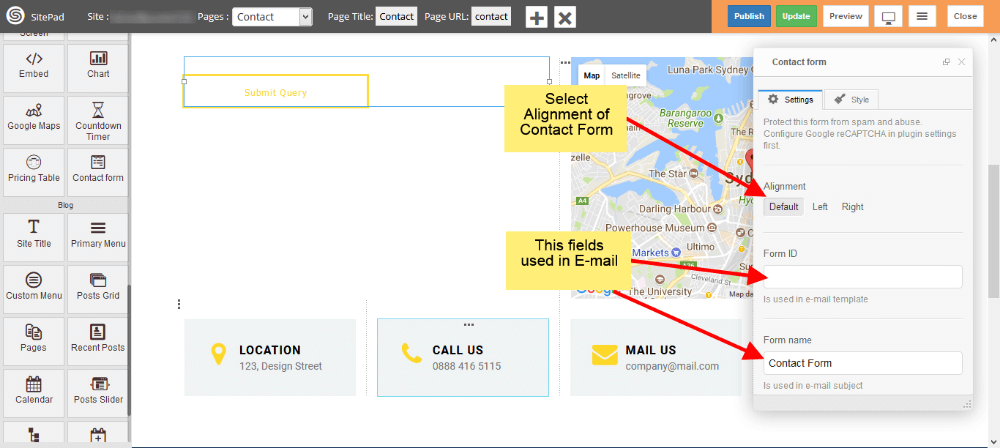
    2. To add new fields just click on **Add New Field**. To customize newly added field just click on that particular field as shown in image below. ![](https://dotroll.com/wp-content/uploads/2020/08/Contact-form-add-field.png)
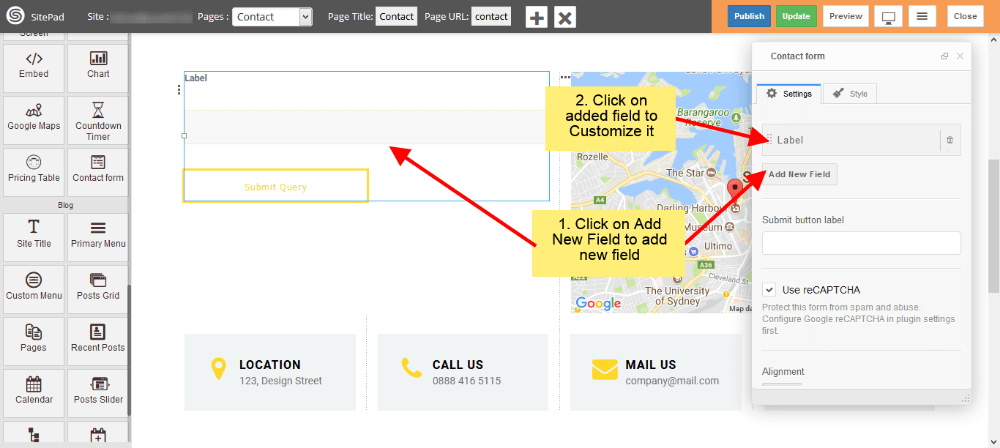
</div><div id="bkmrk-now-add%C2%A0label%C2%A0for-in">1. 1. Now add **Label** for input field and select Type of that field. We have different input types like **Text** for names or surnames, **E-mail** for e-mail, **Text area** for messages etc. ![](https://dotroll.com/wp-content/uploads/2020/08/Contact-form-customize-field.png)
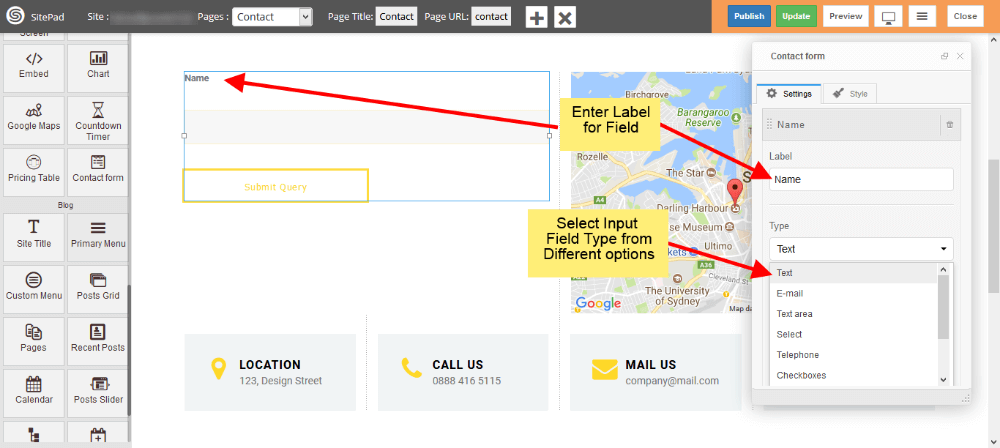
</div><div id="bkmrk-to-add-the-file-uplo">1. 1. To add the file upload option in contact form, Please select **File** form **Type** section dropdown as shown in figure. ![](https://dotroll.com/wp-content/uploads/2020/08/Input-type-file.png)
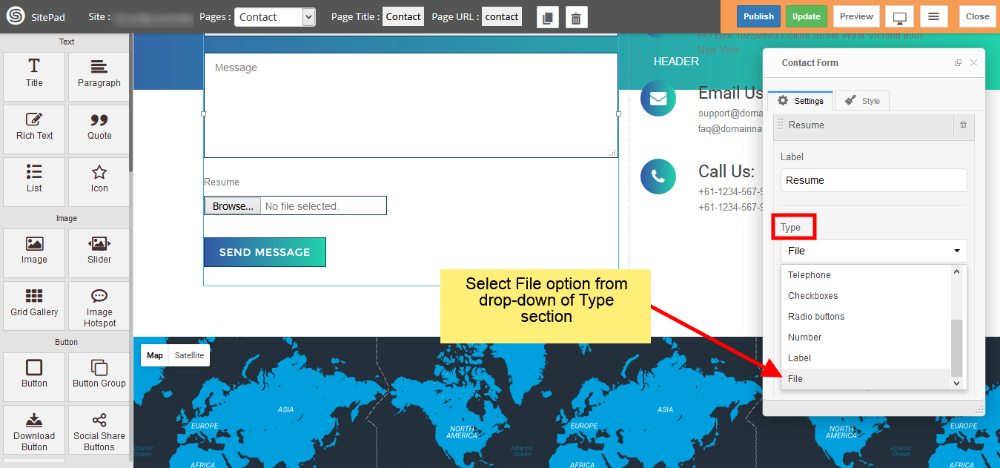
</div><div id="bkmrk-check%C2%A0use-label-as-p">1. 1. Check **Use Label as Placeholder** box to place your label as a **Placeholder**. If you want any field as a **required field** then check **Required** box. Enter **CSS class** and **ID** if you need them. ![](https://dotroll.com/wp-content/uploads/2020/08/Contact-form-customize-field2.png)
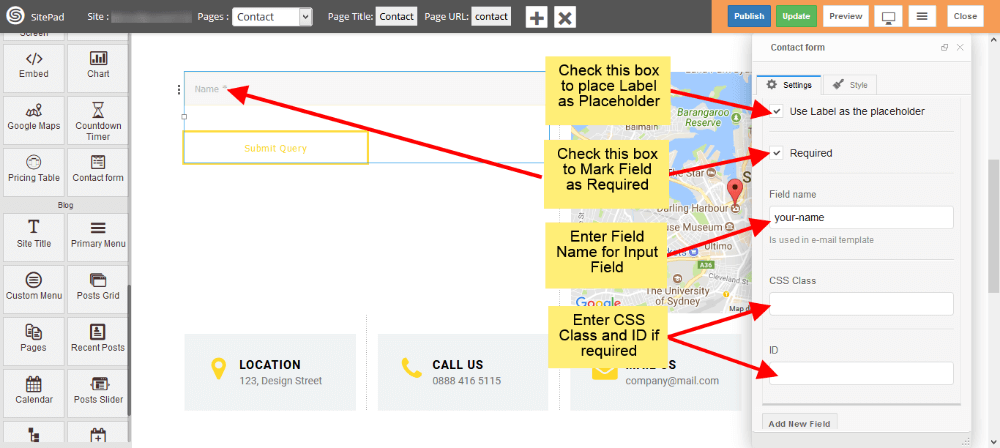
</div><div id="bkmrk-you-can-add-multiple">1. 1. You can add multiple input fields into your **Contact Form** as shown image below. ![](https://dotroll.com/wp-content/uploads/2020/08/Contact-form-multiple-fields.png)
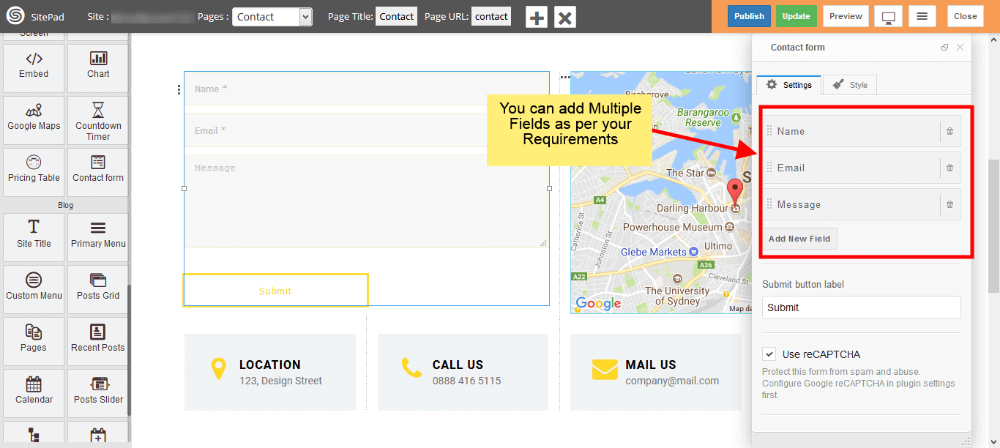
</div><div id="bkmrk-you-can-set%C2%A0reply-to">1. 1. You can set **Reply To** as shown in the image below. ![](https://dotroll.com/wp-content/uploads/2020/08/Reply_to.png)
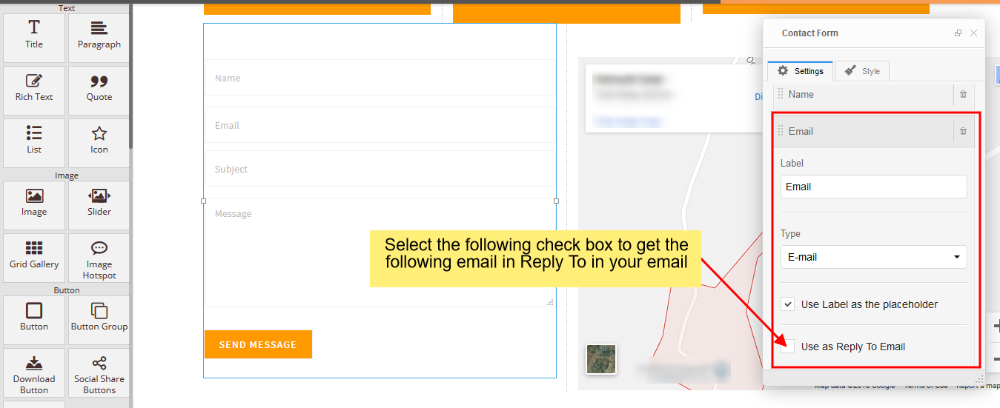
</div><div id="bkmrk-you-can-add%C2%A0custom-s">1. You can add **Custom Style** for **Contact Form** by following below image steps. ![](https://dotroll.com/wp-content/uploads/2020/08/Contact-form-styling.png)
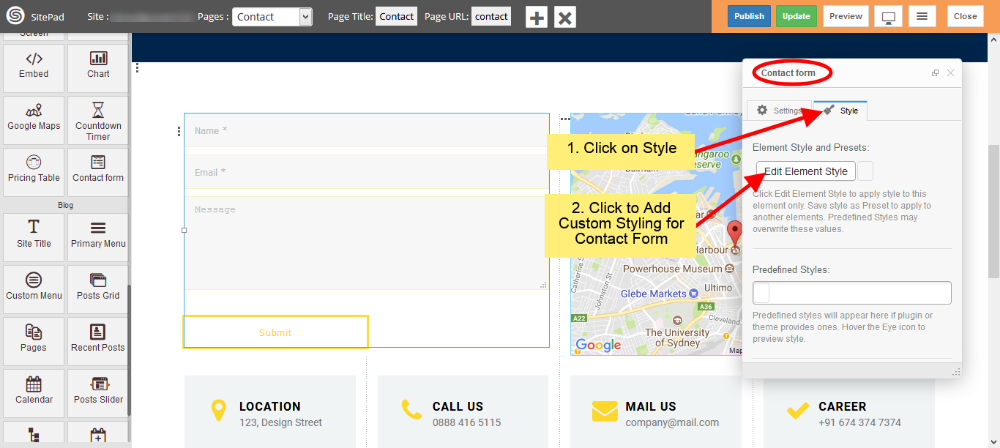
</div><div id="bkmrk-"></div>

# Chart

<div id="bkmrk-this-guide-will-help"><section class="wpb-content-wrapper">This Guide will Help you to edit **Chart Widget** Settings and Style.

#### DRAG CHART WIDGET

When you **Drag and Drop** Chart Widget in a Page. You will see the image like below.

<p class="callout info"><span class=".">**Note:** Widget gives you **Default Style** provided by theme, you can **customize** as per your needs using this guide.</span></p>


![](https://dotroll.com/wp-content/uploads/2020/08/Chart-dragdrop.png)  
#### CHART TITLE AND TYPE

You can enter **Chart Title** and select **Chart Type** according to your needs. Various predefined chart type is available such as Column chart, Bar chart, Area chart, Histogram, Line chart etc. **Column chart** is enabled when you drag and drop the widget.  
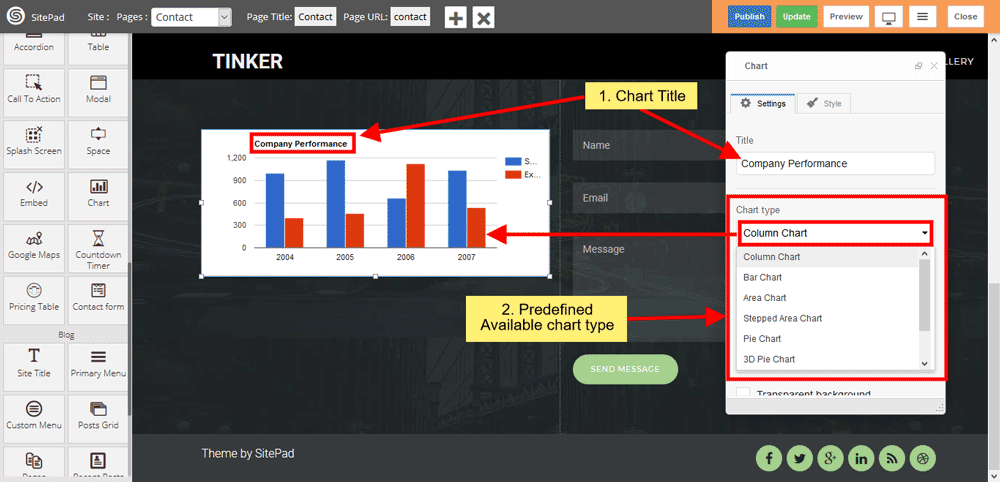
   
![](https://dotroll.com/wp-content/uploads/2020/08/Chart-type.png)

#### CHART COLOR

You can customize **chart color** according to your needs, click on checkbox to **remove** chart **background**.  
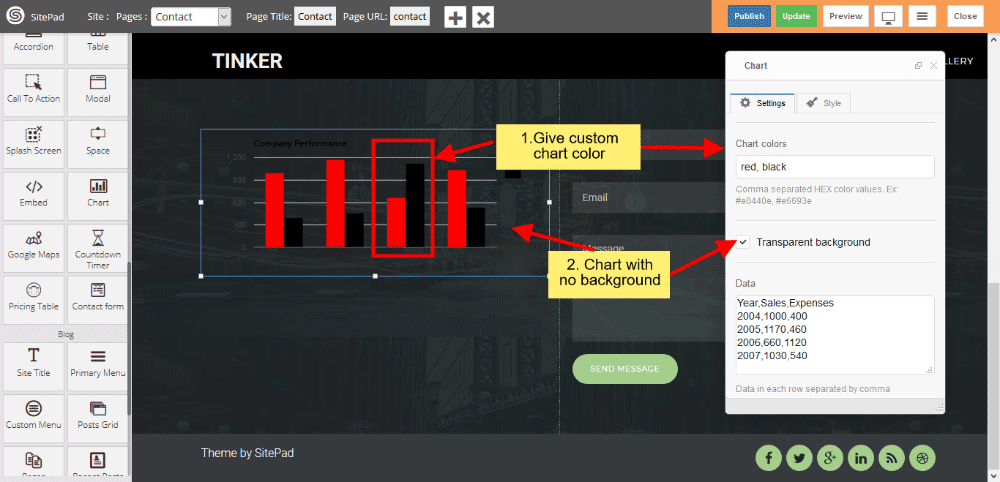
   
![](https://dotroll.com/wp-content/uploads/2020/08/Chart-color.png)

#### CHART DATA

Enter chart data in **Data Textarea** box, Insert column-wise data separated with commas.  
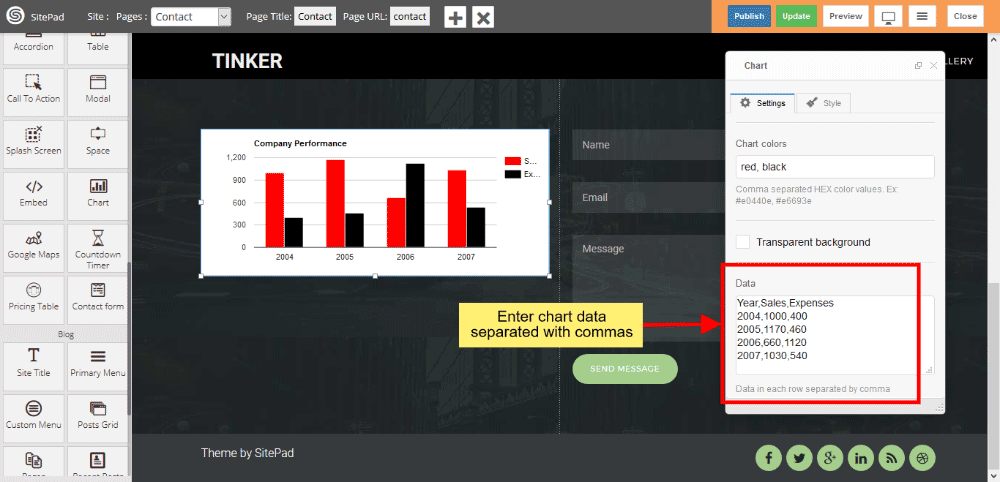
   
![](https://dotroll.com/wp-content/uploads/2020/08/Chart-data.png)

</section></div><div id="bkmrk-"></div>

# List

This Guide will Help you to edit **List Widget** Settings and Style.

#### DRAG LIST WIDGET

When you **Drag and Drop** List Widget in a Page. You will see the image like below.  
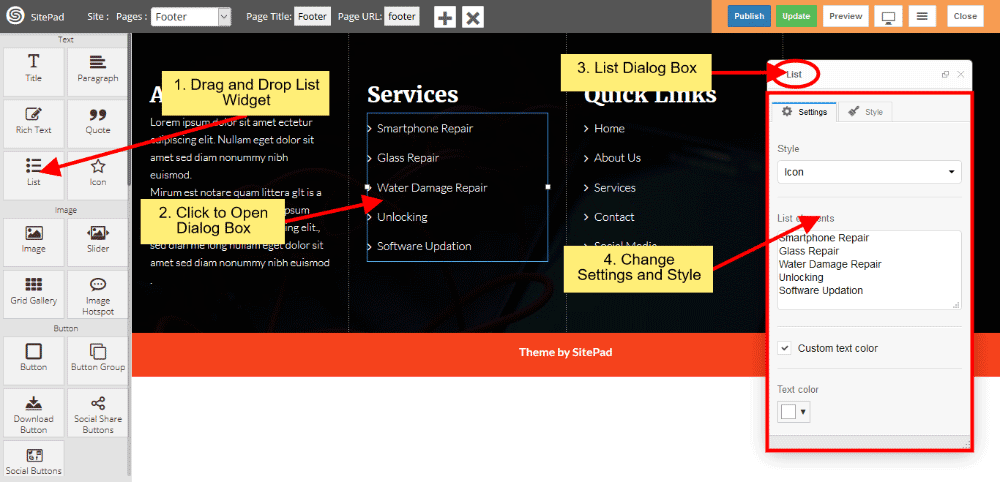
   
![](https://dotroll.com/wp-content/uploads/2020/08/Drag-list.png)

#### PREDEFINED LIST STYLE

When you Open Dialog Box, you can be able to customize **List Style** according to your choice. There are various list style such as Icon, Circle, Disc, Square, Armenian, Georgian, None etc.

If you want to change text color then click on checkbox and change **text color**.  
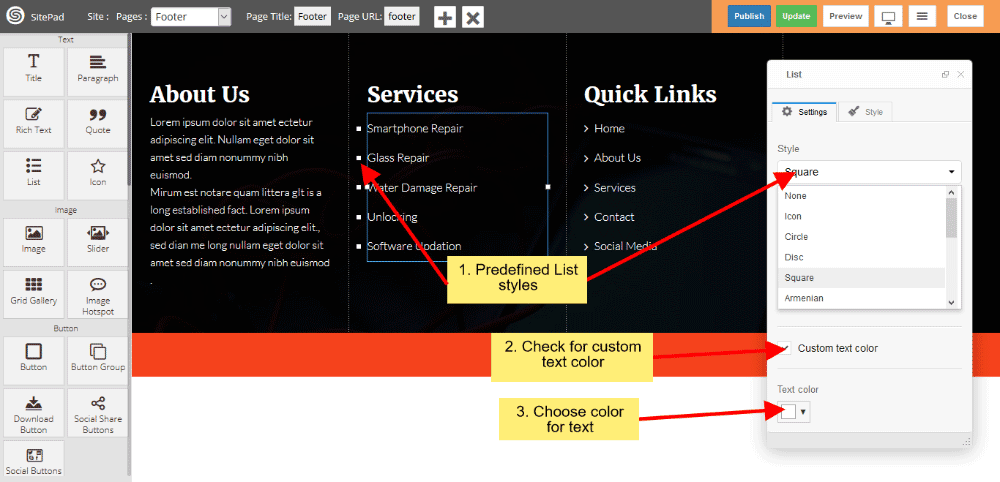
   
![](https://dotroll.com/wp-content/uploads/2020/08/Predefined-list.png)

#### ICON STYLES

If you choose Icon from **List style** then you can change **Icon** from Icon List. And you can also **customize** icon text color, for that purpose you have to click on checkbox then change **Icon color** which suits for your needs.  
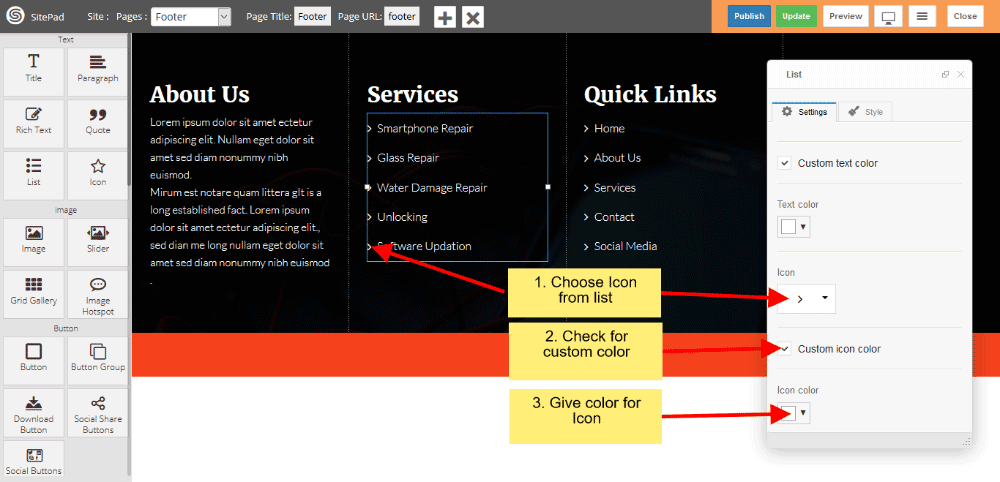
   
![](https://dotroll.com/wp-content/uploads/2020/08/List-icon-setting.png)

# Primary Menu

When the first **Theme** is selected it automatically gives the Predefined Style for **Menu** but if you want to **Customize Menu** you can follow this guide.

<div id="bkmrk-drag-and-drop%C2%A0primar">1. Drag and Drop **Primary Menu** from left side widget section or Select **Primary Menu section** in **Header** page if already present. So this action will pop up **Dialog Box** for **Primary Menu** as shown in image below.  
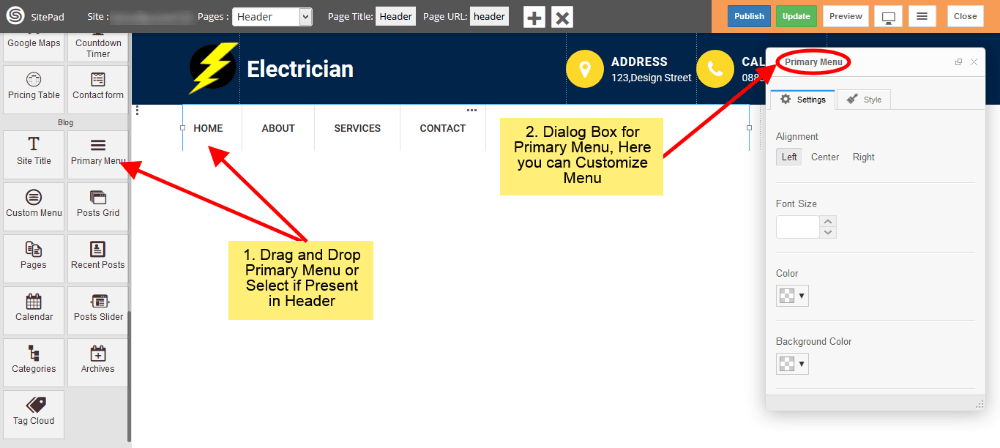
       
    ![](https://dotroll.com/wp-content/uploads/2020/08/Primary-menu-drag.png)

</div><div id="bkmrk-now-in%C2%A0settings%C2%A0sect">1. Now in **Settings** section of **Dialog Box** you have different option to **Customize** menu like Text Color, Background Color, Text Size etc. Just fill that as per your needs as shown in image below.  
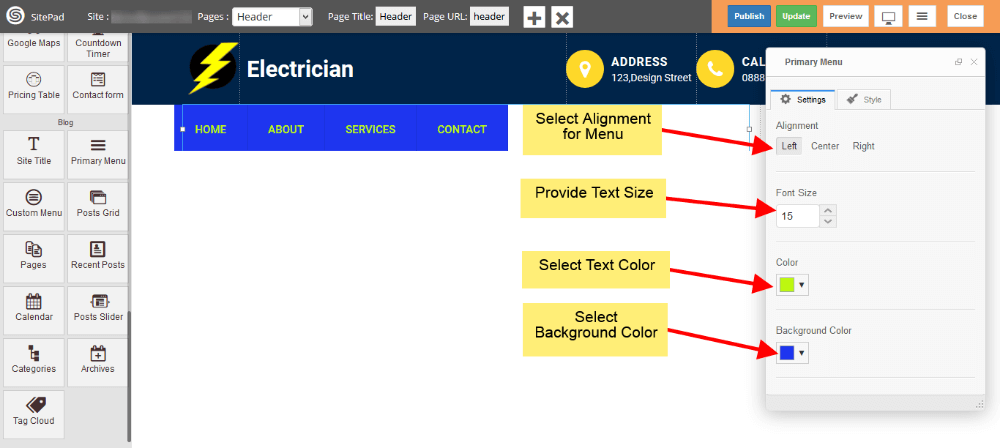
       
    ![](https://dotroll.com/wp-content/uploads/2020/08/Primary-menu-style1.png)

</div><div id="bkmrk-last-option-in-below">1. Last option in below image is for styling the **Sub Menu Items**, if you want to do that just check it.  
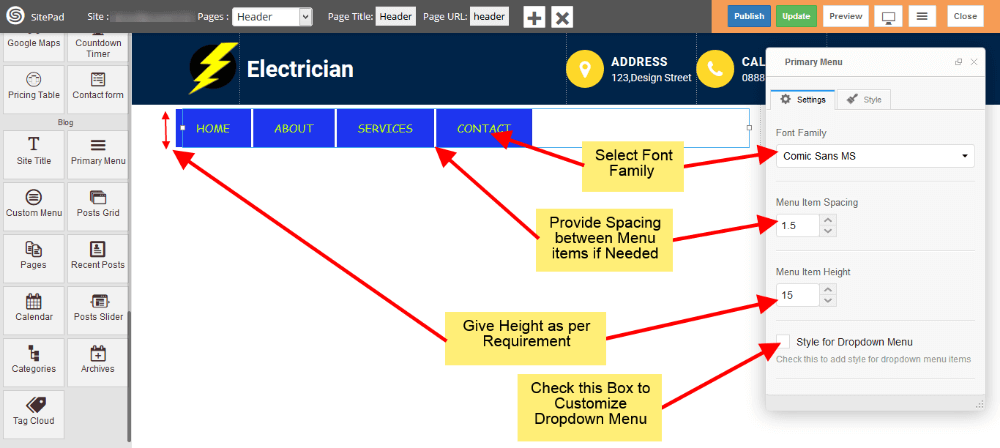
       
    ![](https://dotroll.com/wp-content/uploads/2020/08/Primary-menu-style2.png)

</div><div id="bkmrk-now-select-color%2C-ba">1. Now select Color, Background Color, Text Size for **Sub-Menu** as shown in image below.  
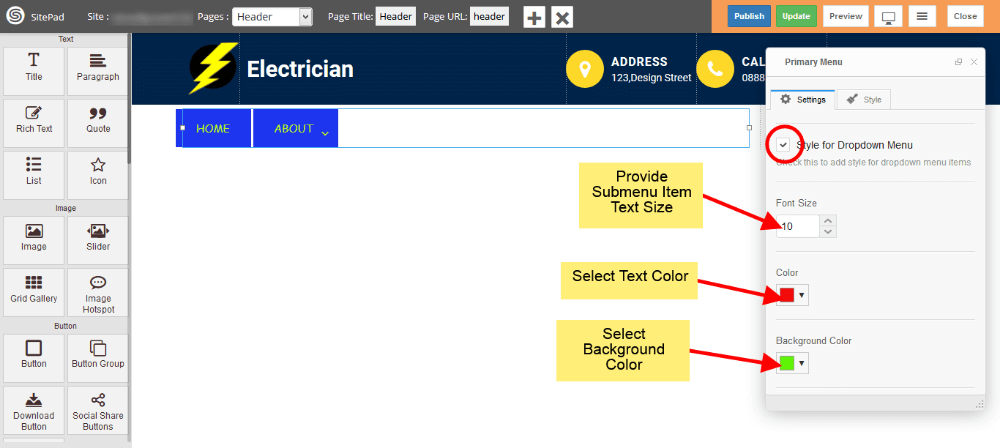
       
    ![](https://dotroll.com/wp-content/uploads/2020/08/Primary-menu-style3.png)  
       
    Above Sub-Menu style will look like this.  
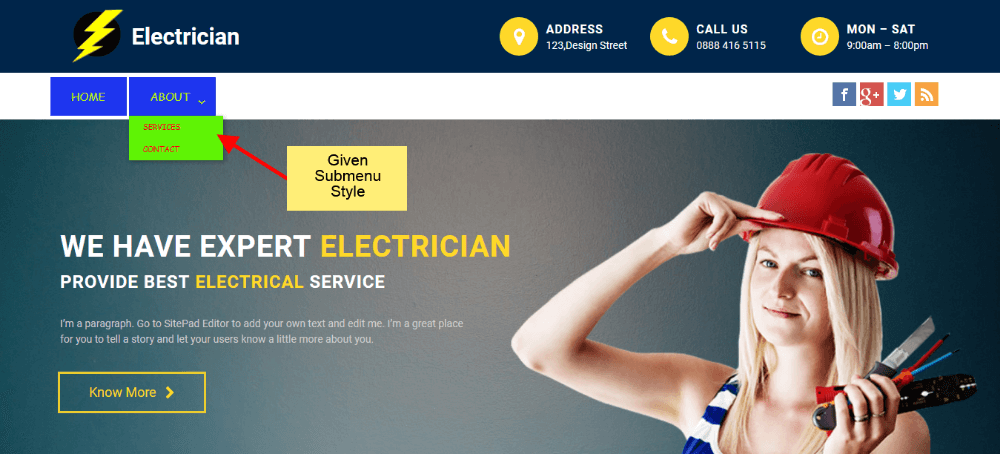
       
    ![](https://dotroll.com/wp-content/uploads/2020/08/Primary-menu-demo1.png)

</div><div id="bkmrk-if-you-want-to-add-c">1. If you want to add custom style for **Active page Menu Item** then just check the **Active Page Effect** box and provide Color, Background Color for Active Page Menu Item as shown in image below.  
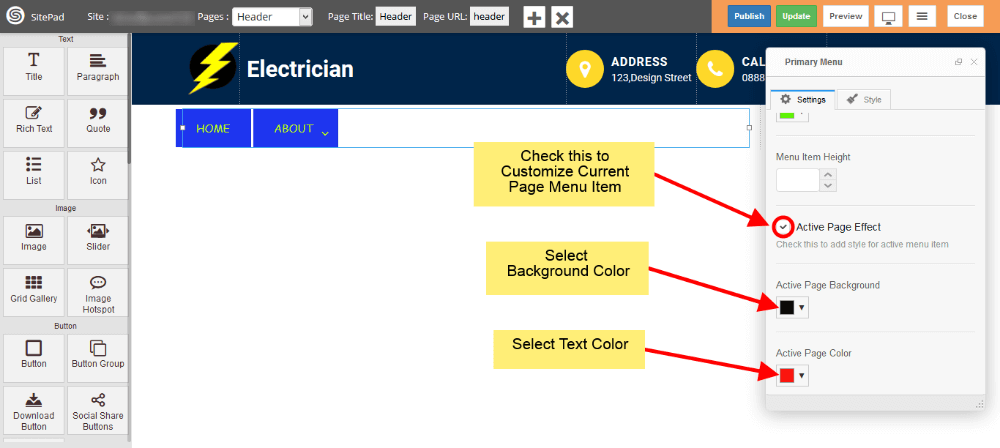
       
    ![](https://dotroll.com/wp-content/uploads/2020/08/Primary-menu-style4.png)  
       
    Above Active Page Menu Item style will look like this.  
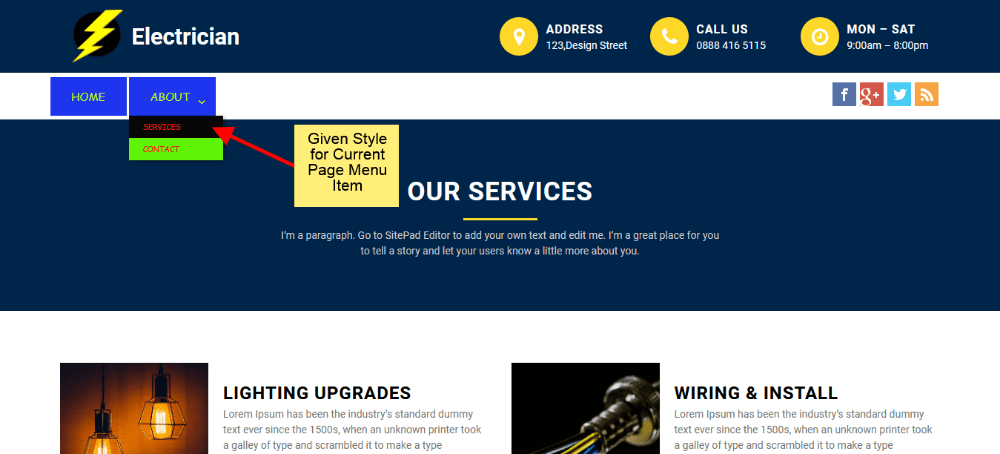
       
    ![](https://dotroll.com/wp-content/uploads/2020/08/Primary-menu-demo2.png)

</div><div id="bkmrk-if-you-want-to-add-c-1">1. If you want to add custom style for **Toggle Button** then just click on the checkbox of **Responsive Menu Style** and provide Bar Color, Bar Background Color for Toggle button as shown in image below.  
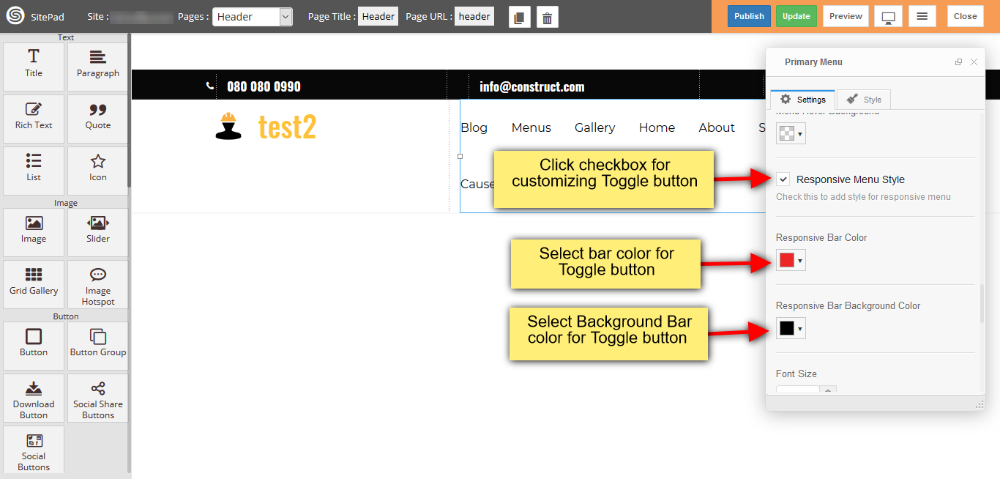
       
    ![](https://dotroll.com/wp-content/uploads/2020/08/Primary-menu-style5.png)

</div><div id="bkmrk-and-also-you-can-add">1. And also you can add custom font size, Menu Item height, color and background color for menu item as shown in image below.  
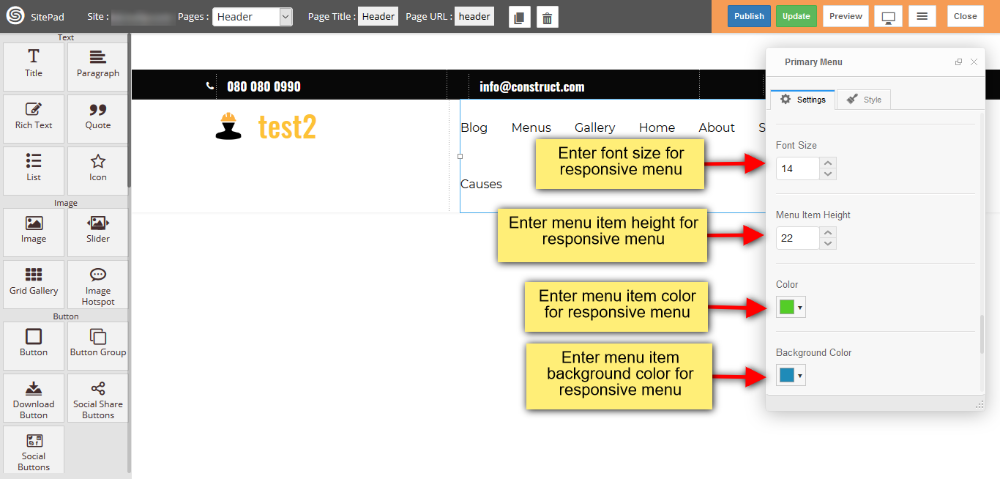
       
    ![](https://dotroll.com/wp-content/uploads/2020/08/Primary-menu-style6.png)

</div><div id="bkmrk-you-can-also-customi">1. You can also customize **active menu item** such as color and background color, and you can also select color and background color for menu item on mouse hover as shown in image below.  
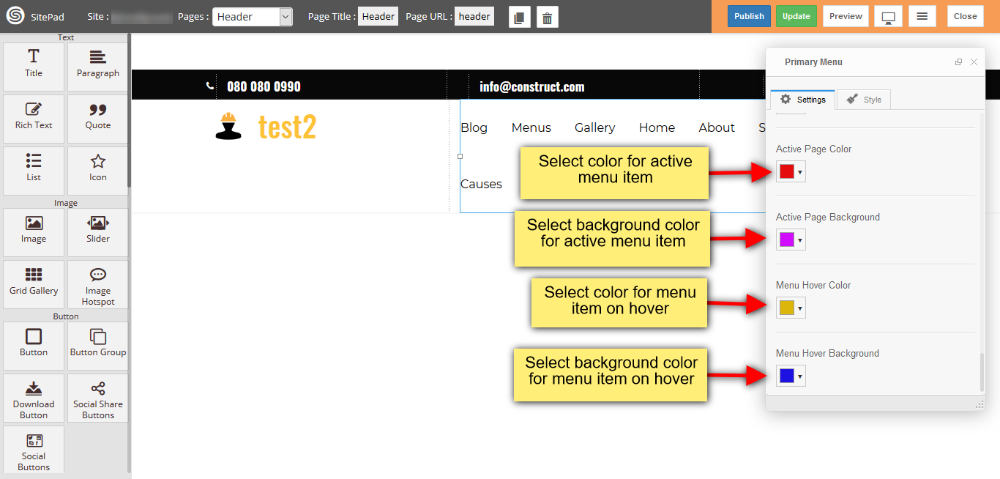
       
    ![](https://dotroll.com/wp-content/uploads/2020/08/Primary-menu-style7.png)

</div><div id="bkmrk-"></div>

# Audio

This Guide will help you to add **Audio**

#### AUDIO USING URL

<div id="bkmrk-drag-and-drop%C2%A0audio%C2%A0">- Drag and Drop **Audio** from left side **Widget Panel**.
- Now in Dialog box of **Audio** select **Audio file URL** to give URL of audio file.
- After that enter **Audio URL** in Audio file URL section as shown in image below.
- Check the Autoplay box if you want to Autoplay your audio when page is loaded.
- Check the Repeat box if you want to Repeat your audio when it gets finished.
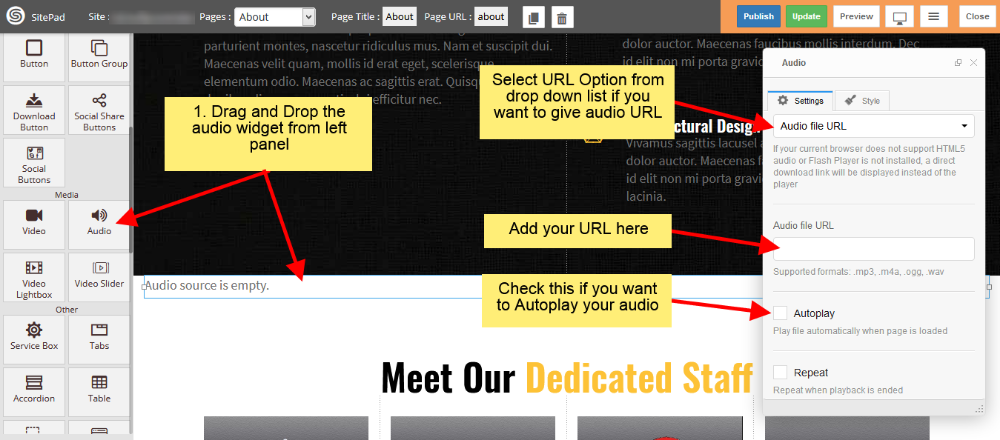
</div>   
![](https://dotroll.com/wp-content/uploads/2020/08/Audio-using-url.png)

#### AUDIO USING MEDIA

<div id="bkmrk-drag-and-drop%C2%A0audio%C2%A0-1">- Drag and Drop **Audio** from left side **Widget Panel**.
- Now in Dialog box of **Audio** select **Media Library** to Upload the audio file.
- After that click on three dots to upload your audio file as shown in image below.
- Check the Autoplay box if you want to Autoplay your audio when page is loaded.
- Check the Repeat box if you want to Repeat your audio when it gets finished.
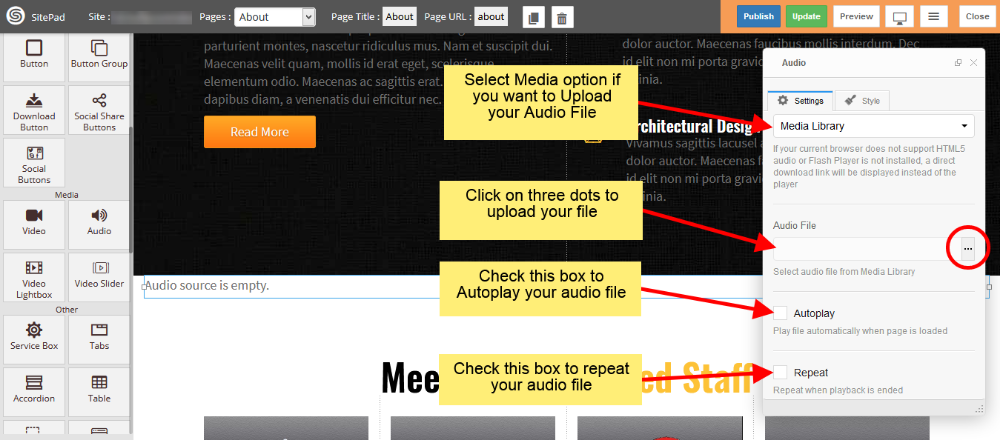
</div>   
![](https://dotroll.com/wp-content/uploads/2020/08/Audio-using-media.png)

<div id="bkmrk-"></div><div id="bkmrk--1"></div>

# Icon

This Guide will Help you to edit **Icon Widget** Settings and Style.

#### DRAG ICON WIDGET

When you **Drag and Drop** Icon Widget in a Page. You will see the image like below.

<p class="callout info"><span class=".">**Note:** Widget gives you **Default Style** provided by theme, you can customize as per your needs using this guide.</span></p>


![](https://dotroll.com/wp-content/uploads/2020/08/Drag-icon.png)

#### ICON WIDGET SETTINGS

When you Open Dialog Box, you can be able to customize **Icon** from the list and **Icon Color** also.

Icon Size gives you different **predefined sizes** of Icon, simply choose size from **dropdown list** and if you want to give **custom size** then choose **custom** link from dropdown list.

**Icon Alignment** gives you Alignment of Icon in a page.  
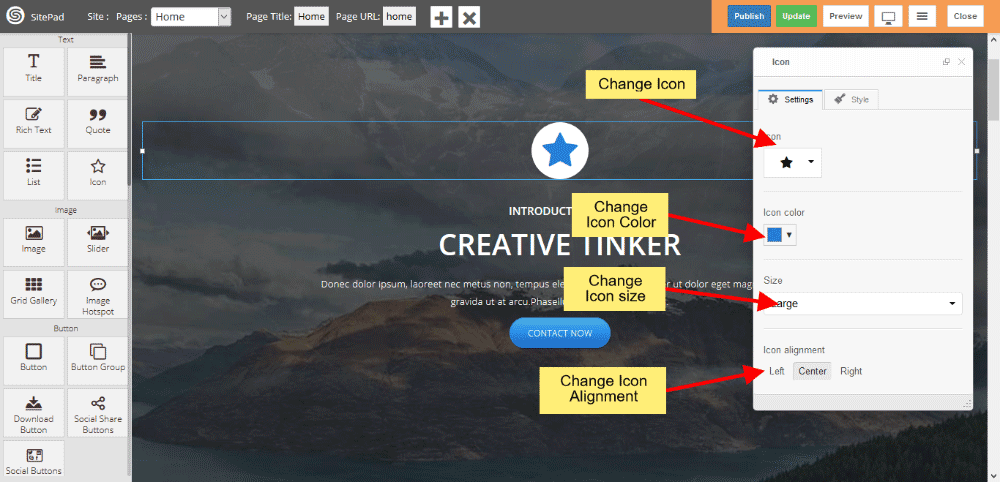
   
![](https://dotroll.com/wp-content/uploads/2020/08/Icon-settings.png)

#### EDIT BACKGROUND STYLES

You can edit **Background Shape** like Circle, Square, Rounded, Outline Circle, Outline Square, Outline Rounded and None.

Icon Background Size gives you **space** around the **Icon**, and background color gives you the Background Color.

Appearance **Effect** gives Animation like Top to bottom, Bottom to top, Left to right, Right to left, Appear and None also.  
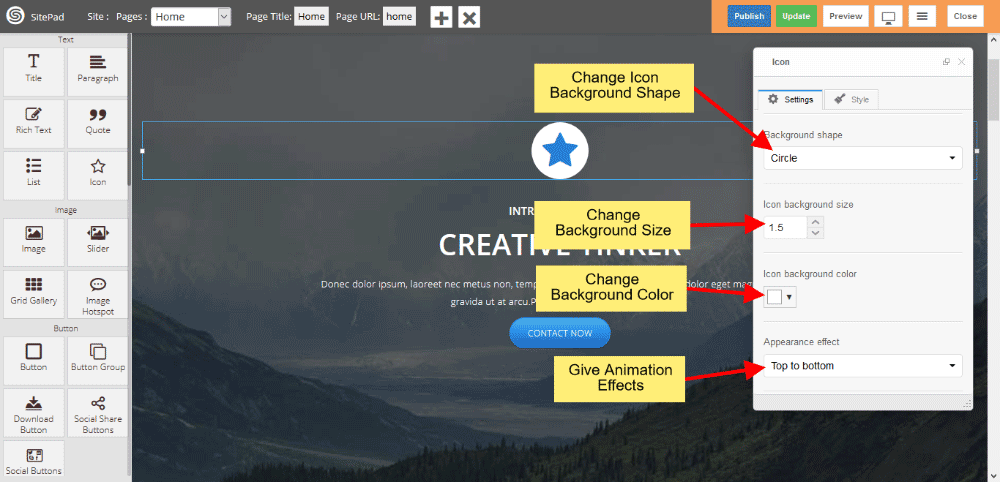
   
![](https://dotroll.com/wp-content/uploads/2020/08/Icon-background.png)

#### ICON CUSTOM LINK

Custom Link gives **Link** to Icon.  
   
![](https://dotroll.com/wp-content/uploads/2020/08/Icon-link.png)