# MySQL

# How to install phpMyAdmin on the cPanel webhosting

phpMyAdmin only can be accessed from cPanel, but because of the many menus and logins, this can cause problems with usability. On the cPanel interface, you must create a subdomain name under one domain name.

- The subdomain name can be created on the cPanel interface under **Subdomains**. For example: phpmyadmin.domain\_name.tld.
- The default main page layout for cPanel is the **Softaculous** installer at the bottom of the page. Click any of the icons in the **Categories** section.
- At the top right of the page that appears, type phpmyadmin in the search box, and then click phpMyAdmin in the search results that appear.
- At the top of the page, click **Install now**.
- From the second drop-down list, select the subdomain you created.
- Click the + sign next to **Advanced Options**.
- Select **Auto Upgrade**.
- Finally, click the **Install** button.

After installation, you can access phpMyAdmin from your browser. So you do not have to log in to the cPanel interface to access databases.

# How to Import a big size database

<div id="bkmrk-close-the-screen-ses"><div class="eckb-article-toc eckb-article-toc--position-middle eckb-article-toc--bmode-between eckb-article-toc-reset " data-exclude_class="" data-max="6" data-min="2" data-offset="0" data-speed="300"><div class="eckb-article-toc__inner"><nav aria-label="Article outline" class="eckb-article-toc-outline" role="navigation">- [Close the screen session, delete the uploaded SQL file](https://dotroll.com/en/knowledge-base/books/mysql/page/how-to-import-a-big-size-database)

</nav></div></div></div><div id="bkmrk-only-phpmyadmin-can-"><section class="wpb-content-wrapper">Only phpMyAdmin can import a database with a size smaller than 50MB. In case you have DotRoll Plus, DotRoll Ultra or DotRoll Pro hosting, you have the option of importing a larger database.

<div class="vc_row wpb_row vc_row-fluid"><div class="wpb_column vc_column_container vc_col-sm-12"><div class="vc_column-inner"><div class="wpb_wrapper"><div class="wpb_text_column wpb_content_element "><div class="wpb_wrapper">- #### UPLOAD SQL DUMP
    
    Use an FTP client to copy the SQL dump you want to import to your storage. The file may be copied directly to the start directory of your storage (/home/username).
- #### MYSQL DATABASE, USER, PASSWORD, AND PRIVILEGES
    
    On the cPanel interface, in the MySQL databases menu, create a MySQL user and set a password. Also assign the generated user to the database you want to import.
- #### GENERATE SSH KEY, OR SET IT UP
- #### CONNECT VIA SSH

- <div class="wp-caption alignnone">![PuTTY login](https://dotroll.com/wp-content/uploads/2020/08/ssh_en_0.png)</div>PuTTY login
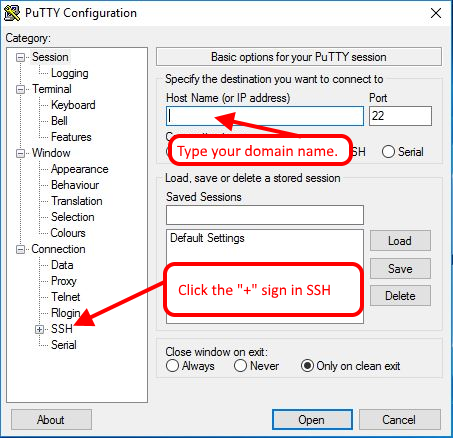
    
    <div class="wp-caption alignnone" id="bkmrk-"></div>In the Host Name (or IP address) field, enter the name of your main domain.  
    Port is the default port 22.  
    Next, click the “+” sign next to SSH.
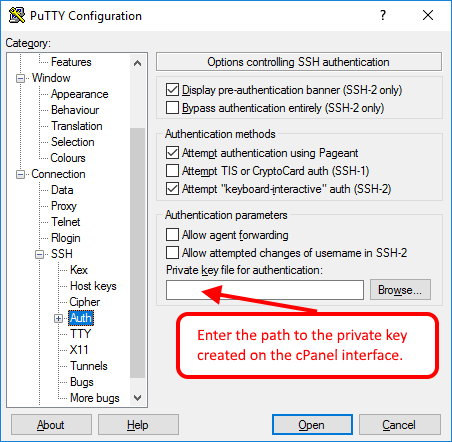
    
    <div class="wp-caption alignnone">![PuTTY login](https://dotroll.com/wp-content/uploads/2020/08/ssh_en_1.png)</div>PuTTY login
    
    <div class="wp-caption alignnone" id="bkmrk--1"></div>
    - In the Private key file for authentication box, enter the key for the cPanel interface or the private key that you created earlier.  
        You can then save the configuration, but you can also connect to your storage immediately.
    - #### USING THE DATABASE IMPORT WITH SCREEN
        
        If you do not want to end the database import, enter the following command after the login:
        
        ```
        screen -S mysqlimport
        ```
        
        To import a database, you must issue the following command:
        
        ```
        mysql -udatabase_username -pdatabase_user_password -h localhost database_name <sql_dump_file.sql
        ```
        
        You can also use the Enter key to confirm your import.
        
        The switches mean:
        
        
        - -u MySQL database user name. Use the switch to enter the user name and do not need to be a space.
        - -p MySQL database user password.
        - -h MySQL server address
        
        The process may take longer depending on the server’s capacity and the size of the database. If you do not want to wait for the process, press the CTRL key and the a letter followed by the d key.
        
        ```
        "Ctrl-a" "d"
        ```
        
        With this command, the previously launched screen will be disconnected, however the operations released there will continue in the background. You can then close the current session by pressing the logout command or the “CTRL + D” keys.
    - #### CAPTURE SCREEN SESSION
        
        You can check the import process by re-logging on to the server using an SSH client and then issue the following command:
        
        ```
        screen -r
        ```
        
        If you run multiple screens in your background, you can use the following command to display the list of currently running screens.
        
        ```
        screen -ls
        ```
        
        The system will pop up a list of previously disconnected screens. You can rejoin the disconnected session with the following command:
        
        ```
        screen -r 864870.mysqlimport
        ```
    - #### CLOSE THE SCREEN SESSION, DELETE THE UPLOADED SQL FILE
        
        If you run only one screen, you can exit the exit command or use the following command:
        
        ```
        "Ctrl-a" "d" "d"
        ```
        
        Unfortunately, the command-line database import does not show a separate process flag of the import process. As soon as the imoprting is completed, the default command line will be returned. If there is an error in the file you want to import, the server stops the import process and writes the error. In such a case, the import will only occur to the fault.
        
        You may want to remove the SQL dump file you have stored for storage from the storage after the import is completed. Use this command to:
        
        ```
        rm sql_dump_file.sql
        ```

</div></div></div></div></div></div></section></div>

# How to connect the database with SSH tunnel

For development purposes, we provide SSH access to our MySQL server from the Plus hosting package.

To create a connection, you must create an [SSH key pair](https://dotroll.com/en/knowledge-base/books/cpanel/page/how-to-generate-and-configure-ssh-keys "Generate SSH key, or set it up") on the cPanel interface. Then we can use PuTTY to connect to SSH through the SSH protocol, but the tuner must be set before the connection.

To do this, follow these steps:

1. In the left part of the window, select **Connection/SSH** and within the **Tunnels** section.
2. In the **Add new forwarded port** section, in the **Source port** field, enter **3306** port number. For **Destination**, enter **localhost:3306**, and then click **Add**.
3. After entering the data, click the **Open** button. In the window that appears, enter your storage ID and the SSH key password.

With these settings, you can see your databases connected to the localhost: 3306 port, as long as the connection established with PuTTY is not disconnected.