.hu registration
- How to Change Ownership of a .hu Domain
- How to Update .hu Domain Owner and Contact Details
- How to Register a .hu Domain as a Business
- How to Register a .hu Domain as a Private Individual
- How to Connect a .hu Domain to cPanel Hosting
- How to Transfer a .hu Domain Name
- How to Change the Administrative Contact for a .hu Domain
How to Change Ownership of a .hu Domain
.hu owner change will only be possible if the domain name is already using factor-based authentication. If the domain name is still document-based and you want to change the owner the domain must first be converted to factor authentication. Only the current Registrar can perform this modification; the new registrar cannot.
REPLACE THE CURRENT OWNER OF THE DOMAIN NAME
-
- Sign in with https://admin.dotroll.com with your username and password
- In the top menu bar, click the Domains / My Domains menu.
- Select the domain name on which you want to make the change and then click on it.
- In the Manage box on the left, select Contacts change.
- At the top of the page that appears, you can see the current domain owner and its data.
- To modify, you can select from the drop-down list under Owner:
- formerly created the contact
- or select the Add New Contact… option to add a new contact
- Choose the owner type that can be:
- Person
- Company
- Then fill out the form elements.
- Click the Next button where the system will show an overview page with the data you entered.
- If all data is correct, click Checkout button of the bottom of the page.
- We submit the order to the central registry, and the .hu registry will send the necessary emails for validation and confirmation. Please follow the instructions in the emails, and once all confirmations are completed, the .hu registry analyst will approve the ownership change. Please check your email inbox regularly!
- You can return to the online interface at the bottom of the page by clicking the « Back to the Client Area link.
- Then, in the top menu bar, click Services / My Services.
- On the page that appears, click the row marked Contacts change.
How to Update .hu Domain Owner and Contact Details
or registered domain names, it is possible to modify certain data for the owner or contact person.
Follow these steps to make the modify:
- Log in with your email address and password, and then click Domains / My Domains in the top menu bar.
- Next, click the domain name you want to change.
- Then, in the Manage box on the left sidebar, click Contact Information item.
- On the page that appears, make the necessary changes, and then click Save Changes.
How to Register a .hu Domain as a Business
WHO CAN REGISTER A .HU DOMAIN NAME?
"Domain Applicants may be citizens or legal entities of any country, provided that no applicable law precludes persons from those countries from applying for a domain name.
An Applicant who does not belong to one of the following groups:
- a legal person or a national of a Member State of the European Union, the Council of Europe, the EEA or EFTA, or of a country bordering Hungary
- a natural person with a permanent residence permit or a residence permit in Hungary,
is eligible to apply if it carries out or starts an economic or other activity that justifies the use of a .hu domain name. Upon request by the Registry or the Registrar, they shall provide appropriate evidence to that effect."
Source: https://www.domain.hu/domain-registration-policy/
CHECK DOMAIN AVAILABLE
Before registering a domain name, you should verify that the domain name you are trying to register is not yet registered.
You can start checking on https://admin.dotroll.com using the search box under Begin the search for your perfect domain name….
Enter the domain name in the search box without any prefixes (http://, https://, www.), and then click the Search button. The system also verifies that other domain name endings have this option for registering a domain name.
ORDER A .HU DOMAIN
- If the domain name you choose is not yet registered, click Add to Cart, followed by the Checkout button.
- On the next page you have the option to choose a hosting service for the domain name you want to register, or you can set the name of the domain name to be registered. After you have made the settings, click Continue → button.
- he system will display a summary of the order where it is possible
- you can modify the domain name registration period
- you can cancel the order
- you can also start an additional order
- if you have a promotional code, you can specify it
If all settings are correct, click the Checkout → button.
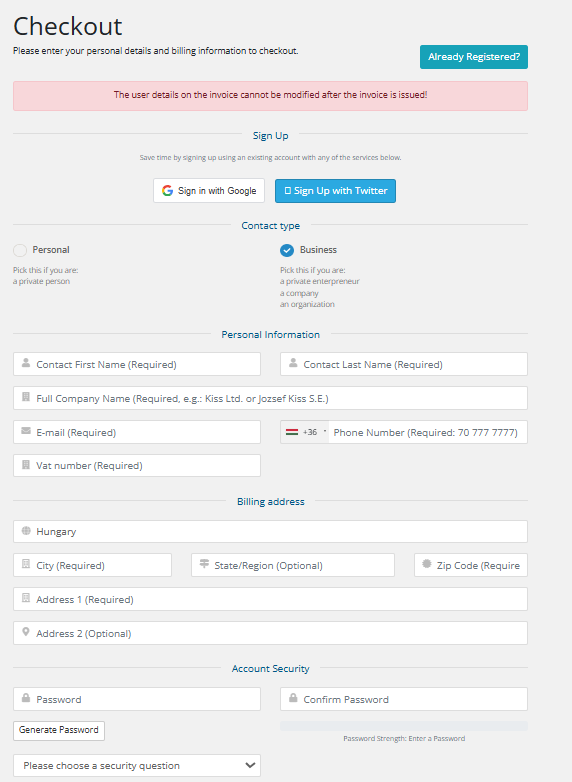
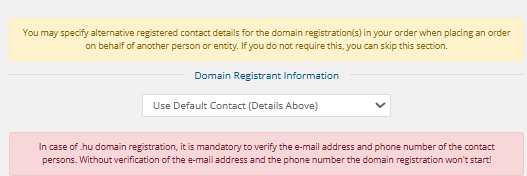
- You can then enter contact details for the domain name (owner, administrative or technical contact). For each order, you can use previously-entered contacts, but you also have the option to enter a new contact for each domain name.


-
It is essential that (if your email address and phone number have not been verified in the past year) for a .hu domain registration, it is mandatory to confirm your email address and phone number. Please provide a valid and actively used contact! Without verification, the domain registration will not proceed!
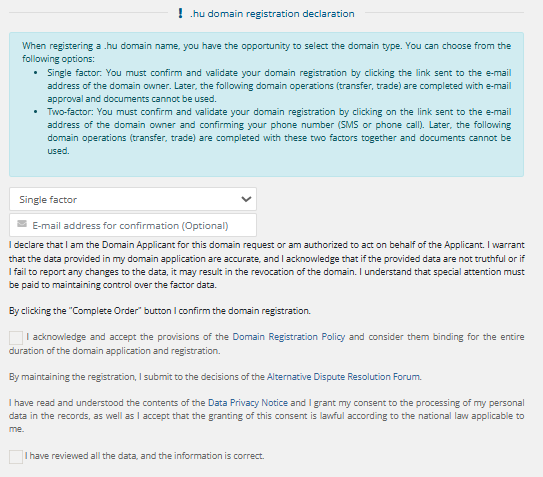
- Select whether you want a single-factor or two-factor domain registration, then read and accept the checkboxes! If you do not fill in the "e-mail address for confirmation" field, it will default to the applicant's email address.

Future modifications must be confirmed using a factor rather than document-based verification. The first factor is always the email address, and in the case of two-factor authentication, the second factor is always the phone number.
- At the bottom of the page, you must choose a payment method that may be one of the following:
- CreditCard via PayPal
- BankTransfer
- Credit card payment
- PayPal
Next, check the box to I have read and agree to the Terms of Service and then click the Complete Order → button.
- On the next page, enter the captcha code for the .hu domain name entry, and then click I agree button.
- After that, the system will automatically be redirected to the payment interface.
- After the payment completed, your order will be forwarded, and started to the Council of Hungarian Internet Providers (CHIP). If verification is required, please check your inbox, as the confirmation email will be sent immediately after placing the order!
- Once the domain name has been successfully registered, our system will send you an email notification to the email address provided at the account payer.
How to Register a .hu Domain as a Private Individual
WHO CAN REGISTER A .HU DOMAIN NAME?
"Domain Applicants may be citizens or legal entities of any country, provided that no applicable law precludes persons from those countries from applying for a domain name.
An Applicant who does not belong to one of the following groups:
- a legal person or a national of a Member State of the European Union, the Council of Europe, the EEA or EFTA, or of a country bordering Hungary
- a natural person with a permanent residence permit or a residence permit in Hungary,
is eligible to apply if it carries out or starts an economic or other activity that justifies the use of a .hu domain name. Upon request by the Registry or the Registrar, they shall provide appropriate evidence to that effect."
Source: https://www.domain.hu/domain-registration-policy/
CHECK DOMAIN AVAILABLE
Before registering a domain name, you should verify that the domain name you are trying to register is not yet registered.
You can start checking on https://admin.dotroll.com using the search box under Begin the search for your perfect domain name….
Enter the domain name in the search box without any prefixes (http://, https://, www.), and then click the Search button. The system also verifies that other domain name endings have this option for registering a domain name.
ORDER A .HU DOMAIN
- If the domain name you choose is not yet registered, click Add to Cart, followed by the Checkout button.
- On the next page you have the option to choose a hosting service for the domain name you want to register, or you can set the name of the domain name to be registered. After you have made the settings, click Continue → button.
- he system will display a summary of the order where it is possible
- you can modify the domain name registration period
- you can cancel the order
- you can also start an additional order
- if you have a promotional code, you can specify it
If all settings are correct, click the Checkout → button.
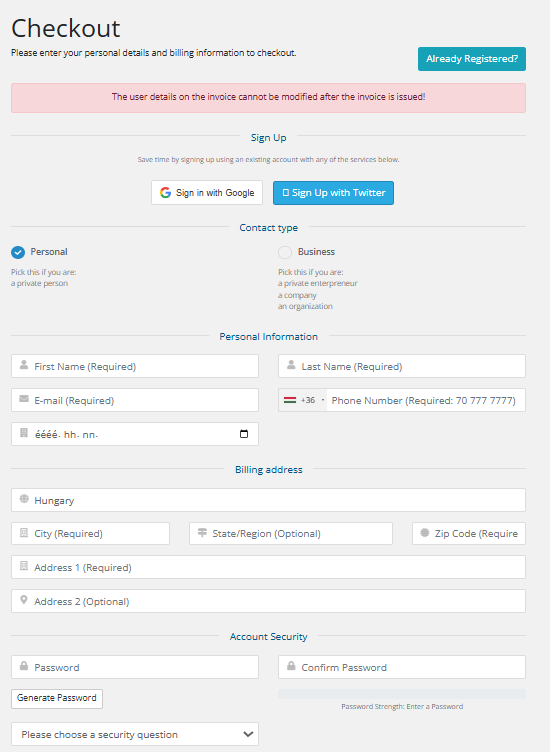
- You can then enter contact details for the domain name (owner, administrative or technical contact). For each order, you can use previously-entered contacts, but you also have the option to enter a new contact for each domain name. As a private individual, you must provide your date of birth! (in the yyyy.mm.dd. format)

-
It is essential that (if your email address and phone number have not been verified in the past year) for a .hu domain registration, it is mandatory to confirm your email address and phone number. Please provide a valid and actively used contact! Without verification, the domain registration will not proceed!
- Select whether you want a single-factor or two-factor domain registration, then read and accept the checkboxes! If you do not fill in the "e-mail address for confirmation" field, it will default to the applicant's email address.
Future modifications must be confirmed using a factor rather than document-based verification. The first factor is always the email address, and in the case of two-factor authentication, the second factor is always the phone number.
- At the bottom of the page, you must choose a payment method that may be one of the following:
- CreditCard via PayPal
- BankTransfer
- Credit card payment
- PayPal
Next, check the box to I have read and agree to the Terms of Service and then click the Complete Order → button.
- On the next page, enter the captcha code for the .hu domain name entry, and then click I agree button.
- After that, the system will automatically be redirected to the payment interface.
- After the payment completed, your order will be forwarded, and started to the Council of Hungarian Internet Providers (CHIP). If verification is required, please check your inbox, as the confirmation email will be sent immediately after placing the order!
- Once the domain name has been successfully registered, our system will send you an email notification to the email address provided at the account payer.
How to Connect a .hu Domain to cPanel Hosting
If you want to use a .hu domain with a cPanel service provider, there are several ways to do this.
CONVERT YOUR DOMAIN NAME SERVER
If your service provider fits with the .hu domain technical check, you can directly switch the domain name servers. (This is not the case in most cases.) See Technical check problems
A RECORD REDIRECTION
If you choose this method, the service provider may become a server and the site will not work!
If the service provider fails to fits with the technical check, you can set a record A for the service provider. The required IP address in cPanel is probably located in the Server Information at the bottom of the General Information box at the right.
SUBDOMAIN NAME SERVER SWITCHING
If nothing else helps you, you can choose a subdomain (eg blog.domainname.hu) that allows you to register your storage. To do this, two NS records must be added to the administrative interface. (Please note that there is no name server change but two new NS entries!) This looks pretty much like this:
blog.domainname.hu. IN NS ns2333.hostgator.com.
blog.domainname.hu. IN NS ns2334.hostgator.com.
The actual NS records must be read from cPanel! These are also most likely to be found at in the Server Information at the bottom of the General Information box at the right.
How to Transfer a .hu Domain Name
A .hu domain transfer can only be initiated by the domain name owner.
Registrar transfer (or registrar transfer combined with domain user change in a single step) is possible for domains with two-factor authentication as well as for older, document-based domain names.
Only in the case of an ownership change can the transfer be performed. The domain must first be "factorised" (enabled for two-factor authentication) at the current registrar.
1.To initiate a domain transfer, click this link. Then provide the corresponding AUTH code in the authorization code field. This code must be requested from the current registrar, and the .hu registry will send it to the domain user's email address. The AUTH code can only be requested for a factor-based domain name. If the domain name is not yet protected with two-factor authentication, the AUTH code is not required. Please leave the field empty!
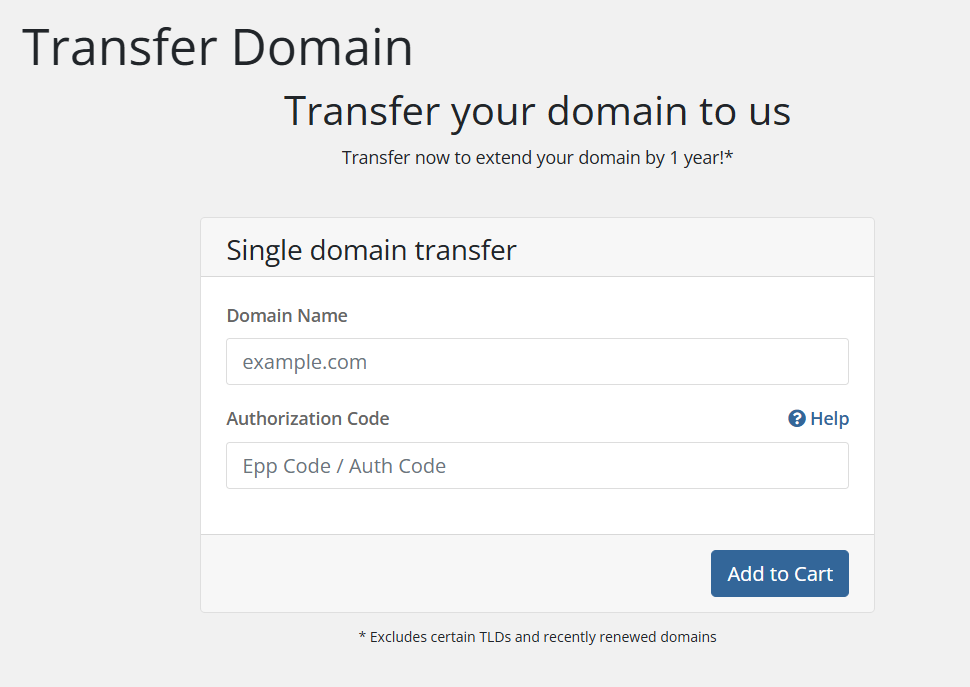
2. On the next page, click the "Click to continue" button.
3. On the following page, you can choose a hosting service for the domain name you wish to register and set the name servers for the domain. After configuring these settings, click the "Next" button.
4. In the next step, you can review your cart. If you have a promotional code, you can enter it here. You also have the option to cancel the order or place additional orders. If everything is correct, click the "Order" button.
5. After that, you need to provide the details of the domain owner, as well as the administrative contacts, and that factor data. You need to select whether the domain name should use single-factor or two-factor authentication. For each order, you can use previously saved contacts, or you have the option to enter new contact details for each domain name.
6. All email addresses and phone numbers provided for domain name contacts must be confirmed. For transfers, our company will handle the confirmation process by sending an email, SMS, or voice call. Until the email addresses and phone numbers are confirmed, the transfer cannot proceed.
The confirmation is valid for one year, meaning it does not need to be repeated within this period for the same contact. Confirmation is only required if the given email address or phone number is used in a new registration, modification, or transfer and has not been verified in the past year.
7. At the bottom of the page, you must choose a payment method that may be one of the following:
- CreditCard via PayPal
- BankTransfer
- Credit card payment
- PayPal
8. Next, check the box to I have read and agree to the Terms of Service and then click the Complete Order → button.
9. For domains with factor authentication: If the order has been paid, the data confirmed, and the AUTH code is correct, the transfer will be completed within a few minutes.
For domains without factor authentication: After placing the order, please download the factorisation document, sign and scan it, then upload it here. (In case of an organisation, please also stamp the document and attach a signature specimen.)
10. Once the domain name has been successfully registered, our system will send you an email notification to the email address provided at the account payer.
After a Registrar and/or domain holder change, no further transfers (Registrar or holder change) can be requested for 30 days.
How to Change the Administrative Contact for a .hu Domain
.hu administrative contact change will only be possible if the domain name is already using factor-based authentication. If the domain name is still document-based and you want to change the administrative the domain must first be converted to factor authentication. Only the current Registrar can perform this modification; the new registrar cannot.
REPLACE THE CURRENT ADMIN CONTACT OF THE DOMAIN NAME
- Sign in with https://admin.dotroll.com with your username and password
- In the top menu bar, click the Domains / My Domains menu.
- Select the domain name for which you want to make the change and then click on it.
- In the Manage box on the left, select Contacts change.
- At the top of the page that appears, you can see the current domain admin contact and its data.
- To find a change to the Admin contact item, select from the drop down list below:
- formerly created the contact
- or select the Add New Contact… option to add a new contact
- Choose the admin contact type that can be:
- Person
- Company
- Then fill out the form elements.
- Click the Next button where the system will show an overview page with the data you entered.
- If all data is correct, click Checkout button of the bottom of the page.
- We submit the order to the central registry, and the .hu registry will send the necessary emails for validation and confirmation. Please follow the instructions in the emails, and once all confirmations are completed, the .hu registry analyst will approve the ownership change. Please check your email inbox regularly!
- You can return to the online interface at the bottom of the page by clicking the « Back to the Client Area link.