# How to Create an SFTP Connection Using FileZilla

On cPaneles servers, it is only possible to establish an SFTP connection with the FTP user associated with the hosting ID.

#### [GENERATE SSH KEY, OR SET IT UP](https://dotroll.com/en/knowledge-base/books/cpanel/page/how-to-generate-and-configure-ssh-keys "SSH kulcspár létrehozása, vagy beállítása")

#### REMOVE A PASSWORD FROM THE PRIVATE KEY AND SET THE KEY IN FILEZILLA

Start FileZilla.
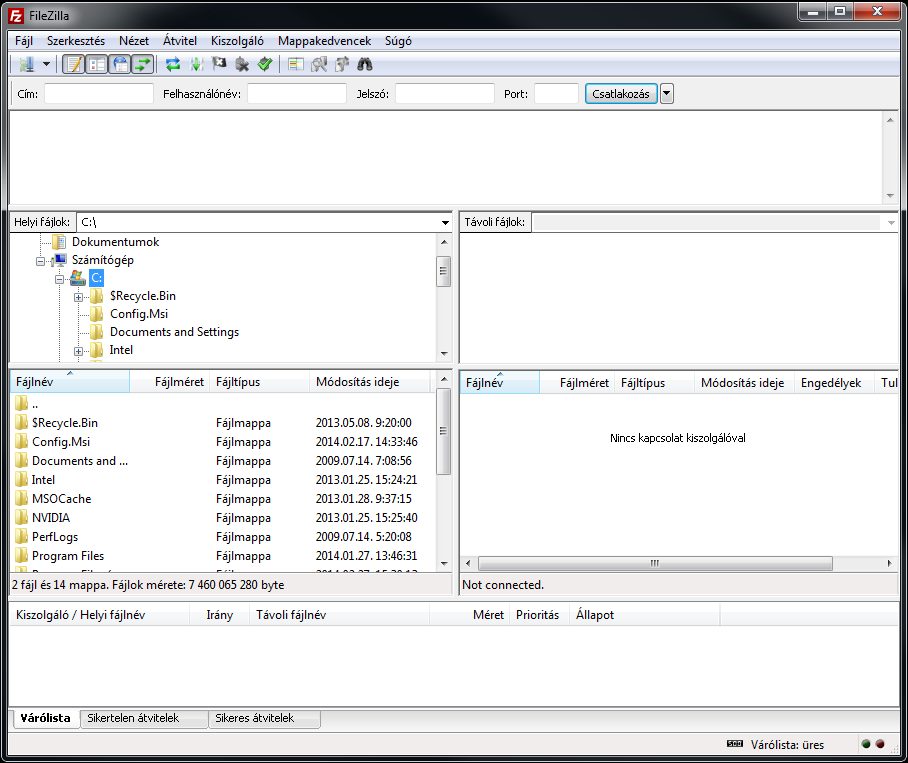
<div class="wp-caption alignnone" id="bkmrk-">![FileZilla main window](https://dotroll.com/wp-content/uploads/2020/08/FileZilla0.png)</div>FileZilla main window

<div class="wp-caption alignnone" id="bkmrk--1"></div>In the next step, click **Edit** / **Preferences…** in the top menu bar.
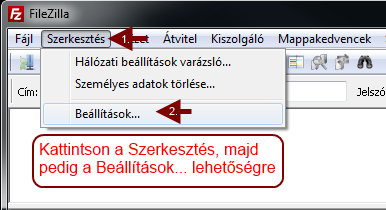
<div class="wp-caption alignnone" id="bkmrk--2">![FileZilla Edit/Settings menu](https://dotroll.com/wp-content/uploads/2020/08/FileZilla1.png)</div>FileZilla Edit/Settings menu

<div class="wp-caption alignnone" id="bkmrk--3"></div>In the popup window, click **SFTP** in the list on the left, then click **Add Key File…** button.
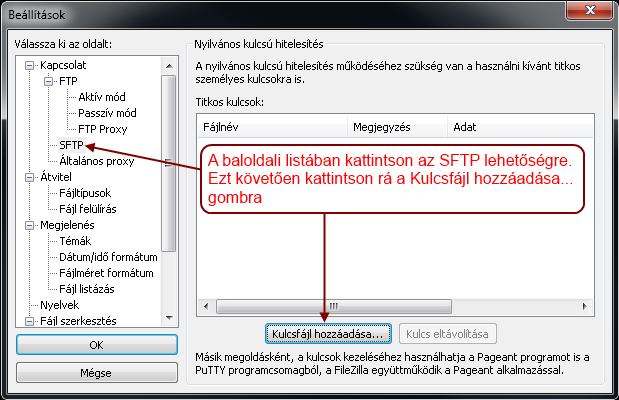
<div class="wp-caption alignnone" id="bkmrk--4">![FileZilla Settings menu](https://dotroll.com/wp-content/uploads/2020/08/FileZilla2.png)</div>FileZilla Settings menu

<div class="wp-caption alignnone" id="bkmrk--5"></div>Browse to the created private key file and confirm the warning with **OK** button.
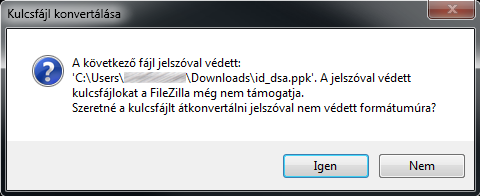
<div class="wp-caption alignnone" id="bkmrk--6">![Converting key](https://dotroll.com/wp-content/uploads/2020/08/FileZilla3.png)</div>Converting key

<div class="wp-caption alignnone" id="bkmrk--7"></div>Enter the password that you entered when creating the key, and then click **OK** button.
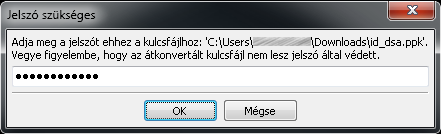
<div class="wp-caption alignnone" id="bkmrk--8">![Type password](https://dotroll.com/wp-content/uploads/2020/08/FileZilla4.png)</div>Type password

<div class="wp-caption alignnone" id="bkmrk--9"></div>The private key will then appear in the Secret Keys list. Click **Ok** to close the window.
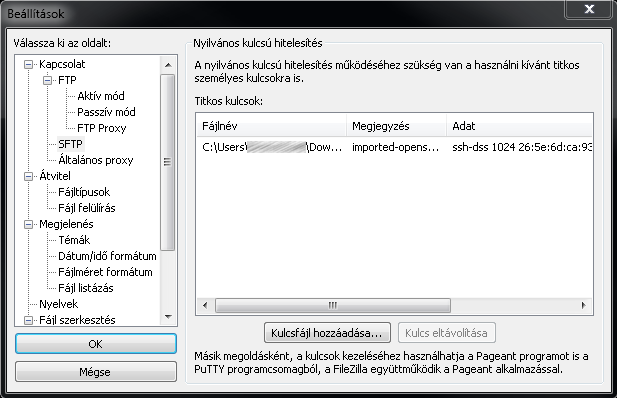
<div class="wp-caption alignnone" id="bkmrk--10">![Added key](https://dotroll.com/wp-content/uploads/2020/08/FileZilla5.png)</div>Added key

<div class="wp-caption alignnone" id="bkmrk--11"></div>#### CREATING THE CONNECTION

In the top menu bar of FileZilla, click **File** / **Favorite Places…** or press **CTRL+S**.
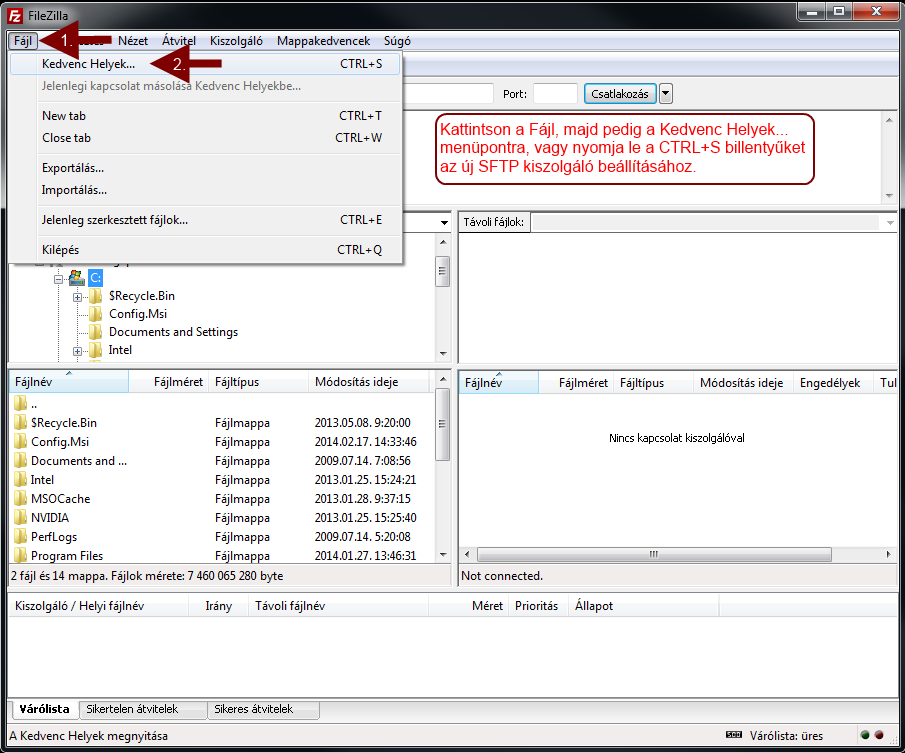
<div class="wp-caption alignnone" id="bkmrk--12">![Connecting](https://dotroll.com/wp-content/uploads/2020/08/FileZilla6.png)</div>Connecting

<div class="wp-caption alignnone" id="bkmrk--13"></div>In the popup window, click the **New Station** button.
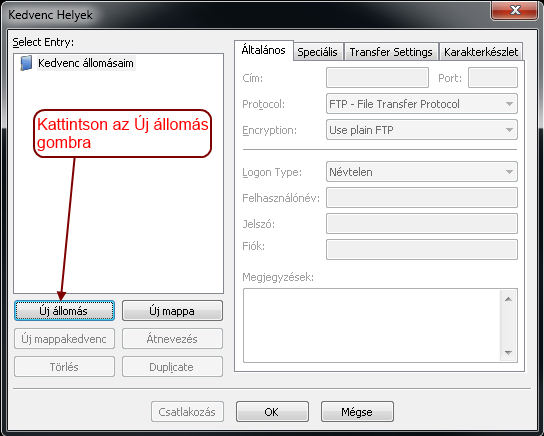
<div class="wp-caption alignnone" id="bkmrk--14">![Create new connection](https://dotroll.com/wp-content/uploads/2020/08/FileZilla7.png)</div>Create new connection

<div class="wp-caption alignnone" id="bkmrk--15"></div>Then name the conection and enter the following information:

- **Address:** hostingID.loginssl.com
- **Port:** Here you need to enter the port number of the SFTP protocol, which is shown in Figure 22
- **Protocol:** Select SFTP – SSH File Transfer Protocol here
- **Logon Type:** Here you must select the Interactive option
- **User name:** Your hostingID
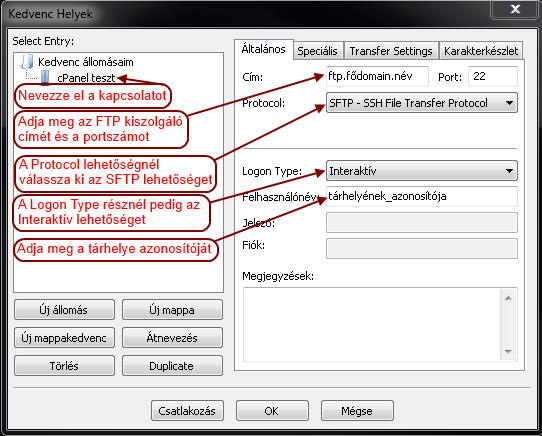
<div class="wp-caption alignnone" id="bkmrk--16">![Enter connection data](https://dotroll.com/wp-content/uploads/2020/08/FileZilla8.png)</div>Enter connection data

<div class="wp-caption alignnone" id="bkmrk--17"></div>#### CONNECTING

As a last step, click Connect.