# FTP

# How to Create an SFTP Connection Using FileZilla

On cPaneles servers, it is only possible to establish an SFTP connection with the FTP user associated with the hosting ID.

#### [GENERATE SSH KEY, OR SET IT UP](https://dotroll.com/en/knowledge-base/books/cpanel/page/how-to-generate-and-configure-ssh-keys "SSH kulcspár létrehozása, vagy beállítása")

#### REMOVE A PASSWORD FROM THE PRIVATE KEY AND SET THE KEY IN FILEZILLA

Start FileZilla.
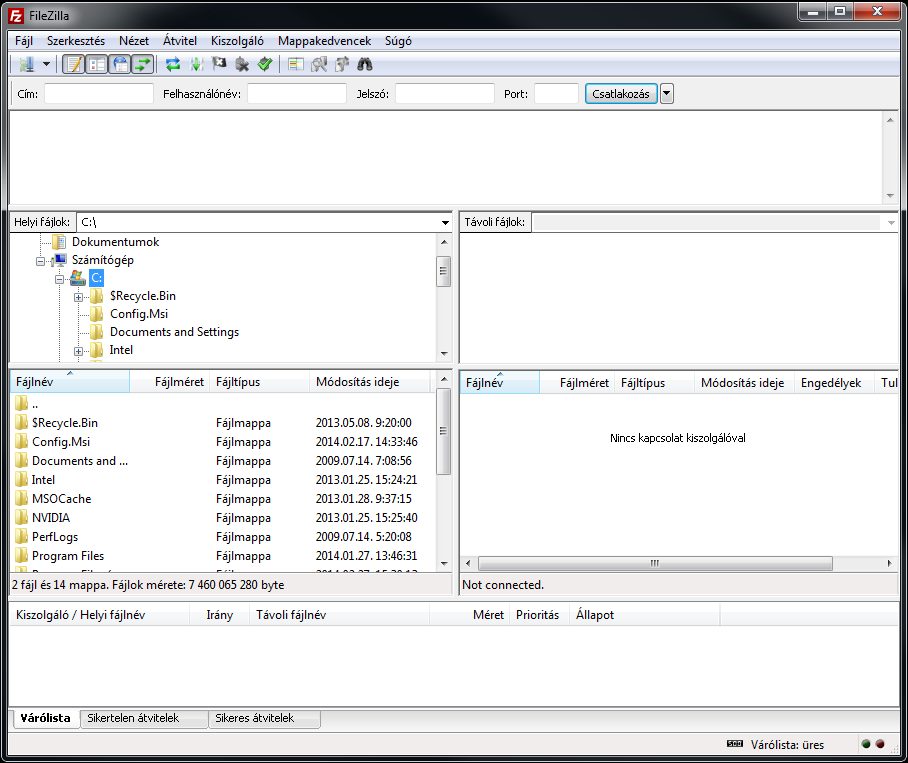
<div class="wp-caption alignnone" id="bkmrk-">![FileZilla main window](https://dotroll.com/wp-content/uploads/2020/08/FileZilla0.png)</div>FileZilla main window

<div class="wp-caption alignnone" id="bkmrk--1"></div>In the next step, click **Edit** / **Preferences…** in the top menu bar.
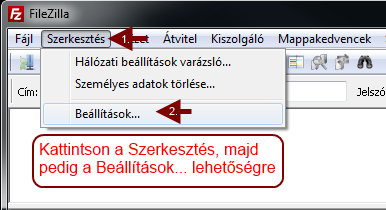
<div class="wp-caption alignnone" id="bkmrk--2">![FileZilla Edit/Settings menu](https://dotroll.com/wp-content/uploads/2020/08/FileZilla1.png)</div>FileZilla Edit/Settings menu

<div class="wp-caption alignnone" id="bkmrk--3"></div>In the popup window, click **SFTP** in the list on the left, then click **Add Key File…** button.
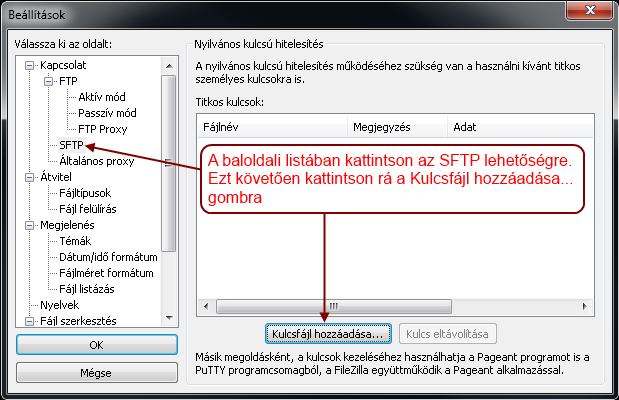
<div class="wp-caption alignnone" id="bkmrk--4">![FileZilla Settings menu](https://dotroll.com/wp-content/uploads/2020/08/FileZilla2.png)</div>FileZilla Settings menu

<div class="wp-caption alignnone" id="bkmrk--5"></div>Browse to the created private key file and confirm the warning with **OK** button.
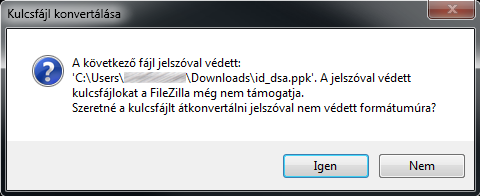
<div class="wp-caption alignnone" id="bkmrk--6">![Converting key](https://dotroll.com/wp-content/uploads/2020/08/FileZilla3.png)</div>Converting key

<div class="wp-caption alignnone" id="bkmrk--7"></div>Enter the password that you entered when creating the key, and then click **OK** button.
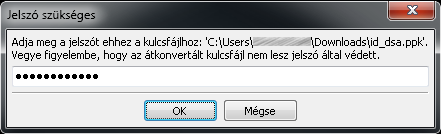
<div class="wp-caption alignnone" id="bkmrk--8">![Type password](https://dotroll.com/wp-content/uploads/2020/08/FileZilla4.png)</div>Type password

<div class="wp-caption alignnone" id="bkmrk--9"></div>The private key will then appear in the Secret Keys list. Click **Ok** to close the window.
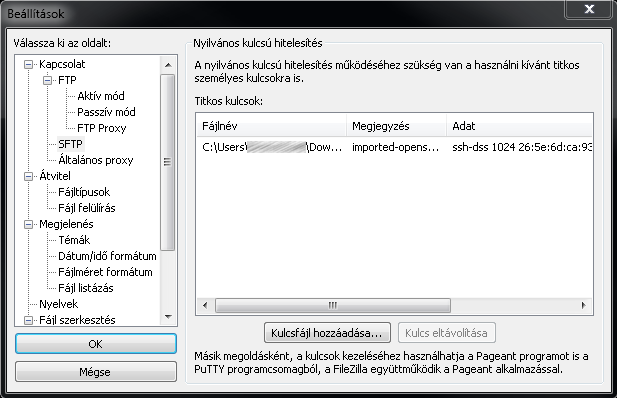
<div class="wp-caption alignnone" id="bkmrk--10">![Added key](https://dotroll.com/wp-content/uploads/2020/08/FileZilla5.png)</div>Added key

<div class="wp-caption alignnone" id="bkmrk--11"></div>#### CREATING THE CONNECTION

In the top menu bar of FileZilla, click **File** / **Favorite Places…** or press **CTRL+S**.
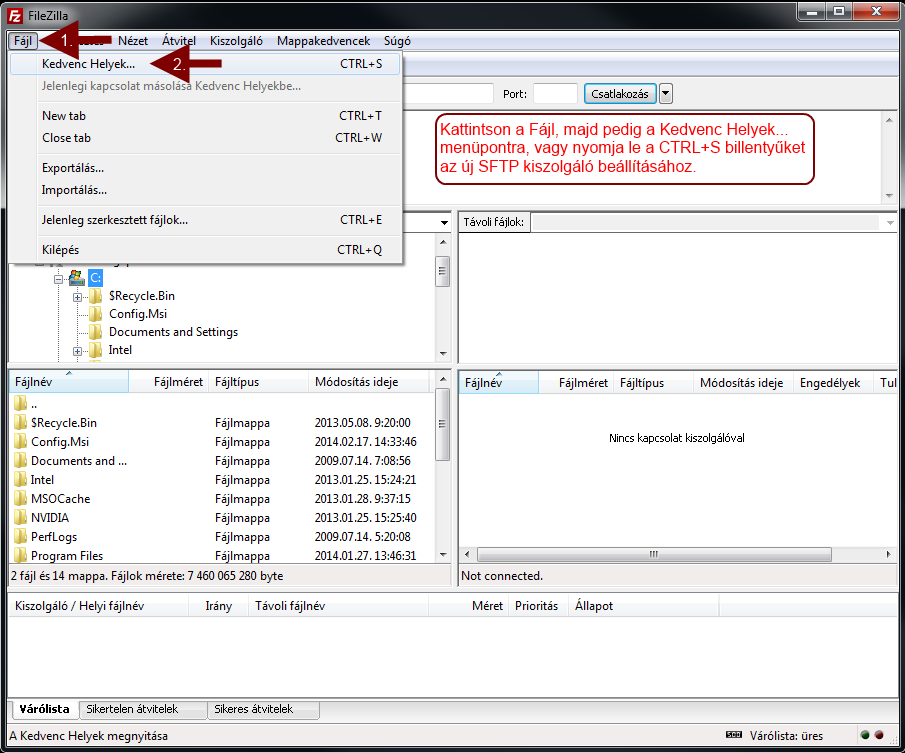
<div class="wp-caption alignnone" id="bkmrk--12">![Connecting](https://dotroll.com/wp-content/uploads/2020/08/FileZilla6.png)</div>Connecting

<div class="wp-caption alignnone" id="bkmrk--13"></div>In the popup window, click the **New Station** button.
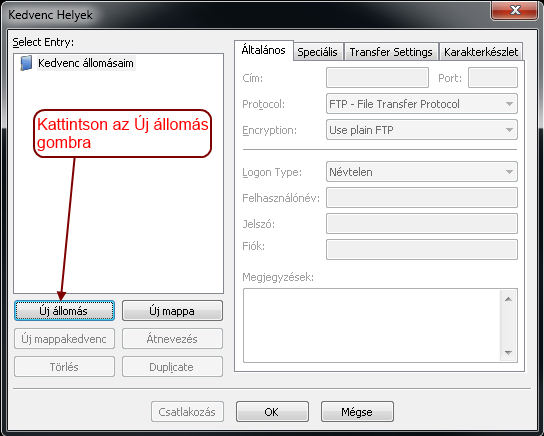
<div class="wp-caption alignnone" id="bkmrk--14">![Create new connection](https://dotroll.com/wp-content/uploads/2020/08/FileZilla7.png)</div>Create new connection

<div class="wp-caption alignnone" id="bkmrk--15"></div>Then name the conection and enter the following information:

- **Address:** hostingID.loginssl.com
- **Port:** Here you need to enter the port number of the SFTP protocol, which is shown in Figure 22
- **Protocol:** Select SFTP – SSH File Transfer Protocol here
- **Logon Type:** Here you must select the Interactive option
- **User name:** Your hostingID
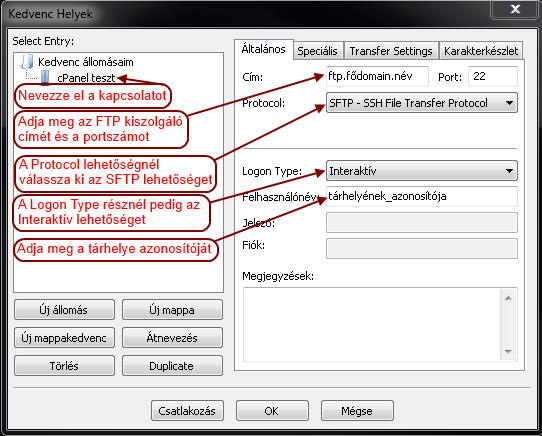
<div class="wp-caption alignnone" id="bkmrk--16">![Enter connection data](https://dotroll.com/wp-content/uploads/2020/08/FileZilla8.png)</div>Enter connection data

<div class="wp-caption alignnone" id="bkmrk--17"></div>#### CONNECTING

As a last step, click Connect.

# How to Use FTP with WinSCP

The data given in the picture is an illustration! You can find your actual settings in the administration interface!

WinSCP is a free, open source FTP/SFTP/SCP client, with support for multiple encryption schemes.

<span id="bkmrk--1"></span>

<div class="wpb_text_column wpb_content_element " id="bkmrk-after-starting-the-a"><div class="wpb_wrapper">- After starting the application, click „Session”
- Choose FTP as your file protocol

</div></div>Enter your login data:

<div class="wpb_text_column wpb_content_element " id="bkmrk-host-name%3A%C2%A0hostingid"><div class="wpb_wrapper">- **Host name:** hostingID.loginssl.com
- **User name:** the FTP user name created or the hostingID
- **Password:** enter your password
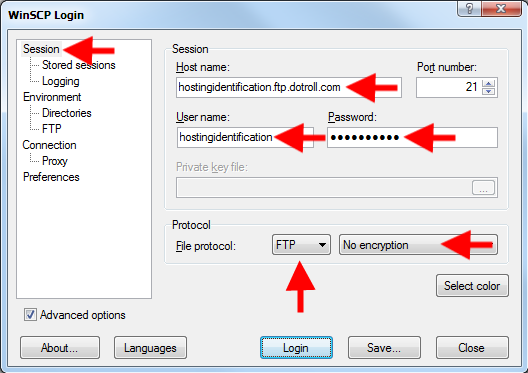
<div class="wp-caption alignnone">![WinSCP opening screen](https://dotroll.com/wp-content/uploads/2020/08/Winscp_ftp1_en-1.png)</div></div></div>WinSCP opening screen

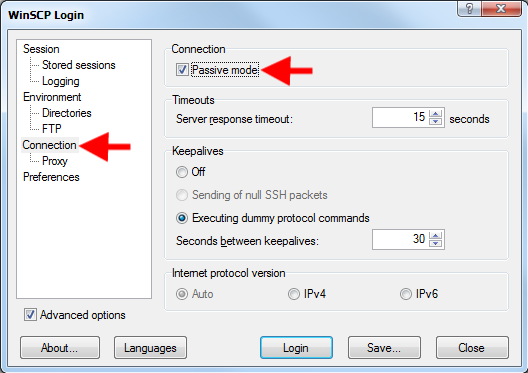
<div class="wpb_text_column wpb_content_element " id="bkmrk--2"><div class="wpb_wrapper"><div class="wp-caption alignnone" id="bkmrk--3"></div></div></div>Enable *passive mode* in the *Connection* menu, if you experience problems.

<div class="wpb_text_column wpb_content_element " id="bkmrk--4"><div class="wpb_wrapper"><div class="wp-caption alignnone">![Enable passive mode](https://dotroll.com/wp-content/uploads/2020/08/Winscp_ftp2_en-1.png)</div></div></div>Enable passive mode

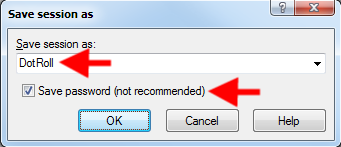
<div class="wpb_text_column wpb_content_element " id="bkmrk--5"><div class="wpb_wrapper"><div class="wp-caption alignnone" id="bkmrk--6"></div></div></div>Now click the *Save…* button. In appearing window, you may enter a name to identify the connection.

<div class="wpb_text_column wpb_content_element " id="bkmrk--7"><div class="wpb_wrapper"><div class="wp-caption alignnone">![Save session as](https://dotroll.com/wp-content/uploads/2020/08/Winscp_ftp3_en-1.png)</div></div></div>Save session as

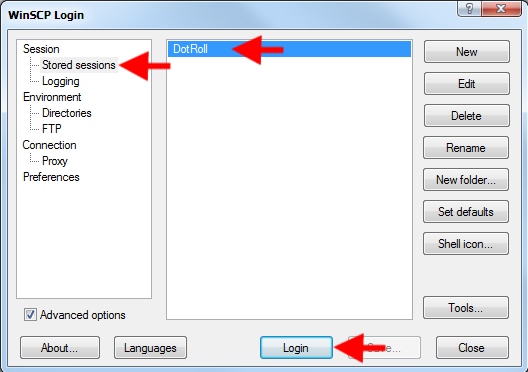
<div class="wpb_text_column wpb_content_element " id="bkmrk--8"><div class="wpb_wrapper"><div class="wp-caption alignnone" id="bkmrk--9"></div></div></div>Now click *Stored sessions* and login with your stored session.

<div class="wpb_text_column wpb_content_element " id="bkmrk--10"><div class="wpb_wrapper"><div class="wp-caption alignnone">![Load stored sessions, and connect](https://dotroll.com/wp-content/uploads/2020/08/Winscp_ftp4_en-1.png)</div></div></div>Load stored sessions, and connect

<div class="wpb_text_column wpb_content_element " id="bkmrk--11"><div class="wpb_wrapper"><div class="wp-caption alignnone" id="bkmrk--12"></div></div></div>##### <span class="mw-headline">FURTHER READING</span>

<div class="wpb_text_column wpb_content_element " id="bkmrk-winscp.net"><div class="wpb_wrapper">- [winscp.net](http://winscp.net/ "http://winscp.net/")

</div></div>

# How to Use FTP with Total Commander

<div id="bkmrk-the-data-given-in-th"><section class="wpb-content-wrapper"><p class="callout info">The data given in the picture is an illustration! You can find your actual settings in the administration interface!</p>

Total Commander is an easy to use file manager with FTP support.

Launch Total Commandert, then click the FTP entry in the Network menu or simply click the FTP button.
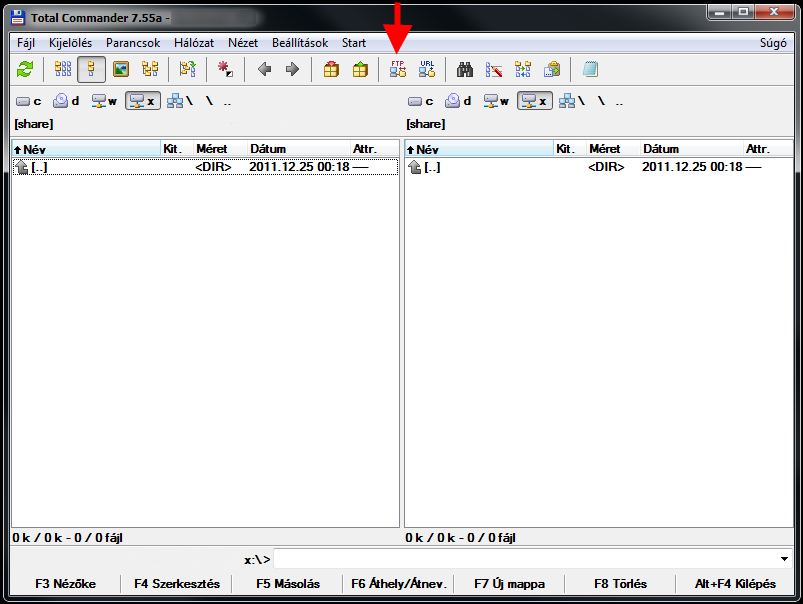
<div class="vc_row wpb_row vc_row-fluid"><div class="wpb_column vc_column_container vc_col-sm-12"><div class="vc_column-inner"><div class="wpb_wrapper"><div class="wpb_text_column wpb_content_element "><div class="wpb_wrapper"><div class="wp-caption alignnone">![Total Commander main window](https://dotroll.com/wp-content/uploads/2020/08/Tc_hu_01.png)</div></div></div></div></div></div></div>Total Commander main window

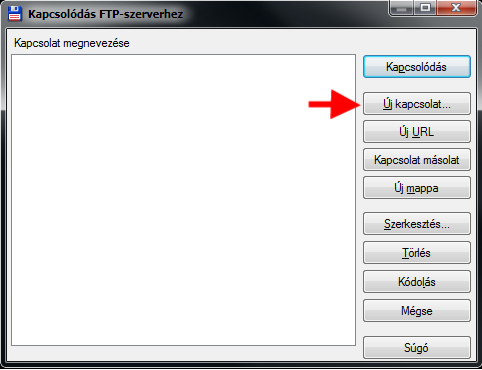
<div class="vc_row wpb_row vc_row-fluid"><div class="wpb_column vc_column_container vc_col-sm-12"><div class="vc_column-inner"><div class="wpb_wrapper"><div class="wpb_text_column wpb_content_element "><div class="wpb_wrapper"><div class="wp-caption alignnone" id="bkmrk-"></div></div></div></div></div></div></div>Now click *New connection…* and enter your details

<div class="vc_row wpb_row vc_row-fluid"><div class="wpb_column vc_column_container vc_col-sm-12"><div class="vc_column-inner"><div class="wpb_wrapper"><div class="wpb_text_column wpb_content_element "><div class="wpb_wrapper"><div class="wp-caption alignnone">![Connetc to FTP servers](https://dotroll.com/wp-content/uploads/2020/08/Tc_hu_02.png)</div></div></div></div></div></div></div>Connetc to FTP servers

<div class="vc_row wpb_row vc_row-fluid"><div class="wpb_column vc_column_container vc_col-sm-12"><div class="vc_column-inner"><div class="wpb_wrapper"><div class="wpb_text_column wpb_content_element "><div class="wpb_wrapper"><div class="wp-caption alignnone" id="bkmrk--1"></div></div></div></div></div></div></div>Please provide the following details:

<div class="vc_row wpb_row vc_row-fluid"><div class="wpb_column vc_column_container vc_col-sm-12"><div class="vc_column-inner"><div class="wpb_wrapper"><div class="wpb_text_column wpb_content_element "><div class="wpb_wrapper">- **Connection name:** szabadon választott
- **Server name:** hostingID.loginssl.com
- **User name:** the created FTP user name or the hostingID
- **Password:** your password
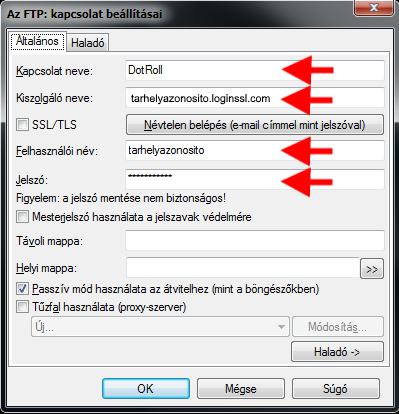
<div class="wp-caption alignnone">![The FTP connection settings](https://dotroll.com/wp-content/uploads/2020/08/Tc_hu_03.png)</div></div></div></div></div></div></div>The FTP connection settings

<div class="vc_row wpb_row vc_row-fluid"><div class="wpb_column vc_column_container vc_col-sm-12"><div class="vc_column-inner"><div class="wpb_wrapper"><div class="wpb_text_column wpb_content_element "><div class="wpb_wrapper"><div class="wp-caption alignnone" id="bkmrk--2"></div></div></div></div></div></div></div>Enable *passive mode* if you experience connection problems.

##### FURTHER READING

<div class="vc_row wpb_row vc_row-fluid"><div class="wpb_column vc_column_container vc_col-sm-12"><div class="vc_column-inner"><div class="wpb_wrapper"><div class="wpb_text_column wpb_content_element "><div class="wpb_wrapper">- [www.ghisler.com](https://www.ghisler.com/ "http://www.totalcommander.hu")

</div></div></div></div></div></div></section></div><div id="bkmrk--3"></div>

# How to Set Up the FileZilla FTP Client

<div id="bkmrk-the-data-given-in-th"><section class="wpb-content-wrapper"><p class="callout info">The data given in the picture is an illustration! You can find your actual settings in the administration interface!</p>

Full-featured FTP program, free. It supports firewall, custom commands, queuing multiple files, etc.

After starting the program, click on “File -&gt; Favorite Places ..”. Here we can add a new FTP connection.

Click the “New Station” button. You can enter the name of the station.
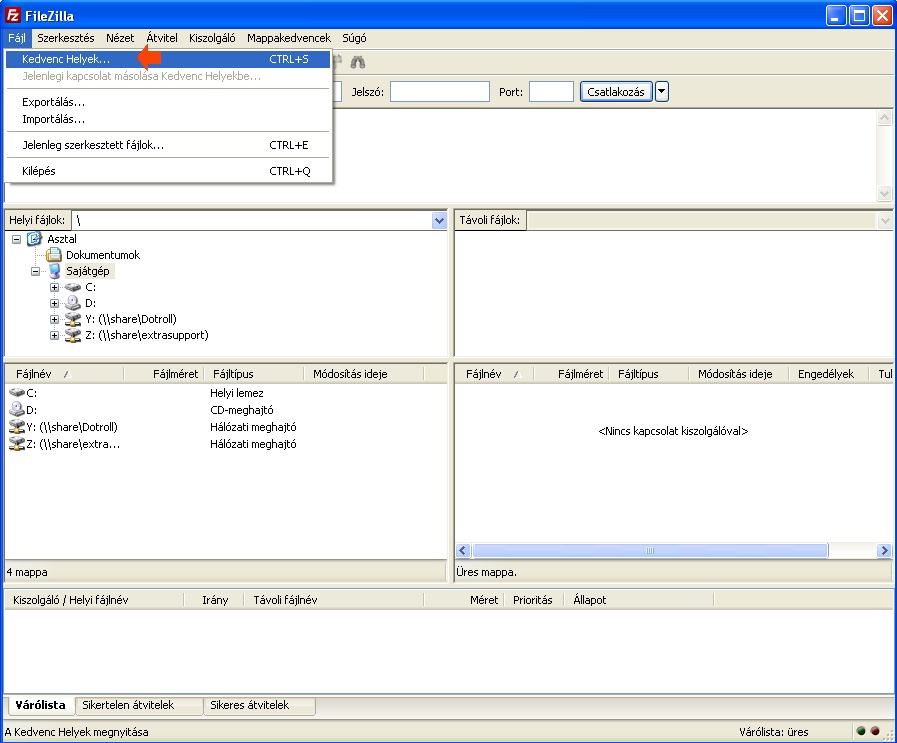
<div class="vc_row wpb_row vc_row-fluid"><div class="wpb_column vc_column_container vc_col-sm-12"><div class="vc_column-inner"><div class="wpb_wrapper"><div class="wpb_text_column wpb_content_element "><div class="wpb_wrapper"><div class="wp-caption alignnone">![FileZilla Opening screen](https://dotroll.com/wp-content/uploads/2020/08/Filezilla_ujkapcsolat.jpg)</div></div></div></div></div></div></div>FileZilla Opening screen

<div class="vc_row wpb_row vc_row-fluid"><div class="wpb_column vc_column_container vc_col-sm-12"><div class="vc_column-inner"><div class="wpb_wrapper"><div class="wpb_text_column wpb_content_element "><div class="wpb_wrapper"><div class="wp-caption alignnone" id="bkmrk-"></div></div></div></div></div></div></div>Then enter the information required to connect:

<div class="vc_row wpb_row vc_row-fluid"><div class="wpb_column vc_column_container vc_col-sm-12"><div class="vc_column-inner"><div class="wpb_wrapper"><div class="wpb_text_column wpb_content_element "><div class="wpb_wrapper">- **Address:** cpanelusername.loginssl.com
- **Port:** 21
- **Server Type:** FTP – File Transfer Protocol
- **Logon Type:** Normal
- **Username:** Your cPanel login name
- **Password:** Your cPanel password
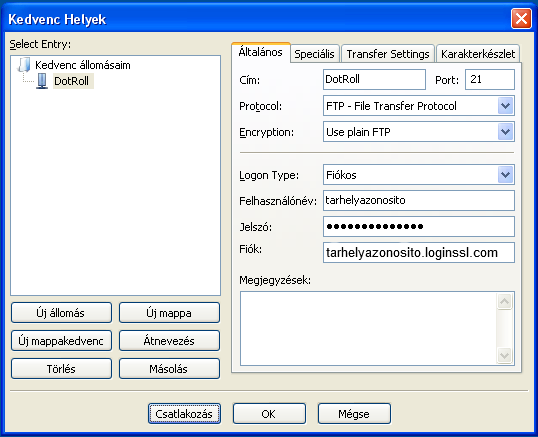
<div class="wp-caption alignnone">![FileZilla Connection settings](https://dotroll.com/wp-content/uploads/2020/08/Filezilla_sttings.png)</div></div></div></div></div></div></div>FileZilla Connection settings

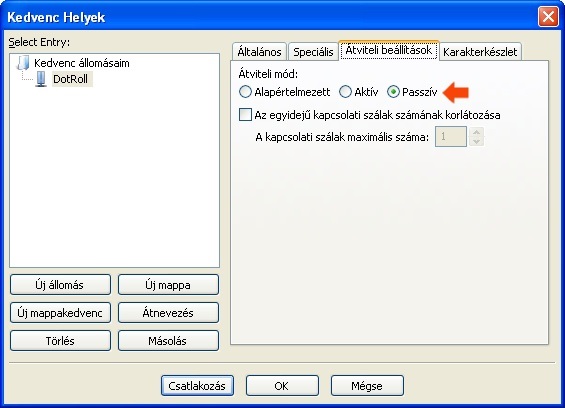
<div class="vc_row wpb_row vc_row-fluid"><div class="wpb_column vc_column_container vc_col-sm-12"><div class="vc_column-inner"><div class="wpb_wrapper"><div class="wpb_text_column wpb_content_element "><div class="wpb_wrapper"><div class="wp-caption alignnone" id="bkmrk--1"></div></div></div></div></div></div></div>You may also want to select “Passive” under “Transmission Mode” on the “Transmission Settings” tab.

<div class="vc_row wpb_row vc_row-fluid"><div class="wpb_column vc_column_container vc_col-sm-12"><div class="vc_column-inner"><div class="wpb_wrapper"><div class="wpb_text_column wpb_content_element "><div class="wpb_wrapper"><div class="wp-caption alignnone">![FileZilla Passive mode](https://dotroll.com/wp-content/uploads/2020/08/Filezilla_passziv.jpg)</div></div></div></div></div></div></div>FileZilla Passive mode

<div class="vc_row wpb_row vc_row-fluid"><div class="wpb_column vc_column_container vc_col-sm-12"><div class="vc_column-inner"><div class="wpb_wrapper"><div class="wpb_text_column wpb_content_element "><div class="wpb_wrapper"><div class="wp-caption alignnone" id="bkmrk--2"></div></div></div></div></div></div></div>You can then click the Connect button.

##### FURTHER READINGS

<div class="vc_row wpb_row vc_row-fluid"><div class="wpb_column vc_column_container vc_col-sm-12"><div class="vc_column-inner"><div class="wpb_wrapper"><div class="wpb_text_column wpb_content_element "><div class="wpb_wrapper">- [filezilla-project.org](https://filezilla-project.org/ "http://filezilla-project.org/")

</div></div></div></div></div><div class="wpb_column vc_column_container vc_col-sm-12"><div class="vc_column-inner"><div class="wpb_wrapper">  
</div></div></div></div></section></div><div id="bkmrk--3"></div>

# DotRoll Free Hosting Guide

If you buy a domain from DotRoll Kft, you can use a 50 MB static storage space free of charge. This means that the dynamic-based system (forum, content manager, blog) cannot be operated from this repository, however, we can store our pages created in raw HTML, with editors if necessary.

<p class="callout info">For technical reasons, free hosting can only be used if you use DotRoll Ltd. name servers.</p>

#### SET THE FTP PASSWORD

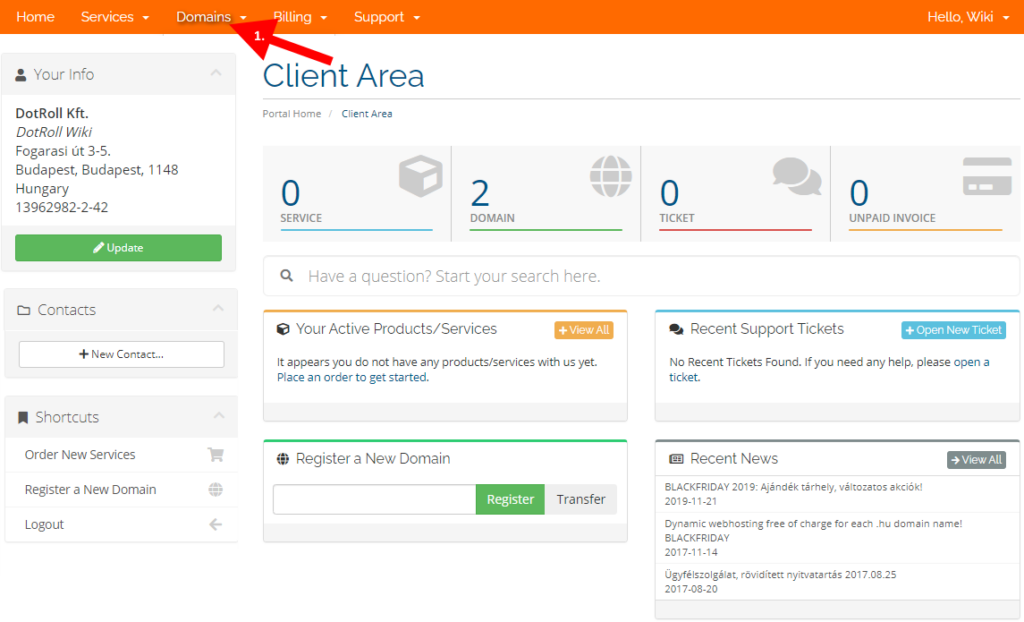
<div class="vc_row wpb_row vc_row-fluid" id="bkmrk-log-in-to-the-page%2C-"><div class="wpb_column vc_column_container vc_col-sm-12"><div class="vc_column-inner"><div class="wpb_wrapper"><div class="wpb_text_column wpb_content_element "><div class="wpb_wrapper">1. Log in to the page, then click **Domains** in the top menu bar <div class="wp-caption alignnone">![Domains menu](https://dotroll.com/wp-content/uploads/2020/08/free_en0-1024x622.png)</div>Domains menu
    
    <div class="wp-caption alignnone" id="bkmrk-"></div>
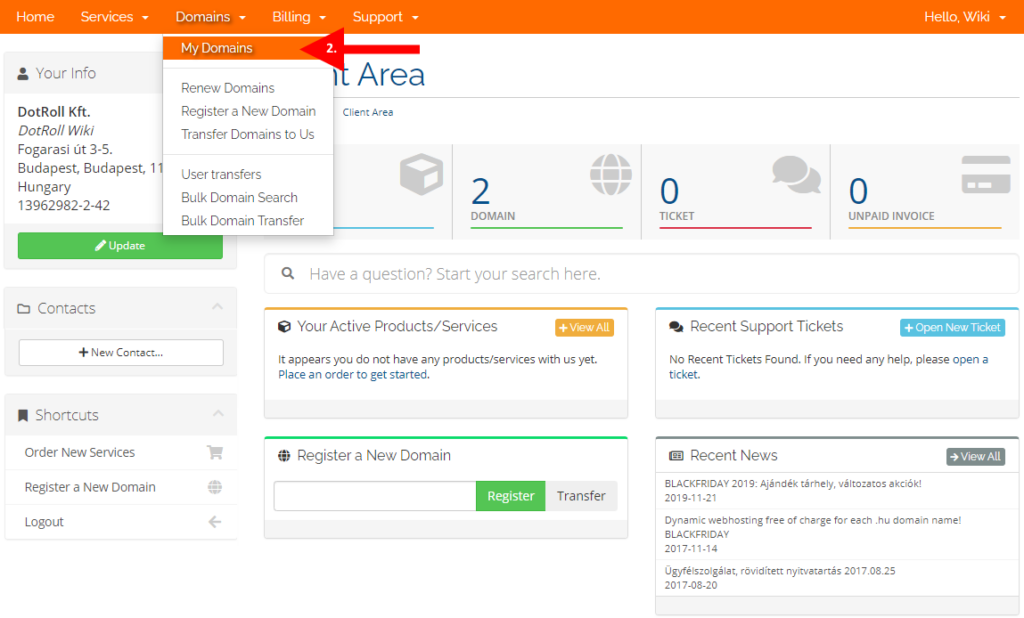
2. Select the **My Domains** submenu from the drop-down menu <div class="wp-caption alignnone">![My Domains sub menu](https://dotroll.com/wp-content/uploads/2020/08/free_en1-1024x618.png)</div>My Domains sub menu
    
    <div class="wp-caption alignnone" id="bkmrk--1"></div>
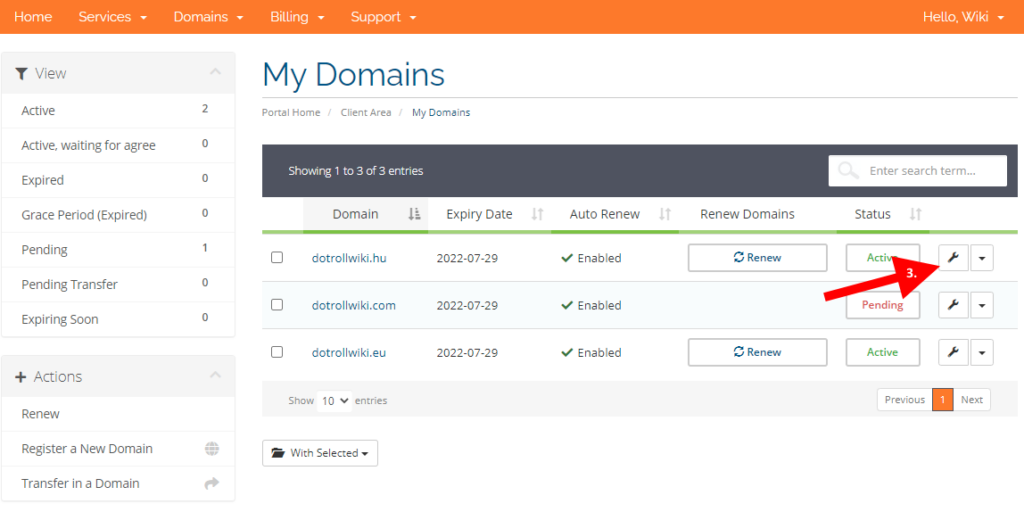
3. Then click the wrench icon at the end of the line. <div class="wp-caption alignnone">![Wrench icon](https://dotroll.com/wp-content/uploads/2020/08/free_en2-1024x512.png)</div>Wrench icon
    
    <div class="wp-caption alignnone" id="bkmrk--2"></div>
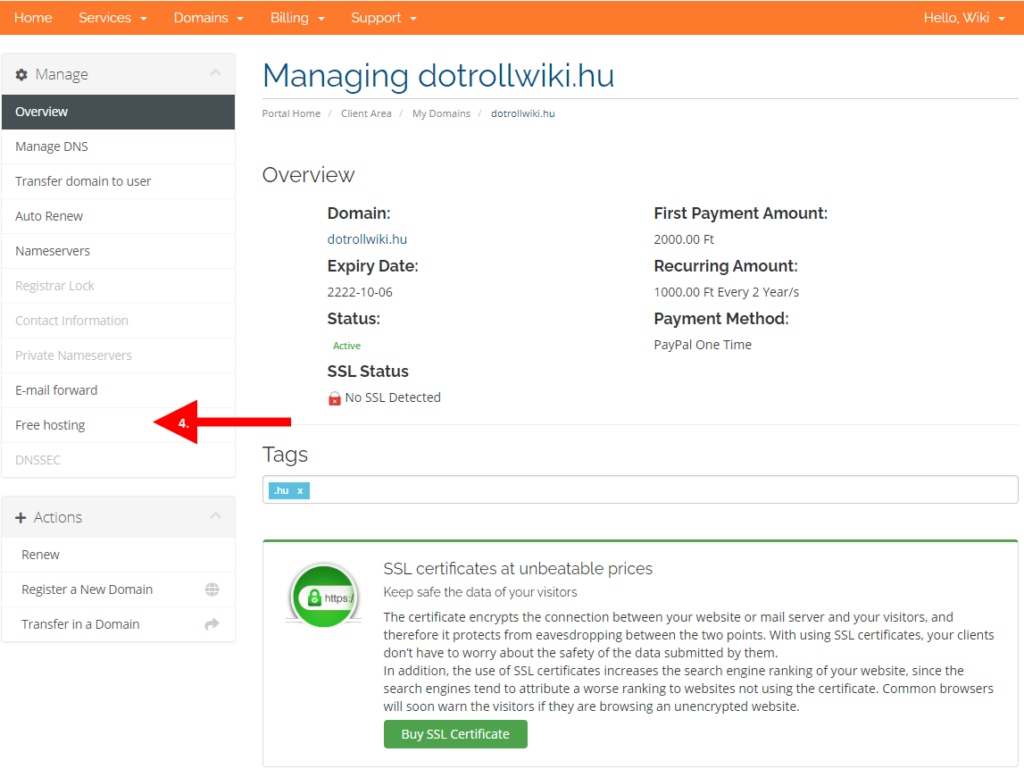
4. In the **Manage** box at the top left of the page, click **Free Hosting** option <div class="wp-caption alignnone">![Select Free hosting option](https://dotroll.com/wp-content/uploads/2020/08/free_en3-1024x769.png)</div>Select Free hosting option
    
    <div class="wp-caption alignnone" id="bkmrk--3"></div>
5. On the page that appears, enter: 
    - the password for the FTP user
    - repeat the password
    - Select the checkbox next to **I have read and agree to the Terms of Service.**
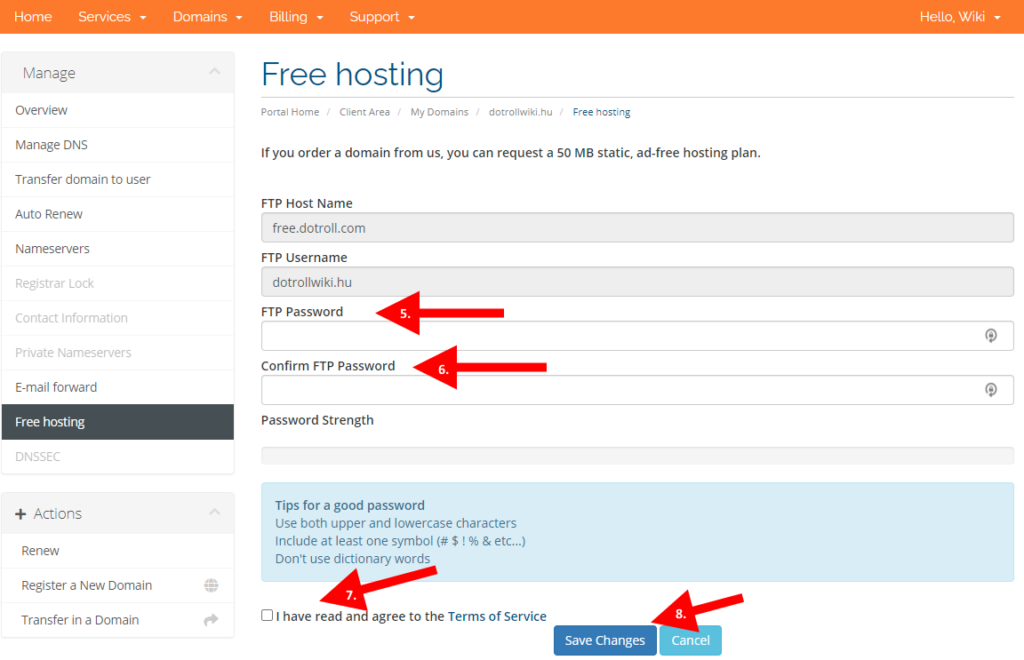
    
    <div class="wp-caption alignnone">![Type password](https://dotroll.com/wp-content/uploads/2020/08/free_en4-1024x660.png)</div>Type password
    
    <div class="wp-caption alignnone" id="bkmrk--4"></div>
6. Finally, click the save button.

</div></div></div></div></div></div>#### CONNECT TO THE FTP SERVER

After saving, you can connect to the FTP server after specifying the following settings:

**FTP server address:** free.dotroll.com  
**FTP port:** 21  
**FTP user name:** enter the domain name for which you have previously set up **Free Hosting**.  
**FTP password:** the previously set password.

<p class="callout info">To avoid possible connection problems, we recommend that you use the FTP client program to connect to the server in passive mode.</p>

##### SUPPORTED FTP CLIENT PROGRAMS:

<div class="vc_row wpb_row vc_row-fluid" id="bkmrk-total-commander-file"><div class="wpb_column vc_column_container vc_col-sm-12"><div class="vc_column-inner"><div class="wpb_wrapper"><div class="wpb_text_column wpb_content_element "><div class="wpb_wrapper">- Total Commander
- FileZilla
- FireFTP

</div></div></div></div></div></div>[Comparison of FTP clients](https://en.wikipedia.org/wiki/Comparison_of_FTP_client_software)

#### DISPLAYING UPLOADED CONTENT IN THE BROWSER

In order for the content uploaded to the hosting to appear in the browser, you must change the current A and / or WWW A record in the DNS settings for that domain name.

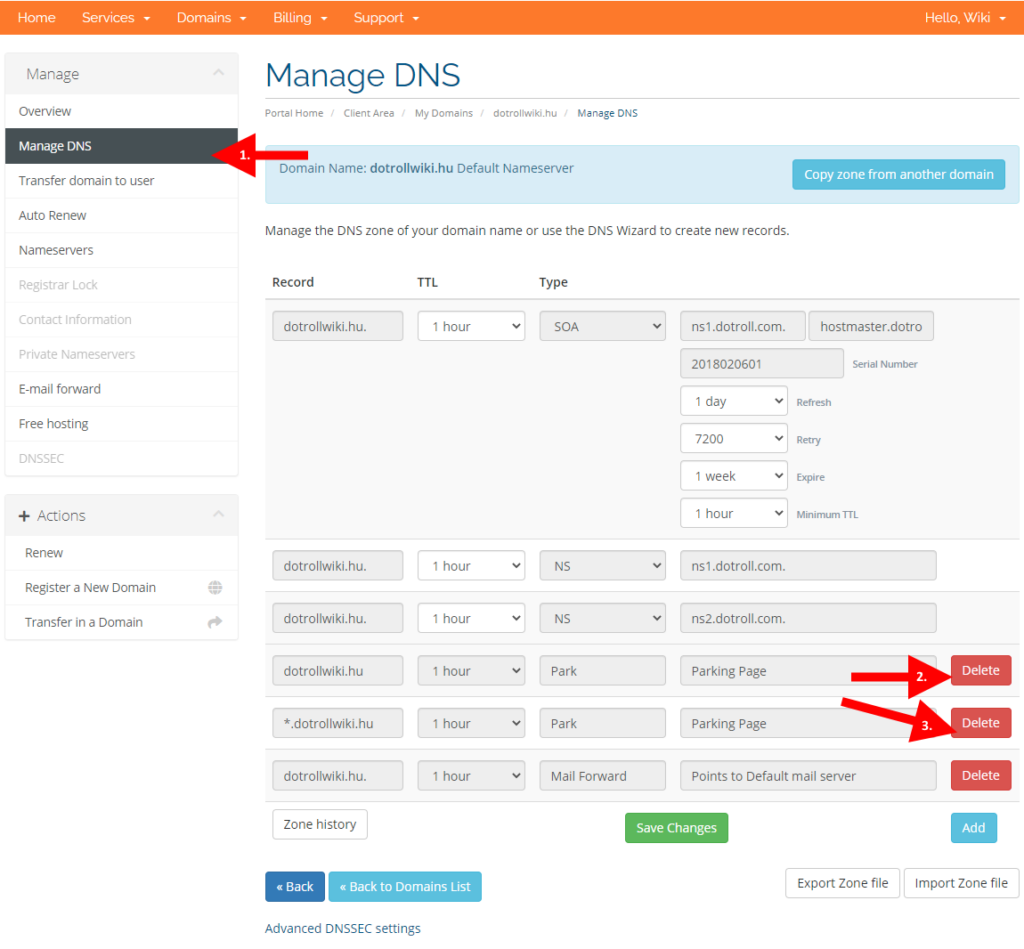
<div class="vc_row wpb_row vc_row-fluid" id="bkmrk-to-change-your-dns-s"><div class="wpb_column vc_column_container vc_col-sm-12"><div class="vc_column-inner"><div class="wpb_wrapper"><div class="wpb_text_column wpb_content_element "><div class="wpb_wrapper">1. To change your DNS settings, click **Manage DNS** in the **Manage** box on the domain name data sheet.
2. On the page that appears, find the plain **Park** record for the domain name and click **Delete**, in case you want your domain name to display the same content with and without the www prefix, then click the **Delete** button for the **Park** record starting with \*. <div class="wp-caption alignnone">![Select Manage DNS option](https://dotroll.com/wp-content/uploads/2020/08/free_en5-1024x949.png)</div>Select Manage DNS option
    
    <div class="wp-caption alignnone" id="bkmrk--5"></div>
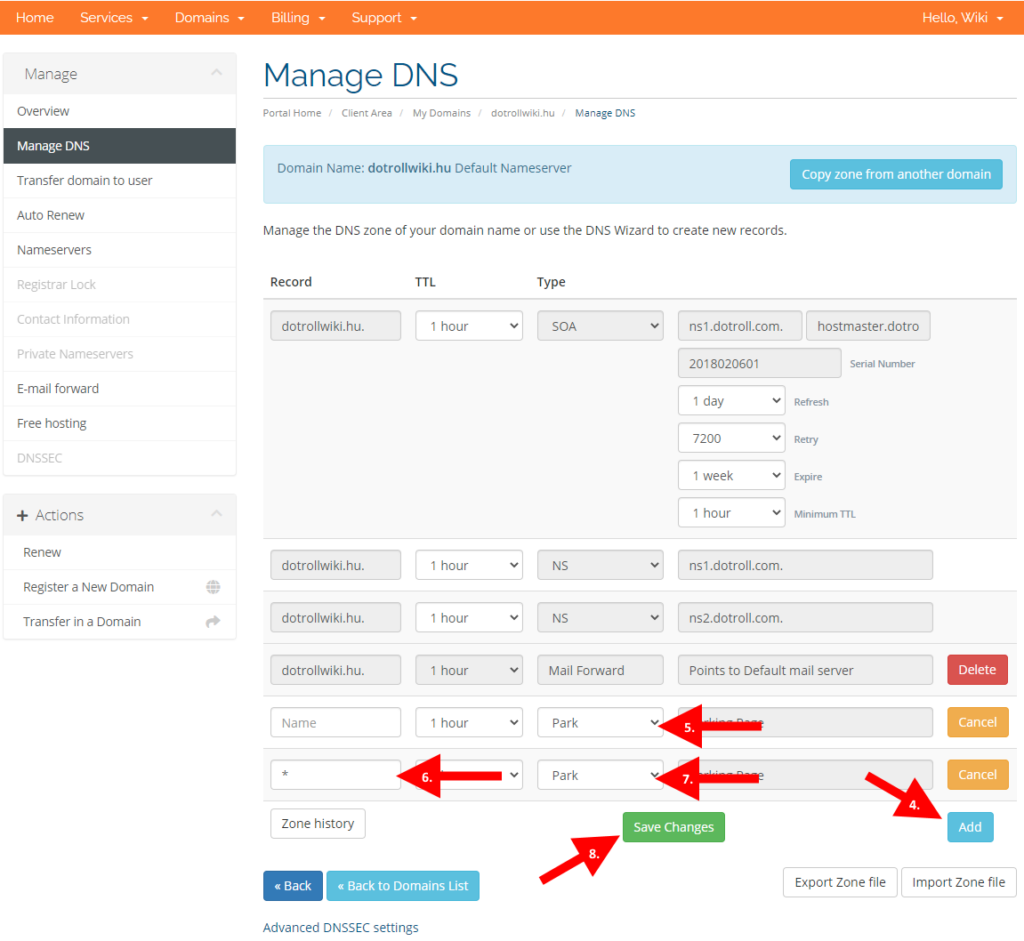
3. Then double-click the **Add** button in the lower right corner of the page <div class="wp-caption alignnone">![Edit the DNS zone](https://dotroll.com/wp-content/uploads/2020/08/free_en6-1024x941.png)</div>Edit the DNS zone
    
    <div class="wp-caption alignnone" id="bkmrk--6"></div>
4. Select **Freeweb** from the drop-down list in the third column.
5. In the first field on the bottom row, enter the \* prefix, and in the third column, select **Freeweb**.
6. Finally, use the **Save Changes** button to save the configuration.

</div></div></div></div></div></div><p class="callout info">Because the previously specified settings in the zone file for the domain name have changed, it must be updated. This refresh time usually takes 1-4 hours so during this period, calling the domain name in your browser may not display the uploaded content.</p>

# How to Fix the “Illegal PORT Command” FTP Error

If you are behind a router (NAT) or firewall while using [FTP](https://dotroll.com/en/knowledge-base/books/ftp "FTP"), you must enable passive mode in your FTP client.

<div id="bkmrk-"></div><div id="bkmrk--1"></div>

# What Is FTPS and How Does It Work?

If you are behind a router (NAT) or firewall while using [FTP](https://dotroll.com/en/knowledge-base/books/ftp "FTP"), you must enable passive mode in your FTP client.

<div id="bkmrk-"></div><div id="bkmrk--1"></div>

# What Is FTP and How Does It Work?

FTP (File Transfer Protocol) is a protocol for copying files to remote sites. Due to the fact, that it was born in the early years of the internet, no encryption was implemented. To remedy the situation, [FTPS](https://dotroll.com/en/knowledge-base/books/ftp/page/what-is-ftps-and-how-does-it-work "FTPS") was invented.

FTP has two modes of operation: active and passive. Active means, that the server connects back to the client to transfer data. This is only possible, if the client is not behind a firewall / NAT router. Most home / company sites are protected by such devices, so use of passive mode is recommended.

Below are some third-party clients, without the need for completeness

#### WINDOWS

- [Total Commander](https://dotroll.com/en/knowledge-base/books/ftp/page/how-to-use-ftp-with-total-commander)
- [WinSCP](https://dotroll.com/en/knowledge-base/books/ftp/page/how-to-use-ftp-with-winscp)
- [Filezilla](https://admin.dotroll.com/knowledgebase/98/using-ftp-with-filezilla.html?swcfpc=1)
- [FireFTP](https://dotroll.com/en/knowledge-base/books/ftp/page/how-to-set-up-the-filezilla-ftp-client)
- Cyberduck
- CrossFTP
- FlashFXP
- CuteFTP

#### MAC OS X

- Yummy
- [Filezilla](https://dotroll.com/en/knowledge-base/books/ftp/page/how-to-set-up-the-filezilla-ftp-client)
- FireFTP
- Cyberduck
- CrossFTP
- Fetch
- Transmit
- Captain FTP

#### UNIX/LINUX

- Konqueror KDE
- FTP Natutilus (GMONE)
- Filezilla
- CrossFTP
- gFTP
- FtpCube
- FireFTP
- Midnight Commander

You can find a comparison of FTP clients [here](https://en.wikipedia.org/wiki/Comparison_of_FTP_client_software).

#### SEE MORE

- FTPS
- Illegal PORT command

# How to Create and Edit Files via FTP

The easiest way is to use [FTP client](https://dotroll.com/en/knowledge-base/books/ftp "FTP client") to create and modify files on your storage. This method is much simpler than creating and editing command line files. Any FTP client program can be used, however, in this document, we will present the filezilla client as duplicate and modify the files. The program can be downloaded from the following link:

[Download Filezilla](https://filezilla-project.org/download.php "Download Filezilla")

Of course, you can create a file using cPanel’s built-in file manager or SSH, and you can access the related descriptions through the following links:

<div class="vc_row wpb_row vc_row-fluid" id="bkmrk-creating-and-editing"><div class="wpb_column vc_column_container vc_col-sm-12"><div class="vc_column-inner"><div class="wpb_wrapper"><div class="wpb_text_column wpb_content_element "><div class="wpb_wrapper">- [Creating and editing a file via cPanel internal File Manager](https://dotroll.com/en/knowledge-base/books/cpanel/page/how-to-create-and-edit-files-using-cpanel-file-manager "Creating and editing a file via cPanel internal File Manager")
- [Creating and editing a file via SSH](https://dotroll.com/en/knowledge-base/books/other/page/how-to-create-and-edit-files-via-ssh "Creating and editing a file via SSH")

</div></div></div></div></div></div><p class="callout danger">The following description is just an example of how to create or modify a file using an FTP client. Following the description, make sure you create the file at the right place. If you modify it, edit the file you want.</p>

#### CREATE A FILE

You can create a file using the steps below:

<div class="vc_row wpb_row vc_row-fluid" id="bkmrk-to-connect-to-the-se"><div class="wpb_column vc_column_container vc_col-sm-12"><div class="vc_column-inner"><div class="wpb_wrapper"><div class="wpb_text_column wpb_content_element "><div class="wpb_wrapper">1. To connect to the server, see the description of the use of FTP clients.
2. Make sure that clines is turned on to show hidden files
3. After you have successfully logged in, make sure you are in the directory where you want to create the file. You can see it at the right of the file manager in the “Remote Directory” section. In the example, the remote directory is **/home/example\_user/exampledomain.com**
4. Right-click and select Create a new file
5. In the popup window that appears, enter the file name. In this example, the file is named **.htaccess**. Then click **OK**.
6. Then the empty file created on the server becomes visible.

</div></div></div></div></div></div>#### EDIT A FILE

Follow the steps below to change an existing file.

<div class="vc_row wpb_row vc_row-fluid" id="bkmrk-to-connect-to-the-se-1"><div class="wpb_column vc_column_container vc_col-sm-12"><div class="vc_column-inner"><div class="wpb_wrapper"><div class="wpb_text_column wpb_content_element "><div class="wpb_wrapper">1. To connect to the server, see the description of the use of FTP clients.
2. Make sure that clines is turned on to show hidden files
3. After you have successfully logged in, make sure you are in the directory where you want to create the file. You can see it at the right of the file manager in the “Remote Directory” section. In the example, the remote directory is **/home/example\_user/exampledomain.com**
4. Right-click on that file and select **Edit**
5. In the popup window that appears, you can select the text editor. You can specify an already installed text editor, but you can also use the default for Notepad for Windows.
6. After Notepad has loaded the file, make the necessary changes, then save the file with **File** / **Save** and close the Notepad application.
7. After a few seconds, a warning will alert you to a change in the file and offer the upload. Select **Yes** here.

</div></div></div></div></div></div>