# Why Emails Go to Gmail Spam and How to Fix It

In the case of your webhosting sent letters to the Gmail system classifies unsolicited mail (spam), you should check the following steps:

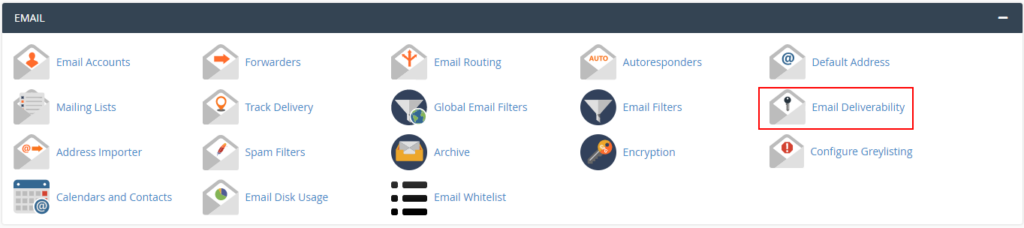
<div class="vc_row wpb_row vc_row-fluid" id="bkmrk-in-the-cpanel-interf"><div class="wpb_column vc_column_container vc_col-sm-12"><div class="vc_column-inner"><div class="wpb_wrapper"><div class="wpb_text_column wpb_content_element "><div class="wpb_wrapper">1. 1. In the cPanel interface find the **Email** box, and click, the **Email Deliverability** menu. <div class="wp-caption alignnone">![Email Deliverability](https://dotroll.com/wp-content/uploads/2020/08/email_deliverability-1024x228.png)</div>Email Deliverability
        
        <div class="wp-caption alignnone" id="bkmrk-"></div>
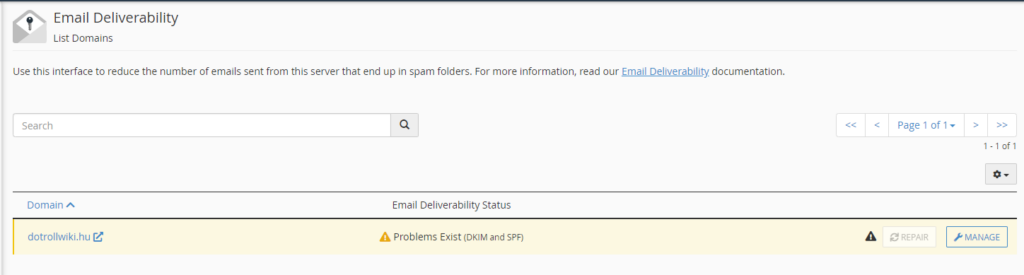
    2. On the page that appears, click the **Manage** button next to that domain name. <div class="wp-caption alignnone">![Manage domain](https://dotroll.com/wp-content/uploads/2020/08/email_deliverability_1-1024x275.png)</div>Manage domain
        
        <div class="wp-caption alignnone" id="bkmrk--1"></div>
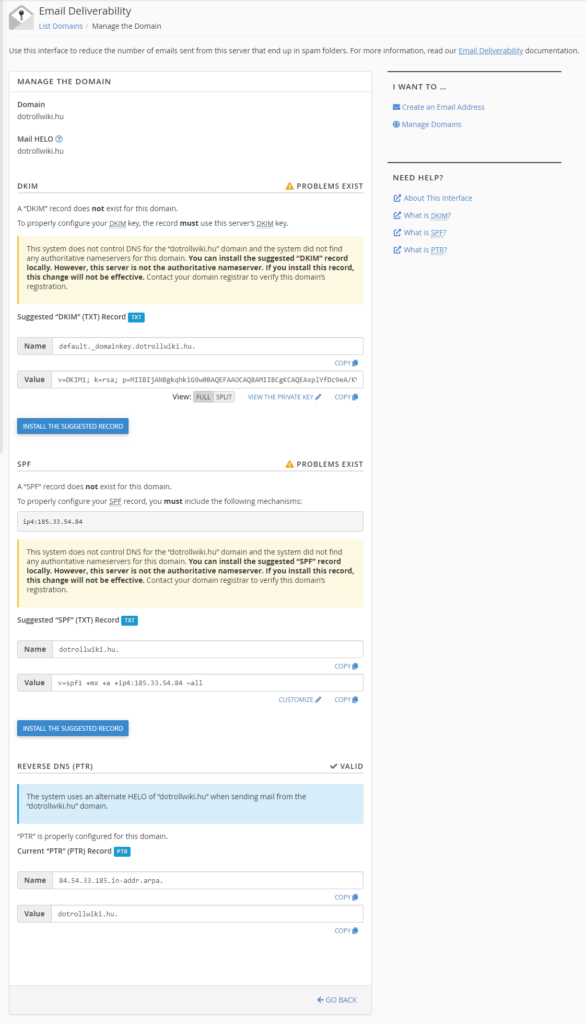
    3. After loading the page, click on the **Install the suggested record** button for incorrect or missing items. <div class="wp-caption alignnone">![Install the suggested record's](https://dotroll.com/wp-content/uploads/2020/08/email_deliverability_2-586x1024.png)</div>Install the suggested record’s
        
        <div class="wp-caption alignnone" id="bkmrk--2"></div>

</div></div></div></div></div></div><p class="callout info">In case you use the name servers for the hosting, cPanel will automatically set the two TXT records required for the domain name, so you have no further action to take.</p>

<p class="callout danger">If for some reason your unique domain name servers to use the name you need to set up a nameserver TXT records manually.</p>

<div class="vc_row wpb_row vc_row-fluid" id="bkmrk-to-query-the-txt-rec"><div class="wpb_column vc_column_container vc_col-sm-12"><div class="vc_column-inner"><div class="wpb_wrapper"><div class="wpb_text_column wpb_content_element "><div class="wpb_wrapper">1. To query the TXT record in Microsoft Windows: 
    - **Windows XP**: Start Menu -&gt; Run -&gt; Type “cmd” without quotes -&gt; Enter Enter
    - **Windows Vista / 7 / 8 / 8.1 / 10**: Start Menu -&gt; enter in the search box without “cmd” quotes -&gt; Enter Enter!
    
    To query the SPF record, enter the following in the window that appears:
    
    ```
    nslookup -q=TXT the_indicated_domain_name
    ```
    
    we will get a similar answer:
    
    <div class="wp-caption alignnone">![Query SPF record](https://dotroll.com/wp-content/uploads/2020/08/spf_dkim_setup2-1.png)</div>Query SPF record
    
    <div class="wp-caption alignnone" id="bkmrk--3"></div>To query the DKIM record, enter the following:
    
    ```
    nslookup -q=TXT default._domainkey.the_indicated_domain_name
    ```
    
    we will get a similar answer:
    
    <div class="wp-caption alignnone">![Query DKIM record](https://dotroll.com/wp-content/uploads/2020/08/spf_dkim_setup3-1.png)</div>Query DKIM record
    
    <div class="wp-caption alignnone" id="bkmrk--4"></div>In both cases, the data contained in the quotation marks received as a divorce should be included as a TXT record in the domain name DNS zone.
    
    In addition, we recommend that you set a DMARC record for the domain name in the domain name DNS zone.
    
    Read more **[here](https://dotroll.com/en/knowledge-base/how-to-create-a-dmarc-record/ "How to create a DMARC record?")**.
    
    You can test your settings here:  
    [https://www.mail-tester.com/spf-dkim-check](https://www.mail-tester.com/spf-dkim-check)

</div></div></div></div></div></div>