# How to Set Up TortoiseSVN

- #### [GENERATE SSH KEY, OR SET IT UP](https://dotroll.com/en/knowledge-base/books/cpanel/page/how-to-generate-and-configure-ssh-keys "Generate SSH key, or set it up")
- #### CONNECT VIA SSH
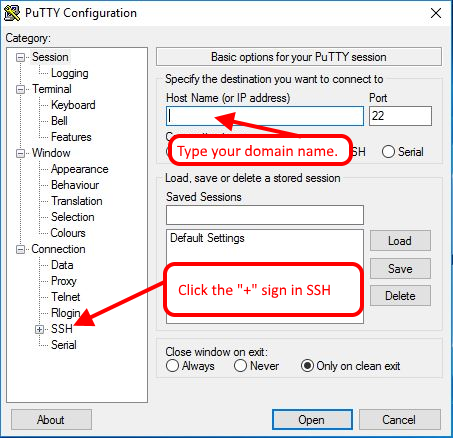
    
    <div class="wp-caption alignnone">![PuTTY login](https://dotroll.com/wp-content/uploads/2020/08/ssh_en_0.png)</div>PuTTY login
    
    <div class="wp-caption alignnone" id="bkmrk-"></div>  
    In Host Name (or IP address), enter the name of your main domain. Port is the default port 22.
    
    Next, click the “+” sign next to SSH.
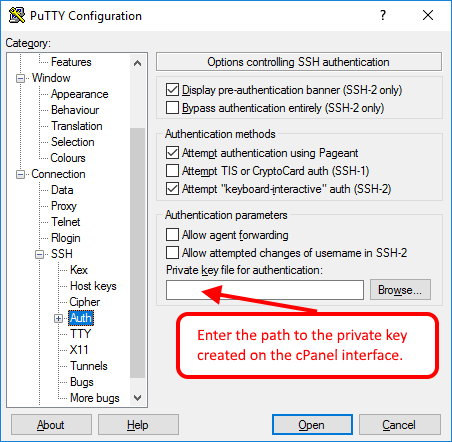
    
    <div class="wp-caption alignnone">![PuTTY login](https://dotroll.com/wp-content/uploads/2020/08/ssh_en_1.png)</div>PuTTY login
    
    <div class="wp-caption alignnone" id="bkmrk--1"></div>  
    In the Private key file for authentication box, enter the key for the cPanel interface or the private key that you created earlier.  
    You can then save the configuration, but you can also connect to your storage immediately.
- #### CREATING SVN DIRECTORY
    
    The directory and the repository itself must be created through SSH:
    
    ```
       cd wwwroot
       mkdir svn
       cd svn
       svnadmin create reponeve
    
    ```
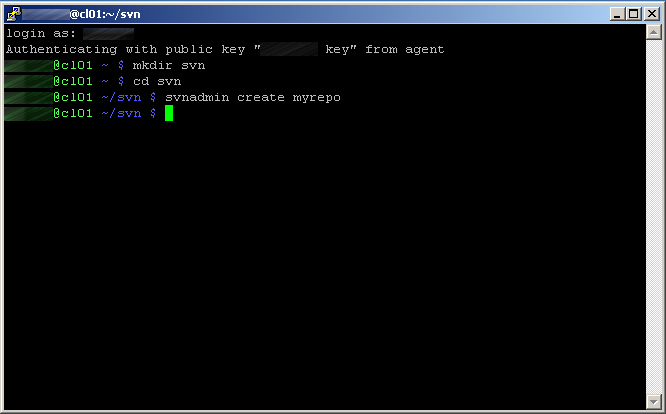
    
    <div class="wp-caption alignnone">![Create SVN repo](https://dotroll.com/wp-content/uploads/2020/08/Step2_-_create_repo.png)</div>Create SVN repo
    
    <div class="wp-caption alignnone" id="bkmrk--2"></div>
- #### SETUP TORTOISESVN
    
    In TortoiseSVN, only the name of the program required for the connection is required.
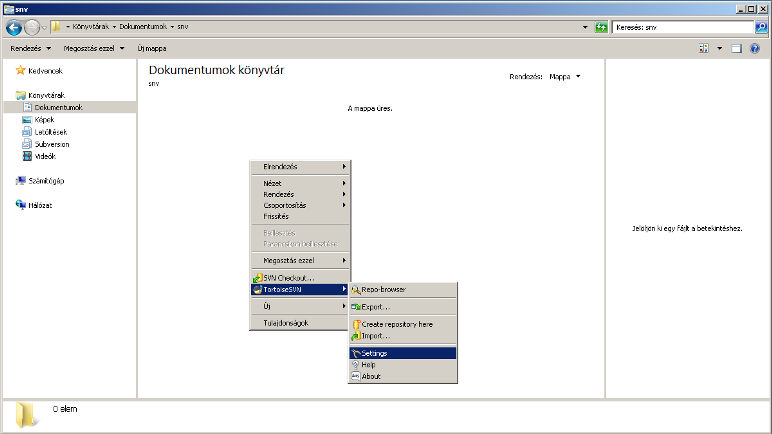
    
    <div class="wp-caption alignnone">![TortoiseSVN Settings](https://dotroll.com/wp-content/uploads/2020/08/Step3_-_TortoiseSVN_settings.png)</div>TortoiseSVN Settings
    
    <div class="wp-caption alignnone" id="bkmrk--3"></div>  
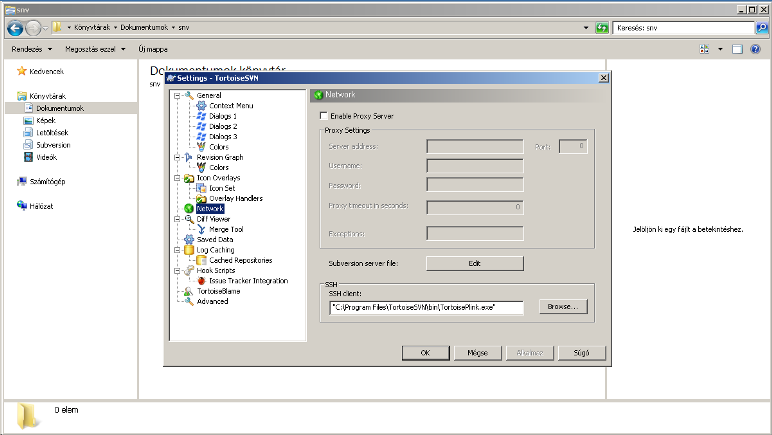
    Click the right mouse button in the folder, and select **Tortoise SVN/Network** menu  
    <div class="wp-caption alignnone">![TortoiseSVN Settings](https://dotroll.com/wp-content/uploads/2020/08/SVN_setup1.png)</div>TortoiseSVN Settings
    
    <div class="wp-caption alignnone" id="bkmrk--4"></div>  
    Click the **Browse** button for **SSH client**, then enter the path for the folloving line: ```
      C:\Program Files\TortoiseSVN\bin\TortoisePlink.exe
    
    ```
    
    Next click Ok.
- #### CHECKOUT
    
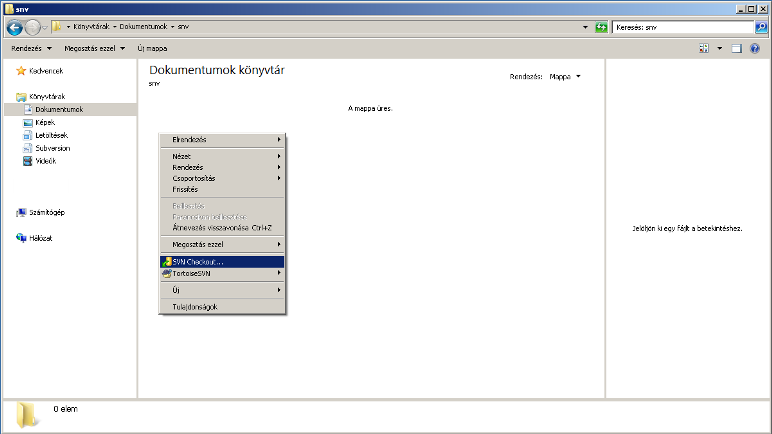
    To set up the repository, click the right mouse button, then select SVN Checkout… menu
    
    <div class="wp-caption alignnone">![Checkout](https://dotroll.com/wp-content/uploads/2020/08/Step6_-_Checkout.png)</div>Checkout
    
    <div class="wp-caption alignnone" id="bkmrk--5"></div>  
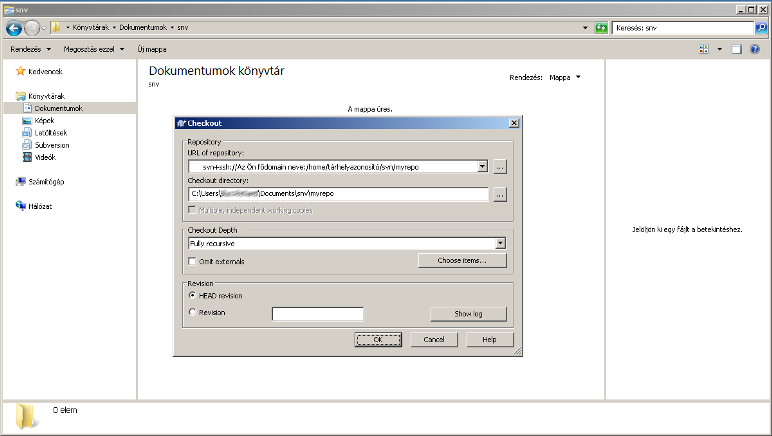
    To use SVN, you must specify the repository URL as follows: ```
       svn+ssh://az_on_fodomain_neve/home/tarhelyazonosito/path/to/svn/repo
    ```
    
    <div class="wp-caption alignnone">![SVN repository URL](https://dotroll.com/wp-content/uploads/2020/08/Step7_-_Repourl.png)</div>SVN repository URL
    
    <div class="wp-caption alignnone" id="bkmrk--6"></div>