# How to Set Up Email on iPhone and iPad

#### LOG IN TO THE CPANEL INTERFACE AND CREATE THE MAILBOX YOU WANT TO SET UP

<div class="wpb_text_column wpb_content_element " id="bkmrk-use-your-device-to-l"><div class="wpb_wrapper">1. Use your device to log in to the cPanel interface.
2. Create a mailbox! ([How to create E-mailbox is cPanel?](https://dotroll.com/en/knowledge-base/books/e-mail/page/how-to-create-an-email-account-in-cpanel "How to create E-mailbox is cPanel?"))

</div></div>#### DOWNLOAD PROFILE TO YOUR DEVICE

<div class="wpb_text_column wpb_content_element " id="bkmrk-after-you-have-creat"><div class="wpb_wrapper">1. After you have created the mailbox in the cPanel interface, scroll down to the Email accounts section in the Mailbox under Email accounts and click on Connect Tools. <div class="wp-caption aligncenter">![Connect Devices](https://dotroll.com/wp-content/uploads/2022/09/mbox15-2.png)</div>Connect Devices

    
    <div class="wp-caption aligncenter" id="bkmrk-"></div>
2. Tap the IMAP SSL/TLS link to download the profile with configuration settings. <div class="wp-caption aligncenter">![IMAP over SSL/TLS](https://dotroll.com/wp-content/uploads/2022/09/mbox16-2.png)</div>IMAP over SSL/TLS

    
    <div class="wp-caption aligncenter" id="bkmrk--1"></div>
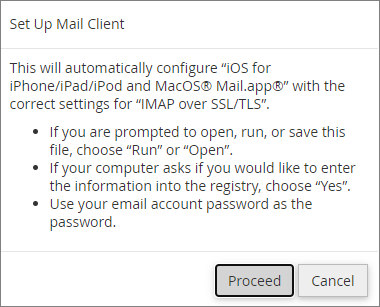
3. The interface will display the following message, approve it: <div class="wp-caption aligncenter">![Set Up Mail Client](https://dotroll.com/wp-content/uploads/2022/09/mbox17-2.png)</div>Set Up Mail Client
    
    <div class="wp-caption aligncenter" id="bkmrk--2"></div>

</div></div>#### SETUP PROCEDURE

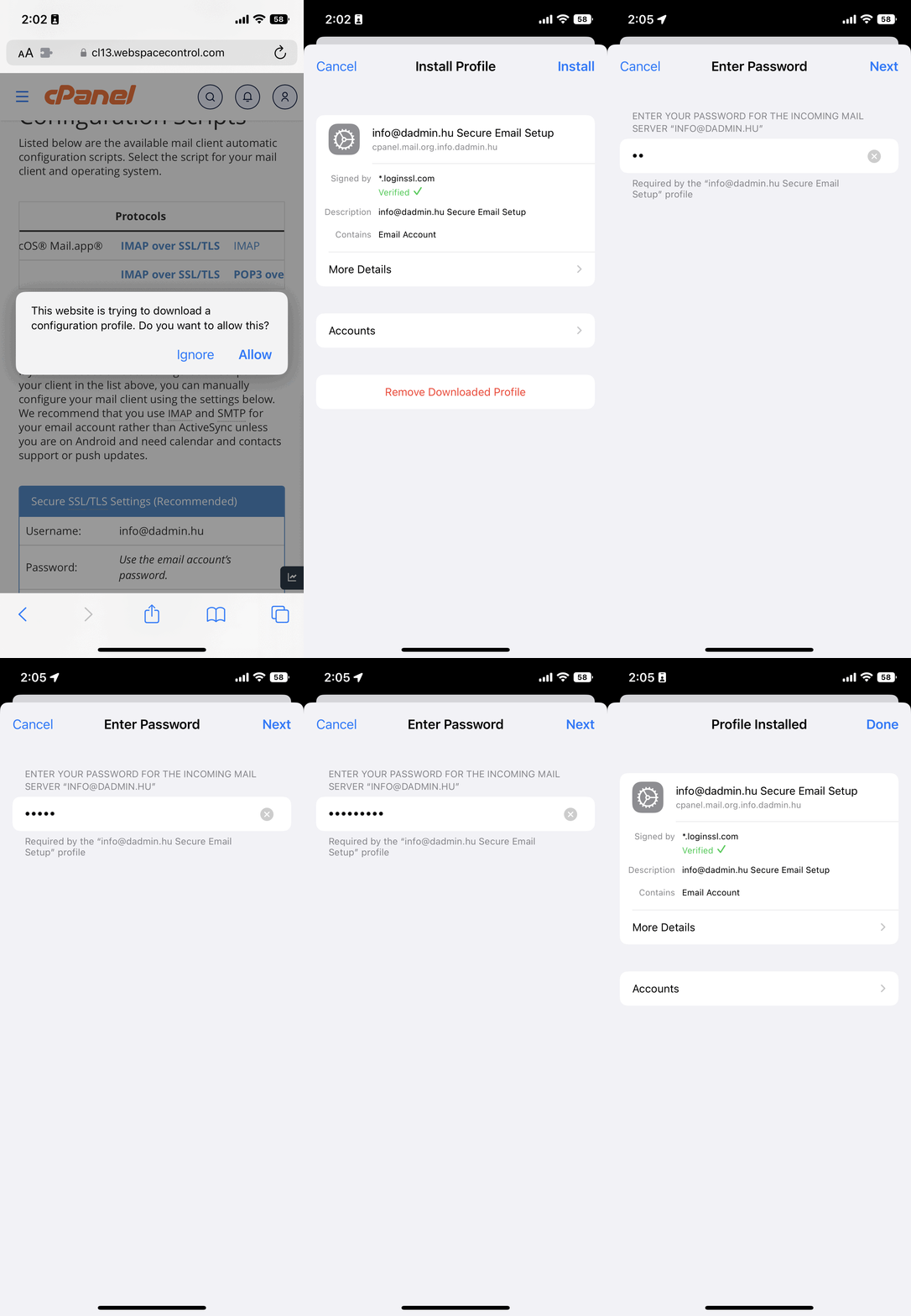
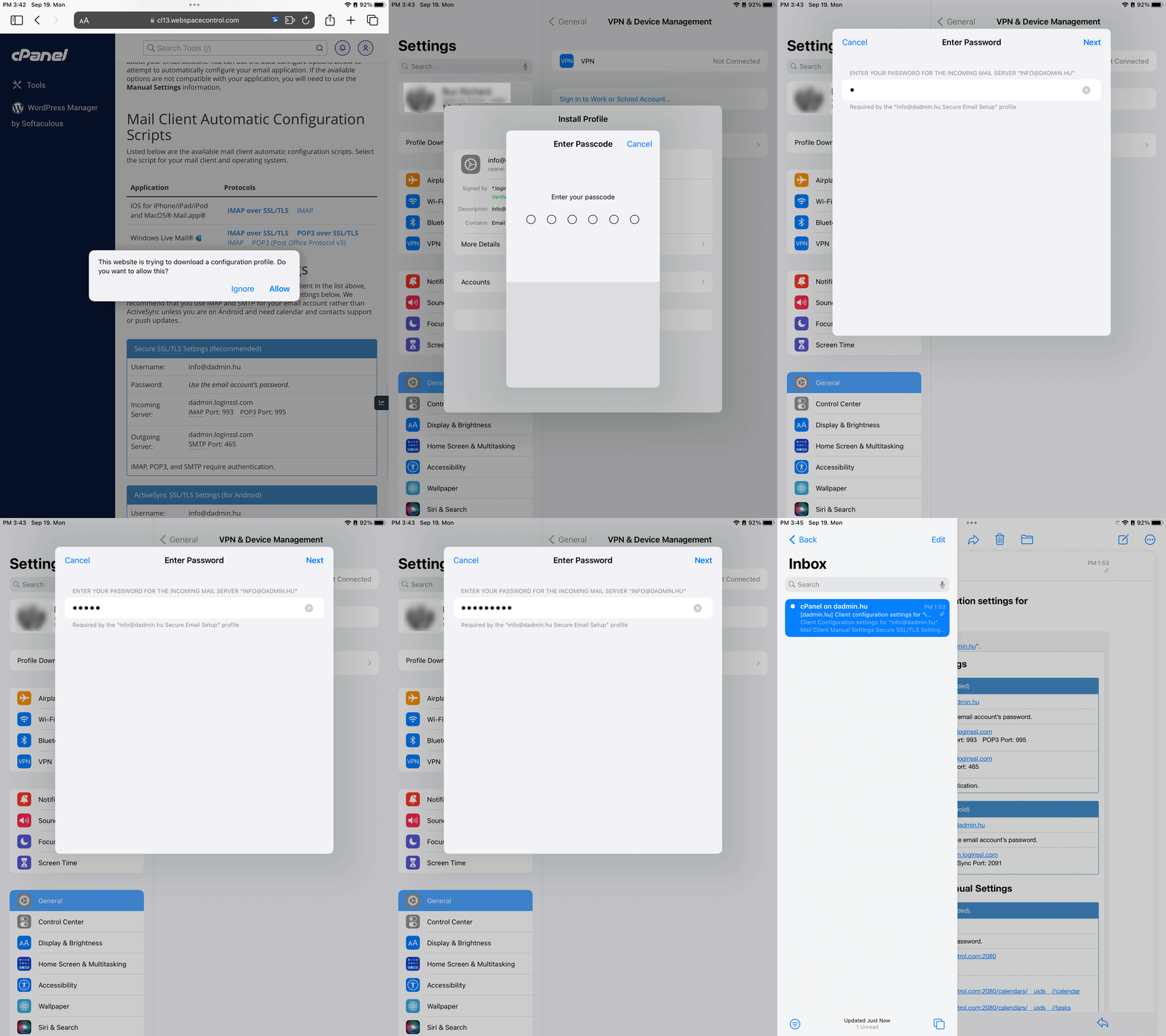
The setup is similar for iPhone and iPad. To set up, follow the steps below:

<div class="wpb_text_column wpb_content_element " id="bkmrk-approve-the-warning-"><div class="wpb_wrapper">- Approve the warning message that appears to download the profile to your device.
- Navigate to the **Settings** menu, where you tap **Profile downloaded** under your Apple profile.
- The device will then load the data in the saved configuration file and display it, tap **Install** here.
- Then tap the **Install** button at the bottom.
- Enter the password for the mailbox you want to set up, then tap **Next** in the top right corner.
- Finally, tap **Done**.
<div class="wp-caption aligncenter">![](https://dotroll.com/wp-content/uploads/2022/09/iPhone_en.gif)</div></div></div>Quick setup Mail on iPhone

<div class="wpb_text_column wpb_content_element " id="bkmrk--3"><div class="wpb_wrapper"><div class="wp-caption aligncenter" id="bkmrk--4"></div>  
<div class="wp-caption aligncenter">![Quick setup Mail on iPad](https://dotroll.com/wp-content/uploads/2022/09/iPad_en.gif)</div></div></div>Quick setup Mail on iPad

<div class="wpb_text_column wpb_content_element " id="bkmrk--5"><div class="wpb_wrapper"><div class="wp-caption aligncenter" id="bkmrk--6"></div></div></div>